
1. Introduction
This manual provides detailed instructions for the setup, operation, and maintenance of your LICAEVEY Mini 4-Key Mechanical Gaming Keypad. This compact and versatile keypad is designed to enhance your computing experience with customizable macro programming, dynamic RGB lighting, and multi-layer key mapping capabilities.

Image: Top view of the LICAEVEY Mini 4-Key Mechanical Gaming Keypad, showcasing its compact design.
Package Contents:
- 1 x 4-Key Keypad
- 1 x Data Cable (USB-A to USB-C)
- 1 x User Manual

Image: The 4-key keypad shown alongside its braided USB data cable.
2. Key Features
The LICAEVEY Mini 4-Key Mechanical Gaming Keypad offers a range of features designed for versatility and performance:
- Customizable Macro Programming: Tailor specific shortcuts or macro definitions to suit your preferences or work demands.
- Dynamic RGB Lighting Effects: Enhance visual appeal with adjustable colors and modes.
- Wired USB Connectivity: Offers plug-and-play convenience across multiple devices and operating systems without additional drivers.
- Advanced Macro Capabilities: Record and store sequences of keyboard and mouse actions, including delays.
- Multi-Layer Key Mapping: Effortlessly switch between three different key value layers using the multifunctional S key, allowing three physical keys to act as nine independent keys.

Image: Close-up view of the USB-C port located on the side of the keypad for wired connection.
3. Setup
The LICAEVEY Mini 4-Key Keypad is designed for simple plug-and-play operation. No driver installation is required for basic functionality.
Connecting the Keypad:
- Connect the smaller end of the provided USB data cable (USB-C) into the port on the side of the 4-key keypad.
- Connect the larger end of the USB data cable (USB-A) into an available USB port on your computer or compatible device.
- The keypad will be automatically recognized by your operating system and is ready for use.
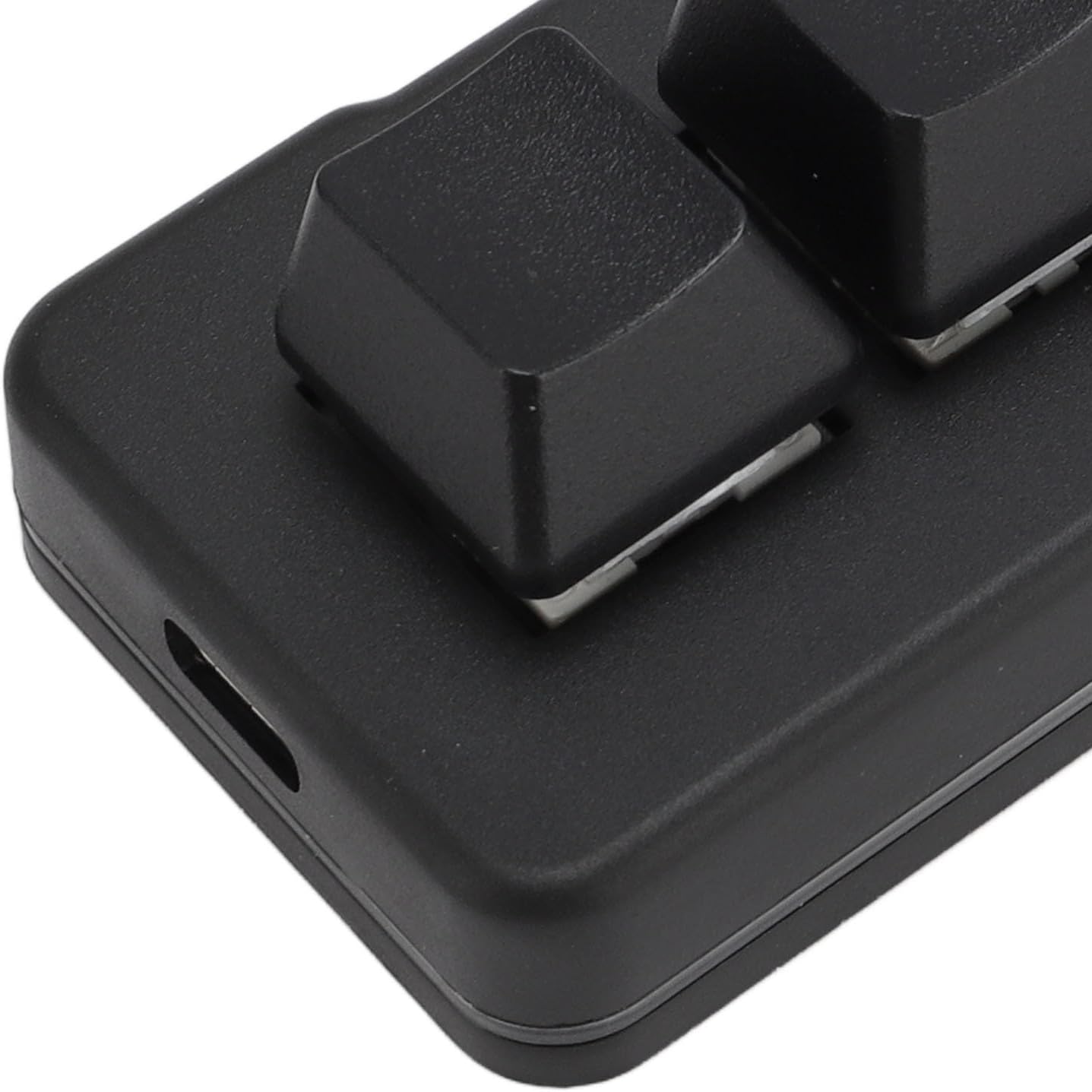
Image: The keypad connected to a device via its USB cable, illustrating the plug-and-play setup.
4. Operating Instructions
The 4-key keypad offers extensive customization options through its dedicated software. Please refer to the programming software download address (typically provided on the manufacturer's website or product packaging) to access the customization tools.
Keypad and Mouse Function:
Each key can be programmed to act as any single key or combination key of a standard keyboard or mouse. This includes mouse cursor movements and scroll wheel actions.
String Function:
Program a key to continuously output a sequence of letters or symbols. This function supports up to 38 characters.
Multimedia Function:
Assign common multimedia functions such as volume up/down, play/pause, or opening 'My Computer' to any key.
Macro Definition Function:
This function allows you to set complex combination actions involving both keyboard and mouse inputs. You can record sequences of actions and add delays between them for precise execution. This is ideal for gaming or professional tasks requiring automated sequences.
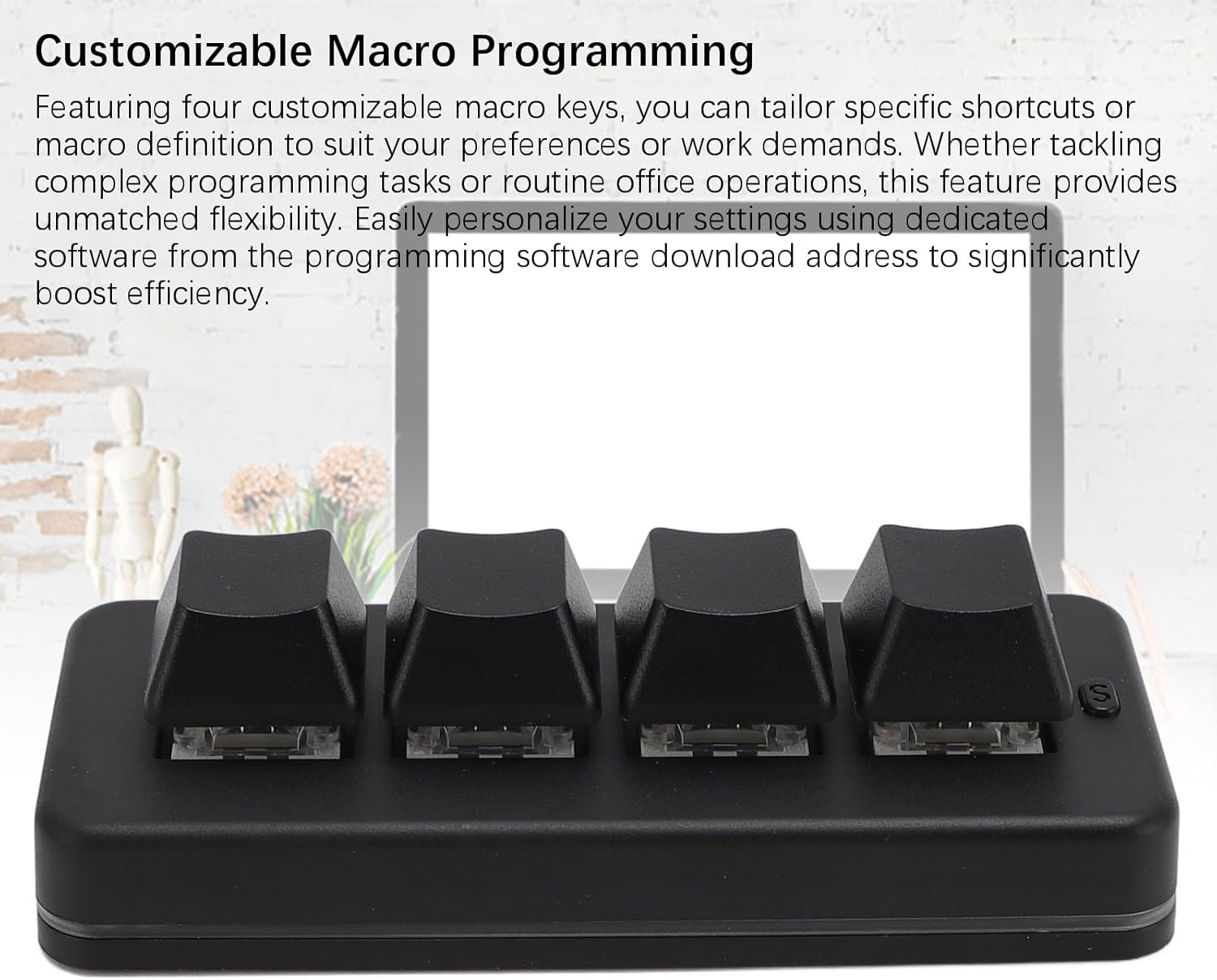
Image: The keypad with an overlay indicating its customizable macro programming capabilities.
One-Click Open Function:
Program a key to open a specified file, folder, or web page with a single press.
Multi-Function S Key Explanation:
The dedicated 'S' key on the keypad allows you to switch between three different key value layers. Each layer can be configured with distinct functions, effectively giving you the functionality of nine keys from just three physical keys. The red indicator light signifies the first layer, green for the second, and blue for the third.

Image: A close-up of the 'S' key, which is used for switching between different key function layers.
Image: The keypad illustrating its multi-layer key mapping capability, allowing for expanded functionality.
Dynamic RGB Lighting:
The keypad features vibrant RGB lighting effects. Use the dedicated software to adjust colors and lighting modes to match your preferences or environment.

Image: The keypad displaying its dynamic RGB lighting effects, enhancing its visual appeal.
5. Maintenance
To ensure the longevity and optimal performance of your keypad, follow these simple maintenance guidelines:
- Cleaning: Use a soft, dry cloth to wipe the surface of the keypad. For stubborn dirt, slightly dampen the cloth with water. Avoid using harsh chemicals or abrasive cleaners.
- Storage: When not in use, store the keypad in a clean, dry environment away from direct sunlight and extreme temperatures.
- Handling: Avoid dropping the keypad or exposing it to excessive force, which could damage the internal components or mechanical switches.
6. Troubleshooting
If you encounter issues with your keypad, please refer to the following common troubleshooting steps:
- Keypad Not Responding:
- Ensure the USB cable is securely connected to both the keypad and your computer.
- Try connecting the keypad to a different USB port on your computer.
- Test the keypad on another computer to determine if the issue is with the keypad or the original computer's setup.
- Macro Functions Not Working:
- Verify that the programming software is correctly installed and that your macros have been saved and applied to the keypad.
- Ensure you are on the correct key layer if using the multi-function 'S' key.
- RGB Lighting Issues:
- Check the lighting settings within the programming software.
- Ensure the keypad is receiving sufficient power from the USB port.
If these steps do not resolve the issue, please contact customer support for further assistance.
7. Specifications
| Specification | Detail |
|---|---|
| Item Type | 4 Key Keypad |
| Material | ABS |
| Connection | Wired USB |
| Switch Type | Blue mechanical switch (Hot Swappable) |
| Lighting Effect | RGB |
| Compatible Devices | Universal for computers (OS X, Android, Windows) |
| String Function Limit | Up to 38 characters |
| Model Name | LICAEVEYsvx91ewpr3 |
| Manufacturer | LICAEVEY |
8. Warranty and Support
For warranty information, technical support, or to download the latest programming software, please visit the official LICAEVEY website or contact their customer service department. Details can typically be found on the product packaging or the manufacturer's website.