
Uniformation GK3 Pro
Uniformation GK3 Pro Resin 3D Printer User Manual
Model: GK3 Pro
1. Introduction
This manual provides detailed instructions for the setup, operation, maintenance, and troubleshooting of your Uniformation GK3 Pro Resin 3D Printer. Please read this manual thoroughly before operating the device to ensure safe and efficient use.

The Uniformation GK3 Pro Resin 3D Printer, ready for operation.
2. Safety Information
Always observe the following safety precautions to prevent injury or damage to the printer:
- Wear appropriate personal protective equipment (PPE), including gloves and safety glasses, when handling resin.
- Operate the printer in a well-ventilated area to avoid inhaling resin fumes.
- Keep the printer away from direct sunlight and heat sources.
- Do not touch the UV light source or the LCD screen directly.
- Ensure the power supply is correctly connected and grounded.
- Keep out of reach of children and pets.
3. What's in the Box
Verify that all components are present upon unboxing:
- 3D Printer
- Power Supply
- User Manual
- Build Plate
- Resin Vat
- Screen Protector
- USB Drive
- Release Film
- Power Cable
- Metal Scraper
- Tool Kit
- USB WiFi
- Funnel
- Plier

All components included in the GK3 Pro package.
4. Product Features
4.1. 385nm UV Light Source
The GK3 Pro utilizes a 385nm UV light source, which has a shorter wavelength and lower penetration compared to 405nm light. This design reduces light scattering and prevents over-curing, especially beneficial for transparent resins. It also provides 1.05 times more photon energy than 405nm, leading to more complete curing and improved mechanical properties of printed models, including increased hardness, tensile strength, and flexural strength.
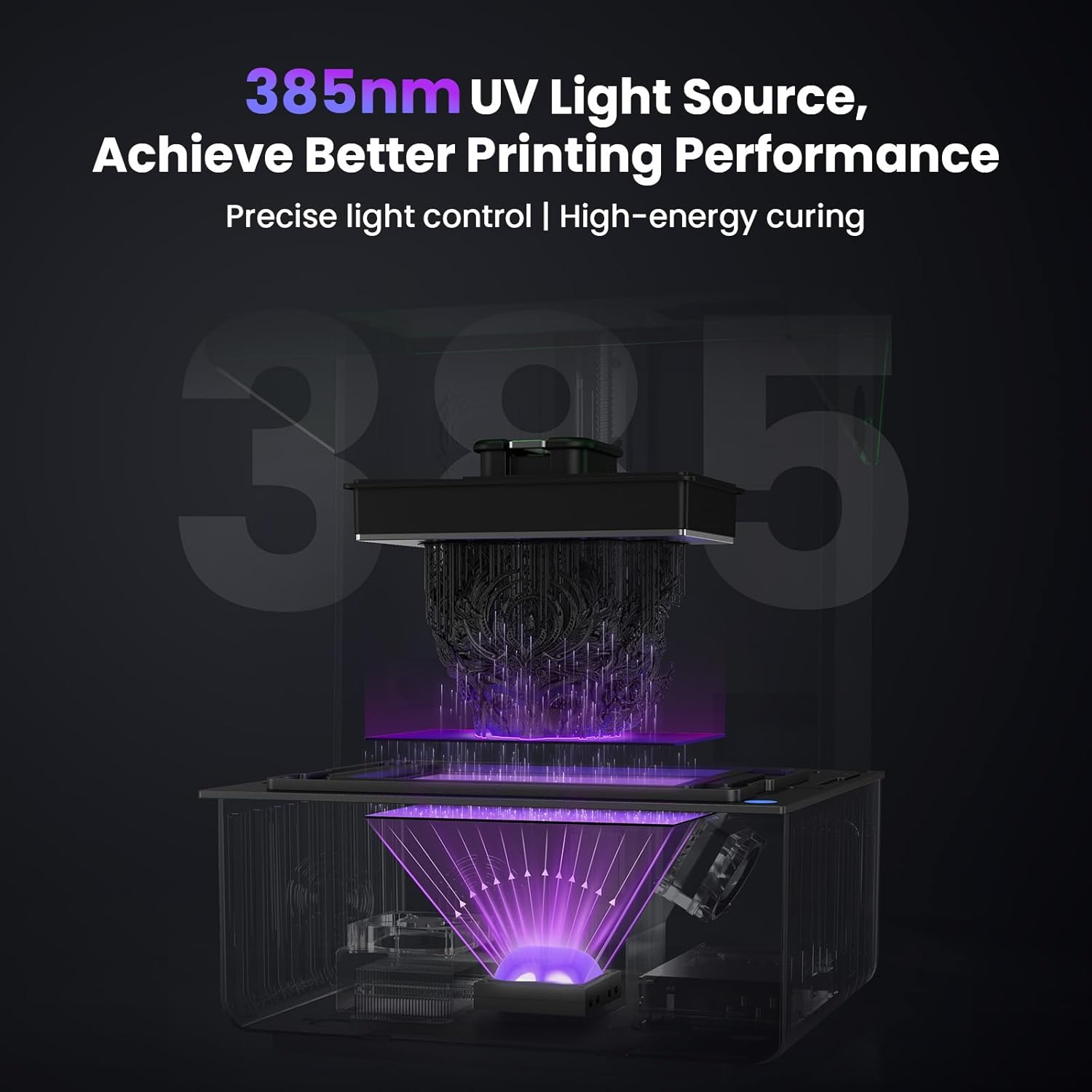
Illustration of the 385nm UV light source technology.

Comparison of printing precision between 385nm and 405nm light sources.
4.2. Ultra-Crisp 16K Printing Precision
Equipped with a 16K high-transmittance screen (15120 x 6230 resolution) and an XY resolution of 14 x 19 µm, the GK3 Pro delivers exceptional detail, smooth surfaces, and high precision. The generous build volume of 211 x 118 x 240 mm (8.3 x 4.7 x 9.5 inches) supports both large models and batch printing.

Details on the 16K high-precision screen.
4.3. Industrial-Grade Screen for Durability & Clarity
The LCD screen features a dyed polarizer, increasing light transmittance by 12% and offering heat resistance up to 100°C (212°F). This design enhances durability by 43% compared to standard screens, ensuring consistent sharpness and higher success rates even under demanding printing conditions.

Cross-section view of the durable and clear LCD screen.
4.4. Precision Z-Axis System for Rock-Solid Stability
The printer incorporates a 1204 high-precision ball screw and EGH20 heavy-duty linear guide, significantly extending lifespan compared to traditional T-screws. Coupled with a 3-point fixed structure, this high-rigidity frame assembly eliminates wobbling, misalignment, or shifting, ensuring precise replication of each curing layer during long print jobs.

Detailed view of the robust Z-axis system.
4.5. Smart Resin Heating System for Cold Weather Printing
With built-in temperature detection and heating capabilities, the GK3 Pro maintains optimal resin fluidity even at temperatures as low as 5°C (41°F). This feature reduces curing failures caused by cold environments, ensuring consistent, high-quality prints regardless of the season.

Illustration of the intelligent heating system for low-temperature printing.
4.6. User-Centric Design & Remote Control
The GK3 Pro integrates several smart features for an enhanced user experience:
- Auto Resin Feeding: Ensures continuous material supply.
- Drip-Proof Build Plate: Minimizes resin spills and mess.
- Rotating Touchscreen: Provides flexible viewing angles for intuitive operation.
- LED Lighting: Illuminates the build area for better visibility.
- Quick-Release Design: Facilitates easy removal and cleaning of components.
- Remote APP Control: Allows real-time monitoring, one-click start/stop, and time-lapse support for convenient operation from your mobile device.

Various user-friendly design elements of the GK3 Pro.

Additional thoughtful features for ease of use.

Remote control and real-time monitoring via the dedicated app.
5. Setup Guide
5.1. Unpacking and Placement
- Carefully remove the printer and all accessories from the packaging.
- Place the printer on a stable, level surface in a well-ventilated room, away from direct sunlight.
- Ensure there is enough space around the printer for operation and maintenance.
5.2. Initial Assembly
- Remove any protective films or packing materials from the printer components.
- Install the resin vat onto the printer platform, ensuring it is securely seated.
- Attach the build plate to the Z-axis arm.
5.3. Leveling the Build Plate
- Power on the printer.
- Navigate to the 'Tools' or 'Leveling' menu on the touchscreen.
- Follow the on-screen instructions to lower the build plate until it touches the LCD screen.
- Loosen the screws on the build plate, gently press it down to ensure full contact with the screen, then tighten the screws.
- Raise the build plate slightly and perform a test print to confirm leveling.
5.4. Connecting Power and Network
- Connect the power cable to the printer and a grounded electrical outlet.
- Insert the USB WiFi adapter into the designated port for network connectivity.
- Follow the on-screen prompts to connect the printer to your local Wi-Fi network.
6. Operating Instructions
6.1. Preparing for Print
- Ensure the build plate is clean and properly leveled.
- Pour resin into the resin vat, ensuring it is below the maximum fill line.
- Close the printer's cover to protect the resin from ambient UV light.
6.2. Slicing Your Model
- Use compatible slicing software (e.g., Chitubox, Lychee Slicer) to prepare your 3D model.
- Adjust print settings such as layer height, exposure time, and support structures according to your resin and model requirements.
- Save the sliced file (typically .cbddlp or .photon format) to the provided USB drive.
6.3. Starting a Print
- Insert the USB drive into the printer's USB port.
- On the touchscreen, select 'Print' and choose your desired file from the USB drive.
- Confirm the print settings and press 'Start' to begin the printing process.
- Monitor the print progress via the touchscreen or the remote APP.
6.4. Post-Printing
- Once printing is complete, carefully remove the build plate.
- Use the metal scraper to detach the printed model from the build plate.
- Wash the model in isopropyl alcohol (IPA) or a dedicated resin cleaner to remove uncured resin.
- Cure the model using a UV curing station or natural sunlight to fully harden the resin.

Examples of high-quality prints achieved with the GK3 Pro.
7. Maintenance
7.1. Cleaning the Resin Vat
- After each print, inspect the resin vat for any cured resin debris.
- Use a plastic scraper to gently remove any hardened resin from the FEP film. Do not use metal scrapers on the FEP film.
- If changing resin types or storing the printer, clean the vat thoroughly with IPA and a soft cloth.
7.2. Cleaning the Build Plate
- Clean the build plate with IPA after each print to remove any residual resin.
- Ensure the build plate is completely dry before the next print.
7.3. Screen Maintenance
- Regularly inspect the LCD screen for any resin spills or damage.
- If resin spills occur, immediately clean the screen with a soft cloth and IPA. Avoid scratching the screen.
- Consider replacing the screen protector periodically to maintain optimal print quality.
7.4. Z-Axis Lubrication
- Periodically apply a small amount of lithium grease to the Z-axis lead screw and linear guides to ensure smooth movement.
8. Troubleshooting
| Problem | Possible Cause | Solution |
|---|---|---|
| Print fails to adhere to build plate | Improper leveling, insufficient bottom exposure time, cold resin temperature, dirty build plate | Re-level build plate, increase bottom exposure time, use heating system or warm resin, clean build plate thoroughly |
| Partial print failure / Missing layers | Insufficient normal exposure time, model not supported correctly, FEP film damage, resin contamination | Increase normal exposure time, add more supports in slicer, inspect and replace FEP film, filter or replace resin |
| Warping or deformation | Over-curing, insufficient supports, high ambient temperature, model orientation | Reduce exposure time, add more robust supports, ensure stable room temperature, re-orient model |
| Z-axis grinding noise | Lack of lubrication, debris on lead screw | Clean and lubricate Z-axis lead screw and linear guides |
| Touchscreen unresponsive | Software glitch, physical damage | Restart printer, contact customer support if issue persists |
9. Specifications
| Specification | Detail |
|---|---|
| Model | GK3 Pro |
| Build Volume (LWH) | 211 x 118 x 240 mm (8.3 x 4.7 x 9.5 inches) |
| LCD Resolution | 15120 x 6230 (16K) |
| XY Resolution | 14 x 19 µm |
| Light Source | 385nm COB Light Source |
| Product Dimensions | 15.7 x 13 x 20.4 inches |
| Item Weight | 52.8 pounds (24 Kilograms) |
| Material | Resin (compatible) |
| Connectivity | USB, Wi-Fi (App Control) |
| Special Features | Smart Auto-Detected Heating System, Auto Feeding System, Rotating Touchscreen, Built-in LED Lighting |
10. Warranty and Support
Uniformation provides customer support for the GK3 Pro Resin 3D Printer. For technical assistance, troubleshooting beyond this manual, or warranty inquiries, please contact Uniformation customer service through their official channels. Protection plans may also be available for extended coverage.
For the latest drivers, firmware updates, and additional resources, please visit the official Uniformation website or refer to the contact information provided in your product packaging.
Related documentsGK3 Pro


Ask a question about this manual
Ask about setup, troubleshooting, compatibility, parts, safety, or missing instructions. Manuals+ will review the question and use this page’s manual context to help answer it.