
1. Introduction
1.1 Product Overview
The iCarSEPTON F150 7-inch Android Car Radio is an advanced in-dash navigation system designed to upgrade your vehicle's entertainment and connectivity. Featuring a 7-inch touch screen, it integrates Wireless CarPlay, Android Auto, GPS navigation, Bluetooth 4.0, FM/RDS radio, and supports a rear view camera. It operates on Android 13 with a 4-core CPU, 2GB RAM, and 32GB ROM for efficient performance.

Image: The iCarSEPTON F150 7-inch Android Car Radio with its display and a separate backup camera unit.
1.2 Package Contents
Verify that all components are present in the package:
- F-150 Car Radio Unit
- Back Camera
- Harness Cable
- Canbus Box
- Instructions and Installation Guide
- RCA Cable
- GPS Antenna
- USB Cables (x2)
- Radio Adapter
- Reverse Cable

Image: All components included in the product package, laid out for inspection.
1.3 Compatible Vehicles
This car radio is compatible with various Ford and Mercury models. Please refer to the compatibility chart below to ensure your vehicle is supported:
- Ford: F-150 (2004-2008), F250/F350 (2006-2016), E150/E250/E350 (2009-2014), Edge (2007-2010), Fusion (2006-2009), Explorer (U251) (2006-2010), Escape (2008-2012), Expedition (2007-2014), Focus Freestar Freestyle (2005-2007), Mustang (2005-2009), MKX (2007-2009), Mark LT (2006-2008), Taurus Sable (2008-2009), Shelby GT500 (2007-2009), Five Hundred (2005-2007).
- Mercury: Montego (2005-2007), Milan (2006-2009).

Image: Visual guide for vehicle compatibility, showing different dashboard configurations and indicating fitment.
2. Installation Guide
2.1 Wiring Diagram
Carefully follow the wiring diagram to ensure correct connections. Incorrect wiring can damage the unit or vehicle electronics.

Image: Comprehensive wiring schematic illustrating all necessary connections for the car radio system.
2.2 Physical Installation
Before beginning installation, disconnect the vehicle's battery. Refer to your vehicle's specific dashboard disassembly instructions. Connect all cables as per the wiring diagram, then mount the unit securely into the dashboard opening. Reconnect the battery once installation is complete.

Image: Comparison of a vehicle's dashboard before and after the installation of the new Android car radio.
3. Setup and Initial Configuration
3.1 First Power On
After installation, turn on your vehicle's ignition. The unit should power on automatically. Follow any on-screen prompts for initial setup, such as language selection and time zone.
3.2 Basic Settings
Access the 'Settings' menu to configure basic parameters:
- Network & Internet: Connect to a Wi-Fi hotspot for online features and app downloads.
- Display: Adjust brightness and screen timeout.
- Sound: Configure audio output and equalizer settings.
- Date & Time: Set correct date and time, or enable automatic synchronization.

Image: Examples of different user interface designs and themes that can be selected on the device.
4. Operating Instructions
4.1 Wireless CarPlay & Android Auto
Connect your smartphone wirelessly for seamless integration of navigation, music, calls, and messages.
- For iOS (CarPlay): Connect your iPhone to the unit via Bluetooth. Open the 'Zlink' application on the car radio. CarPlay should connect automatically.
- For Android (Android Auto): Connect your Android phone to the unit via Bluetooth. Open the 'Zlink' application on the car radio. Android Auto should connect automatically.
- Voice control is available via Siri or Google Assistant for hands-free operation.
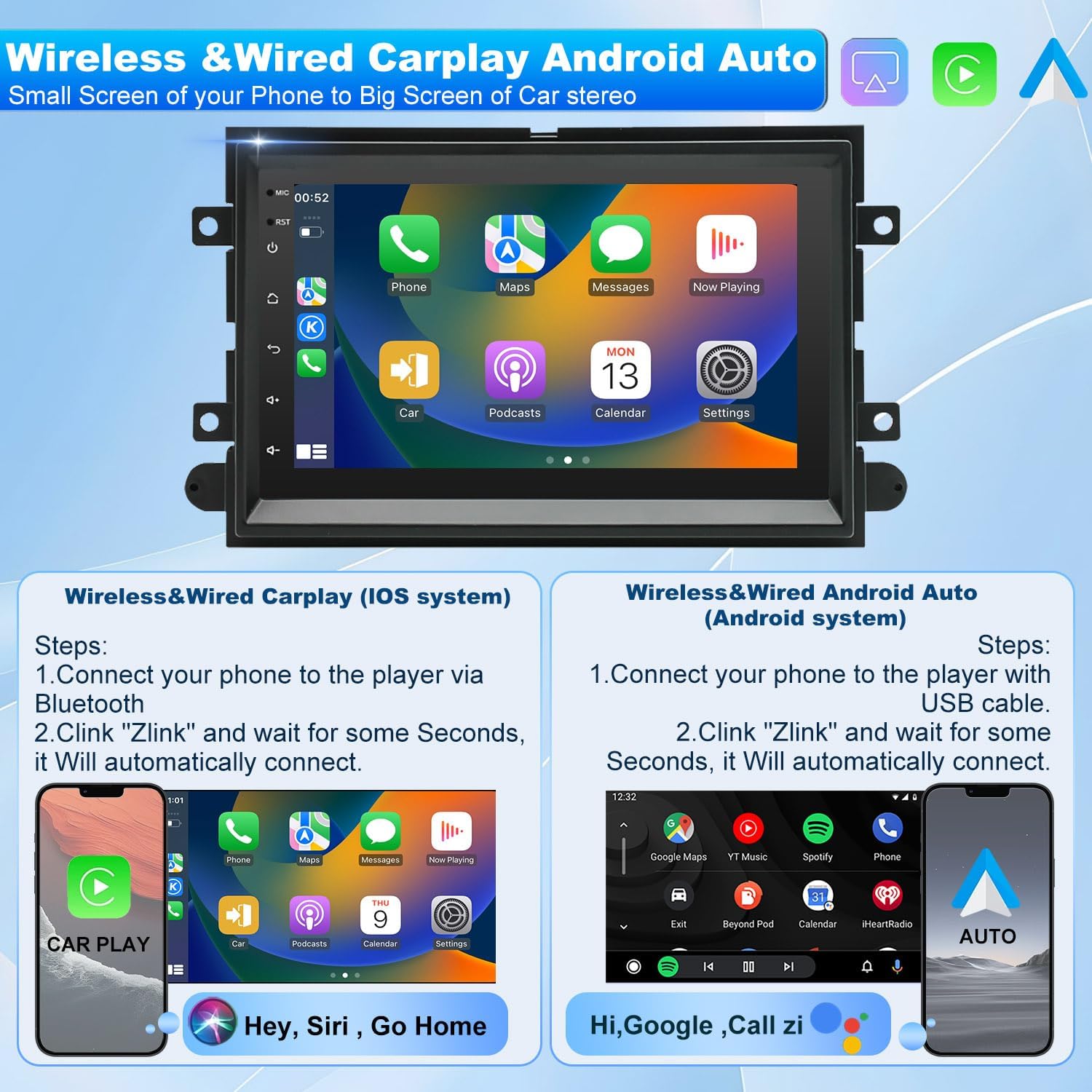
Image: Display of Wireless CarPlay and Android Auto functionality, showing smartphone integration with the car stereo.
4.2 GPS Navigation
The unit features a built-in GPS navigation system supporting both online and offline maps. Connect to Wi-Fi to download offline maps or use real-time traffic data.
- Access navigation applications from the main menu.
- Input destinations via touch screen or voice command.
- The system supports split-screen functionality, allowing navigation and other apps to run simultaneously.
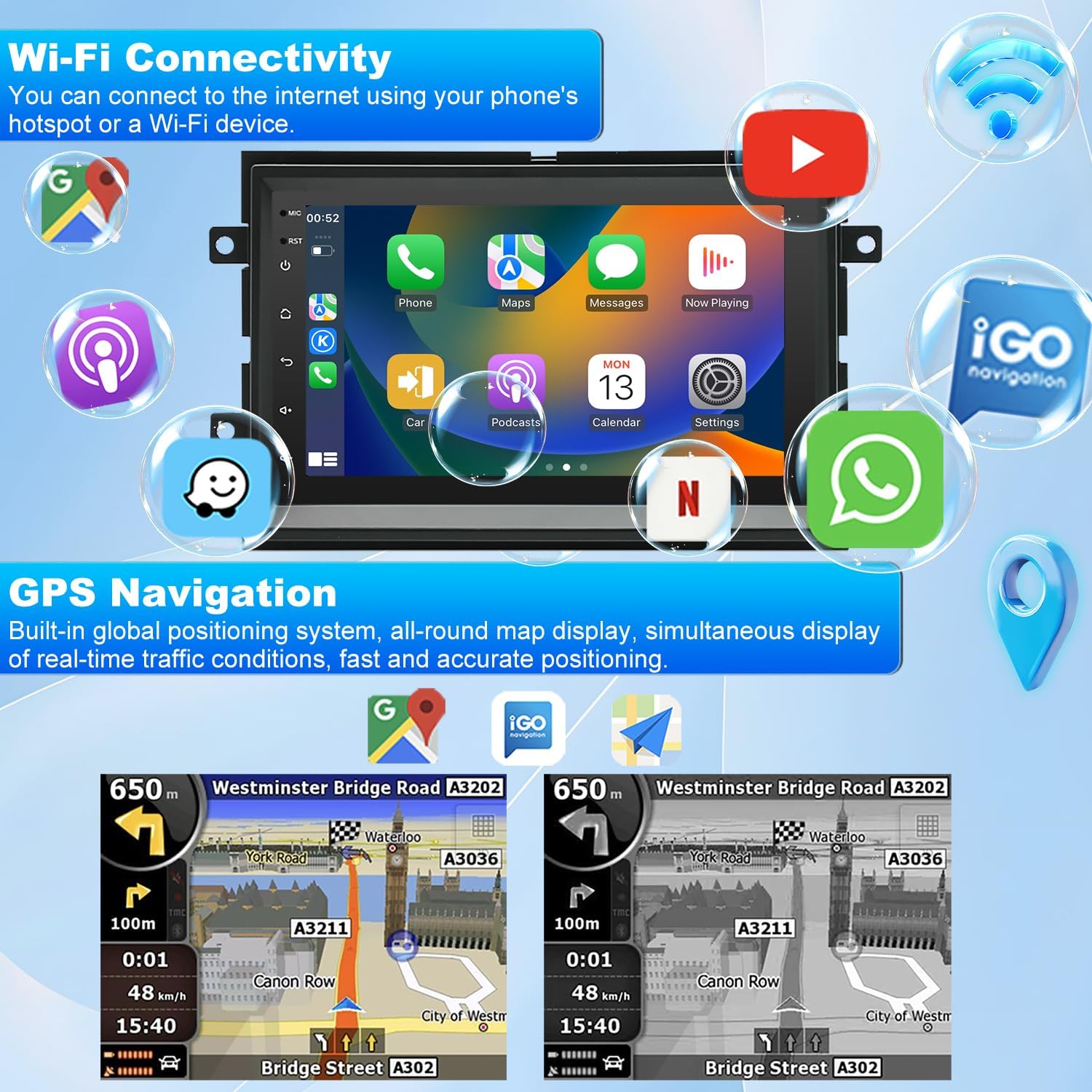
Image: GPS navigation interface showing a map with route details and estimated travel time.
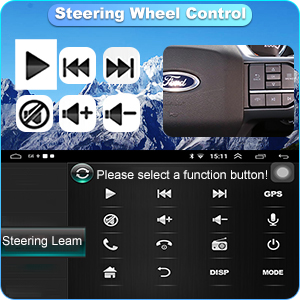
Image: Split-screen feature demonstrating simultaneous video playback and navigation.
4.3 Bluetooth Connectivity
The unit features Bluetooth 4.0 for hands-free calling and audio streaming.
- Enable Bluetooth on your smartphone and the car radio.
- Search for available devices on the car radio and select your phone.
- Pair the devices. You can now make/receive calls and stream music.
Image: Bluetooth and Wi-Fi connectivity indicators on the car radio screen, along with a Bluetooth pairing interface.
4.4 FM/RDS Radio
Access the FM radio function for local broadcasts. The RDS feature provides additional information like station name and song title.
- Select the 'Radio' application from the main menu.
- Use manual, semi-automatic, or automatic scanning to find stations.
- Save up to 18 preset FM stations.
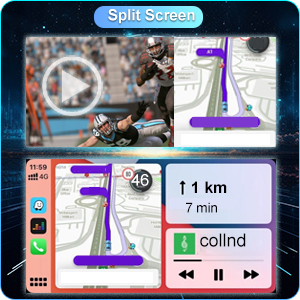
Image: FM radio interface with frequency display and audio equalizer controls.
4.5 Steering Wheel Control (SWC)
The unit supports steering wheel controls for convenient operation without taking your hands off the wheel.
- Access the 'Steering Learn' function in the settings menu.
- Follow the on-screen instructions to map your vehicle's steering wheel buttons to the radio functions (e.g., volume, track skip, call answer).
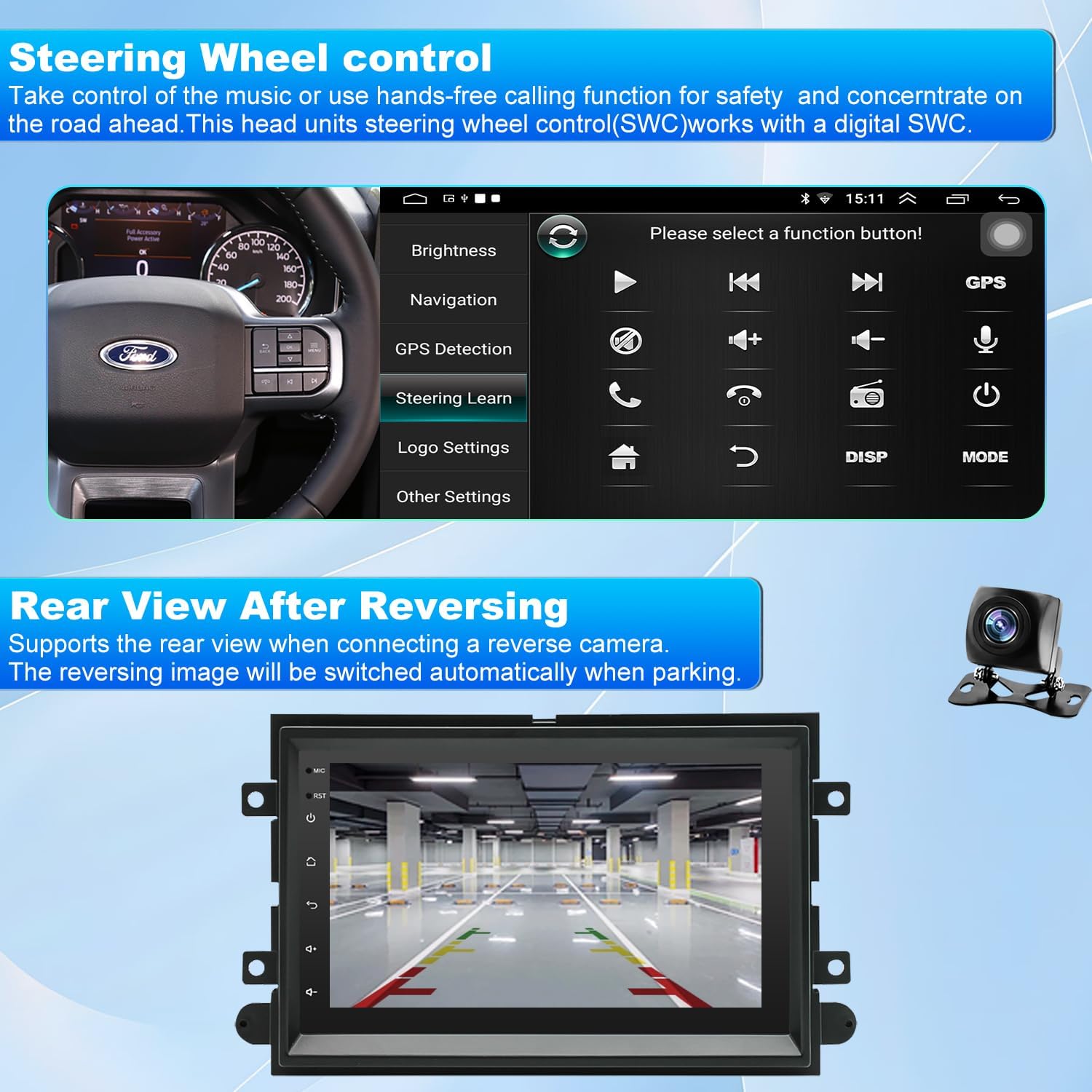
Image: Steering wheel control setup screen, allowing users to program physical buttons for various functions.
4.6 Rear View Camera
When a compatible rear view camera is connected, the display automatically switches to the camera feed when the vehicle is put into reverse, aiding in parking and maneuvering.
- Ensure the rear view camera is correctly wired according to the installation guide.
- In 'Settings' > 'Factory Settings' (Password 8888) > 'Protocol Parameter Settings' > 'Reverse Video Resolution Settings', select the correct camera type (e.g., AHD/25).

Image: Rear view camera display with parking assistance lines, showing the perspective from behind the vehicle.
5. Maintenance
To ensure optimal performance and longevity of your iCarSEPTON F150 7-inch Android Car Radio, follow these maintenance guidelines:
- Screen Cleaning: Use a soft, lint-free cloth to gently wipe the touch screen. For stubborn smudges, slightly dampen the cloth with water or a screen-safe cleaner. Avoid abrasive materials or harsh chemicals.
- Software Updates: Periodically check for available software updates through the system settings. Updates can improve performance, add features, and resolve bugs. Connect to a stable Wi-Fi network before initiating updates.
- Environmental Conditions: Avoid exposing the unit to extreme temperatures, direct sunlight for prolonged periods, or excessive moisture.
- Cable Connections: Ensure all cables remain securely connected. Loose connections can lead to intermittent functionality.
6. Troubleshooting
This section addresses common issues and provides solutions.
- Q: Why is the radio screen black or not starting?
A: Try pressing the small round RST (Reset) hole with a toothpick. Check the blue/red fuse at the back of the unit for any signs of burning. Ensure the Canbus box is properly connected. - Q: Why is the touch screen unresponsive?
A: Use five fingers to re-calibrate the touch screen. Refer to the instructional video if available. - Q: Why is there no sound?
A: Verify that the speaker cable is connected correctly and not reversed. Also, ensure the Canbus box is properly connected. - Q: Why can't Bluetooth connect? Why are Bluetooth and Wi-Fi signals poor?
A: 1. Connect the reversing cable to the Bluetooth and Wi-Fi signal enhancer. 2. Find "Car-BT," enter the password "0000" to connect. If necessary, delete previous connection records and attempt to connect again. - Q: How to connect and disconnect CarPlay?
A: 1. Connect to Bluetooth, and Zlink will automatically connect to CarPlay. 2. Close background applications (using the second button from the top right). 3. On your iPhone, go to Settings > General > CarPlay > Zlink to manage CarPlay connection. - Q: Why is the steering wheel control not working?
A: 1. Check if the protocol serial port wire is reversed or missing, and ensure all plugs are connected properly. 2. Ensure the correct protocol is selected in the unit's settings. - Q: Why is the reversing camera not showing?
A: 1. Verify the wiring is correct as shown in the installation diagrams. 2. Go to Settings > Factory Settings (Password 8888) > Protocol Parameter Settings > Reverse Video Resolution Settings, and select AHD/25.
7. Specifications
| Feature | Specification |
|---|---|
| Brand | iCarSEPTON |
| Model Name | iCarSEPTON F150 7-inch |
| Display Size | 7 Inches |
| Operating System | Android 13 |
| CPU | 4 Core |
| RAM | 2GB |
| ROM | 32GB |
| Connectivity Technology | Bluetooth, USB, Wi-Fi (5GWiFi6) |
| Bluetooth Version | 4.0 |
| Special Features | Wireless/Wired CarPlay & Android Auto, GPS Navigation, Split Screen, Backup Camera Support, Steering Wheel Controls, FM/RDS Radio |
| Map Type | North America |
| Audio Output Mode | Stereo |
| Mounting Type | Dashboard Mount |
| Item Weight | 2.77 pounds |
| Package Dimensions | 11.57 x 7.36 x 4.06 inches |
8. Warranty and Support
8.1 Product Warranty
The iCarSEPTON F150 7-inch Android Car Radio comes with a 12-month warranty from the date of purchase. This warranty covers manufacturing defects and malfunctions under normal use. It does not cover damage caused by improper installation, misuse, accidents, or unauthorized modifications.
8.2 Customer Support
For any installation issues, wiring problems, protocol selection concerns, or functionality questions, please contact iCarSEPTON customer service. We aim to provide a prompt response on the next business day.
Please refer to your purchase documentation or the official iCarSEPTON website for specific contact information.