
Introduction
This manual provides comprehensive instructions for the installation, operation, maintenance, and troubleshooting of your iCarSEPTON Android Car Radio. Please read this manual thoroughly before using the product to ensure proper function and safety.
Vehicle Compatibility
This iCarSEPTON Android Car Radio is compatible with the following vehicle models:
- Jeep: Wrangler/Unlimited (2007-2018), Compass (2009-2016), Patriot (2009-2016), Liberty (2008-2012)
- Dodge: Ram 1500/2500/3500 (2009-2012), Grand Caravan (2008-2020), Nitro (2007-2011), Journey (2009-2010), Avenger (2008-2014), Challenger (2008-2014), Caliber (2009-2012), Dakota (2008-2011), Magnum (2008)
- Chrysler: 300/300C (2008-2010), 200 (2011-2014), Sebring (2007-2010), Town & Country (2008-2016)

Figure 1: Visual representation of compatible vehicle models and their original radio units.
Package Contents
Verify that all items listed below are present in your package:
- iCarSEPTON Android Car Radio Unit
- Backup Camera
- Harness Cable
- Canbus Box
- GPS Cable
- USB Cables (x2)
- RCA Cable
- Radio Adapter (Optional)
- Installation Guide
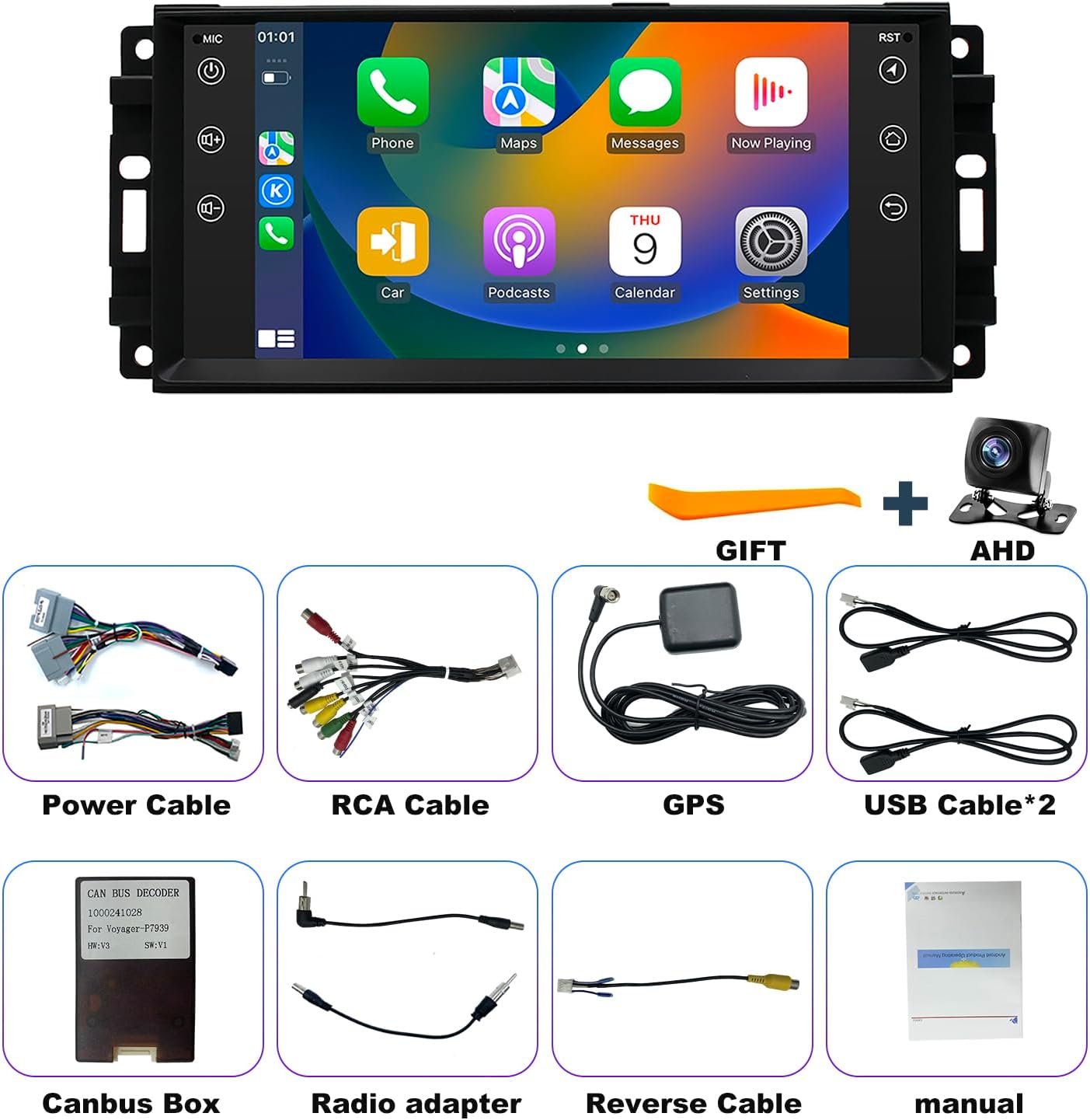
Figure 2: Contents of the iCarSEPTON Android Car Radio package.
Setup and Installation
This section outlines the general steps for installing your iCarSEPTON Android Car Radio. Professional installation is recommended if you are unfamiliar with car audio system wiring.
Wiring Diagram
Refer to the detailed wiring diagram below for correct connections. Ensure all cables are securely connected to their corresponding ports.

Figure 3: Comprehensive wiring diagram for the car radio system.
- Power Cable: Connects to the vehicle's power harness.
- Protocol Serial Line: Connects to the Canbus box.
- Canbus Box: Essential for integrating with vehicle's existing systems (e.g., steering wheel controls).
- RCA Cables: For audio/video input/output.
- USB Cables (4P and 6P): For connecting USB devices.
- Reverse Cable: Connects to the backup camera.
- GPS Cable: Connects to the GPS antenna.
- Radio Adapter: Optional, for specific antenna types.
General Installation Steps
- Disconnect Battery: Before starting, disconnect the vehicle's negative battery terminal to prevent electrical shorts.
- Remove Old Radio: Carefully remove the existing car radio unit and its trim.
- Connect Wiring Harness: Connect the provided wiring harness to the new iCarSEPTON radio and the vehicle's wiring. Ensure the Canbus box is correctly integrated.
- Connect Peripherals: Attach the GPS antenna, USB cables, RCA cables, and the backup camera cable as per the wiring diagram.
- Test Connections: Before fully reassembling, temporarily reconnect the battery and test the radio's basic functions (power, sound, display).
- Secure Unit: Mount the new radio securely into the dashboard.
- Reassemble Dashboard: Reinstall any removed trim pieces.

Figure 4: Example of a 'Plug and Play' installation, showing wiring connections behind the dashboard.
Operating Instructions
Wireless CarPlay & Android Auto
The unit supports both Wireless CarPlay (for iOS devices) and Wireless/Wired Android Auto (for Android devices), allowing seamless integration of your smartphone's navigation, music, and communication apps.
- For iOS (Wireless CarPlay):
- Connect your iPhone to the radio via Bluetooth.
- Open the "Zlink" application on the radio. It will automatically connect to CarPlay after a few seconds.
- For Android (Wireless/Wired Android Auto):
- Connect your Android phone to the radio using a USB cable for wired connection, or via Bluetooth for wireless.
- Open the "Zlink" application on the radio. It will automatically connect to Android Auto after a few seconds.

Figure 5: Steps for connecting Wireless CarPlay and Android Auto.
GPS Navigation & Wi-Fi Connectivity
The unit features a built-in GPS navigation system supporting both online and offline map modes. Connect to Wi-Fi to access real-time traffic conditions and download additional applications.
- GPS Navigation: Utilize pre-installed navigation apps or download your preferred ones from the app store. The system provides real-time traffic updates when connected to the internet.
- Wi-Fi Connection: Connect to your phone's hotspot or a Wi-Fi device to enable internet access for streaming, app downloads, and online navigation features.

Figure 6: GPS navigation and Wi-Fi interface on the car radio.
Bluetooth & FM Radio
- Bluetooth 4.0: Supports hands-free calling, music streaming, and phonebook synchronization. Pair your smartphone via Bluetooth settings on the radio.
- FM/RDS Radio: Access local radio stations. The RDS (Radio Data System) feature displays station and program information where available.

Figure 7: Bluetooth and Wi-Fi connectivity display.

Figure 8: FM radio and equalizer interface.
Steering Wheel Control (SWC)
The unit supports existing steering wheel controls for convenient operation of audio, calls, and song selection, enhancing safety by keeping your hands on the wheel.

Figure 9: Steering Wheel Control learning interface.
Rear View Camera
When a reverse gear is engaged, the display automatically switches to the rear view camera feed, providing assistance for parking and reversing maneuvers.

Figure 10: Rear view camera display on the car radio.
Split Screen Function
The split-screen feature allows you to run two applications simultaneously on the display, such as navigation and music playback.

Figure 11: Split-screen functionality in action.
User Interface (UI) Switch
The system offers various user interface themes, allowing you to customize the visual appearance of your car radio display.

Figure 12: Examples of customizable UI themes.
Maintenance
- Screen Cleaning: Use a soft, lint-free cloth to gently wipe the touchscreen. For stubborn smudges, slightly dampen the cloth with water or a screen-safe cleaner. Avoid harsh chemicals or abrasive materials.
- Software Updates: Periodically check for software updates through the system settings to ensure optimal performance and access to new features.
- General Care: Avoid exposing the unit to extreme temperatures, direct sunlight for prolonged periods, or excessive moisture.
Troubleshooting
This section addresses common issues and their potential solutions. If the problem persists, please contact customer support.
Radio Black Screen or Not Starting
- Press the small round RST (Reset) hole with a toothpick.
- Check the blue/red fuse at the back of the unit for any signs of burning. Replace if necessary.
- Ensure the Canbus box is connected correctly and securely.
Touch Screen Unresponsive
- Perform a touch screen re-calibration. This typically involves using five fingers on the screen as per system prompts (refer to the instructional video if available).
No Sound Output
- Verify that the speaker cables are connected correctly and not reversed.
- Confirm the Canbus box is properly connected.
Poor Bluetooth and Wi-Fi Signals
- Ensure the reversing cable is connected to the Bluetooth and Wi-Fi signal enhancer (if applicable to your model).
Bluetooth Connection Issues
- Search for "Car-BT" in your device's Bluetooth settings.
- Enter the password "0000" to connect.
- If connection fails, delete previous connection records on both the radio and your phone, then try again.
Steering Wheel Controls Not Functioning
- Check if the protocol serial port wire is correctly connected and not reversed or missing.
- Ensure all necessary plugs are connected.
- Verify that the correct protocol is selected in the radio's settings (usually under Factory Settings, password 8888).
Reversing Camera Not Displaying
- Confirm all camera wiring is correct as shown in the installation diagrams.
- Navigate to Settings > Factory Settings (Password: 8888) > Protocol Parameter Settings > Reverse Video Resolution Settings and select the appropriate resolution (e.g., AHD/25).
Specifications
| Brand | iCarSEPTON |
| Model Name | iCarSEPTON Android Car Radio |
| Operating System | Android 13 |
| CPU | 4-core |
| RAM | 2GB |
| ROM (Internal Storage) | 32GB |
| Display Size | 7 Inches |
| Connectivity Technology | Bluetooth, USB, Wi-Fi |
| Bluetooth Version | 4.0 |
| Special Features | Wireless/Wired CarPlay & Android Auto, GPS Navigation, Wi-Fi, FM/RDS Radio, Backup Camera Support, Steering Wheel Controls, Split Screen Function |
| Mounting Type | Dashboard Mount |
| Item Weight | 2.88 pounds |
| Package Dimensions | 11.57 x 7.4 x 4.13 inches |
Warranty Information
This iCarSEPTON Android Car Radio comes with a 12-month warranty from the date of purchase. This warranty covers manufacturing defects and malfunctions under normal use. Please retain your proof of purchase for warranty claims.
For detailed warranty terms and conditions, please refer to the documentation included with your product or contact customer support.
Customer Support
If you encounter any issues with installation, wiring, protocol selection, or functionality, please do not hesitate to contact iCarSEPTON customer service. We aim to provide a prompt response on the next business day.
Contact information can typically be found on the product packaging or the official iCarSEPTON website.