
1. Introduction
The Wanbo T2 Ultra is a compact and versatile projector designed for home entertainment. It features Android TV 11.0, offering access to a wide range of streaming applications. With 500 ANSI lumens brightness and native 1080P Full HD resolution, it delivers clear and vibrant images. Advanced features like auto-focus, automatic keystone correction, and integrated HiFi speakers enhance the user experience. This manual provides detailed instructions for setup, operation, and maintenance of your Wanbo T2 Ultra projector.
2. Package Contents
Please check the box for the following items:
- Wanbo T2 Ultra Projector Unit
- Remote Control
- Power Cable
- HDMI Cable
- User Manual (this document)
- Cleaning Tools (if included)

Image: Projector and accessories in packaging. Actual contents may vary slightly.
3. Product Overview
3.1 Projector Unit

Image: Front view of the Wanbo T2 Ultra Projector.
3.2 Ports and Connections

Image: Rear view of the Wanbo T2 Ultra Projector showing various input/output ports.
- HDMI (ARC) Port: Connect to external devices such as laptops, gaming consoles, or TV boxes. Supports Audio Return Channel.
- USB Port: Connect USB storage devices for media playback.
- Audio Port (3.5mm): Connect external headphones or speakers.
- Power Input: Connect the power cable to supply power to the projector.
4. Setup
4.1 Power Connection
- Connect the power cable to the Power Input port on the projector.
- Plug the other end of the power cable into a power outlet.
- Press the power button on the projector or remote control to turn on the device.
4.2 Initial Setup
Upon first use, follow the on-screen prompts to complete the initial setup, including language selection and Wi-Fi connection.
4.2.1 Wi-Fi Connection
- Navigate to Settings from the home screen.
- Select Network & Internet.
- Turn on Wi-Fi and select your desired network from the list.
- Enter the Wi-Fi password using the on-screen keyboard and confirm.
Video: Illustrates Wi-Fi and Bluetooth connection steps. Note: This video may feature a different projector model but demonstrates the general process.
4.3 Focus & Keystone Correction
The Wanbo T2 Ultra features automatic focus and keystone correction for optimal image clarity and shape.
4.3.1 Automatic Adjustment
- The projector automatically adjusts focus and keystone when powered on or moved.
- Obstacle avoidance and automatic screen adjustment features ensure the image fits perfectly on your projection surface.

Image: The projector automatically adjusting focus and keystone correction for a clear, rectangular image.
4.3.2 Manual Adjustment (if needed)
- Go to Settings > Image Correction.
- Select Manual Keystone Correction to adjust the four corners of the image.
- Select Focus > Manual Focus to fine-tune the image sharpness using the F+ and F- buttons on the remote.
4.4 Screen Adjustment
The projector supports digital zoom to adjust the screen size without moving the unit.
- Go to Settings > Image Correction.
- Select Screen Zoom and Position.
- Use the directional buttons to adjust the position and the volume buttons to adjust the zoom (50% to 100%).
4.5 Projection Modes
The projector can be used in various orientations:
- Front Projection: Projector placed in front of the screen.
- Rear Projection: Projector placed behind a translucent screen.
- Ceiling Projection: Projector mounted upside down on the ceiling. The integrated stand allows for easy adjustment for ceiling or wall projection.
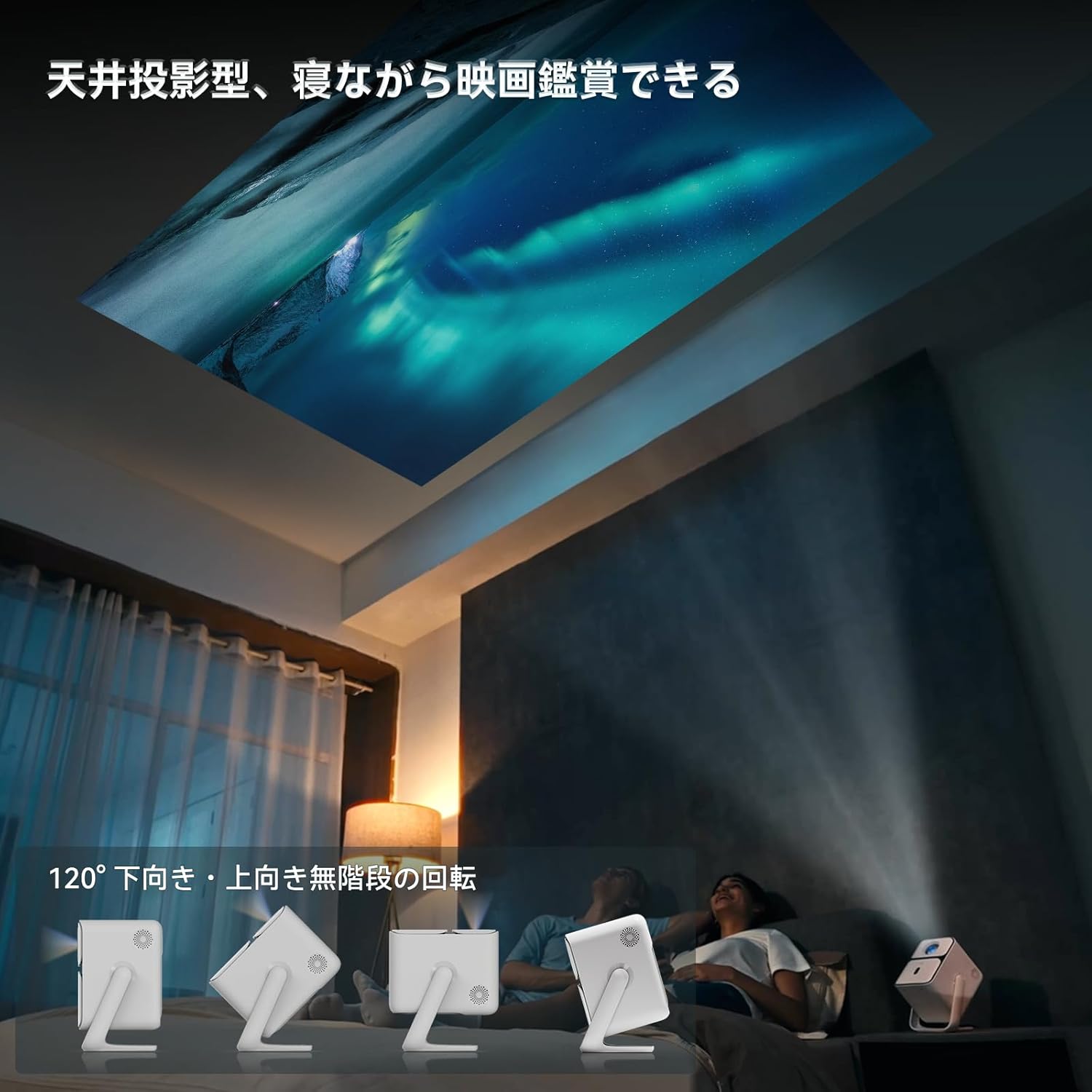
Image: Projector positioned for ceiling projection, allowing viewing while lying down.
Video: Demonstrates ceiling projection mode. Note: This video may feature a different projector model but demonstrates the general process.
5. Operating Instructions
5.1 Remote Control Functions

Image: Remote control for the projector, showing buttons for power, navigation, volume, focus, and direct access to streaming apps like Netflix, YouTube, and Prime Video.
- Power Button: Turns the projector on/off.
- Voice Search: Activates Google Assistant for voice commands.
- One-Touch Focus: Initiates automatic focus adjustment.
- Directional Keys (Up/Down/Left/Right): Navigate menus and selections.
- OK Button: Confirms selections.
- Back Button: Returns to the previous screen.
- Home Button: Returns to the home screen.
- Volume +/-: Adjusts the volume level.
- Focus +/- (F+/F-): Manually adjusts focus.
- Mute Button: Mutes/unmutes audio.
- Input Signal Switch: Changes input source.
- App Settings: Accesses application settings.
- Projection Settings: Accesses projection-related settings.
- Direct App Buttons: Dedicated buttons for Netflix, YouTube, Prime Video, and Disney+.
5.2 App Management (Android TV 11.0)
The Wanbo T2 Ultra runs on Android TV 11.0, providing access to the Google Play Store.
- Accessing Apps: From the home screen, you can directly launch pre-installed apps or navigate to the Google Play Store to download more.
- Streaming Services: Enjoy popular services like Netflix, Prime Video, YouTube, Disney+, Hulu, U-NEXT, and more. The projector supports Google Widevine DRM L1 for high-quality content playback.
- Google Assistant: Press the Voice Search button on the remote to use voice commands for searching content, controlling playback, and more.

Image: The projector displaying the Android TV 11.0 home screen, featuring various streaming applications.
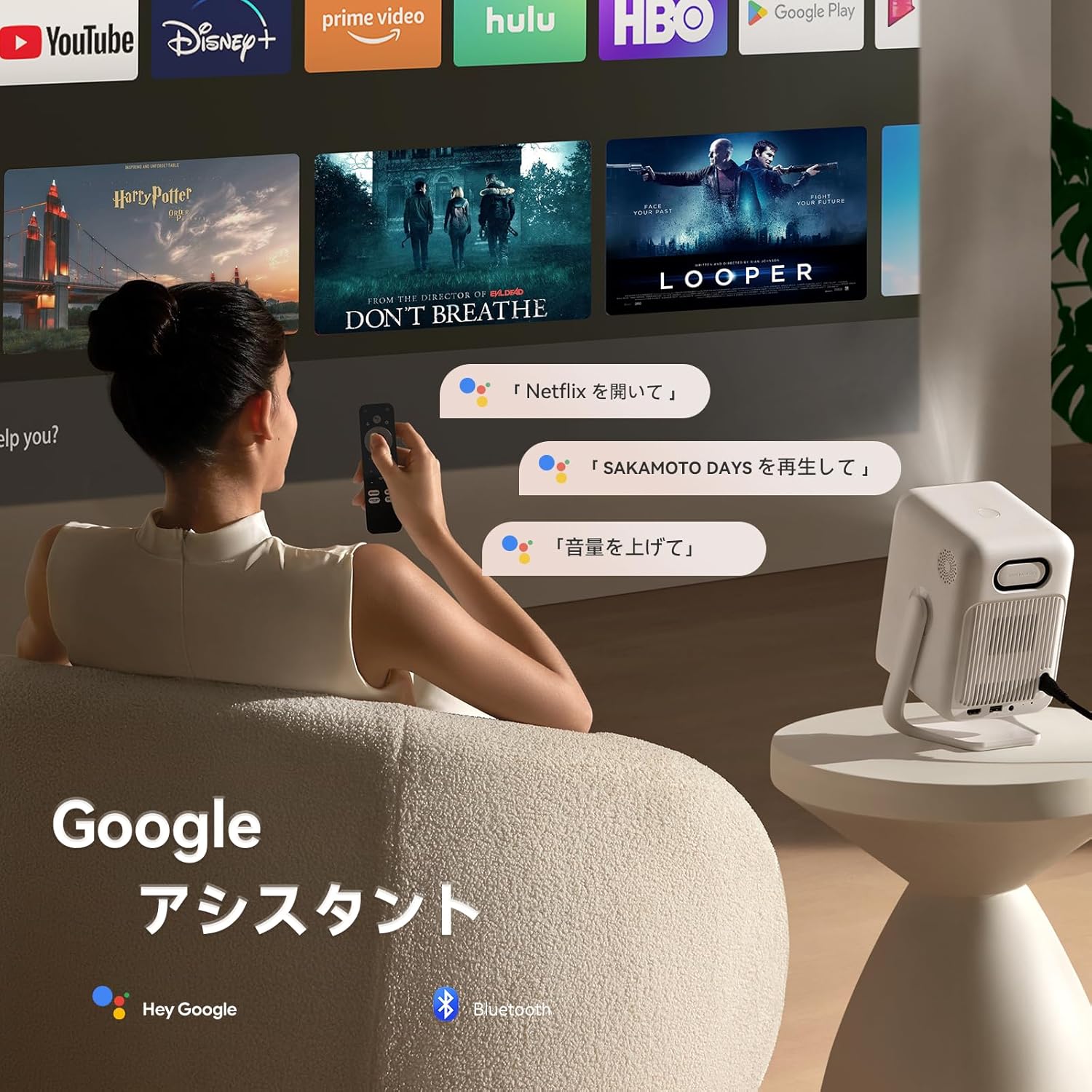
Image: A user utilizing the Google Assistant feature with the remote control to search for content.
5.3 Connectivity
The Wanbo T2 Ultra offers multiple connectivity options for various devices.
5.3.1 HDMI Connection
- Connect an HDMI cable from your external device (e.g., laptop, game console) to the HDMI port on the projector.
- The projector will automatically detect the HDMI input. If not, navigate to Signal Source and select the corresponding HDMI input.
Video: Demonstrates HDMI connection. Note: This video may feature a different projector model but demonstrates the general process.
5.3.2 USB Connection
- Insert a USB storage device into the USB port on the projector.
- A notification will appear on the screen. Select to open the file manager and browse your media.
Video: Demonstrates USB connection. Note: This video may feature a different projector model but demonstrates the general process.
5.3.3 Bluetooth Connection
- Go to Settings > Bluetooth & Accessories.
- Ensure Bluetooth is enabled.
- Select Add Device and choose your Bluetooth device (e.g., headphones, speakers) from the list to pair.
Video: Illustrates Bluetooth connection steps. Note: This video may feature a different projector model but demonstrates the general process.
5.3.4 Wireless Screen Mirroring (Chromecast/AirPlay)
The projector has built-in Chromecast for seamless screen mirroring from iOS and Android devices.
- Ensure your mobile device and projector are connected to the same Wi-Fi network.
- On your mobile device, open a compatible app (e.g., YouTube, Netflix) and tap the Cast icon to select the projector.
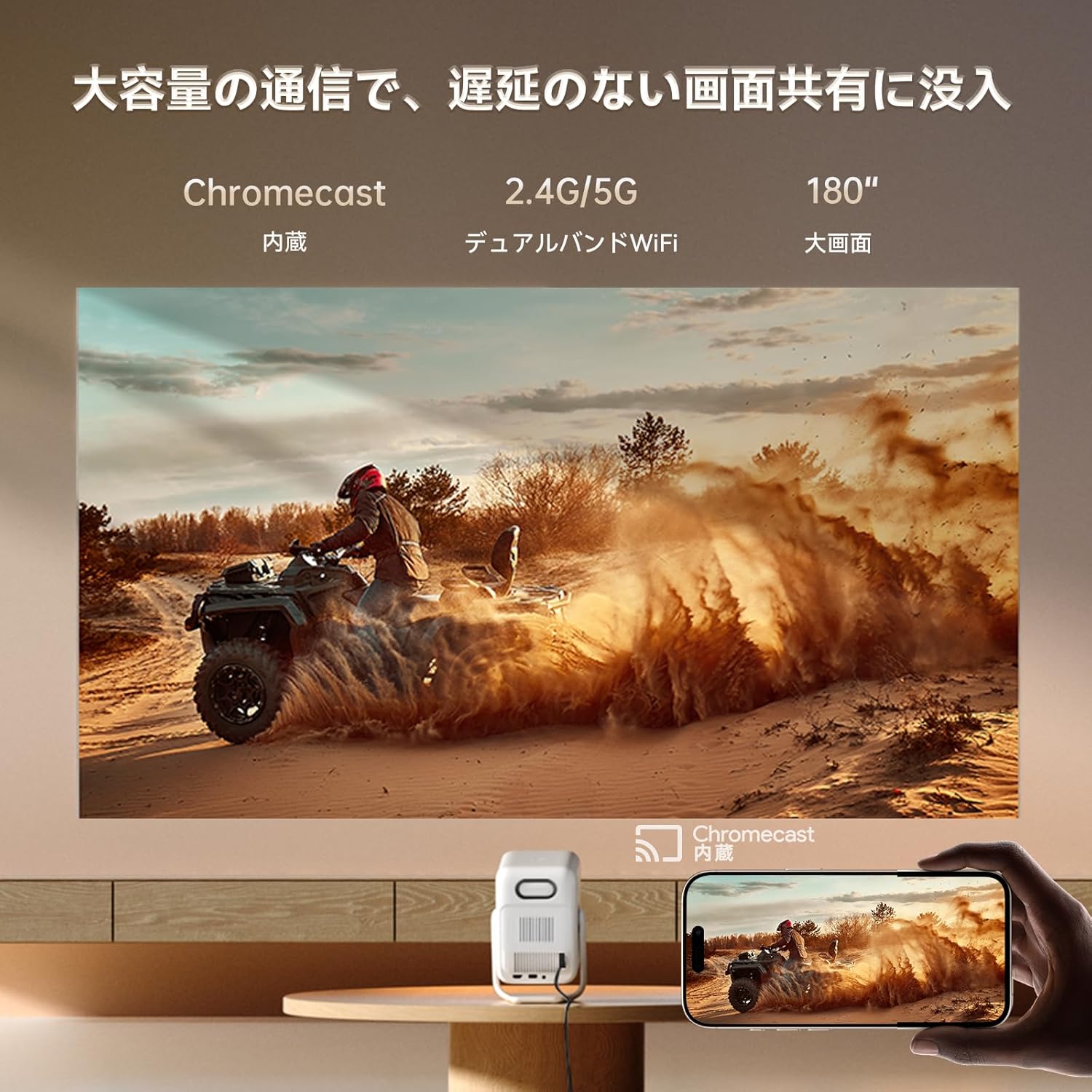
Image: A smartphone wirelessly casting content to the projector, demonstrating Chromecast functionality.
5.4 Audio Settings
The projector features dual 5W HiFi speakers (10W total) with an independent DSP amplifier for rich sound. You can also connect external audio devices.
5.4.1 Adjusting Sound Modes
- Go to Settings > Display & Sound > Sound Effects.
- Choose from various sound modes like Standard, Movie, Music, News, or Sports to optimize audio for your content.
5.4.2 Bluetooth Speaker Mode
You can use the projector as a standalone Bluetooth speaker.
- From the home screen, select Bluetooth Music.
- On your mobile device, enable Bluetooth and connect to the projector (device name: ISINBOX_AC311 or similar).
Video: Demonstrates Bluetooth speaker mode. Note: This video may feature a different projector model but demonstrates the general process.
6. Maintenance
6.1 Cleaning
- Lens: Use a soft, lint-free cloth or lens cleaning paper to gently wipe the lens. Avoid abrasive materials or excessive pressure.
- Exterior: Wipe the projector's exterior with a soft, dry cloth. Do not use liquid cleaners or solvents.
- Vents: Regularly clean the ventilation grilles to prevent dust buildup, which can affect performance and lifespan. Use a soft brush or compressed air.
6.2 Storage
- Store the projector in a cool, dry place away from direct sunlight and extreme temperatures.
- If storing for an extended period, place the projector in its original packaging or a protective case to prevent dust accumulation and damage.
7. Troubleshooting
If you encounter issues with your Wanbo T2 Ultra projector, refer to the following common solutions:
| Problem | Possible Cause | Solution |
|---|---|---|
| No image/Power off | Power cable disconnected; Projector off | Check power connections; Press power button |
| Blurry image | Out of focus; Incorrect keystone | Use auto-focus or manual focus; Adjust keystone correction |
| No sound | Volume too low; Muted; Incorrect audio output | Increase volume; Unmute; Check audio settings |
| Wi-Fi/Bluetooth connection issues | Incorrect password; Device out of range; Interference | Verify password; Move closer to router/device; Reduce interference |
| Remote control not working | Low battery; Obstruction; Not paired | Replace batteries; Remove obstructions; Re-pair remote |
8. Specifications
| Feature | Specification |
|---|---|
| Brand | WANBO |
| Model | T2 Ultra |
| Operating System | Android TV 11.0 |
| Brightness | 500 ANSI Lumens |
| Native Resolution | 1920 x 1080 pixels (Full HD) |
| Throw Ratio | 1.2:1 |
| Speaker | 10W HiFi Stereo (Dual 5W) |
| Connectivity | HDMI (ARC), USB, 3.5mm Audio Jack, 5G Wi-Fi, Bluetooth |
| Special Features | Auto-Focus, Auto Keystone Correction, Auto Screen Adjustment, Obstacle Avoidance, Digital Zoom (50-100%), Chromecast Built-in |
| Dimensions (W x D x H) | 14.48 x 14.22 x 21.84 cm |
| Weight | 2.2 kg |
9. Warranty and Support
9.1 Product Warranty
The Wanbo T2 Ultra projector comes with a 12-month warranty covering quality-related issues. For customers who follow the official Wanbo social media accounts (@wanboglobal), the product warranty is automatically extended to 18 months.
9.2 Customer Support
For any questions or support needs, please contact us:
- Email: support@szwanbo.net
We aim to respond to all inquiries within 24 hours. Lifetime support is provided for product usage.


