1. Introduction
This manual provides detailed instructions for the installation, operation, maintenance, and troubleshooting of your ASUS ROG Strix Z890-H Gaming WiFi Motherboard. Please read this manual thoroughly before proceeding with installation or use to ensure proper functionality and to prevent damage to your components.
2. Product Overview
The ASUS ROG Strix Z890-H Gaming WiFi motherboard is designed for Intel Core Ultra Processors (Series 2) with an LGA 1851 socket. It features robust power delivery, advanced cooling solutions, and comprehensive connectivity options, including DDR5 memory support, PCIe 5.0, WiFi 7, and multiple M.2 slots. Integrated AI technologies enhance performance and system management.

Figure 2.1: ASUS ROG Strix Z890-H Gaming WiFi Motherboard and included accessories.
Key Features:
- Intel LGA 1851 Socket: Compatible with Intel Core Ultra Processors (Series 2).
- Robust Power Solution: 16+2+1+2 power stages for stable power delivery.
- Optimized Thermal Design: Features massive heatsinks, a U-shaped heatpipe, and high-conductivity thermal pads.
- DDR5 Memory Support: Enhanced signal routing for high-speed DDR5 modules.
- Advanced Storage: Multiple M.2 slots, including PCIe 5.0 M.2, with cooling solutions.
- High-Performance Networking: On-board Wi-Fi 7 (802.11be) with ASUS WiFi Q-Antenna, Intel 2.5Gb Ethernet, and Realtek 5Gb Ethernet.
- Abundant Connectivity: Dual Thunderbolt 4 USB Type-C ports, USB 20Gbps Type-C, and multiple USB 10Gbps ports.
- Exclusive AI Technologies: ASUS AI Overclocking, AI Cooling II, AI Networking II, and AI Advisor.
- DIY Friendly Design: PCIe Slot Q-Release Slim, M.2 Q-Latch, M.2 Q-Release, M.2 Q-Slide, Q-Antenna, Q-Code, Q-LED, and BIOS FlashBack button.

Figure 2.2: Overview of ASUS exclusive AI technologies.
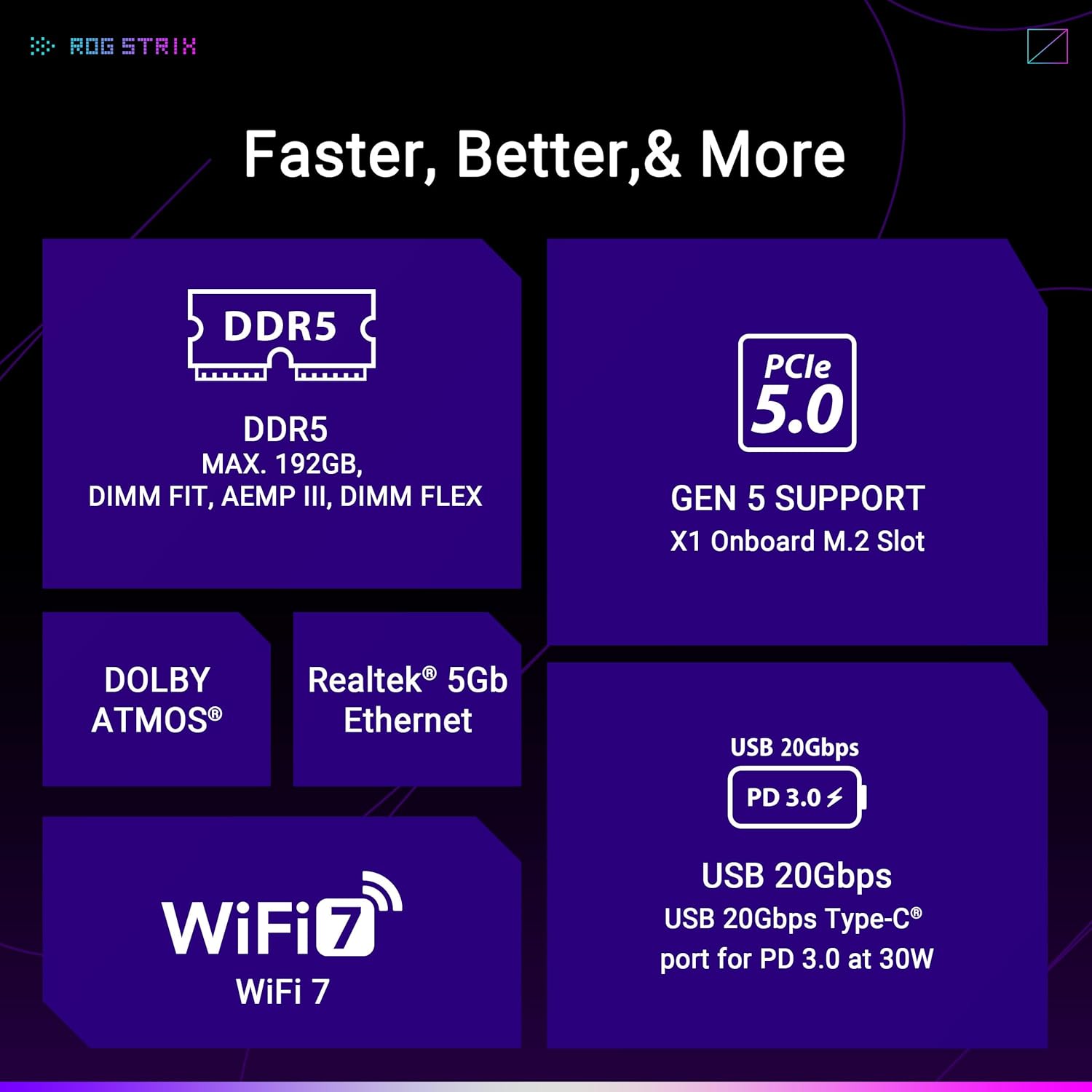
Figure 2.3: Performance and cooling features of the motherboard.
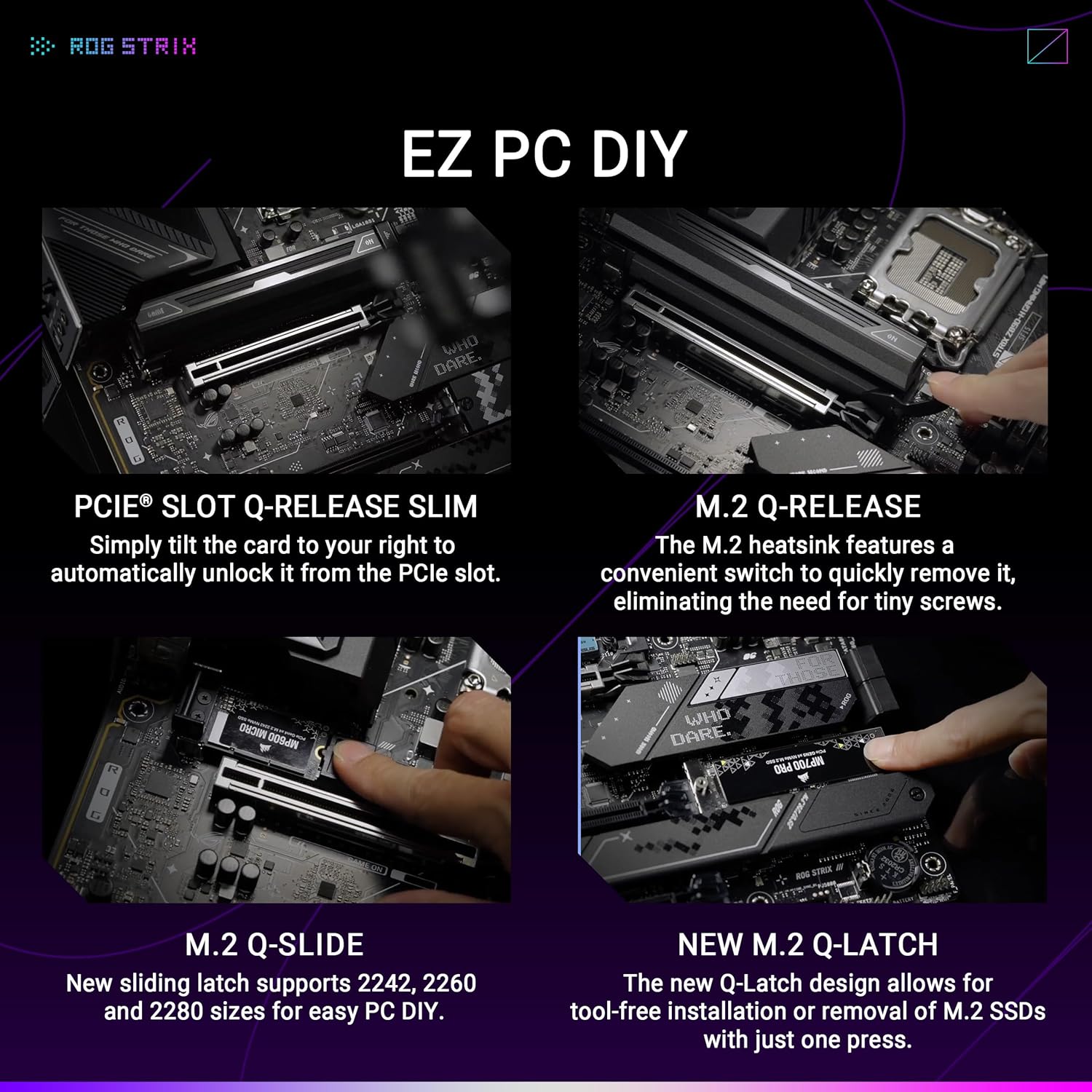
Figure 2.4: Connectivity and speed enhancements.
3. Installation Guide
3.1. Before You Begin
- Safety Precautions: Always disconnect the power supply before installing or removing any components. Wear an anti-static wrist strap to prevent electrostatic discharge (ESD) damage.
- Required Tools: Phillips-head screwdriver, anti-static wrist strap, thermal paste (for CPU cooler).
- Check Compatibility: Ensure your CPU, RAM, and other components are compatible with the Z890 chipset and LGA 1851 socket.
3.2. Component Installation Steps
- Install the CPU:
- Open the CPU socket lever and remove the protective cover.
- Carefully align the CPU with the socket, ensuring the golden triangle on the CPU matches the triangle on the socket.
- Gently place the CPU into the socket. Do not force it.
- Close the socket lever to secure the CPU.

Figure 3.1: LGA 1851 CPU Socket.
- Install the CPU Cooler: Apply thermal paste to the CPU (if not pre-applied on the cooler) and install the cooler according to its manufacturer's instructions.
- Install Memory Modules (RAM):
- Open the clips at both ends of the DIMM slots.
- Align the notch on the DDR5 memory module with the key on the DIMM slot.
- Press down firmly on both ends of the memory module until the clips snap into place.
- Install M.2 SSDs:
- Locate the M.2 slots and remove any pre-installed heatsinks.
- Insert the M.2 SSD into the slot at an angle.
- Secure the SSD using the M.2 Q-Latch mechanism or a screw, then reattach the heatsink.

Figure 3.2: M.2 Q-Latch and other DIY features.
- Install Graphics Card (GPU):
- Open the retention clip on the PCIe 5.0 x16 slot.
- Align the GPU with the slot and press down firmly until it clicks into place.
- Secure the GPU to the case with screws.
- Connect Power Supply: Connect the 24-pin ATX power connector and the 8-pin/4-pin CPU power connectors from your power supply to the motherboard.
- Connect Front Panel Cables: Connect the power button, reset button, USB ports, and audio jacks from your case to the corresponding headers on the motherboard. Refer to the motherboard layout diagram for header locations.
- Install the WiFi Q-Antenna: Screw the included WiFi Q-Antenna onto the antenna connectors on the rear I/O panel.

Figure 3.3: Rear I/O Panel.
4. Operating Instructions
4.1. Initial Boot and BIOS Setup
After assembling your system, connect a monitor, keyboard, and mouse. Power on your system. During the boot process, press the DEL or F2 key to enter the BIOS/UEFI setup utility. Here you can configure system settings, boot order, and enable features like XMP for memory overclocking.
4.2. Software and Drivers
After installing your operating system, install the necessary drivers for your motherboard components (chipset, audio, LAN, WiFi, etc.). These can be found on the ASUS support website for your specific motherboard model. ASUS also provides utility software such as Armoury Crate for system monitoring, RGB lighting control, and driver updates.
4.3. AI Features
- AI Overclocking: This feature intelligently profiles your CPU and cooling system to predict optimal overclocking settings, allowing for enhanced performance with stability.
- AI Cooling II: Balances system thermals and acoustics by optimizing fan speeds based on system load and temperature, configurable through software.
- AI Networking II: Prioritizes network traffic for gaming and other critical applications, ensuring stable and low-latency connectivity.
- ASUS AI Advisor: An intelligent tool that uses AI to understand natural language questions, providing guidance and information about motherboard functionalities.
5. Maintenance
Regular maintenance helps ensure the longevity and optimal performance of your motherboard.
- BIOS Updates: Periodically check the ASUS support website for BIOS updates. Updates can improve compatibility, stability, and performance. Use the BIOS FlashBack feature for convenient updates without a CPU or RAM installed.
- Driver Updates: Keep your drivers updated to ensure compatibility with new software and to benefit from performance improvements and bug fixes.
- Physical Cleaning: Regularly clean dust from your system components, especially heatsinks and fans, using compressed air. Ensure the system is powered off and unplugged before cleaning.
6. Troubleshooting
This section addresses common issues you might encounter.
- No Power/No Boot:
- Check all power connections (24-pin ATX, 8-pin CPU, GPU).
- Ensure the power supply is switched on.
- Verify the front panel power button connection.
- No Display:
- Ensure the monitor cable is connected to the graphics card (or motherboard if using integrated graphics).
- Reseat the graphics card and memory modules.
- Check the Q-LED indicators on the motherboard for diagnostic codes.
- Q-LED Indicators: The motherboard features Q-LEDs (CPU, DRAM, VGA, BOOT) that light up to indicate the status of key components during boot. A lit LED indicates a problem with that component.
- Q-Code Display: The Q-Code display provides a two-digit code that corresponds to specific boot stages or errors. Refer to the motherboard manual for a complete list of Q-Codes and their meanings.
- Network Connectivity Issues:
- Ensure Ethernet cables are securely connected.
- Verify WiFi antenna is properly installed.
- Check network driver installation.
- Clear CMOS: If system instability or incorrect settings prevent booting, use the Clear CMOS button on the rear I/O panel to reset BIOS settings to default.
7. Technical Specifications
| Feature | Specification |
|---|---|
| Brand | ASUS |
| Model Name | ROG STRIX Z890-H GAMING WIFI |
| CPU Socket | LGA 1851 |
| Compatible Processors | Intel® Core™ Ultra processors (Series 2) |
| Chipset Type | INTEL Z890 |
| RAM Memory Technology | DDR5 |
| Memory Speed | 320 MHz (Base, supports higher via OC) |
| Platform | Windows 11 |
| Main Power Connector Type | 24-Pin |
| Item Weight | 5.08 pounds |
| Package Dimensions | 13.98 x 10.71 x 2.87 inches |
| Color | BLACK |
8. Warranty and Support
ASUS products are manufactured to high quality standards. For specific warranty terms and conditions, please refer to the warranty card included with your product or visit the official ASUS support website. Technical support, driver downloads, and further documentation can be found at www.asus.com/support/.


