
SOAR NBA-BBX-PHI
SOAR NBA Wireless Boombox Speaker User Manual
Model: NBA-BBX-PHI (Philadelphia 76ers Edition)
Introduction
Thank you for choosing the SOAR NBA Wireless Boombox Speaker. This manual provides essential information for the safe and effective use of your new speaker. Designed for the ultimate sports experience, this boombox delivers dynamic sound and features to amplify your game day celebrations. Please read this manual thoroughly before operating the device and retain it for future reference.

Image: Front view of the SOAR NBA Wireless Boombox Speaker, showcasing the Philadelphia 76ers logo and vibrant LED light show.

Image: A user enjoying the SOAR NBA Wireless Boombox Speaker outdoors on a basketball court.
Safety Information
To ensure safe operation and prevent damage, please observe the following precautions:
- Do not expose the speaker to extreme temperatures, direct sunlight, or high humidity.
- Avoid dropping or subjecting the speaker to strong impacts.
- Do not disassemble, repair, or modify the device yourself. Refer all servicing to qualified personnel.
- Keep the speaker away from water or other liquids.
- Use only the specified charging cable and power adapter.
- Clean the speaker with a soft, dry cloth. Do not use abrasive cleaners.
Package Contents
Verify that all items are present in the package:
- SOAR NBA Wireless Boombox Speaker
- USB Charging Cable
- Auxiliary Audio Cable
- User Manual
Product Overview
Familiarize yourself with the various parts and controls of your SOAR NBA Wireless Boombox Speaker.

Image: Front view of the speaker, highlighting the team logo and speaker grilles.

Image: Detailed view of the control panel, including AUX, Micro SD, USB, DC IN ports, and control buttons.
Control Panel Features:
- Power Button: Turns the speaker on/off.
- Mode Button: Switches between Bluetooth, FM Radio, AUX, USB, and TF Card modes.
- Play/Pause Button: Controls audio playback.
- Previous/Volume Down Button: Skips to the previous track or decreases volume.
- Next/Volume Up Button: Skips to the next track or increases volume.
- AUX Input: For connecting external audio devices via 3.5mm cable.
- Micro SD Card Slot: For playing audio from a Micro SD card.
- USB Port: For playing audio from a USB drive.
- DC IN Port: For charging the speaker.
- Microphone Input: For connecting an external microphone.
Setup
1. Charging the Speaker
Before first use, fully charge the speaker. Connect the provided USB charging cable to the DC IN port on the speaker and the other end to a USB power adapter (not included) or a computer's USB port. The charging indicator light will illuminate during charging and turn off when fully charged. A full charge provides up to 8 hours of playback.
2. Powering On/Off
Press and hold the Power Button for a few seconds to turn the speaker on or off. A voice prompt will indicate the power status.
3. Bluetooth Pairing
To connect your speaker to a Bluetooth-enabled device:
- Turn on the speaker. It will automatically enter Bluetooth pairing mode, indicated by a voice prompt.
- Enable Bluetooth on your mobile device (smartphone, tablet, etc.).
- Search for "SOAR Boombox" in the list of available Bluetooth devices.
- Select "SOAR Boombox" to connect. Once paired, a voice prompt will confirm the connection.
The speaker will automatically reconnect to the last paired device if it's within range and Bluetooth is enabled.

Image: Speaker connected via Bluetooth to a smartphone, ready for audio playback.
4. Auxiliary (AUX) Input
Connect non-Bluetooth devices using the provided 3.5mm auxiliary cable. Insert one end into the AUX input port on the speaker and the other end into the audio output jack of your device. The speaker will automatically switch to AUX mode, or you can manually select it using the Mode Button.
5. Microphone Input
For karaoke or announcements, connect a microphone (not included) to the microphone input jack on the speaker.
6. FM Radio Operation
To use the built-in FM radio:
- Press the Mode Button to switch to FM Radio mode.
- Press the Play/Pause Button to automatically scan and save available FM stations.
- Use the Previous/Volume Down and Next/Volume Up buttons to navigate between saved stations.
7. USB/TF Card Playback
Insert a USB flash drive or a TF (Micro SD) card containing MP3 audio files into the respective port. The speaker will automatically detect the media and begin playback. Use the playback controls to manage your music.
8. Syncing Two Speakers (TWS Function)
For an enhanced stereo sound experience, you can pair two SOAR NBA Wireless Boombox Speakers together:
- Ensure both speakers are powered on and not connected to any Bluetooth device.
- On one speaker (this will be the primary speaker), double-press the Mode Button or a dedicated TWS button (if available) to initiate TWS pairing. A voice prompt will indicate it's searching.
- The two speakers will automatically connect to each other. A voice prompt will confirm successful TWS pairing.
- Now, connect your mobile device to the primary speaker via Bluetooth as described in step 3. Audio will play in stereo through both speakers.

Image: Illustration of two speakers syncing together for stereo sound, with a smartphone connected to one.
Operating the Speaker
Playback Controls
- Play/Pause: Press the Play/Pause Button to play or pause audio.
- Next Track: Short press the Next/Volume Up Button to skip to the next track.
- Previous Track: Short press the Previous/Volume Down Button to go to the previous track.
Volume Adjustment
- Increase Volume: Press and hold the Next/Volume Up Button.
- Decrease Volume: Press and hold the Previous/Volume Down Button.
LED Light Show
The speaker features an integrated RGB LED light show that syncs with the music. This feature is automatically active when the speaker is on. There is no specific button to control the light show; it operates automatically.
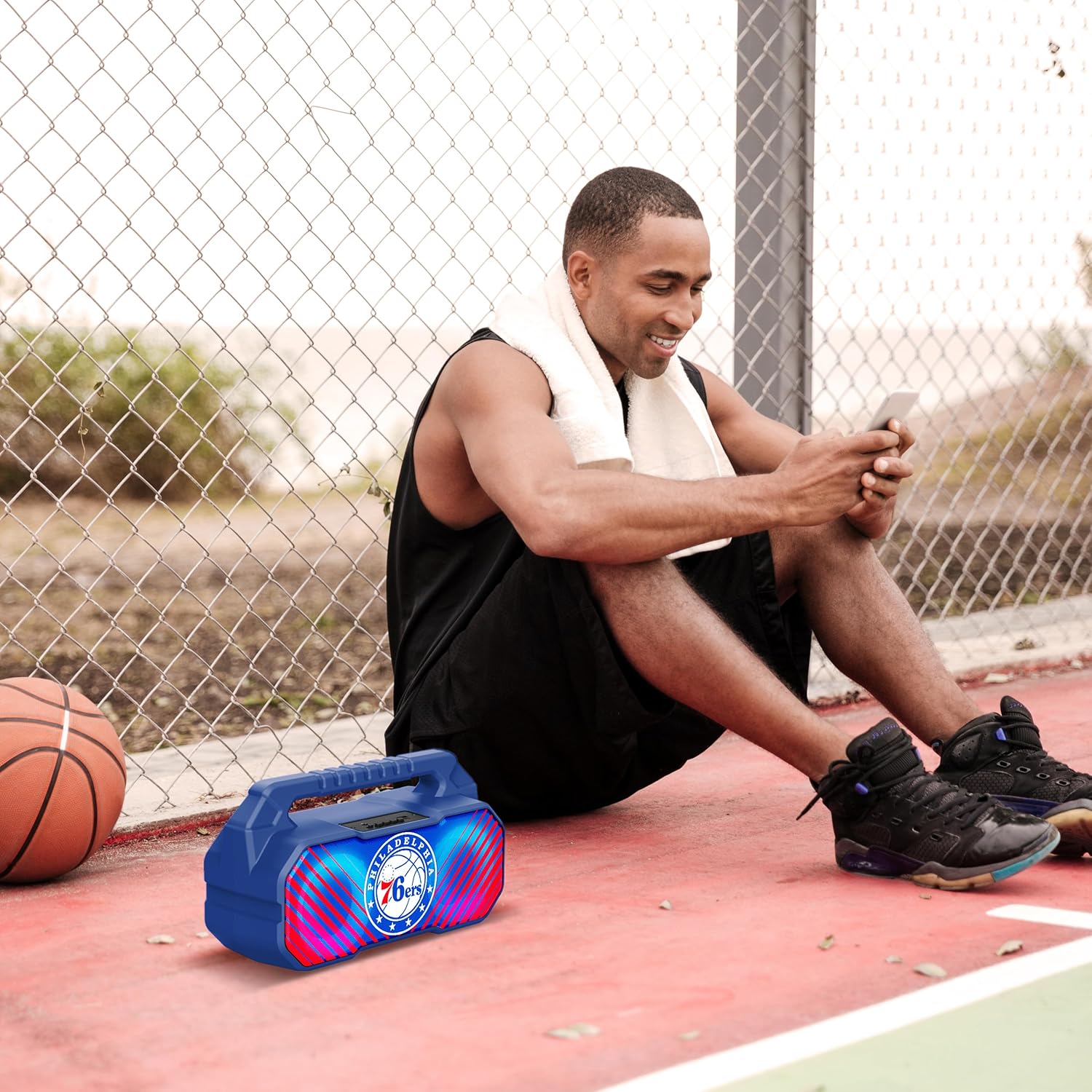
Image: The speaker's LED light show in action during a gathering, creating an ambient effect.
Maintenance
Proper care will extend the life of your speaker:
- Cleaning: Wipe the speaker with a soft, dry, lint-free cloth. Do not use liquid cleaners, aerosols, or solvents.
- Storage: When not in use for extended periods, store the speaker in a cool, dry place, away from direct sunlight and extreme temperatures.
- Battery Care: To maintain battery health, charge the speaker at least once every three months if not used regularly.
Troubleshooting
If you encounter issues with your speaker, refer to the following common problems and solutions:
| Problem | Possible Cause | Solution |
|---|---|---|
| Speaker does not turn on. | Battery is low or depleted. | Charge the speaker fully. |
| No sound. | Volume is too low; incorrect mode selected; device not paired correctly. | Increase volume; press Mode button to select correct input; re-pair Bluetooth device. |
| Bluetooth connection unstable. | Device is too far from speaker; interference. | Move device closer to speaker (within 33 feet/10 meters); avoid obstacles. |
| FM radio reception is poor. | Weak signal; environmental interference. | Relocate the speaker; re-scan for stations. |
| TWS pairing fails. | Speakers are already connected to another device; incorrect pairing procedure. | Ensure both speakers are disconnected from other devices; follow TWS pairing steps precisely. |
Specifications
Key technical specifications for the SOAR NBA Wireless Boombox Speaker:
| Feature | Detail |
|---|---|
| Model Name | Wireless BoomBox Speaker |
| Part Number | NBA-BBX-PHI |
| Output Power | 10 Watts (2 x 5-Watt speakers) |
| Bluetooth Version | Bluetooth 5.0 |
| Battery Life | Up to 8 hours |
| Dimensions (L x W x H) | 13.5 x 7.5 x 5.3 inches |
| Weight | 1.11 Kilograms |
| Material | Plastic |
| Included Components | Built-In Microphone (referring to microphone input capability) |
| UPC | 192129179047 |

Image: Dimensional drawing of the speaker, indicating its width and height.

Image: Internal component view, emphasizing the 10W speaker drivers and various features like Bluetooth 5.0, FM Radio, AUX input, and LED lights.
Warranty and Support
The SOAR NBA Wireless Boombox Speaker comes with a 1 Year Limited Warranty from the date of purchase. This warranty covers manufacturing defects in materials and workmanship under normal use.
The warranty does not cover damage caused by misuse, accident, unauthorized modification, or external causes such as drops or liquid exposure.
For warranty claims or technical support, please contact the manufacturer, Prime Brands Group Inc., or refer to the contact information provided on the product packaging or the official SOAR website. Please have your proof of purchase and product model number ready when contacting support.
Manufacturer: Prime Brands Group Inc.
Ask a question about this manual
Ask about setup, troubleshooting, compatibility, parts, safety, or missing instructions. Manuals+ will review the question and use this page’s manual context to help answer it.