
1. Introduction
This manual provides detailed instructions for the LogiLink WC0066 Trail Camera. Please read this manual thoroughly before operating the device to ensure proper usage and to maximize its performance. This camera is designed for outdoor surveillance, wildlife observation, and property monitoring, featuring high-resolution imaging, night vision, and motion detection capabilities.
2. Safety Information
- Do not expose the camera to extreme temperatures or direct sunlight for extended periods.
- Ensure the battery compartment is securely closed to maintain IP66 water resistance.
- Use only recommended battery types (AA batteries, not included).
- Keep the camera away from strong magnetic fields.
- Do not attempt to disassemble or modify the camera, as this will void the warranty.
- Dispose of batteries responsibly according to local regulations.
3. Package Contents
Verify that all items are present in your package:
- 1 x LogiLink WC0066 Trail Camera
- 1 x USB Cable
- 1 x Mounting Strap
- 1 x Instruction Manual

Image 3.1: USB cable and mounting strap included with the camera.
4. Product Overview
The LogiLink WC0066 Trail Camera features a robust, camouflage-patterned casing designed for outdoor use. It integrates a lens, infrared LEDs for night vision, a PIR motion sensor, and a control panel with an LCD screen.
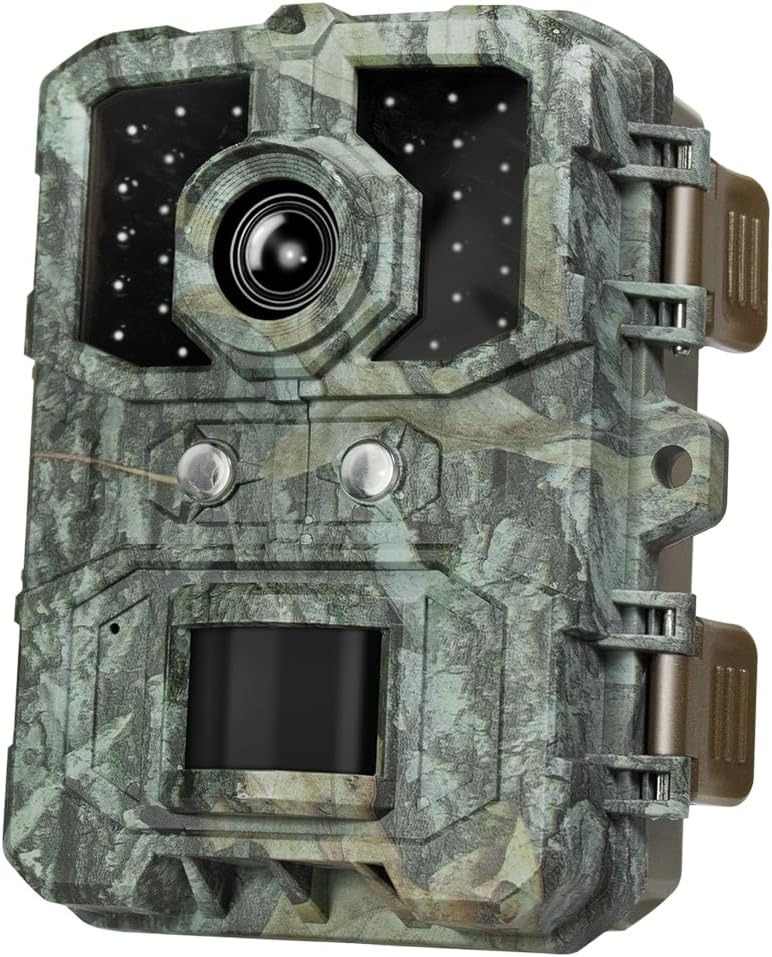
Image 4.1: Front view of the LogiLink WC0066 Trail Camera, showing the lens, IR LEDs, and PIR sensor.
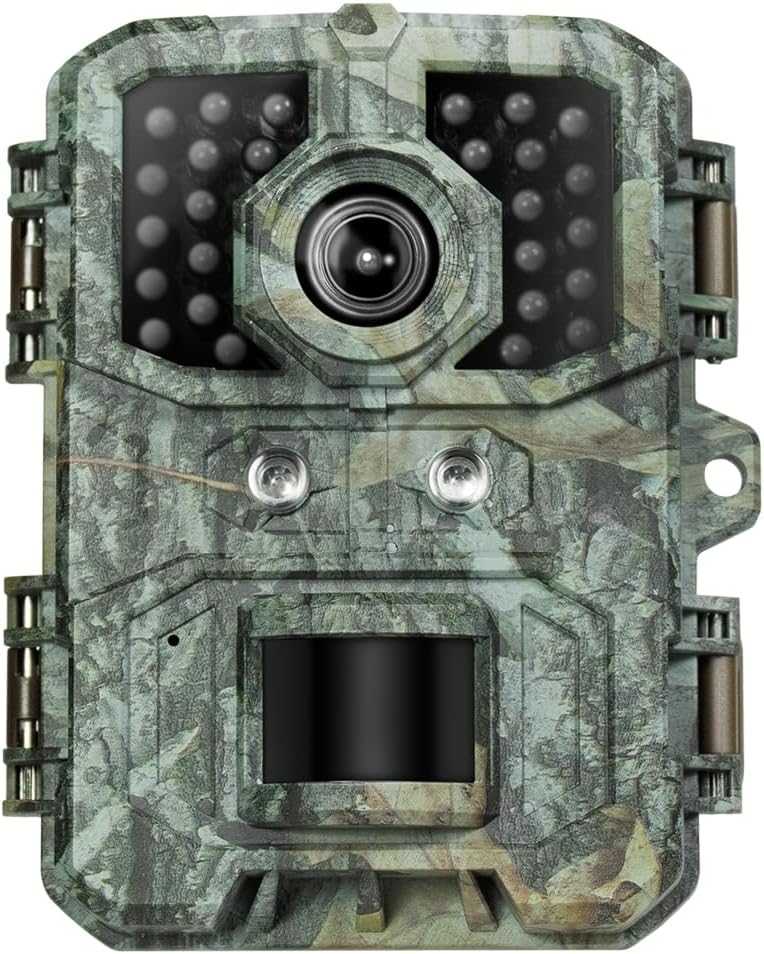
Image 4.2: Close-up front view highlighting the infrared LEDs for night vision.
4.1. Key Features
- High Resolution: 36 Megapixel photos and 4K video recording.
- Night Vision: Effective up to 10 meters using infrared LEDs.
- Motion Detection: 90° PIR sensor with a 0.2-second trigger response time.
- Weatherproof: IP66 protection class for outdoor use in various conditions.
- Integrated Display: 2-inch color LCD screen for easy setup and playback.

Image 4.3: The camera demonstrating its IP66 waterproof rating while mounted on a tree during rain.
5. Setup
5.1. Inserting Batteries
The camera requires AA batteries (not included). Open the latches on the side of the camera to access the battery compartment. Insert the batteries according to the polarity markings inside the compartment. Ensure the compartment is sealed tightly after insertion to maintain water resistance.

Image 5.1: Internal view of the camera, showing the battery slots and the LCD screen.
5.2. Inserting a MicroSD Card
The camera supports microSD and microSDHC cards up to 64 GB. Locate the microSD card slot, typically near the battery compartment or on the side. Insert the card with the gold contacts facing the correct direction until it clicks into place. A formatted card is recommended for optimal performance.
5.3. Powering On/Off
Locate the power switch, usually inside the camera housing. Switch it to the 'ON' position to power on the camera. The LCD screen will illuminate. To power off, switch it to the 'OFF' position.
5.4. Mounting the Camera
The camera is designed for tree mounting. Use the provided mounting strap to secure the camera to a tree or pole. Ensure the camera is stable and pointed towards the desired surveillance area. The back of the camera features a design suitable for strap attachment.

Image 5.2: Rear view of the camera, illustrating the design for strap mounting.
For added security, the camera includes a padlock loop on the side. A padlock (not included) can be used to deter theft.

Image 5.3: Side view of the camera showing the padlock loop for security.
6. Operating the Camera
6.1. Navigating the Menu
Once powered on, use the integrated 2-inch LCD screen and control buttons to navigate the camera's settings menu. The menu allows you to configure various parameters such as photo resolution, video resolution, PIR sensitivity, time-lapse settings, and more.
6.2. Photo Mode
In photo mode, the camera captures still images at resolutions up to 36 Megapixels. You can set the number of photos taken per trigger event and the delay between triggers.
6.3. Video Mode
The camera supports video recording at multiple resolutions:
- 4K (3840 x 2160 @ 30 fps)
- 2K (2560 x 1440 @ 30 fps)
- 1080p (1920 x 1080 @ 30 fps)
- 720p (1280 x 720 @ 30 fps)
You can adjust video length and quality settings in the menu.
6.4. Motion Detection (PIR Sensor)
The 90° PIR sensor detects movement up to 15 meters during the day and 10 meters at night. The trigger response time is 0.2 seconds. Adjust the PIR sensitivity (High, Medium, Low) in the settings to suit your environment and avoid false triggers.
6.5. Night Vision
The camera automatically switches to night vision mode in low-light conditions, utilizing its infrared LEDs to capture clear images and videos up to 10 meters without disturbing wildlife.
6.6. Time Interval Setting
Configure the time interval between consecutive triggers from 5 seconds to 30 minutes to prevent excessive recording of the same event.
7. Data Transfer
To access recorded photos and videos, connect the camera to a computer using the provided USB cable. The camera will appear as a removable disk, allowing you to copy files directly. Alternatively, you can remove the microSD card and insert it into a card reader.

Image 7.1: Bottom view of the camera, indicating the USB port for data transfer and DC input.
8. Maintenance
- Cleaning: Use a soft, dry cloth to clean the camera lens and casing. Do not use abrasive cleaners or solvents.
- Battery Replacement: Replace all batteries simultaneously when they are low to ensure consistent power.
- Storage: When not in use for extended periods, remove the batteries and store the camera in a cool, dry place.
9. Troubleshooting
9.1. Camera Not Powering On
- Check if batteries are inserted correctly with the right polarity.
- Ensure batteries have sufficient charge. Replace with new ones if necessary.
- Verify the power switch is in the 'ON' position.
9.2. Poor Image/Video Quality
- Clean the camera lens to remove dirt or smudges.
- Ensure the camera is stable and not subject to vibrations during recording.
- Check lighting conditions. Night vision performance can be affected by distance and ambient light.
9.3. Motion Sensor Not Triggering
- Adjust PIR sensitivity to a higher setting.
- Ensure there are no obstructions in front of the PIR sensor.
- Verify the camera is positioned within the effective range of the PIR sensor.
9.4. SD Card Error
- Ensure the microSD card is properly inserted.
- Format the microSD card using the camera's menu or a computer.
- Try a different microSD card (max. 64 GB, Class 10 or higher recommended).
10. Specifications
| Feature | Specification |
|---|---|
| Model Name | WC0066 |
| Photo Resolution | Up to 36 Megapixels |
| Video Resolution | 4K (3840x2160@30fps), 2K (2560x1440@30fps), 1080p (1920x1080@30fps), 720p (1280x720@30fps) |
| PIR Sensor Angle | 90° |
| PIR Sensor Range | Up to 15m (day), 10m (night) |
| Trigger Response Time | 0.2 seconds |
| Night Vision Range | 10 meters |
| LCD Screen | 2-inch Color LCD (320x240 / 220x176) |
| Memory Card Support | microSD, microSDHC up to 64 GB |
| Protection Class | IP66 |
| Power Source | Battery Powered (AA batteries, not included) |
| Connectivity Technology | Wireless (for local recording, not live streaming) |
| Mounting Type | Tree mount |
| Dimensions (L x W x H) | 11.1 x 9 x 6.3 cm |
| Weight | 177.5 grams |
| Color | Camouflage |
| Manufacturer | 2direct GmbH |
| Country of Origin | China |
11. Warranty and Support
Specific warranty information is not provided in the product details. For warranty claims, technical support, or spare parts inquiries, please contact your retailer or the manufacturer, LogiLink, directly. Keep your purchase receipt as proof of purchase.


