
Introduction
The ALOGIC Illuminate USB-C Light Bar with 4K Autofocus Webcam is designed to enhance your workspace by providing adjustable lighting and a high-quality webcam. This device offers warm or neutral lighting without screen glare, intuitive touch controls, and a magnetic remote dial for precise adjustments. The integrated 12MP (4K) autofocusing webcam is compatible with Mac and Windows, suitable for video calls, streaming, and recording. A magnetic privacy cover is included for the webcam, and a bright status LED indicates when the camera is active. The light bar is compatible with monitors 8-30mm thick and connects via a single USB-C cable.

Image: The ALOGIC Illuminate USB-C Light Bar with 4K Autofocus Webcam, showcasing its sleek design and integrated webcam.
Package Contents
Please check the package for the following items:
- ALOGIC Illuminate USB-C Light Bar with 4K Autofocus Webcam
- USB-C Cable
- Magnetic Remote Control Dial
- Magnetic Privacy Cover
Setup
- Attach the Light Bar: Gently place the Illuminate light bar on top of your monitor. The adjustable clamp mechanism is designed to securely fit monitors between 8-30mm thick. Ensure the light bar is centered for optimal lighting and webcam positioning.
- Connect Power and Data: Connect the provided USB-C cable to the USB-C port on the light bar and then to an available USB-C port on your computer or monitor. This single cable provides both power and data for the light and webcam.
- Position the Remote Dial: Place the magnetic remote control dial on your desk within easy reach. It will automatically connect to the light bar.
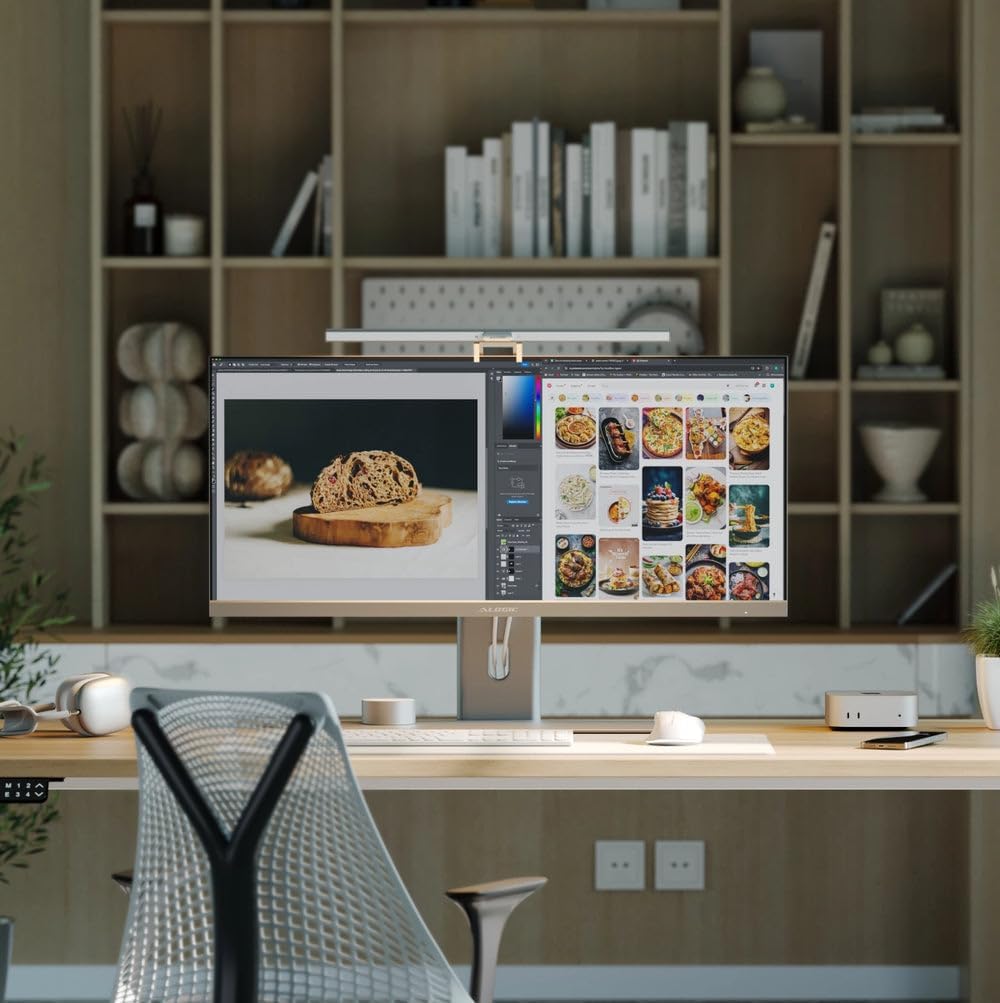
Image: The Illuminate light bar securely mounted on top of a monitor, integrated into a modern workspace.

Image: Diagram illustrating the USB-C connection for power and data, simplifying setup.
Operating Instructions
Light Control
The Illuminate light bar offers flexible lighting options to suit your environment.
- Touch Controls: The light bar features intuitive touch controls located on its surface. Use these to quickly adjust brightness and color temperature.
- Remote Dial: For fine-tuned adjustments, use the magnetic remote control dial. Swipe your finger along the adjustment bar on the dial to change brightness or color temperature. Press the power button to turn the light on/off, and the mode switch button to cycle through color temperature presets.
- Color Temperature: Adjust the light from warm to neutral tones to match your preference or environment.

Image: A diagram highlighting the touch-sensitive buttons on the light bar for adjusting power, brightness, and color temperature.

Image: The magnetic remote control dial, detailing its power button, mode switch button, and adjustment bar for light settings.

Image: Visual representation of the light bar providing various color temperatures, from warm to cool, on a monitor.
Webcam Usage
The integrated 4K autofocus webcam is ready for use once connected to your computer.
- Compatibility: The webcam is fully compatible with Mac and Windows operating systems. It functions as a standard USB webcam.
- Status LED: A bright status LED on the light bar indicates when the webcam is active and sharing video.
- Privacy Cover: For privacy, attach the magnetic privacy cover over the webcam lens when not in use.

Image: A close-up view demonstrating the magnetic privacy cover snapping onto the webcam for enhanced privacy.
Official Product Video
Video: An official product video from ALOGIC USA demonstrating the features and functionality of the Illuminate USB-C Light Bar with 4K Autofocus Webcam.
Maintenance
To ensure the longevity and optimal performance of your ALOGIC Illuminate device, follow these simple maintenance guidelines:
- Cleaning: Use a soft, dry, lint-free cloth to clean the surface of the light bar and webcam lens. Avoid using abrasive cleaners, solvents, or aerosol sprays, as these can damage the finish or optical components.
- Storage: When not in use for extended periods, store the device in a cool, dry place away from direct sunlight and extreme temperatures.
- Cable Care: Avoid bending or crimping the USB-C cable excessively to prevent internal damage.
Troubleshooting
If you encounter issues with your ALOGIC Illuminate, refer to the following common solutions:
- Light or Webcam Not Functioning:
- Ensure the USB-C cable is securely connected to both the light bar and your computer/monitor.
- Try connecting to a different USB-C port on your computer or monitor.
- Verify that your computer's operating system recognizes the webcam (check Device Manager on Windows or System Information on Mac).
- Restart your computer.
- Webcam Image Quality Issues:
- Ensure the webcam lens is clean and free from dust or smudges.
- Check your video conferencing software settings to ensure the ALOGIC webcam is selected and configured for 4K resolution if supported.
- Ensure adequate lighting in your environment.
- Remote Dial Not Responding:
- Ensure the remote dial is within close proximity to the light bar.
- Check if the light bar itself is powered on.
Specifications
Detailed specifications for the ALOGIC Illuminate USB-C Light Bar with 4K Autofocus Webcam:
| Feature | Specification |
|---|---|
| Brand | ALOGIC |
| Item Weight | 2.2 Pounds |
| Number of Batteries | 1 Nonstandard Battery (included) |
| Style | Modern |
| Number of Light Sources | 1 |
| Beam Angle | 120 Degrees |
| Connectivity | USB-C |
| Operating Systems | Windows®, macOS®, Android, Linux |
| Material | ABS / Aluminium |
| Package Dimensions | 21.81 x 6.34 x 2.28 inches |
| ASIN | B0DT9PS68Y |
| Date First Available | January 17, 2025 |
Warranty and Support
For warranty information and technical support, please refer to the ALOGIC official website or contact their customer service directly. Keep your purchase receipt for warranty claims.


