
1. Introduction
Welcome to the Valerion StreamMaster Plus 4K Projector user manual. This guide provides essential information for setting up, operating, and maintaining your new projector. Please read it thoroughly before use to ensure safe and optimal performance of your device.
2. Safety Information
Always follow these basic safety precautions when using your projector:
- Do not block ventilation openings. Ensure adequate space around the projector for proper airflow.
- Do not expose the projector to rain or moisture to prevent fire or electric shock.
- Avoid looking directly into the projector lens when the lamp is on, as it can cause eye damage.
- Use only the power adapter supplied with the projector.
- Keep the projector away from heat sources and direct sunlight.
- Do not attempt to disassemble or modify the projector. Refer all servicing to qualified personnel.
3. Package Contents
Verify that all items are present in your package:
- Valerion StreamMaster Plus 4K Projector
- Power Cable
- Remote Control
- User Manual (this document)
4. Product Overview
The Valerion StreamMaster Plus is a high-performance 4K projector designed for versatile indoor and outdoor use. It features a native 3840 x 2160 resolution, 3D-ready capabilities, built-in speakers, and extensive connectivity options.
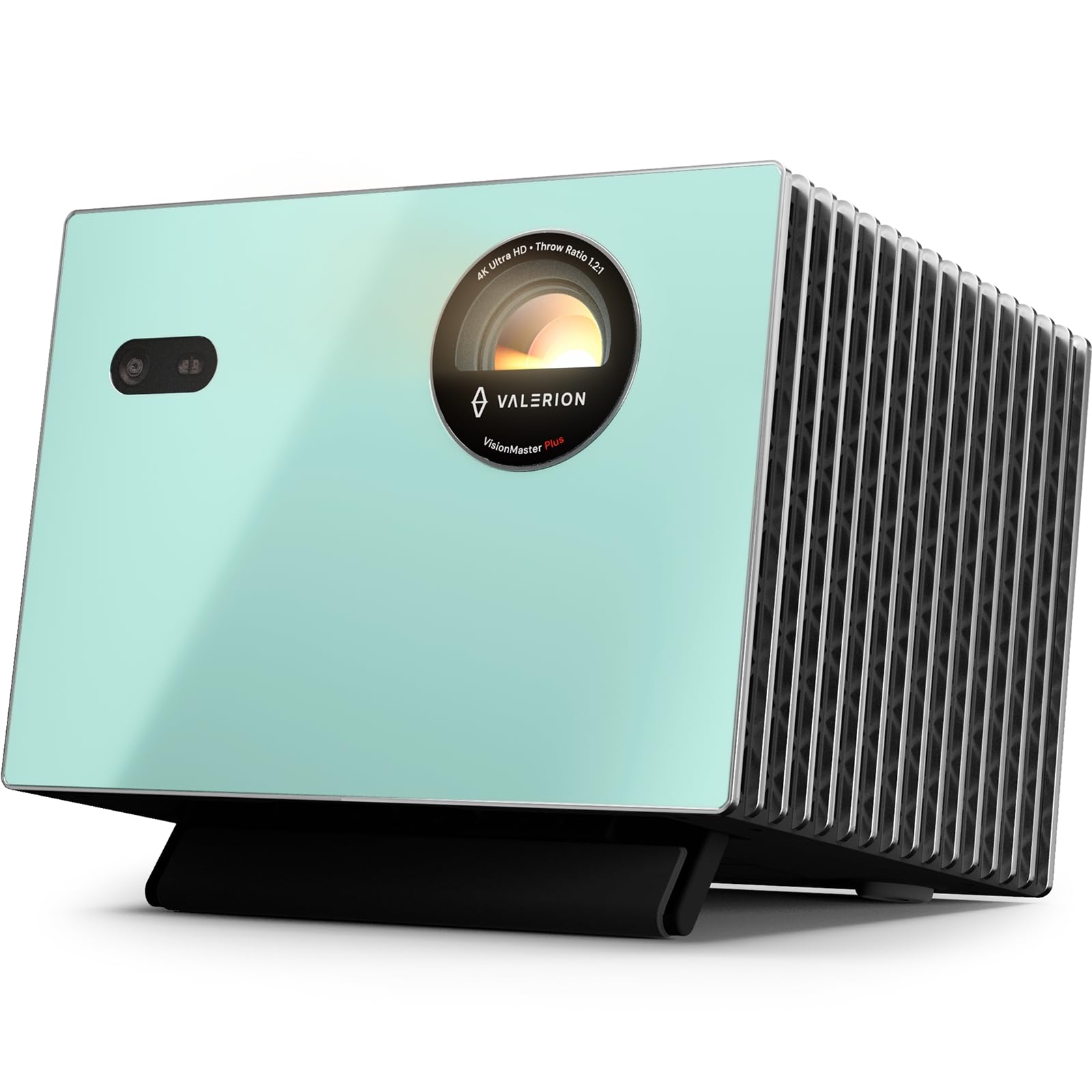
Figure 4.1: Front view of the Valerion StreamMaster Plus 4K Projector. This image highlights the projector's lens and compact design, showcasing its sleek appearance.
Key Features:
- Display Resolution: 3840 x 2160 (4K UHD)
- Display Type: DLP
- Special Features: 3D-Ready, Built-In 3D, Internet Ready, Integrated Speakers
- Connectivity: HDMI, S/PDIF, USB 3.0, Ethernet
- Recommended Uses: Indoor/Outdoor
5. Setup
5.1 Placement
The StreamMaster Plus is suitable for both indoor and outdoor environments. For optimal viewing, consider the following:
- Image Size: The projector can produce an image size ranging from 40 inches to a maximum of 300 inches diagonally. Adjust the distance from the projection surface to achieve your desired screen size.
- Mounting: The projector supports wall mounting. Ensure the mounting surface is sturdy and capable of supporting the projector's weight (7 Kilograms).
- Environment: Place the projector on a stable, level surface or mount it securely. Ensure proper ventilation and avoid placing it near heat sources or in direct sunlight.
5.2 Power Connection
- Connect the power cable to the projector's power input port.
- Plug the other end of the power cable into a grounded electrical outlet.
5.3 Connecting Devices
The StreamMaster Plus offers multiple connectivity options:
- HDMI: Connect your video sources (e.g., Blu-ray player, gaming console, laptop) using an HDMI cable to the HDMI input ports.
- USB 3.0: Use the USB 3.0 port for connecting external storage devices to play media directly.
- S/PDIF: For digital audio output to an external sound system.
- Ethernet: Connect an Ethernet cable for wired internet access, enabling smart features and streaming.
6. Operating
6.1 Power On/Off
- Power On: Press the power button on the projector or the remote control. The indicator light will illuminate.
- Power Off: Press the power button again. Confirm shutdown if prompted. Allow the projector to cool down before unplugging.
6.2 Input Source Selection
Use the 'Source' button on the remote control or projector to cycle through available input sources (HDMI 1, HDMI 2, USB, etc.) until your desired source is displayed.
6.3 Adjusting Display Settings
Access the projector's on-screen menu to adjust settings such as:
- Resolution: The native resolution is 3840 x 2160. Ensure your source device is set to output at this resolution for the best picture quality.
- Aspect Ratio: Adjust to match your content (e.g., 16:9, 4:3).
- Picture Mode: Select from various presets (e.g., Standard, Dynamic, Cinema) or customize brightness, contrast, and color settings.
6.4 3D Functionality
The StreamMaster Plus is 3D-ready and features built-in 3D capabilities. To enjoy 3D content:
- Ensure your 3D source content and player are compatible.
- Wear compatible active 3D glasses (sold separately).
- Activate 3D mode through the projector's menu if it doesn't automatically detect 3D content.
6.5 Audio Output
The projector includes integrated speakers for direct audio playback. For enhanced audio, connect external speakers or a sound system via the S/PDIF port.
6.6 Internet Connectivity
With its Internet Ready feature and Ethernet connectivity, you can access online streaming services and updates directly through the projector. Navigate the smart interface using the remote control.
7. Maintenance
7.1 Cleaning the Lens
Gently wipe the projector lens with a soft, lint-free cloth specifically designed for optical surfaces. Do not use abrasive cleaners or excessive force.
7.2 Cleaning the Projector Body
Use a soft, dry cloth to clean the exterior of the projector. For stubborn marks, a slightly damp cloth can be used, followed by a dry cloth. Avoid using harsh chemicals.
7.3 Ventilation
Regularly check that the ventilation openings are clear of dust and debris to prevent overheating. Use a soft brush or compressed air to gently clean the vents.
7.4 Storage
When not in use for extended periods, store the projector in a cool, dry place, protected from dust and extreme temperatures. Use the original packaging if available.
8. Troubleshooting
If you encounter issues with your projector, refer to the following common problems and solutions:
| Problem | Possible Cause | Solution |
|---|---|---|
| No image displayed | Incorrect input source selected; Loose cable connection; Projector not powered on. | Select the correct input source. Check all cable connections. Ensure the projector is powered on. |
| Image is blurry | Focus ring not adjusted; Projector too close/far from screen. | Adjust the focus ring on the lens. Reposition the projector to achieve optimal image size and clarity. |
| No sound | Volume too low; Muted; Incorrect audio output selected. | Increase volume. Unmute the projector. Check audio settings and external speaker connections. |
| Remote control not working | Dead batteries; Obstruction between remote and projector. | Replace batteries. Ensure a clear line of sight to the projector's IR receiver. |
If the problem persists after trying these solutions, please contact Valerion customer support.
9. Specifications
| Feature | Specification |
|---|---|
| Brand | Valerion |
| Model Number | StreamMaster Plus |
| Display Resolution | 3840 x 2160 (4K UHD) |
| Native Resolution | 3840 x 2160 |
| Display Type | DLP |
| Connectivity Technology | Ethernet |
| Hardware Connectivity | HDMI, S/PDIF, USB 3.0 |
| Special Features | 3D-Ready, Built-In 3D, Internet Ready, Speakers |
| Recommended Uses | Indoor/Outdoor |
| Mounting Type | Wall Mount |
| Minimum Image Size | 40 Inches |
| Maximum Image Size | 300 Inches |
| Item Dimensions (L x W x H) | 18"L x 23"W x 26"H |
| Item Weight | 7 Kilograms |
| Manufacturer | VALERION TECHNOLOGY USA CO., LTD |
| UPC | 850067089872 |
10. Warranty and Support
Valerion products are manufactured to the highest quality standards. For warranty information, please refer to the warranty card included with your purchase or visit the official Valerion website. For technical support or service inquiries, please contact Valerion customer service through the contact information provided on our website.
Online Support: Valerion Official Store

