
1. Introduction
The ATTACK SHARK X65 HE is a high-performance 65% mechanical gaming keyboard designed for competitive play and extensive customization. Featuring advanced Hall Effect magnetic switches, rapid trigger technology, and an 8000Hz polling rate, it delivers unparalleled speed and precision. This manual provides comprehensive instructions for setting up, operating, customizing, and maintaining your keyboard to ensure optimal performance.

Image: The ATTACK SHARK X65 HE keyboard, highlighting its magnetic switch and rapid trigger capabilities.
2. Key Features
- Hyper-fast Speed All-Area Magnetic Switches: Utilizes self-developed pre-lubed magnetic switches for leading response speed, precise control, and ultra-stable typing. Supports polling rates of up to 8000Hz and a 128K ultra-high scan rate, reducing latency to an impressive 0.125ms (theoretical value).
- Rapid Trigger (RT) with Adjustable Actuation: Advanced rapid trigger technology offers an adjustable actuation distance from 0.1mm to 3.4mm with 0.01mm precision. Keys reset instantly for fast, uninterrupted inputs, providing lightning-fast response times crucial for FPS, RTS, and MOBA games.
- Programmable NKRO ANSI Keyboard: Utilize the web driver (qmk.top) to remap key functions, set Rapid Trigger (RT), SOCD (Snap Tap), MT/TGL, macros, and hotkeys. Adjust light modes and DIY custom light effects, enabling up to 4 actions for one keypress.
- 65% Hot-swappable Design: Compact 67-key layout with ergonomic structure, colorblock theme PBT keycaps, and separate arrow keys. Features non-slip mat, adjustable bracket, full key anti-ghosting, FN key combinations, and seamless Win/Mac switching. Equipped with a hot-swappable PCB supporting north-pole-down magnetic switches.
- South-facing LEDs & Top Mounted Structure: 16.8 million-color RGB lighting with various adjustable custom backlit modes. Top-mount structure with aluminum alloy plate and three-layer filling (PORON foam + EPDM foam + Silicone) for quiet, stable, and smooth typing.

Image: Visual representation of the keyboard's 8000Hz polling rate and 0.125ms response time.
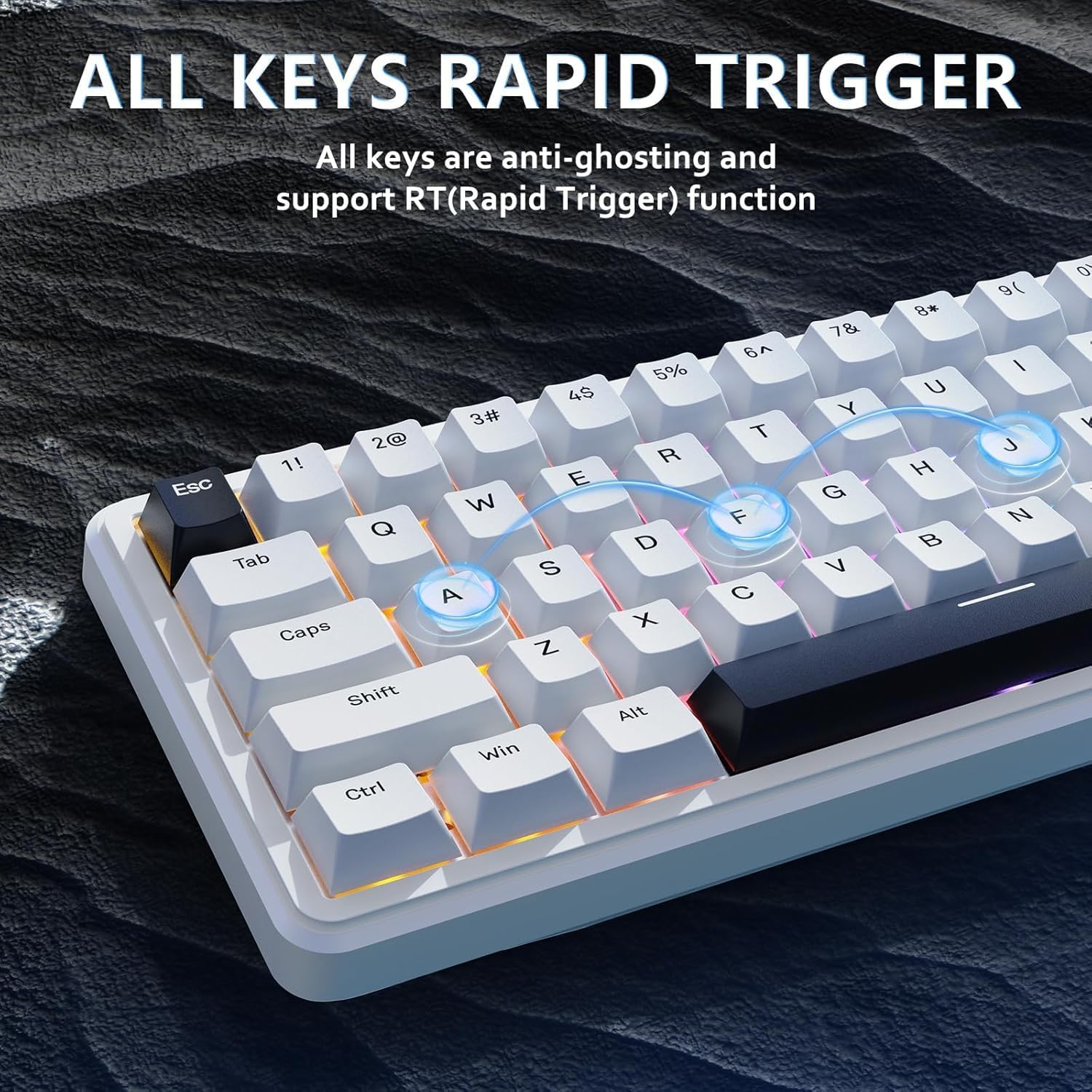
Image: The keyboard illustrating the rapid trigger function across all keys.

Image: A close-up view of a magnetic switch, emphasizing its 0.01mm rapid trigger accuracy and zero dead zone.

Image: The keyboard alongside its web driver interface, showcasing customization options.

Image: Exploded view diagram illustrating the internal layers of the keyboard's top-mounted structure.
3. What's in the Box
- ATTACK SHARK X65 HE Mechanical Gaming Keyboard
- USB-C to USB-A Cable (Standard)
- Braided USB-C Cable with Detachable Aviator Connector
- Magnetic Wrist Rest (with storage compartment)
- User Manual
4. Setup
4.1 Initial Connection
Your ATTACK SHARK X65 HE keyboard supports multiple connection modes: wired, 2.4G wireless, and Bluetooth. Ensure the keyboard is charged before initial wireless use.
- Wired Connection: Connect the USB-C end of the provided cable to the keyboard's USB-C port and the USB-A end to your computer's USB port. The keyboard will automatically be recognized.
- 2.4G Wireless Connection: Locate the 2.4G USB receiver (dongle) on the keyboard's rear. Insert the receiver into an available USB port on your computer. Slide the mode switch on the keyboard's rear to the '2.4G' position. The keyboard should connect automatically.
- Bluetooth Connection: Slide the mode switch on the keyboard's rear to the 'BT' position. On your computer or device, search for Bluetooth devices and select 'ATTACK SHARK X65 HE' to pair.
4.2 Driver Installation
For full customization and advanced features, download the official web driver from qmk.top. Follow the on-screen instructions to install the necessary drivers and access the customization software.
Video: An official product video demonstrating the setup and features of the ATTACK SHARK X65 HE keyboard.
5. Operating Modes
The X65 HE keyboard offers versatile connectivity options to suit your needs:
- Wired Mode: Provides the most stable and lowest latency connection, ideal for competitive gaming where every millisecond counts. Simply connect the USB-C cable to your device.
- 2.4G Wireless Mode: Offers a high-speed, low-latency wireless experience via the dedicated USB receiver. Perfect for gaming without cable clutter.
- Bluetooth Mode: Convenient for connecting to multiple devices (e.g., PC, laptop, tablet) without needing a dongle. Ideal for general use and productivity.
Switch between modes using the physical switch located on the rear edge of the keyboard. Ensure the correct mode is selected for your desired connection type.
Video: An official product video showcasing the magnetic switch technology and various features of the ATTACK SHARK X65 HE keyboard.
6. Customization Software (QMK.top)
The ATTACK SHARK X65 HE keyboard is fully programmable via its intuitive web-based driver at qmk.top. This software allows for deep customization of key functions, actuation, and lighting.
6.1 Key Setting
- Key Remapping: Assign any key to a different function, including standard keys, key combinations (Ctrl, Alt, Shift, Win), macros, media controls (play/pause, stop, prev, next), and mouse functions (left/right/middle click, forward/back).
- Multiple Layers: The keyboard supports multiple layers of key configurations, allowing you to switch between different layouts for gaming, productivity, or specific applications.
6.2 Stroke Setting (Actuation & Rapid Trigger)
This section allows precise control over the magnetic switches:
- Adjustable Actuation Distance: Set the trigger point for each key from 0.1mm to 3.4mm with 0.01mm precision.
- Rapid Trigger (RT): Enable instant key reset upon release, allowing for extremely fast repeated inputs.
- Dead Zone Setting: Configure dead zones to prevent accidental key presses or to fine-tune responsiveness.
6.3 Advanced Settings
Unlock advanced functionalities for competitive advantage:
- Dynamic Keystrokes (DKS): Assign up to four different actions to a single key based on the depth of the press and release.
- Macro Recording: Create and manage complex macro sequences with precise timing.
- MT/TGL & Snap Key: Further fine-tune key behavior for specific gaming scenarios.
6.4 Light Setting (RGB)
Customize the keyboard's vibrant RGB lighting:
- Light Modes: Choose from a variety of pre-set lighting effects (e.g., Dynamic Breathing, Spectrum Cycle, Drift, Waves Ripple, Stars Twinkle, Steady Stream, Shadowing, Peaks Rise, Sine Wave, Sky Spring, Flowers Blooming, Laser, Peak Turn, Colorful Vertical & Horizontal, Snow, Meteor, Through the Snow, Music Follow).
- Custom Lighting: Design your own per-key RGB lighting patterns and save them as custom layers.
- Brightness & Speed: Adjust the intensity and animation speed of lighting effects.
7. Maintenance
Proper maintenance ensures the longevity and performance of your keyboard:
- Cleaning Keycaps: Use a soft, damp cloth with mild soap and water to clean the PBT keycaps. Avoid harsh chemicals. For deeper cleaning, keycaps can be carefully removed.
- Cleaning Chassis: Wipe the keyboard chassis with a dry or slightly damp microfiber cloth. Do not use excessive moisture.
- Magnetic Switches: The pre-lubed magnetic switches require minimal maintenance. Avoid disassembling the switches unless you are experienced, as this may void the warranty.
- Cable Care: Store cables neatly to prevent kinks or damage. The braided cable with the aviator connector is designed for durability.
8. Troubleshooting
- Keyboard Not Responding:
- Ensure the cable is securely connected in wired mode.
- Check the mode switch on the rear of the keyboard (Wired, 2.4G, BT).
- For wireless modes, ensure the keyboard is charged.
- Try connecting to a different USB port on your computer.
- 2.4G Wireless Issues:
- Ensure the USB receiver is properly inserted and the keyboard is in 2.4G mode.
- Move the keyboard closer to the receiver to reduce interference.
- Bluetooth Pairing Issues:
- Ensure the keyboard is in Bluetooth pairing mode.
- Remove the keyboard from your device's Bluetooth list and attempt to re-pair.
- Ensure your device's Bluetooth is enabled and discoverable.
- RGB Lighting Not Working/Customizing:
- Ensure the keyboard is connected and the web driver is running.
- Check lighting settings within the QMK.top software.
- Software Not Detecting Keyboard:
- Ensure the keyboard is connected via USB-C cable.
- Restart the QMK.top web driver application or your computer.
- Check for firmware updates for the keyboard via the software.
9. Specifications
| Feature | Description |
|---|---|
| Brand | ATTACK SHARK |
| Model | X65 HE |
| Connectivity Technology | USB-C (Wired), 2.4G Wireless, Bluetooth |
| Keyboard Description | Adjustable Actuation Distance Rapid Trigger Magnetic Switch Gaming Keyboard |
| Switch Type | Magnetic Hall Effect Switches (North-pole-down compatible) |
| Polling Rate | 8000Hz |
| Scan Rate | 128K Ultra-High Scan Rate |
| Latency | 0.125ms (Theoretical Value) |
| Actuation Distance | 0.1mm to 3.4mm (0.01mm precision) |
| Keycaps | PBT Keycaps |
| Layout | 65% (67-key) ANSI with separate arrow keys |
| Backlighting | RGB (16.8 million colors, South-facing LEDs) |
| Structure | Top Mounted with Aluminum Alloy Plate and 3-layer filling (PORON foam + EPDM foam + Silicone) |
| Compatible Devices | PC, Mac (Dual-system switchable) |
| Item Weight | 1.87 pounds |
| Package Dimensions | 14.06 x 6.5 x 2.05 inches |
10. Warranty and Support
Your ATTACK SHARK X65 HE keyboard comes with a manufacturer's warranty covering defects in materials and workmanship. For specific warranty terms and conditions, please refer to the warranty card included in your product packaging or visit the official ATTACK SHARK website.
For technical support, troubleshooting assistance, or any product-related inquiries, please contact ATTACK SHARK customer service through their official channels. Contact information can typically be found on the product packaging or the brand's website.


