
Introduction
The ATTACK SHARK X65PRO HE is a high-performance 60% ultra-compact wireless gaming keyboard designed for precision and speed. Featuring Hall Effect magnetic switches, rapid trigger functionality, adjustable actuation points, and tri-mode connectivity, this keyboard offers a customizable and responsive gaming experience. This manual provides detailed instructions for setup, operation, maintenance, and troubleshooting to help you maximize your keyboard's potential.

Image: The ATTACK SHARK X65PRO HE keyboard showcasing its compact design and key features like Magnetic Switch, 0.01mm RT Accuracy, Adjustable Actuation Point, 0.125ms Latency, Snap Tap, RGB Lighting, Tri-Mode Connection, and Web Driver.
Key Features
- 60% Ultra-compact Layout: Space-saving design ideal for gaming and typing, allowing for more mouse movement.
- RT Keyboard with Adjustable Actuation: Fully adjustable Hall magnetic switches with 0.01mm accuracy, allowing actuation points from 0.1mm to 3.4mm for lightning-fast response.
- 8000Hz Polling Rate: Achieves 0.125ms input latency in wired mode and 1000Hz in wireless mode for quick response times.
- Web Driver: Self-developed web-based driver for customizing macros, RGB lighting, and performance settings without installation.
- Tri-Mode Connection: Supports Bluetooth, 2.4GHz wireless, and USB-C wired connectivity for versatile device pairing.
- CNC Metal Knob: Allows for precise and quick volume adjustments.
- Snap Tap & Dynamic Keystroke: Advanced features for faster directional changes and up to 4 actions in one stroke.
- RGB Lighting & 5-Side Dye-sub PBT Keycaps: 16.8 million-color RGB lighting with dynamic effects and durable, vibrant PBT keycaps.
Setup
Connecting Your Keyboard
The X65PRO HE keyboard offers three connection modes: USB-C wired, 2.4GHz wireless, and Bluetooth. Choose the mode that best suits your device and preference.
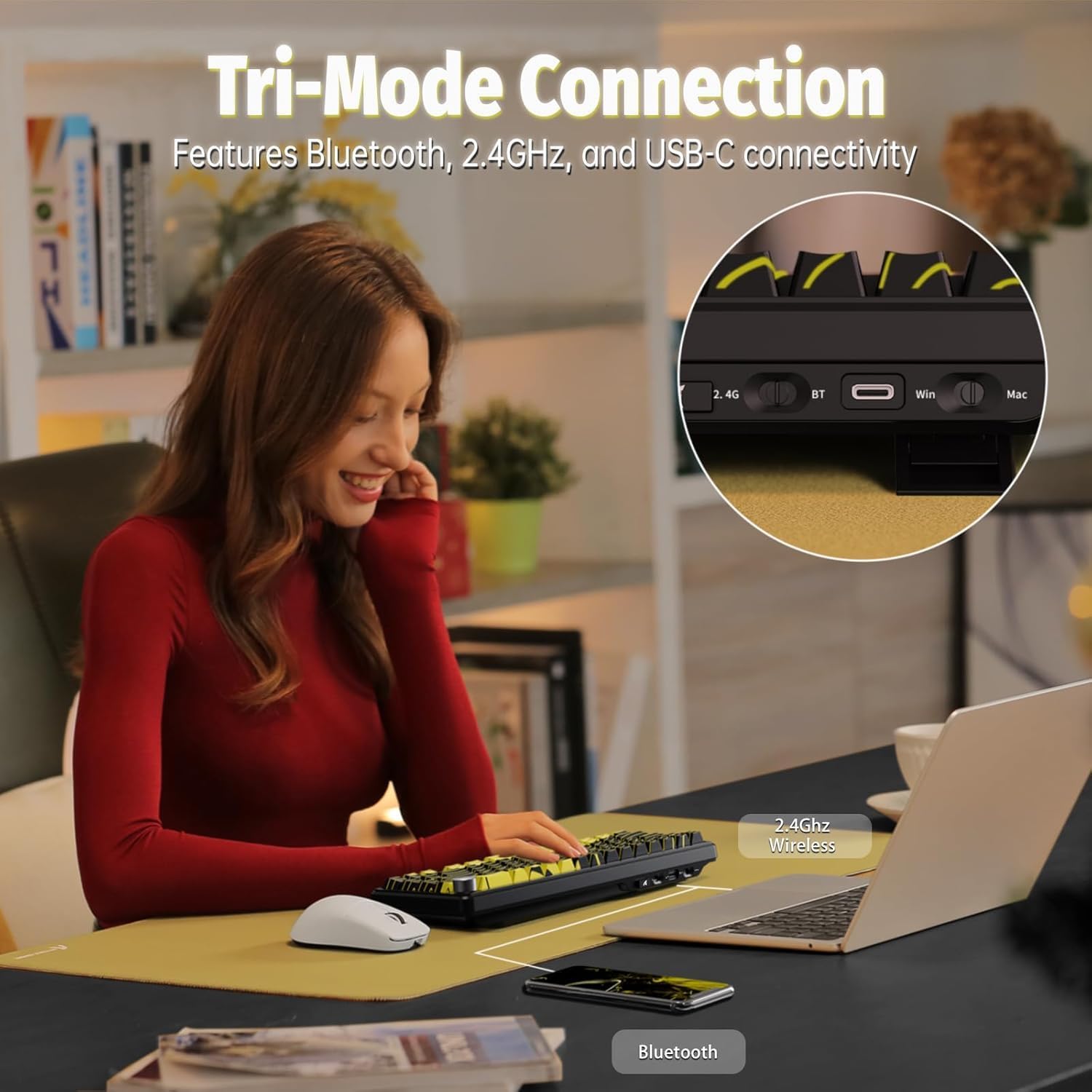
Image: A user operating the keyboard, illustrating the Tri-Mode Connection options (2.4G Wireless, Bluetooth, USB-C) for seamless device pairing.
1. USB-C Wired Connection
- Locate the USB-C port on the keyboard and your computer.
- Connect the provided USB-C cable to both the keyboard and your computer.
- The keyboard will be automatically recognized and ready for use. This mode supports an 8000Hz polling rate.
2. 2.4GHz Wireless Connection
- Locate the 2.4GHz USB receiver (dongle) included with your keyboard.
- Plug the USB receiver into an available USB port on your computer.
- Switch the keyboard's mode selector to 2.4G wireless. The keyboard should connect automatically. This mode supports a 1000Hz polling rate.
3. Bluetooth Connection
- Switch the keyboard's mode selector to Bluetooth.
- On your device (PC, Mac, smartphone, tablet), go to Bluetooth settings and enable Bluetooth.
- Search for new devices and select "ATTACK SHARK X65PRO HE" from the list.
- Follow any on-screen prompts to complete the pairing process.
Operating Instructions
Adjustable Actuation and Rapid Trigger
The X65PRO HE features Hall Effect magnetic switches, allowing for precise customization of each key's actuation point and rapid trigger functionality. This enables keys to reset and re-press faster, providing a competitive edge in gaming.

Image: Detailed view of the magnetic switches, highlighting 0.01mm RT accuracy, 100 million click lifespan, 40±5gf operation force, and an adjustable actuation range of 0.1-3.4mm.
You can customize individual key actuation points within a global range of 0.1mm to 3.4mm using the dedicated web driver software. This allows for fine-tuning sensitivity to match your playstyle.
8000Hz Polling Rate
Experience ultra-low latency with an 8000Hz polling rate in wired mode, reducing input lag to an unprecedented 0.125ms. In wireless mode, the polling rate is 1000Hz, still ensuring fast and responsive input.

Image: A visual representation of the 8000Hz polling rate, demonstrating the rapid 0.125ms response time and 128K scan rate of the keyboard.
Web Driver Customization
The X65PRO HE utilizes a self-developed web driver for comprehensive customization. Access the web driver to:
- Configure macros for complex command sequences.
- Adjust RGB lighting effects and colors.
- Set individual key actuation points.
- Manage performance settings like polling rate.
- Utilize advanced functions such as DKS (Dynamic Keystroke) and SOCD (Simultaneous Opposite Cardinal Directions).

Image: A screenshot of the web driver interface, showing options to customize key functions, RGB lighting, and performance settings.
RGB Lighting Control
The keyboard features 16.8 million-color RGB lighting with various preset effects and bottom lighting. You can customize these effects using the web driver or directly via keyboard shortcuts.

Image: A close-up view of the keyboard showcasing its vibrant full RGB lighting effects and south-facing RGB switches.
Keyboard Lighting Shortcuts:
- FN + PgDn: Main backlight effect switch
- FN + X: Keyboard light switch / power saving mode switch
- FN + [: Main backlight speed -
- FN + ]: Main backlight speed +
- FN + ↑: Main backlight brightness +
- FN + ↓: Main backlight brightness -
- FN + ←: Switch the backlight direction
- FN + →: Switch the backlight color (Order: colorful, red, green, blue, yellow, purple, cyan, white)

Image: A visual guide to the keyboard's lighting instructions, showing key combinations for changing effects, speed, brightness, direction, and color.
CNC Metal Knob
The integrated CNC metal knob provides convenient control over media functions. Press the knob to mute/unmute audio, and rotate it to adjust the volume.

Image: A close-up of the CNC metal knob, illustrating its function for volume adjustment and mute/unmute.
Maintenance
To ensure the longevity and optimal performance of your ATTACK SHARK X65PRO HE keyboard, follow these maintenance guidelines:
- Cleaning: Use a soft, dry cloth to wipe the surface of the keyboard. For dust and debris between keycaps, use compressed air. Avoid using harsh chemicals or abrasive materials.
- Keycap Removal: If you need to remove keycaps for deeper cleaning or replacement, use a keycap puller to avoid damaging the switches. Pull straight up with gentle, even force.
- Storage: When not in use for extended periods, store the keyboard in a dry, cool place away from direct sunlight and extreme temperatures.
- Liquid Exposure: Avoid spilling liquids on the keyboard. If a spill occurs, immediately disconnect the keyboard, turn it upside down to drain, and allow it to dry completely before reconnecting.
Troubleshooting
If you encounter issues with your ATTACK SHARK X65PRO HE keyboard, refer to the following common troubleshooting steps:
| Problem | Solution |
|---|---|
| Keyboard not responding (Wired) | Ensure the USB-C cable is securely connected to both the keyboard and the computer. Try a different USB port or cable. |
| Keyboard not responding (2.4GHz Wireless) | Ensure the 2.4GHz USB receiver is plugged in and the keyboard is switched to 2.4G mode. Check battery level. Re-pair the keyboard with the receiver if necessary (refer to web driver for pairing instructions). |
| Keyboard not responding (Bluetooth) | Ensure Bluetooth is enabled on your device and the keyboard is in Bluetooth mode. Check battery level. Re-pair the keyboard in your device's Bluetooth settings. |
| RGB lighting not working or incorrect | Check keyboard lighting shortcuts (FN + PgDn, FN + X) or use the web driver to adjust settings. Ensure the keyboard is not in power-saving mode. |
| Keys double-typing or not registering | This could be related to actuation point settings. Use the web driver to adjust the actuation point for the affected keys. Ensure switches are clean and free of debris. |
| CNC knob not adjusting volume | Ensure the keyboard is properly connected. Check if any software or operating system settings are overriding the volume control. |
| Web driver not accessible | Ensure your computer has an active internet connection. Try a different web browser. Clear browser cache if issues persist. |
Specifications
| Feature | Detail |
|---|---|
| Model | X65PRO HE |
| Brand | ATTACK SHARK |
| Layout | 60% Ultra-compact, 68 Keys |
| Switch Type | Hall Effect Magnetic Switches (Linear) |
| Actuation Range | 0.1mm to 3.4mm (Adjustable) |
| RT Accuracy | 0.01mm |
| Polling Rate (Wired) | 8000Hz |
| Polling Rate (Wireless) | 1000Hz |
| Scan Rate | 128KHz |
| Connectivity | USB-C, 2.4GHz Wireless, Bluetooth |
| Keycaps | 5-Side Dye-sub PBT |
| Backlighting | RGB (16.8 million colors) |
| Battery Capacity | 3000mAh |
| Compatible Devices | PC, Mac, Gaming Console, Smartphone, Tablet |
| Included Components | USB Cable |
Warranty Information
The ATTACK SHARK X65PRO HE Gaming Keyboard comes with a 1-year warranty from the date of purchase. This warranty covers manufacturing defects and malfunctions under normal use. It does not cover damage caused by misuse, accidents, unauthorized modifications, or normal wear and tear. Please retain your proof of purchase for warranty claims.
Support
For further assistance, technical support, or warranty inquiries, please visit the official ATTACK SHARK website or contact their customer service. You can often find FAQs, driver downloads, and additional resources online.
Official Website: ATTACK SHARK Store on Amazon
Product Video
Video: An official product video from MAGIC-REFINER Direct showcasing the X65PRO HE Rapid Trigger Wireless Gaming Keyboard's features and design.


