
1. Introduction
This manual provides detailed instructions for the installation, operation, and maintenance of your NINETOM 12.3 inch Touchscreen Wireless CarPlay Android Auto Multimedia Car Radio Receiver. Please read this manual thoroughly before use to ensure proper functionality and to maximize your product experience.
2. Compatibility
This touchscreen is compatible exclusively with Audi Q5 models manufactured between 2009 and 2017 that are equipped with the 3G MMI+ system. It is not compatible with other Audi systems such as Audi Concert or Symphony. To confirm your car's system, check the text on the central control unit. If you are unsure about your vehicle's compatibility, please consult with a professional or contact customer support.

Figure 2.1: Visual guide to identify compatible Audi multimedia systems. The image displays various Audi central control units, highlighting which ones are compatible (Audi Multimedia) and which are not (Audi Symphony, Audi Concert, Audi CD Changer, Audi Chorus).
3. Product Features
- Operating System: Runs on a Linux system for stable and reliable performance.
- Display: 12.3-inch touchscreen with 1920x720 HD resolution for sharp and vibrant visuals.
- Connectivity: Built-in wired and wireless Apple CarPlay and Android Auto.
- Mirrorlink: Supports AirPlay for iPhone and Miracast for Android devices.
- Original Function Retention: Retains original car radio, amplifier function, factory joystick control, and original reversing camera.
- Camera Support: Compatible with original or aftermarket rearview cameras and DVR systems.
- Audio/Video Playback: Connect devices via USB for music or video playback.
- Voice Control: Supports voice commands for hands-free operation.

Figure 3.1: Overview of the Linux system interface and the original factory system interface, demonstrating one-button switching and retained original functions.

Figure 3.2: Demonstration of CarPlay, Android Auto, and Mirror Link functionality, showing smartphone apps displayed on the car screen.

Figure 3.3: Supported original car settings and features, illustrating how the new system integrates with existing vehicle functionalities.

Figure 3.4: Visual representation of seamless system switching between the original vehicle system and CarPlay.

Figure 3.5: Wireless and wired CarPlay and Android Auto support, enabling access to phone apps on the car screen.

Figure 3.6: Product features displayed on the Linux screen interface.
4. Package Contents
The package includes the following components:

Figure 4.1: Product Accessories List. The image details all components included in the package for installation.
- 12.3 inch Touchscreen Display
- Power Cable
- Screen Bracket
- Screen Stand
- USB Cable
- Emergency Light Cable
- AMI Cable / Screws
- Installation Tools
5. Installation Guide
The NINETOM touchscreen is designed for plug-and-play installation using the original car cables, ensuring a non-destructive process without the need for cutting or breaking wires. For detailed steps, please refer to the included installation diagram or contact customer support if you encounter any issues.
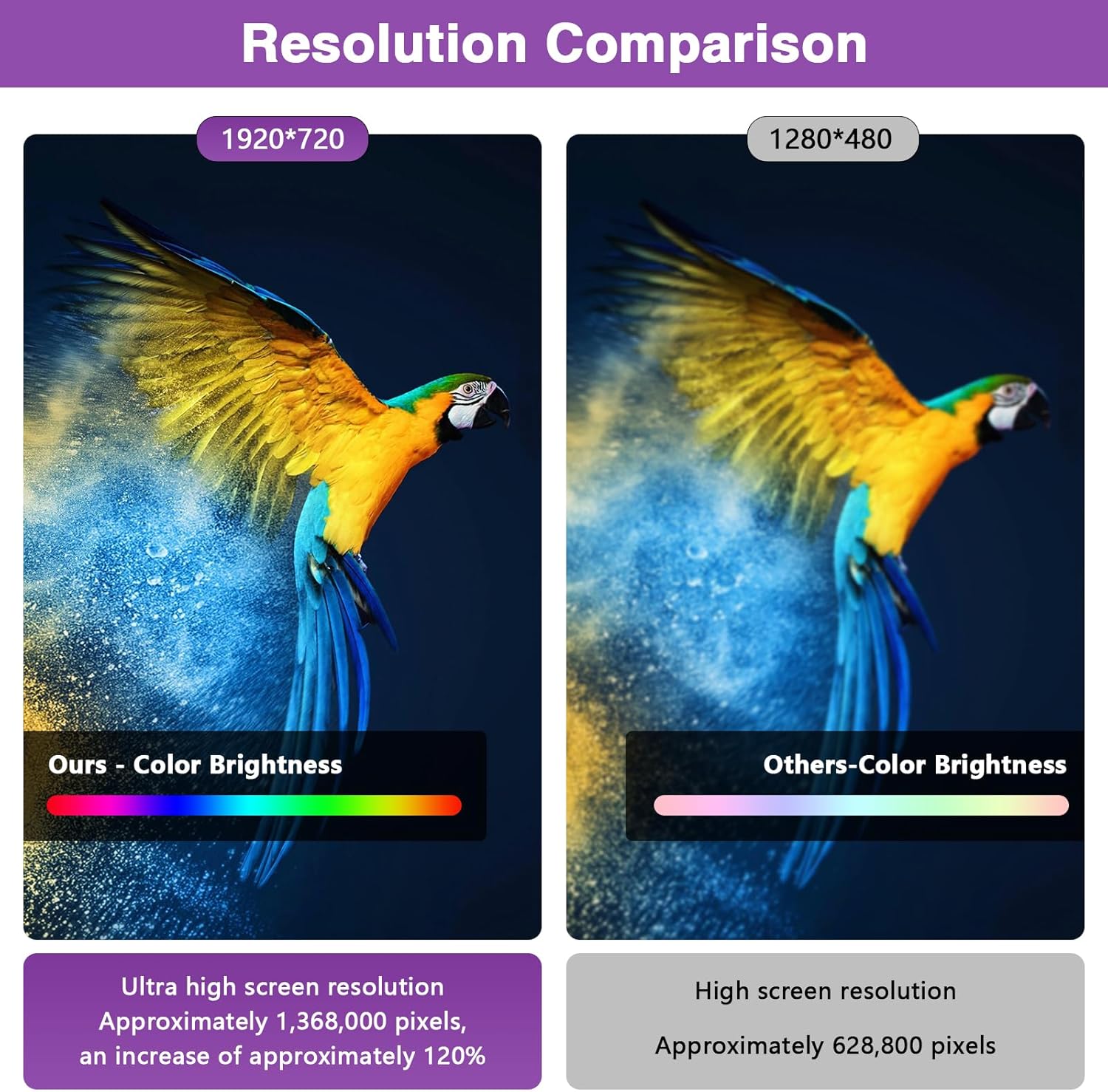
Figure 5.1: Visual comparison of the car interior before and after the 12.3-inch touchscreen installation.
6. Operating Instructions
6.1. Wireless CarPlay & Android Auto Connection
The system supports both wired and wireless CarPlay and Android Auto. To connect wirelessly, ensure the respective option is enabled in the device settings (Setup -> Smart Phone -> Smart Phone Setting). Then, follow the on-screen prompts to pair your smartphone via Bluetooth (for CarPlay) or Wi-Fi (for AirPlay).
Video 6.1.1: Step-by-step guide on how to connect your iPhone to the NINETOM system for Wireless CarPlay functionality. This video demonstrates enabling CarPlay in settings, turning on Bluetooth, searching for the device, pairing, and allowing contact sync.
Video 6.1.2: Instructions on how to connect your iPhone to the NINETOM system for Wireless AirPlay. This video shows how to enable AirPlay in settings, connect to the device's Wi-Fi, enter the password, and select AirPlay for screen mirroring.
6.2. Mirrorlink (Airplay & Autolink)
The system supports Mirrorlink functionality, allowing you to mirror your smartphone screen to the car display. Use AirPlay for iPhones and Autolink (Miracast) for Android devices. This enables access to apps, navigation, and media directly from your phone.
6.3. Switching Between Systems
You can seamlessly switch between the new Linux system interface and the original vehicle's MMI system. Simply touch any position on the new touchscreen to return to the new system, or use the OEM button to access the original interface.
6.4. Resolving Sound Issues (AUX/AMI)
The audio from the new system is transmitted through your car's original AUX port. Before using the new system, you must access your car's original system, switch to AUX mode, and then tap the screen to return to the new system. If your car's original AMI system is not functioning, you may need to activate it by plugging the AMI cable into your car's AMI port. The other end of the cable does not need to be connected to anything to complete the activation process.

Figure 6.4.1: Guide for checking and resolving sound issues related to AUX/AMI connections.
7. Specifications
| Item Weight | 5.66 pounds (2.57 Kilograms) |
| Package Dimensions | 15.47 x 7.2 x 6.73 inches |
| Item Model Number | 4f00d7b4-fe6c-45c2-a63c-ee57217a11e2 |
| Display Size | 12.3 Inches |
| Screen Resolution | 1920 x 720 HD |
| Voice Command | Touchscreen, Voice Control |
| Connectivity Technology | Auxiliary |
| Map Type | North America |
| Audio Output Mode | Stereo |
| Touch Screen Type | Capacitive |
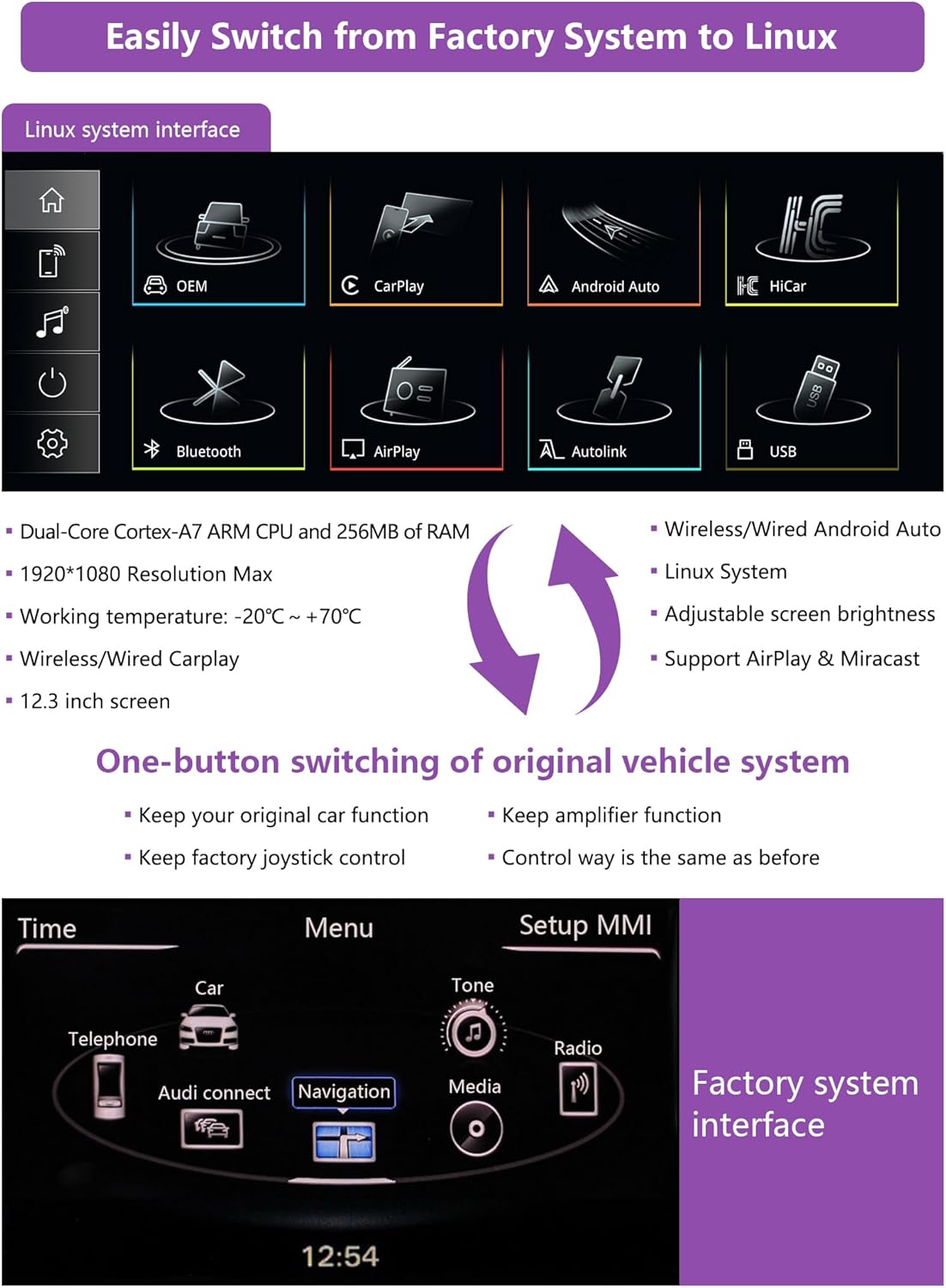
Figure 7.1: Resolution comparison illustrating the superior clarity and pixel density of the NINETOM screen.
8. Troubleshooting
If you encounter any issues during installation or operation, please refer to the following general troubleshooting tips:
- No Power: Ensure all power cables are securely connected and the vehicle's ignition is on.
- No Sound: Verify that the car's original system is switched to AUX mode as described in Section 6.4. Check all audio connections.
- CarPlay/Android Auto Not Connecting: Confirm that Wi-Fi and Bluetooth are enabled on your smartphone and the NINETOM unit. Ensure the CarPlay/Android Auto option is activated in the unit's settings. Try restarting both your phone and the unit.
- Screen Freezing: A Linux system ensures stable performance, but if freezing occurs, try restarting the unit. Ensure all connections are secure.
- Image Quality Issues: Check the screen resolution settings. Ensure the input source is providing a high-quality signal.
For persistent issues or specific technical support, please contact NINETOM customer service.
9. Warranty and Support
This NINETOM product comes with a standard manufacturer's warranty. For details regarding warranty coverage, duration, and claims, please refer to the warranty card included in your package or visit the official NINETOM website. For technical assistance, installation guidance, or any other inquiries, please contact NINETOM customer support.