
msi PRO MP275PG
MSI PRO MP275PG 27-inch FHD Monitor User Manual
Model: PRO MP275PG
1. Introduction
This manual provides detailed instructions for the setup, operation, maintenance, and troubleshooting of your MSI PRO MP275PG 27-inch Full HD monitor. Please read this manual thoroughly before using the product to ensure proper and safe operation.

Image 1.1: MSI PRO MP275PG Monitor Overview
The MSI PRO MP275PG is a 27-inch Full HD (1920x1080) IPS monitor featuring a 100Hz refresh rate, Adaptive-Sync, and various eye-care technologies like EyesErgo, Anti-Flicker, and Less Blue Light. It includes built-in speakers, an adjustable stand, and VESA mount compatibility.
2. Safety Information
- Always place the monitor on a stable, level surface.
- Do not block ventilation openings.
- Use only the power adapter provided by the manufacturer.
- Keep the monitor away from water and excessive moisture.
- Avoid exposing the monitor to direct sunlight or extreme temperatures.
- Disconnect the power cable before cleaning the monitor.
3. Package Contents
Verify that all items are present in the package:
- MSI PRO MP275PG Monitor
- Monitor Stand (Base and Neck)
- Power Adapter and Power Cord
- HDMI Cable
- Quick Start Guide
- Warranty Card
4. Setup
4.1 Assembling the Stand
- Carefully remove the monitor from its packaging, keeping the screen protected.
- Attach the stand neck to the monitor panel. Ensure it clicks securely into place or is fastened with screws if applicable.
- Attach the stand base to the stand neck. Tighten the thumb screw or screws at the bottom of the base.
4.2 VESA Mounting (Optional)
The monitor supports VESA mounting (100x100mm) for wall mounts or monitor arms. If using a VESA mount, remove the stand neck from the monitor panel first.

Image 4.1: VESA Mountable Feature
The VESA mount feature allows the monitor to be attached to compatible wall mounts or desk arms, freeing up desk space and offering flexible positioning.
4.3 Connecting Cables
Connect the necessary cables to the monitor and your computer:
- Power Cable: Connect the power adapter to the monitor's power input, then plug the power cord into a power outlet.
- Video Cable: Connect one end of the HDMI or DisplayPort cable to the corresponding port on your monitor and the other end to your computer's graphics card. The monitor also supports D-Sub (VGA).
- Audio Cable (Optional): If using external speakers or headphones, connect them to the Line-in or Headphone-Jack ports.

Image 4.2: Monitor Connectivity Ports
The monitor offers DisplayPort 1.2, HDMI 1.4b (supporting FHD at 100Hz), D-Sub (VGA), Line-in, and a Headphone-Jack for versatile connectivity.
4.4 Powering On
Press the power button located on the monitor to turn it on. The power indicator light will illuminate.
5. Operating the Monitor
5.1 On-Screen Display (OSD) Menu
The OSD menu allows you to adjust various monitor settings. Use the joystick or buttons (refer to your Quick Start Guide for exact location) to navigate the menu.
- Brightness/Contrast: Adjust the display's luminance.
- Color Settings: Modify color temperature, gamma, and saturation.
- Input Source: Manually select the video input (HDMI, DisplayPort, VGA).
- Audio: Control volume for built-in speakers or headphone output.
- Adaptive-Sync: Enable or disable Adaptive-Sync for smoother gameplay (if supported by your graphics card).
5.2 Key Features
- 100Hz Refresh Rate: Provides a smoother visual experience compared to standard 60Hz monitors, reducing motion blur.
- IPS Panel with Wide Viewing Angle: The IPS panel offers vibrant colors and consistent image quality across a 178° wide viewing angle, ensuring clear visuals from various positions.
- MSI Eye Care Technologies (EyesErgo, Anti-Flicker, Less Blue Light, Eye-Q Check): These features are designed to reduce eye strain during prolonged use.
- Built-in Speakers: Integrated speakers provide audio output without the need for external speakers.
- Accessory Slot: A dedicated slot on the stand allows for convenient placement of a smartphone or other small accessories.

Image 5.1: IPS Panel with Wide View
The IPS panel ensures that colors remain accurate and consistent, even when viewed from extreme angles, making it ideal for collaborative work or multi-person viewing.

Image 5.2: EyesErgo Feature
EyesErgo combines ergonomic design with advanced eye care features to promote user well-being and healthier productivity.
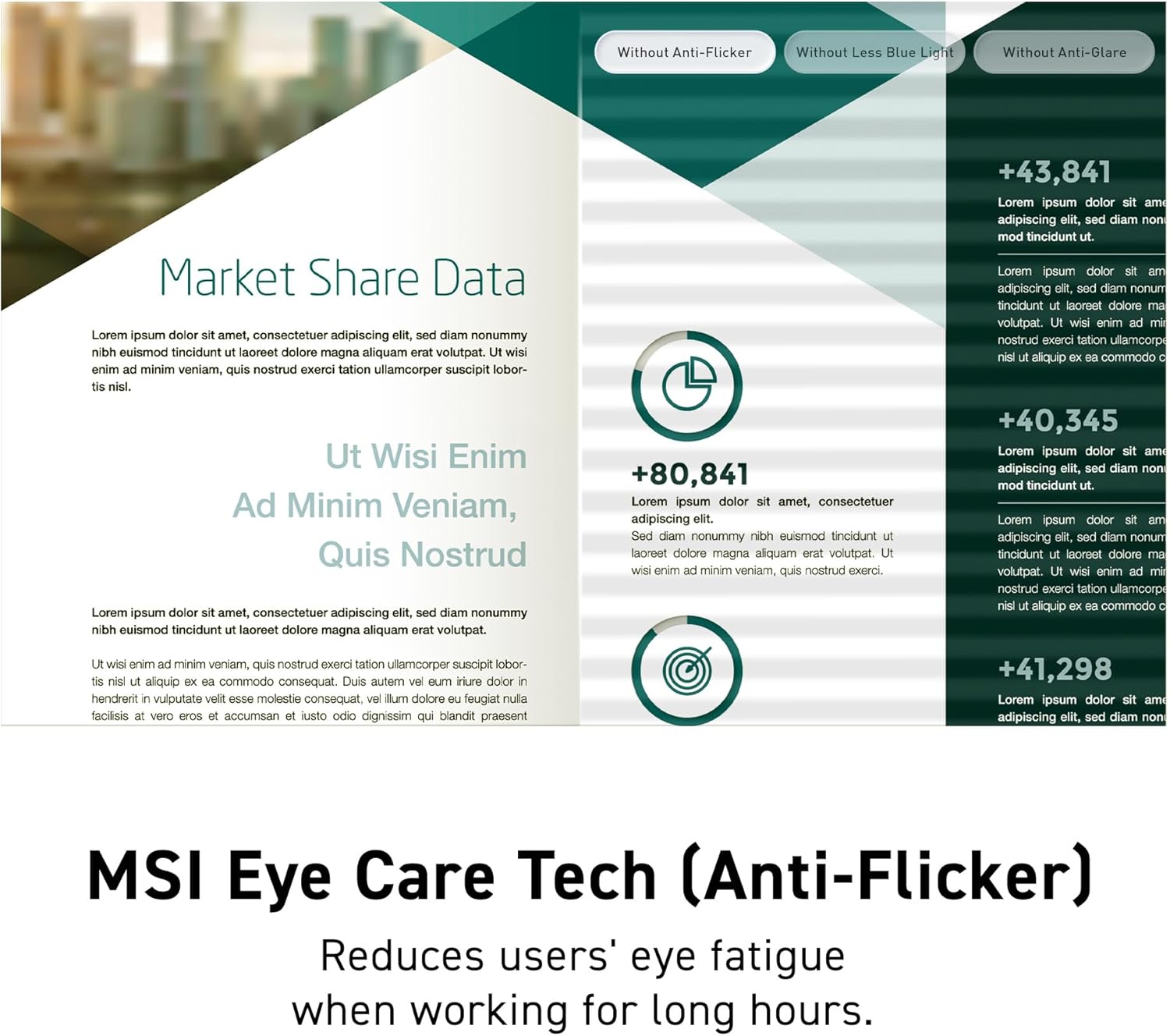
Image 5.3: MSI Eye Care Tech (Anti-Flicker)
MSI's Anti-Flicker technology reduces invisible screen flickering, which can cause eye strain and fatigue during long working hours.

Image 5.4: Built-in Speakers
The integrated speakers facilitate easy audio playback, online meetings, and video editing without requiring additional audio equipment.

Image 5.5: Accessory Slot
The accessory slot keeps your phone visible and accessible, enhancing convenience during use.
6. Maintenance
- Cleaning the Screen: Gently wipe the screen with a soft, lint-free cloth. For stubborn marks, use a monitor-specific cleaning solution applied to the cloth, not directly to the screen.
- Cleaning the Casing: Use a soft, dry cloth to wipe the monitor casing. Avoid abrasive cleaners.
- Storage: If storing the monitor for an extended period, disconnect all cables and store it in a cool, dry place, preferably in its original packaging.
7. Troubleshooting
- No Power: Ensure the power cable is securely connected to both the monitor and the power outlet. Check if the power outlet is functional.
- No Signal: Verify that the video cable (HDMI, DisplayPort, VGA) is correctly connected to both the monitor and the computer. Ensure the correct input source is selected in the OSD menu.
- Flickering Screen: Check the video cable connection. Ensure your graphics card drivers are up to date. Enable or disable Adaptive-Sync in the OSD menu to see if it resolves the issue.
- Image Distortion/Incorrect Colors: Reset the monitor to factory settings via the OSD menu. Adjust color settings if necessary.
- No Sound from Speakers: Check the volume settings in the OSD menu and on your computer. Ensure the correct audio output device is selected in your computer's sound settings.
8. Specifications

Image 8.1: 100Hz Refresh Rate & 1ms MPRT
The monitor's 100Hz refresh rate and 1ms MPRT (Moving Picture Response Time) deliver smooth visuals, reducing ghosting and motion blur for a clearer viewing experience.
| Feature | Specification |
|---|---|
| Model Name | PRO MP275PG |
| Panel Size | 27 inches |
| Panel Type | IPS |
| Resolution | 1920 x 1080 (FHD) |
| Aspect Ratio | 16:9 |
| Refresh Rate | 100Hz |
| Response Time | 1ms (MPRT) |
| Viewing Angle | 178° (H) / 178° (V) |
| Brightness | Not specified in provided data |
| Contrast Ratio | Not specified in provided data |
| Display Colors | Not specified in provided data |
| Video Ports | 1x DisplayPort (1.2), 1x HDMI (1.4b), 1x D-Sub (VGA) |
| Audio Ports | 1x Line-in, 1x Headphone-Jack |
| Speakers | Built-in |
| VESA Mounting | 100 x 100 mm |
| Adjustability | Tilt, Height Adjustable |
| Dimensions (WxDxH) | 22.1 x 24.1 x 8.93 inches |
| Weight | 18 pounds |
| Color | Black |
9. Warranty and Support
For warranty information, please refer to the warranty card included in your product package or visit the official MSI website. For technical support, driver downloads, or further assistance, please visit the MSI support page:
Related Documents - PRO MP275PG
 |
MSI MAG 274CF E20 LCD Monitor User Guide - Setup, Features, and Specifications Detailed user guide for the MSI MAG 274CF E20 (3CF5) LCD Monitor. Learn about setup, OSD menus, gaming features, professional settings, specifications, troubleshooting, safety instructions, and regulatory compliance. |
 |
MSI PRO MP161 E2 / E2U Portable Monitor User Manual Comprehensive user manual for the MSI PRO MP161 E2 and PRO MP161 E2U portable monitors, covering setup, operation, specifications, troubleshooting, safety, and regulatory information. |
 |
MSI G244F E2 & G244PF E2 Gaming LCD Monitor User Guide Comprehensive user guide for MSI G244F E2 and G244PF E2 23.8-inch Full HD gaming LCD monitors. Learn about setup, OSD menus, specifications, troubleshooting, and safety. |
 |
MSI MAG 274QRFW User Guide: Setup, Features, and Specifications Comprehensive user guide for the MSI MAG 274QRFW 27-inch WQHD 180Hz gaming LCD monitor. Covers setup, installation, OSD menus, specifications, troubleshooting, safety, and regulatory information. |
 |
MSI Oculux NXG253R Gaming Monitor User Guide Comprehensive user guide for the MSI Oculux NXG253R gaming monitor, covering hardware setup, OSD menu navigation and settings, specifications, troubleshooting, and safety information. Features a 24.5-inch Rapid IPS display with 360Hz refresh rate and NVIDIA G-SYNC support. |
 |
MSI MAG 27C6X LCD Monitor User Guide - Setup, OSD, Specifications Comprehensive user guide for the MSI MAG 27C6X LCD Monitor, covering setup, package contents, OSD menu navigation, gaming and professional settings, troubleshooting, safety instructions, and technical specifications. |
Ask a question about this manual
Ask about setup, troubleshooting, compatibility, parts, safety, or missing instructions. Manuals+ will review the question and use this page’s manual context to help answer it.