
Logitech G 947-000003
Logitech G POWERPLAY 2 Wireless Charging Mouse Pad User Manual
Brand: Logitech G | Model: 947-000003
Introduction
The Logitech G POWERPLAY 2 Wireless Charging Mouse Pad provides continuous power to compatible Logitech G wireless gaming mice, ensuring uninterrupted gaming sessions. This system is designed for effortless setup and is compatible with a wide range of G mice, including future technologies. Experience pure, uninterrupted wireless gaming where the game only ends when you decide.

Image: The Logitech G POWERPLAY 2 Wireless Charging Mouse Pad, showing the large black mat, the POWERPLAY module connected via cable, and the small circular Powercore module.
Key Features
- Non-Stop Wireless Charging: Exclusive technology continuously powers your compatible mouse while in motion and at rest, ensuring uninterrupted gaming.
- Future-Ready Wireless: Fully compatible with all current and future Logitech G wireless technology, including LIGHTSPEED 4 KHz.
- Broad Compatibility: Supports 10+ compatible Logitech G mice, with more models expected to be added.
- Sleek and Comfortable Design: Features a slim 3.5 mm profile for peak performance and prolonged comfort during gaming sessions.

Image: A close-up view of the Logitech G POWERPLAY module and a compatible gaming mouse on the mat, illustrating the continuous wireless charging capability while the mouse is in use or at rest.

Image: An abstract visual representation of the wireless charging field emanating from the mouse pad, with a Logitech G mouse positioned above it, symbolizing its future-proof wireless technology designed for innovation.
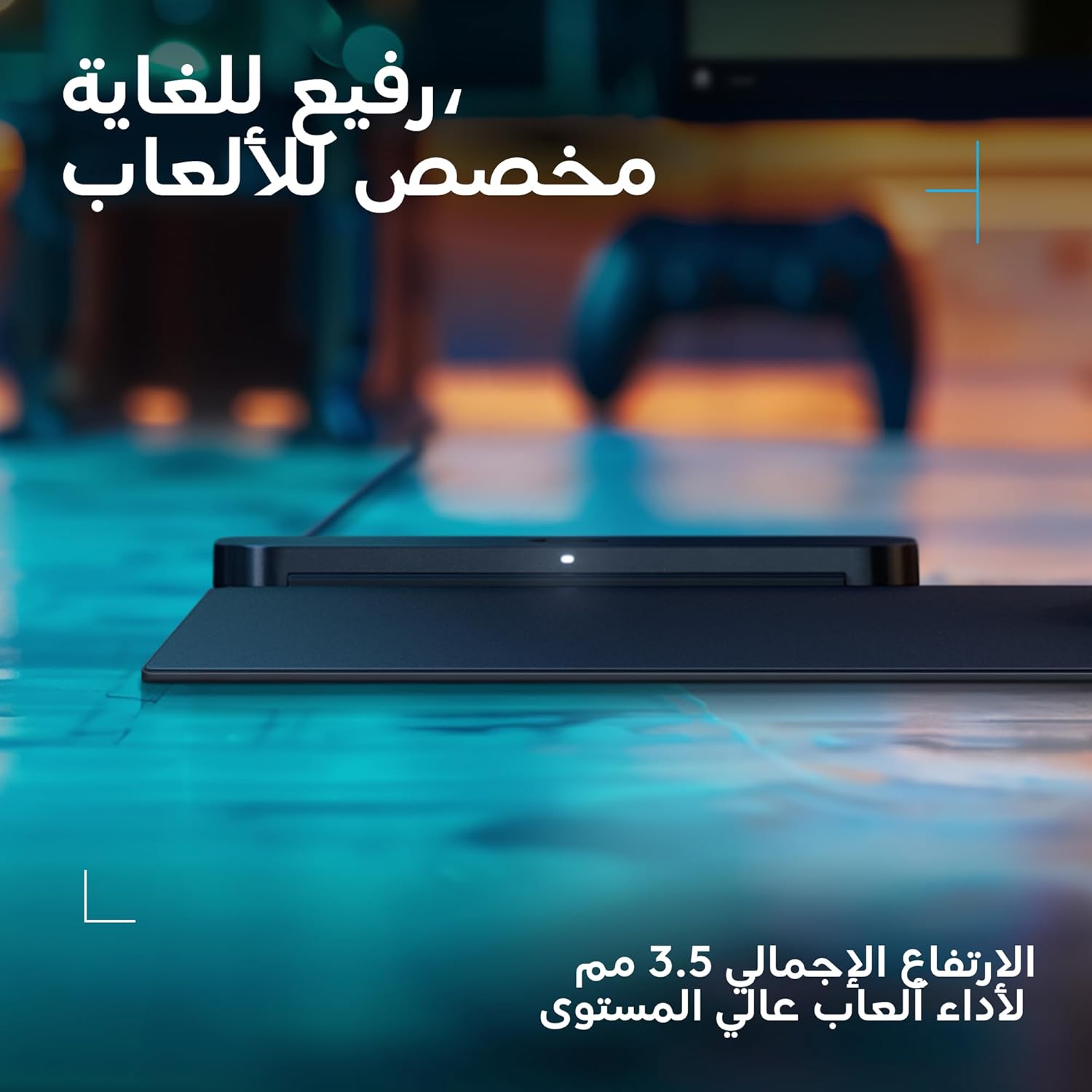
Image: A side profile view of the Logitech G POWERPLAY 2 mouse pad and its charging module, emphasizing its extremely thin 3.5 mm total height, designed for high-level gaming performance.
Setup Guide
Follow these steps to set up your Logitech G POWERPLAY 2 Wireless Charging Mouse Pad:
- Unpack Components: Carefully remove the POWERPLAY mouse pad, POWERPLAY module, and Powercore module from the packaging.
- Connect POWERPLAY Module: Place the POWERPLAY module at the top edge of the mouse pad. Connect the integrated USB-A cable from the POWERPLAY module to a USB-A port on your PC or a power adapter.
- Prepare Your Mouse: Ensure you have a compatible Logitech G wireless mouse. Open the magnetic Powercore compartment on the underside of your mouse.
- Insert Powercore Module: Insert the small, circular Powercore module into the Powercore compartment of your compatible Logitech G mouse. This module enables the mouse to receive power from the POWERPLAY mat.
- Power On: Once connected, the POWERPLAY system will begin charging your mouse automatically. The game only ends when you say it does.
Note: A compatible Logitech G mouse is required and sold separately.

Image: A gaming desk setup featuring the Logitech G POWERPLAY 2 mouse pad, its charging module, and a compatible Logitech G mouse, highlighting the ready-to-use design and quick, easy setup process.

Image: A diagram illustrating the main components of the Logitech G POWERPLAY 2 system: the 1.8m fixed cable, the charging module, the base of the mouse pad, and the fabric gaming mat. It also notes that a compatible mouse is not included.
Operating Instructions
Once set up, the Logitech G POWERPLAY 2 operates automatically. The integrated wireless charging technology continuously powers your compatible Logitech G mouse as long as it is on the mouse pad. This means your mouse battery will remain charged, eliminating the need for traditional charging cables or docks during use.
- Continuous Power: The mouse pad provides power to your mouse whether it is actively being used or resting on the surface.
- Seamless Gaming: Enjoy uninterrupted gaming sessions without concerns about battery life.
- Mouse Compatibility: Ensure your mouse is a Logitech G model equipped with POWERPLAY compatibility and has the Powercore module inserted.

Image: A collection of various Logitech G gaming mice, some with illuminated accents, displayed on a wooden surface next to a corner of the POWERPLAY mouse pad. This illustrates the expanding family of compatible mice and the ease of switching between them.
Maintenance and Care
To ensure the longevity and optimal performance of your Logitech G POWERPLAY 2 Wireless Charging Mouse Pad, follow these maintenance guidelines:
- Cleaning the Surface: Use a soft, damp cloth to gently wipe the surface of the mouse pad. Avoid harsh chemicals or abrasive cleaners, as these can damage the fabric.
- Module Care: Keep the POWERPLAY module and Powercore module free from dust and debris. Use a dry, soft cloth for cleaning.
- Avoid Liquids: Do not submerge the mouse pad or modules in water. Spills should be wiped immediately.
- Storage: When not in use for extended periods, store the mouse pad in a clean, dry environment, away from direct sunlight or extreme temperatures.
- Handle with Care: Avoid bending or creasing the mouse pad excessively, as this may affect its internal components.
Troubleshooting
If you encounter issues with your Logitech G POWERPLAY 2, refer to the following common problems and solutions:
- Mouse Not Charging:
- Ensure the POWERPLAY module's USB cable is securely connected to a powered USB port on your PC or a wall adapter.
- Verify that the Powercore module is correctly inserted into your compatible Logitech G mouse.
- Confirm your mouse is a Logitech G model that supports POWERPLAY technology.
- Try repositioning the mouse on the pad to ensure it is within the charging area.
- Intermittent Charging:
- Check for any obstructions between the mouse and the pad.
- Ensure the mouse pad surface is clean and free of debris.
- Test with a different USB port or power source.
- Connectivity Issues (Mouse to PC):
- The POWERPLAY module acts as the LIGHTSPEED wireless receiver for your mouse. Ensure it is positioned optimally for signal strength.
- Update your Logitech G HUB software and mouse firmware to the latest versions.
- Pad Not Recognized by Software:
- Restart your computer and ensure Logitech G HUB is running.
- Try connecting the POWERPLAY module to a different USB port.
- Reinstall Logitech G HUB software.
If these steps do not resolve your issue, please refer to the Logitech G support website for further assistance.
Specifications
| Feature | Detail |
|---|---|
| Brand | Logitech G |
| Model Number | 947-000003 |
| Dimensions (L x W x H) | 344mm x 284mm x 3.5mm (13.5 x 11.2 x 0.14 inches) |
| Item Weight | 1.76 pounds (0.8 kg) |
| Color | Black |
| Connectivity | USB-A (for POWERPLAY module) |
| Charging Technology | Electromagnetic Resonance |
| Compatibility | Logitech G LIGHTSPEED wireless mice with Powercore module |
Warranty and Support
For detailed warranty information and technical support, please visit the official Logitech G support website. Warranty terms may vary by region and purchase date.
Online Support: For the most up-to-date support resources, FAQs, and driver downloads, please visit Logitech G Support.
Related documents947-000003


Ask a question about this manual
Ask about setup, troubleshooting, compatibility, parts, safety, or missing instructions. Manuals+ will review the question and use this page’s manual context to help answer it.