
Introduction
This manual provides detailed instructions for the setup, operation, maintenance, and troubleshooting of your Krunia T95 7-inch Wireless Portable CarPlay and Android Auto Screen. This device is designed to enhance your driving experience with seamless smartphone integration, offering features such as 60FPS responsive visuals, flexible screen orientation, and voice control.

The image above shows the Krunia T95 portable car screen in both landscape and portrait orientations, demonstrating its versatile display capabilities for Apple CarPlay. The screen on the left is in landscape mode, showing a grid of applications, while the screen on the right is in portrait mode, displaying a navigation map alongside media playback controls.
1. Setup Guide
1.1 Package Contents
Verify that all items listed below are included in your package:
- 7" Portable Car Screen
- Car Charger (11.5ft)
- AUX Audio Cable (5ft)
- Adhesive Gasket
- Suction Cup Bracket
- User Manual
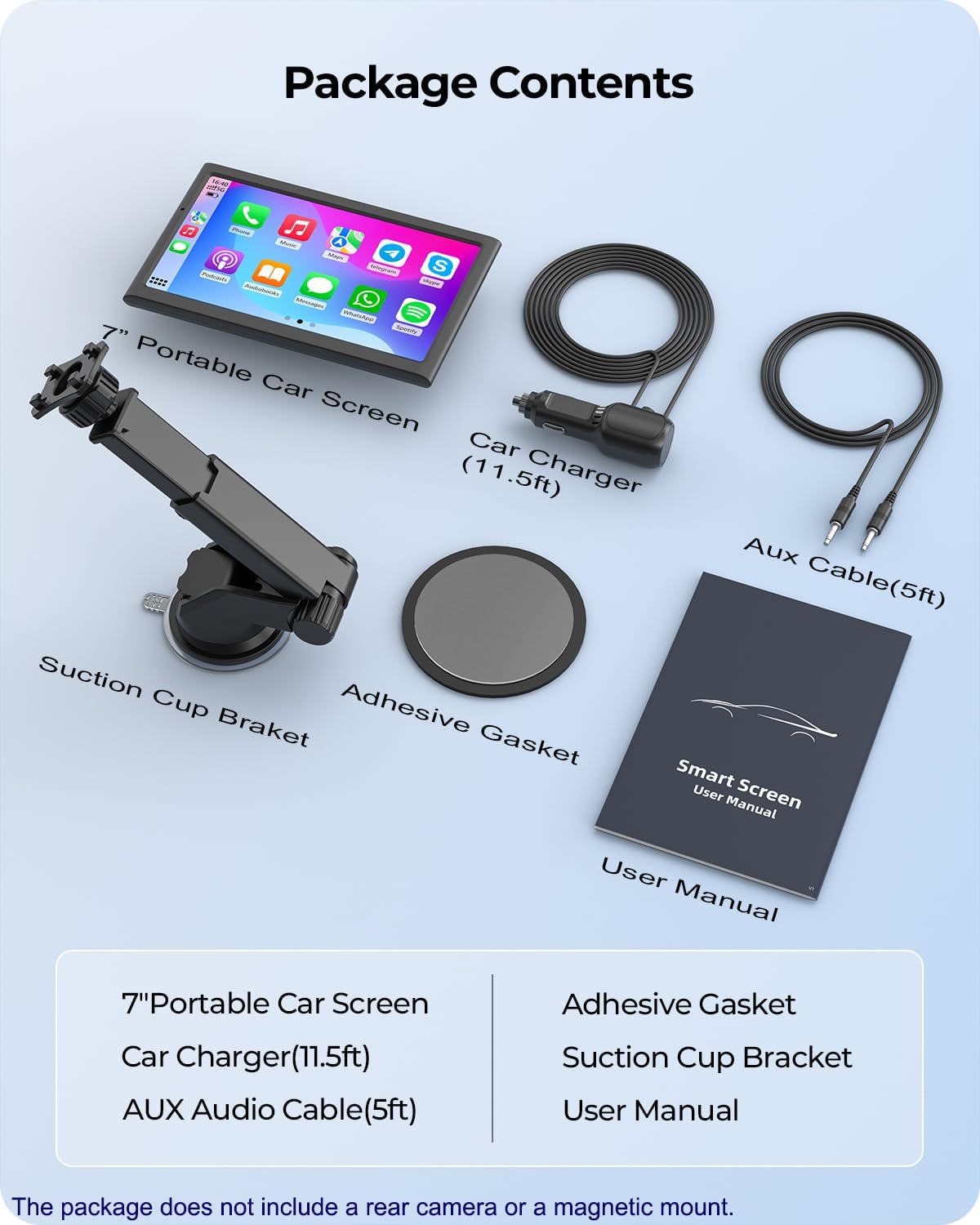
This image displays all the components included in the Krunia T95 product package, neatly arranged. It shows the main 7-inch portable car screen, the car charger, an AUX audio cable, an adhesive gasket, a suction cup bracket, and the user manual.
1.2 Installation
The Krunia T95 offers flexible mounting options for your vehicle's dashboard or windshield.
Mounting the Device with Suction Cup Bracket:
- Clean the dashboard surface thoroughly before installation to ensure optimal adhesion.
- Peel off the protective film from the adhesive gasket and stick it onto the dashboard. Allow 24 hours for the adhesive to set before use.
- Remove the protective film from the suction cup.
- Attach the suction cup to the dashboard or windshield and press the lever to lock it in place.
- Align the device with the clasp and attach it to the suction cup bracket.

This image illustrates the five steps for installing the Krunia T95 using the suction cup bracket. It shows cleaning the dashboard, applying the adhesive gasket, preparing the suction cup, attaching the suction cup, and finally mounting the screen onto the bracket.

The image above highlights the flexibility of the suction cup mount, demonstrating its 360-degree rotation and 270-degree tilt capabilities, allowing for optimal positioning and visibility of the screen within the vehicle.
1.3 Powering On
Connect the provided car charger to your vehicle's 12V power outlet and then to the Krunia T95 screen. The device will power on automatically.
1.4 Initial Connection
Wireless Apple CarPlay Connection:
Note: Your iPhone must be running iOS 9 or later. Ensure the device's microphone is on and Siri is enabled on your iPhone to use the voice assistant.
- On the Krunia T95 screen, switch to CarPlay mode.
- On your iPhone, turn on Wi-Fi and Bluetooth.
- In your iPhone's Bluetooth settings, select the device named "F800_XXXX" to pair.
- Confirm the pairing request on both devices.
- Select "Use CarPlay" when prompted on your iPhone.
- Connection successful.

This image provides a visual walkthrough of the five steps required to establish a wireless Apple CarPlay connection between an iPhone and the Krunia T95 screen, from selecting CarPlay mode on the device to confirming the connection on the phone.
Wireless Android Auto Connection:
Note: Any phone running Android 11.0 or newer is supported. Google or Samsung phones running Android 10 or newer are also compatible. Ensure the latest Android Auto app is installed on your phone.
- On the Krunia T95 screen, switch to Android Auto mode.
- On your Android phone, turn on Bluetooth and Wi-Fi.
- In your phone's Bluetooth settings, select the device named "F800_XXXX" to pair.
- Confirm the pairing request on both devices.
- Connection successful.

This image illustrates the four steps for connecting an Android phone to the Krunia T95 for wireless Android Auto, showing the process from selecting Android Auto mode on the screen to successful connection.
Wireless AirPlay Mirror Link (iOS Only):
Note: Screen mirroring is only available for iOS devices, not for Android devices.
- On the Krunia T95 screen, switch to AirPlay mode.
- On your iPhone, turn on Wi-Fi and connect to the Wi-Fi network named "F800_XXXX".
- On your iPhone, open Control Center and tap on "Screen Mirroring", then select "SmartScreen".
- Connection successful.

This image details the four steps for establishing a wireless AirPlay Mirror Link connection from an iPhone to the Krunia T95 screen, including switching to AirPlay mode, connecting to the device's Wi-Fi, and initiating screen mirroring.

The image above demonstrates the instant screen mirroring capability for iOS devices, showing an iPhone displaying content that is simultaneously mirrored on the Krunia T95 screen, with icons for popular social media and video streaming applications.
2. Operating Instructions
2.1 Screen Orientation
The Krunia T95 supports both landscape and portrait modes. You can easily switch between these orientations for optimal viewing, whether for navigation, media, or other applications.

This image illustrates the flexible screen orientation of the Krunia T95, showing the device mounted in a car dashboard in both landscape and portrait modes, with examples of Apple CarPlay and Android Auto interfaces.
2.2 Audio Output Options
The Krunia T95 offers multiple ways to output audio through your car's speaker system:
- Built-in Speakers: For direct audio playback from the device.
- Bluetooth: Connect the Krunia T95 to your car's Bluetooth system.
- AUX Cable: Use the provided AUX cable to connect the device to your car's AUX input.
- FM Transmission: Transmit audio wirelessly to your car's FM radio by tuning both devices to the same frequency.

This image visually explains the four different methods available for audio output from the Krunia T95, including using its built-in speakers, connecting via an AUX cable, streaming via Bluetooth to car speakers, and utilizing FM transmission.

The image above illustrates three primary methods for playing phone audio through your car's speakers via the Krunia T95: streaming via Bluetooth, connecting with an AUX cable, and using FM transmission.
2.3 Voice Control
Utilize voice commands for hands-free operation, allowing you to make calls, send messages, and control navigation without taking your hands off the wheel. This feature works with Apple Siri and Google Assistant.

This image demonstrates the voice control capabilities of the Krunia T95, showing how users can manage calls and messages hands-free using voice commands, with icons for Siri and Google Assistant.

The image above showcases the smart connectivity features of the Krunia T95 screen, with examples of voice commands for Siri and Google Assistant, enabling hands-free calling, music playback, and navigation.
2.4 Navigation and Traffic Updates
Stay informed with real-time navigation and live traffic updates, helping you avoid delays and reach your destination efficiently.

This image shows the Krunia T95 screen integrated into a car's dashboard, displaying a navigation map with real-time traffic updates, demonstrating its smart navigation capabilities.
2.5 Steering Wheel Control
Control essential functions directly from your steering wheel. This includes adjusting volume, skipping tracks, and answering or ending calls, ensuring you remain focused on the road.

The image above depicts a driver utilizing steering wheel controls to manage the Krunia T95 screen, emphasizing the ease and safety of controlling functions like volume and track selection without diverting attention from driving.

This image illustrates the simplified steering wheel control functions, displaying icons for adjusting volume, playing/pausing music, and answering/ending calls, indicating seamless integration with the Krunia T95.
2.6 Split-Screen Functionality
The Krunia T95 features a versatile split-screen mode, allowing you to view multiple applications simultaneously, such as navigation and music playback, for enhanced multitasking.

The image above demonstrates the versatile split-screen features of the Krunia T95, showing a clean user interface with navigation on one side and media controls on the other, designed for focus and functionality.
2.7 Optional Rearview Camera Support
The Krunia T95 screen is compatible with an external 4-LED rearview camera (sold separately), providing clear visibility when reversing and enhancing parking safety.
2.8 Smart Screensaver Mode
The screen automatically dims after a set period of inactivity to conserve power and minimize distractions during driving.

This image illustrates the Smart Screensaver Mode, showing the Krunia T95 screen dimming after one minute to conserve power and reduce visual distraction.
2.9 Personalized Startup Logo
You can customize the startup logo of your Krunia T95 screen. Options include various car brand logos, personal photos, or scenic views. For customization, contact customer support with your preferred image.

The image above displays various car brand logos as examples of personalized startup options for the Krunia T95 screen, highlighting the customization feature.
3. Care and Maintenance
To ensure the longevity and optimal performance of your Krunia T95 screen, follow these maintenance guidelines:
- Cleaning the Screen: Use a soft, lint-free cloth to gently wipe the screen. For stubborn smudges, slightly dampen the cloth with water or a screen-safe cleaner. Avoid harsh chemicals or abrasive materials.
- Cleaning the Device Body: Wipe the exterior with a soft, dry cloth.
- Temperature Exposure: Avoid exposing the device to extreme temperatures for extended periods. The device is built to withstand temperatures between -4°F and 158°F (-20°C to 70°C).
- Storage: If storing the device for a long period, disconnect it from power and store it in a cool, dry place.
4. Troubleshooting
If you encounter issues with your Krunia T95, refer to the following common problems and solutions:
- Device does not power on:
- Ensure the car charger is securely plugged into both the vehicle's 12V outlet and the device.
- Check if the vehicle's 12V outlet is functioning correctly.
- Wireless CarPlay/Android Auto fails to connect:
- Ensure Wi-Fi and Bluetooth are enabled on your smartphone.
- For Apple CarPlay, verify that "Content & Privacy Restrictions" are disabled in your iPhone's "Screen Time" settings. This is a common oversight for first-time CarPlay users.
- Forget the device from your phone's Bluetooth settings and attempt to re-pair.
- Restart both your smartphone and the Krunia T95 device.
- No audio or poor audio quality:
- Check the selected audio output method (Bluetooth, AUX, FM).
- If using AUX, ensure the cable is fully inserted into both the device and your car's AUX input.
- If using FM transmission, ensure the Krunia T95 and your car radio are tuned to the same clear, unused FM frequency.
- Adjust the volume on both the Krunia T95 and your car's audio system.
- Screen is unresponsive or lagging:
- Restart the device.
- Ensure your smartphone's operating system and the CarPlay/Android Auto app are up to date.
- Mount is unstable:
- Ensure the dashboard surface was clean and dry before applying the adhesive gasket.
- Verify the suction cup lever is fully locked.
- If using the adhesive gasket, allow 24 hours for it to cure before mounting the device.
5. Product Specifications
| Feature | Specification |
|---|---|
| Model Name | T95 |
| Display Size | 7 Inches |
| Display Type | IPS Touchscreen |
| Resolution | 1082x632 |
| Refresh Rate | 60 FPS |
| Contrast Ratio | 1000:1 |
| Brightness | 550 cd/m² |
| Colors | 16.7 Million |
| Connectivity Technology | Bluetooth 5.0, Wi-Fi (Dual-Band 2.4G/5G) |
| Voice Command | Touchscreen (Siri/Google Assistant) |
| Product Dimensions | 6.97 x 1.26 x 4.21 inches |
| Item Weight | 8.5 ounces |
| Operating Temperature | -4°F to 158°F (-20°C to 70°C) |
| Mounting Type | Windshield Mount or Dashboard Mount |
| Vehicle Service Type | Car (12-32V compatible) |

This image provides a visual breakdown of the Krunia T95's display specifications, emphasizing its 60FPS smoothness, 1000:1 contrast ratio, 550 Cd/m² brightness, 1082x632 resolution, and 16.7 million colors for a vibrant and responsive viewing experience.

The image above illustrates the Krunia T95's temperature resistance, indicating its ability to operate reliably in harsh conditions ranging from -4°F to 158°F, depicted by contrasting icy and desert environments.
6. Warranty Information
Your Krunia T95 device comes with a standard warranty. To extend your warranty by an additional two years, please reach out to our customer support team. Details on how to contact support are provided in the next section.
7. Customer Support
For any questions, technical assistance, or warranty inquiries, please contact Krunia customer support:
- Email: service@krunia.com
Our support team is available to assist you with any issues or concerns regarding your Krunia T95 screen.


