
HXVIEW BU-G50
HXVIEW BU-G50 4G LTE Dual-Lens Solar Powered Security Camera User Manual
Model: BU-G50 | Brand: HXVIEW
1. Introduction
This manual provides detailed instructions for the installation, operation, and maintenance of your HXVIEW BU-G50 4G LTE Dual-Lens Solar Powered Security Camera. Please read this manual thoroughly before using the product to ensure proper function and safety.
The HXVIEW BU-G50 is an advanced outdoor security camera designed for areas without Wi-Fi or consistent power supply. It features dual lenses for wide-angle and zoomed views, 2K resolution, 6X hybrid zoom, human tracking, and is powered by an 8W solar panel and a built-in 15600mAh battery. It operates on 4G LTE cellular networks and includes a pre-installed SIM card and 32GB Micro SD card.
2. Package Contents
Verify that all items listed below are included in your package:
- 4G LTE Cellular Security Camera
- 8W Solar Panel
- Instruction Manual (this document)
- Mounting Screws
- Pre-installed EIOTCLUB 4G LTE SIM Card (with 300MB data trial)
- Pre-installed 32GB Micro SD Card

Figure 2.1: HXVIEW BU-G50 Camera and included accessories.
3. Product Overview
Familiarize yourself with the main components of your security camera.

Figure 3.1: Front and side view of the camera with solar panel.
- Dual Lenses: Provides both wide-angle and telephoto views.
- Infrared LEDs: For night vision in low light conditions.
- Spotlights: For full-color night vision and deterrence.
- PIR Sensor: Passive Infrared sensor for human detection.
- Microphone & Speaker: For two-way audio communication.
- Antennas: For 4G LTE cellular connectivity.
- Solar Panel: Recharges the internal battery.
- SIM Card Slot: For the 4G LTE SIM card (pre-installed).
- Micro SD Card Slot: For local video storage (32GB pre-installed, supports up to 128GB).
- Reset Button: To reset the camera to factory settings.
4. Setup Instructions
4.1 Initial Charging
Before first use, ensure the camera's internal battery is fully charged. Connect the solar panel to the camera and place the solar panel in direct sunlight for several hours, or connect the camera directly to a 5V DC power adapter (not included) using the USB port.
4.2 SIM Card and SD Card
Your camera comes with a pre-installed EIOTCLUB 4G LTE SIM card and a 32GB Micro SD card. No action is required on your part for initial setup. If you need to replace the SIM card or upgrade the SD card, locate the respective slots on the camera body, typically protected by a rubber cover. Ensure the camera is powered off before inserting or removing cards.

Figure 4.2: Location of SIM and Micro SD card slots.
Important Note: The camera is designed to work with the provided SIM card and its associated data plans. Using other SIM cards may not be supported. Contact HXVIEW support for compatibility inquiries if you wish to use a different SIM card.
4.3 App Download and Account Creation
- Download the "CamHipro" app from your smartphone's app store (iOS App Store or Google Play Store).
- Open the app and register for a new account using your email address or phone number. Follow the on-screen prompts to complete the registration process.
4.4 Camera Pairing
- Ensure your smartphone's Bluetooth is enabled.
- Open the CamHipro app and tap "Add Device" or the "+" icon.
- Select the option to add a 4G camera.
- Scan the QR code located on the camera body or packaging.
- Follow the in-app instructions to complete the pairing process. The camera will typically emit a voice prompt when successfully connected.
4.5 Mounting the Camera and Solar Panel
Choose a mounting location that provides optimal sunlight exposure for the solar panel and a clear view for the camera. The camera is designed for outdoor use and is IP66 weather-resistant.
- Solar Panel Placement: Mount the 8W solar panel in a location that receives direct sunlight for at least 10 minutes daily to ensure continuous power. Adjust the angle for maximum sun exposure.
- Camera Placement: Securely mount the camera using the provided mounting screws. Ensure the camera has a stable base and is positioned to cover the desired surveillance area.
- Connect Solar Panel: Connect the solar panel cable to the camera's power input port.

Figure 4.5: Example of camera and solar panel mounting.
5. Operating Instructions
5.1 App Interface Overview
Upon opening the CamHipro app, you will see a list of your connected cameras. Tap on a camera to access its live view and control options.
5.2 Live View and Playback
- Live View: Access real-time video streaming from your camera. The dual-lens design allows for simultaneous wide-angle and zoomed views on a single screen.
- Playback: Review recorded footage stored on the Micro SD card or cloud storage. Use the timeline to navigate to specific events.

Figure 5.2: Dual-lens immersive visual experience in the app.
5.3 PTZ Control (Pan, Tilt, Zoom)
The camera supports 355° pan and 90° tilt, allowing you to adjust the viewing angle remotely via the app. The 6X hybrid zoom provides detailed close-ups.
- Pan/Tilt: Use the directional controls in the app to move the camera horizontally (pan) and vertically (tilt).
- Zoom: Pinch-to-zoom or use the dedicated zoom controls in the app to utilize the 6X hybrid zoom feature.

Figure 5.3: Camera pan and tilt capabilities.
5.4 Human Tracking and Motion Detection
The camera features AI human tracking and PIR motion detection to minimize false alarms.
- Human Tracking: When a person is detected, the camera will automatically track their movement within its field of view.
- Motion Alerts: Configure motion detection sensitivity and alert schedules in the app. You will receive real-time push notifications to your phone when motion is detected.
- Customizable Sensitivity: Adjust the PIR sensor sensitivity in the app settings to suit your environment and reduce unwanted alerts.
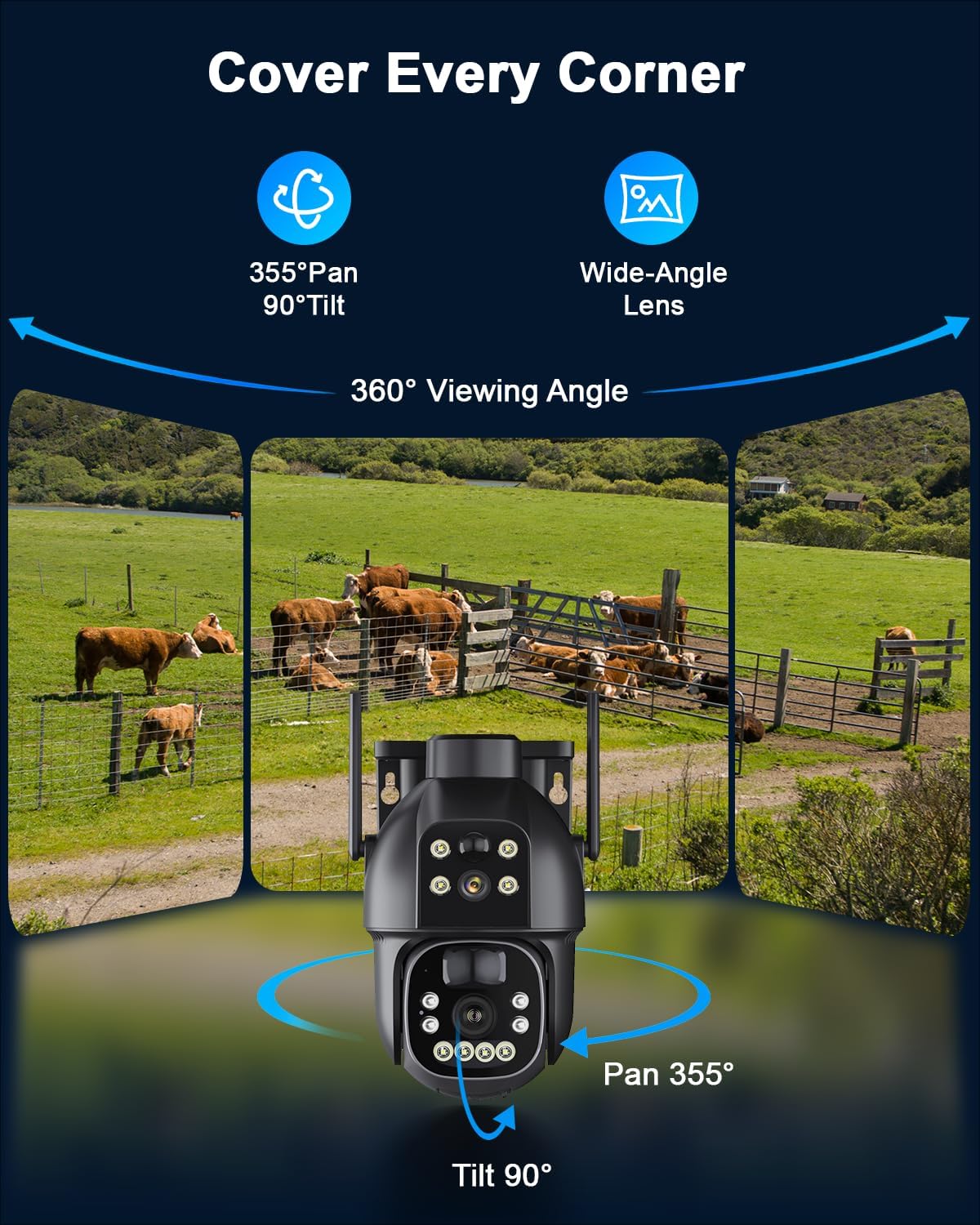
Figure 5.4: Automatic human tracking in action.
5.5 Night Vision Modes
The camera offers both infrared and full-color night vision options.
- Infrared Night Vision: Provides clear black and white images up to 100 feet in complete darkness.
- Full-Color Night Vision: When the built-in spotlight is activated (either manually or upon motion detection), the camera can capture detailed full-color images up to 70 feet at night.

Figure 5.5: Full-color night vision with spotlight.
5.6 Two-Way Audio
Use the built-in microphone and speaker to listen in on the camera's surroundings or speak through the camera to visitors or intruders.
- Tap the microphone icon in the live view to speak.
- Ensure your phone's volume is up to hear audio from the camera.
5.7 Storage Management
The camera supports both local Micro SD card storage and optional cloud storage.
- Micro SD Card: The pre-installed 32GB card can store 30-60 days of alarm videos. The camera supports up to 128GB. Older footage will be overwritten automatically when the card is full.
- Cloud Storage: Subscribe to cloud storage services via the CamHipro app for off-site backup of your recordings.
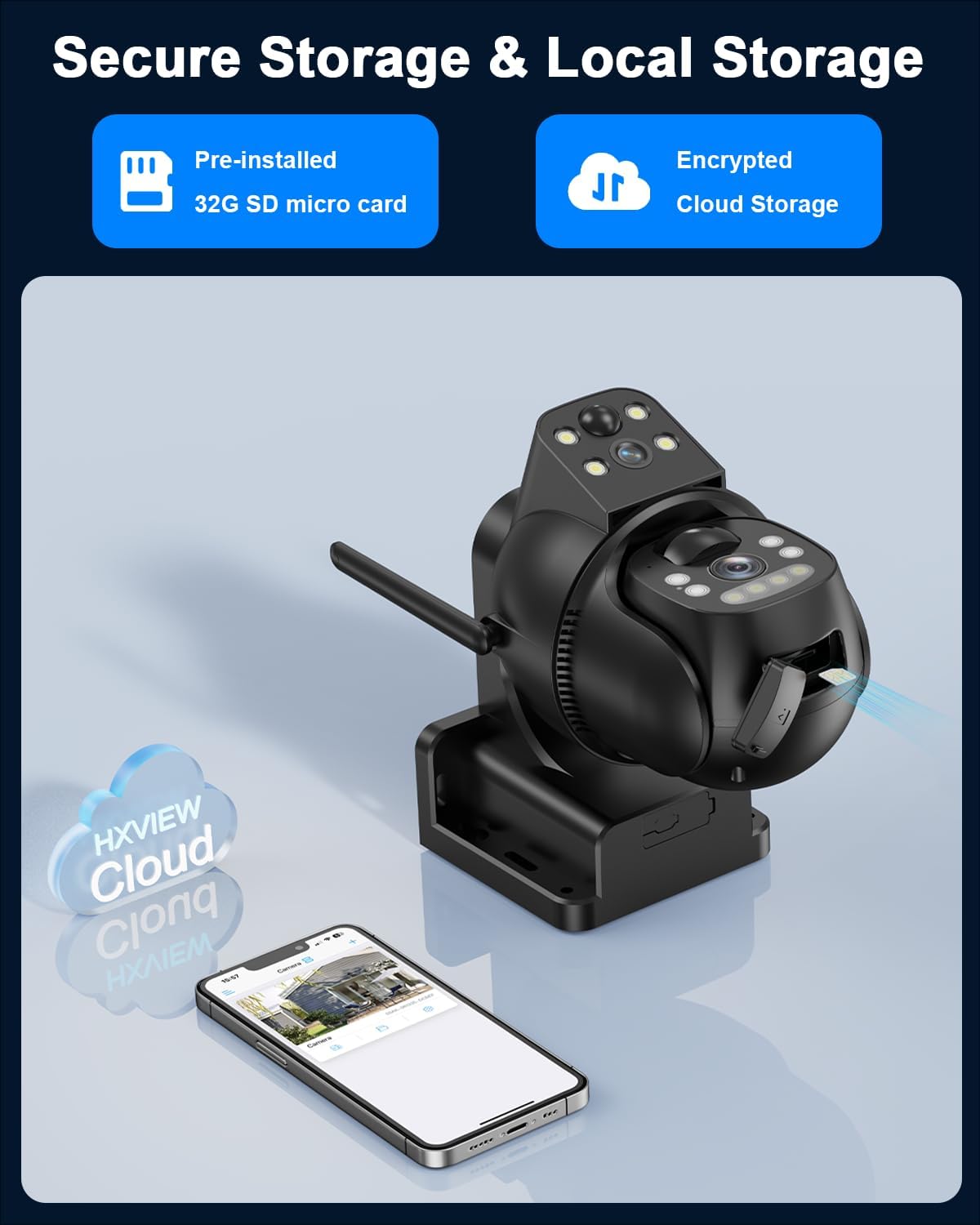
Figure 5.7: Secure storage options.
5.8 Multi-View Remote Access and Sharing
- Multi-View: Monitor up to 4 cameras simultaneously within the CamHipro app.
- Sharing Access: You can share camera access with family members or trusted individuals through the app, allowing them to view live feeds and receive alerts.

Figure 5.8: Multi-view remote access.
6. Maintenance
- Solar Panel Cleaning: Regularly wipe the solar panel surface with a soft, damp cloth to remove dust, dirt, or debris that may reduce charging efficiency.
- Battery Management: The camera's 15600mAh battery is designed for long-term use. Ensure the solar panel receives adequate sunlight to maintain battery charge. In prolonged periods of low sunlight, consider temporarily charging the camera via a 5V DC adapter if possible.
- Firmware Updates: Check the CamHipro app periodically for firmware updates. Keeping your camera's firmware updated ensures optimal performance and security. Follow in-app instructions for updates.
7. Troubleshooting
| Problem | Possible Cause | Solution |
|---|---|---|
| Camera is offline/No signal | Low 4G signal strength; SIM card issue; Low battery. |
|
| Battery not charging | Solar panel obstruction; Insufficient sunlight; Faulty connection. |
|
| False motion alerts | High sensitivity setting; Environmental factors (e.g., moving branches, animals). |
|
| Cannot connect to app | Incorrect pairing steps; Bluetooth off; App issues. |
|
8. Specifications
| Feature | Detail |
|---|---|
| Model Number | BU-G50 |
| Brand | HXVIEW |
| Indoor/Outdoor Usage | Outdoor |
| Connectivity Protocol | Cellular (4G LTE) |
| Power Source | Solar Powered, 15600mAh Rechargeable Battery |
| Solar Panel | 8W |
| Video Capture Resolution | 2K (2560x1440) |
| Zoom Type | 6X Hybrid Zoom |
| Pan/Tilt Range | 355° Pan, 90° Tilt |
| Night Vision Range | 100 Feet (IR), 70 Feet (Color) |
| Storage | 32GB Micro SD Card (pre-installed), supports up to 128GB, Cloud Storage (optional) |
| Water Resistance Level | IP66 |
| Operating Temperature | -15℃ to 60℃ (5°F to 140°F) |
| Control Method | CamHipro App |
| Special Features | Dual Lens, AI Human Tracking, 2-Way Audio, Motion Sensor, PTZ Technology, Weather Proof |
9. Warranty and Support
HXVIEW products are designed for reliability and performance. For warranty information, please refer to the warranty card included in your package or visit the official HXVIEW website. If you encounter any issues or have questions not covered in this manual, please contact HXVIEW customer support:
- Email: [Insert HXVIEW Support Email Here, if available]
- Website: HXVIEW Official Store on Amazon
- Phone: [Insert HXVIEW Support Phone Number Here, if available]
Please have your model number (BU-G50) and purchase details ready when contacting support.
Ask a question about this manual
Ask about setup, troubleshooting, compatibility, parts, safety, or missing instructions. Manuals+ will review the question and use this page’s manual context to help answer it.