
Gleesfun G11PRO
Gleesfun G11PRO Drone User Manual
Model: G11PRO
1. Introduction
This manual provides essential information for the safe and efficient operation of your Gleesfun G11PRO Drone. Please read it thoroughly before operating the drone to ensure proper usage and to maximize your flight experience. The G11PRO is designed for exceptional aerial photography, featuring advanced flight stability and image transmission capabilities.

Image: The Gleesfun G11PRO Drone, showcasing its sleek design, along with a smart battery and a set of extra propellers. This image highlights the core components included in the bundle.
2. Safety Guidelines
Adhering to safety guidelines is crucial for preventing accidents and ensuring legal operation. The G11PRO drone is FAA compliant with Remote ID requirements.
- Always operate the drone in open areas, away from people, buildings, and obstacles.
- Maintain visual line of sight with the drone during flight.
- Do not fly in adverse weather conditions (strong winds, rain, snow).
- Ensure batteries are fully charged and properly installed before each flight.
- Familiarize yourself with local drone regulations and FAA guidelines. The G11PRO includes a QR code for Remote ID information.
- Keep propellers clear of obstructions and inspect them for damage before flight.
3. Package Contents and Components
Verify that all components are present in your package:
- 1 x Gleesfun G11PRO Drone
- 1 x Remote Controller
- 1 x Camera Protector
- 1 x Portable Bag
- 3 x 7.7V 3200mAh Smart Batteries
- 4 x Remote Control Sticks
- 16 x Propellers (8 installed, 8 extra)
- 8 x Spiral Casings
- 1 x Screwdriver
- 1 x Type-C to Micro-USB Cable
- 1 x Type-C to Type-C Cable
- 1 x Type-C to Lightning Cable
- 2 x Type-C Cables for Drone Charging
- 2 x User Manuals (this document and quick start guide)

Image: A user operating the Gleesfun G11PRO Drone with the remote controller, demonstrating the drone in an outdoor flight scenario.
4. Setup and Preparation
4.1. Battery Charging
The G11PRO utilizes GL2.0 Smart Batteries. Fully charge all drone batteries and the remote controller before first use.
- Connect the Type-C charging cable to the drone battery and a compatible USB power adapter (not included).
- The smart battery's breathing alert light indicates charging status. A full charge takes approximately 2.5 hours per battery.
- For the remote controller, use the provided Type-C cable to charge.

Image: A Gleesfun G11PRO smart battery shown alongside a Type-C charging cable, illustrating the charging setup for the drone's power source.
4.2. Propeller Installation
If not already installed, attach the propellers using the provided screwdriver. Ensure correct propeller type (A or B) matches the motor arm markings.
- Match the propeller type (indicated on the propeller and motor arm) to the correct motor.
- Securely fasten each propeller with the provided screws.

Image: A set of Gleesfun G11PRO drone propellers and a screwdriver, demonstrating the components used for propeller installation or replacement.
4.3. Remote Controller Setup
Install the remote control sticks and connect your smartphone to the remote controller for live video feed and advanced controls.
- Screw in the remote control sticks.
- Download the "Gleesfun Drone APP" from your device's app store.
- Connect your smartphone to the remote controller using the appropriate Type-C to Micro-USB, Type-C to Type-C, or Type-C to Lightning cable. This wired connection ensures stable and lag-free image transmission via the GQ2.0 digital transmission system.

Image: The Gleesfun G11PRO remote controller with a smartphone mounted, displaying the live video feed and control interface, highlighting the GQ2.0 digital image transmission system.
5. Operating the Drone
5.1. Powering On/Off
- Drone: Press and hold the power button on the drone battery until indicator lights illuminate.
- Remote Controller: Press and hold the power button on the remote controller until it powers on.
- To power off, repeat the process.
5.2. Pre-Flight Checklist
- Ensure all batteries are fully charged.
- Check propellers for damage and ensure they are securely attached.
- Verify the camera protector is removed before flight.
- Confirm GPS signal acquisition (indicated on the app) before takeoff.
- Ensure sufficient open space for flight, clear of obstacles.
5.3. Takeoff and Landing
- Automatic Takeoff: Press the auto-takeoff button on the remote controller or within the app. The drone will ascend to a safe altitude.
- Manual Takeoff: Push both control sticks down and outwards to start the motors, then slowly push the left stick up to ascend.
- Automatic Landing: Press the auto-landing button. The drone will descend and land automatically.
- Manual Landing: Slowly pull the left stick down to descend. Once landed, push both sticks down and inwards to stop the motors.
5.4. Flight Controls
The G11PRO features intuitive controls and a 3-axis brushless gimbal for stable flight and clear imagery.
- Left Stick: Controls altitude (up/down) and yaw (rotate left/right).
- Right Stick: Controls forward/backward and left/right movement.
- Cruise Control Technology: Utilize this feature for smooth, cinematic aerial quality, simplifying operation and providing adaptive flight control.
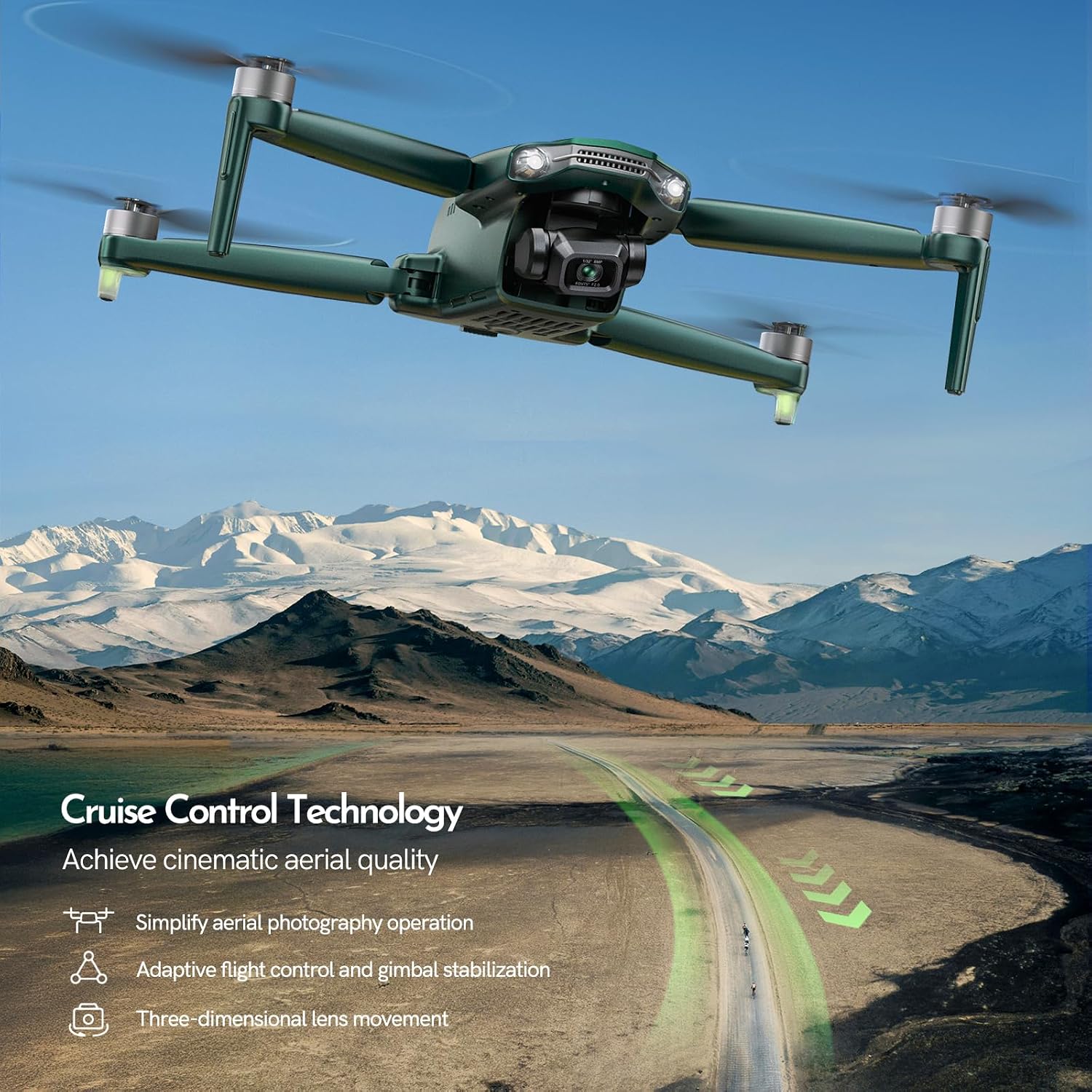
Image: The Gleesfun G11PRO Drone in flight over a scenic landscape, illustrating its capability for capturing high-quality aerial footage with its 3-axis brushless gimbal system.
5.5. Camera Operation
The G11PRO is equipped with a high-resolution camera capable of 6K UHD photos and 4K/30fps video.
- Photo/Video Capture: Use the dedicated buttons on the remote controller or the app interface to take photos or start/stop video recording.
- Gimbal Control: Adjust the camera angle using the gimbal control wheel on the remote controller for optimal framing.
- Image Transmission: The GQ2.0 digital transmission system provides a stable and clear live feed up to 10,000 ft.

Image: The Gleesfun G11PRO Drone flying over a mountainous landscape, with overlays indicating its 6K UHD photo and 4K/30fps video capabilities, emphasizing its pro-level clarity.
6. Maintenance
- Cleaning: Use a soft, dry cloth to clean the drone and remote controller. Avoid using liquids or solvents.
- Propeller Inspection: Regularly check propellers for cracks, bends, or chips. Replace damaged propellers immediately using the provided spares.
- Battery Care: Store batteries in a cool, dry place. Do not overcharge or fully discharge batteries. The GL2.0 Smart Battery Management System helps maintain battery health over 300+ charge cycles.
- Storage: When not in use, store the drone and its components in the portable bag to protect them from dust and physical damage.
7. Troubleshooting
| Problem | Possible Cause | Solution |
|---|---|---|
| Drone does not power on. | Battery is not charged or not properly inserted. | Ensure battery is fully charged and securely inserted into the drone. |
| No live video feed on smartphone. | Incorrect cable connection or app not running. | Verify the correct Type-C cable is used and securely connected. Ensure the Gleesfun Drone APP is open and connected. |
| Drone drifts during flight. | Improper calibration or strong winds. | Perform IMU and compass calibration as per app instructions. Avoid flying in strong winds. |
| Short flight time. | Battery not fully charged or aged battery. | Ensure batteries are fully charged before flight. Consider replacing old batteries if performance significantly degrades. |
| Propellers not spinning. | Motors locked or propellers obstructed. | Ensure motors are unlocked (perform stick combination for takeoff). Check for any obstructions around propellers. |
8. Specifications
| Feature | Detail |
|---|---|
| Model Name | G11PRO |
| Brand | Gleesfun |
| Color | Green |
| Video Capture Resolution | 6K UHD Photo / 4K/30fps Video |
| Connectivity Technology | Wi-Fi, Wired (Type-C for GQ2.0) |
| Battery Capacity | 3 x 7.7V 3200mAh (Total 105 mins flight time) |
| Video Capture Format | MP4 |
| Control Type | Remote Control |
| Maximum Range | 10,000 Feet (GQ2.0 Digital Transmission) |
| Gimbal | 3-Axis Brushless Gimbal |
| FAA Compliance | Remote ID Certified |
9. Warranty and Support
Gleesfun offers a 2-year free warranty and a 30-day return policy for the G11PRO Drone. For any inquiries, technical support, or warranty claims, please contact Gleesfun customer service using the contact information provided on the back cover of the physical manual or through the Gleesfun drone APP.
For further inquiries about FAA Remote ID, you can also get in touch with Gleesfun via the contact information on the back cover of the manual or the Gleesfun drone APP.
Related documentsG11PRO


Ask a question about this manual
Ask about setup, troubleshooting, compatibility, parts, safety, or missing instructions. Manuals+ will review the question and use this page’s manual context to help answer it.