
gearelec CP8-US
Portable Wireless Carplay & Android Auto System User Manual
Model: CP8-US | Brand: gearelec
1. Introduction
This manual provides comprehensive instructions for the installation, operation, and maintenance of your gearelec Portable Wireless Apple Carplay and Android Auto system (Model: CP8-US). Please read this manual thoroughly before using the product to ensure proper functionality and safety.
The CP8-US is designed to enhance your in-car entertainment and navigation experience by seamlessly integrating your smartphone's features onto a high-resolution touch screen. It supports wireless Apple CarPlay and Android Auto, Mirror Link, and offers multiple audio output options.

Image: The gearelec Portable Wireless Carplay and Android Auto System, featuring a foldable screen and a base unit with controls and a digital clock.
2. Package Contents
Please verify that all items listed below are included in your package. If any items are missing or damaged, please contact customer support.
- 1 x Host Unit (Portable Carplay Screen)
- 1 x AUX Audio Cable
- 1 x Reversing Video Input Cable
- 1 x Instruction Manual (English, French, Spanish)
- 1 x Cigarette Lighter Power Cable
- Double-sided Adhesive Stickers (2 spares included)

Image: A visual representation of all items included in the product package, such as the main unit, user manual, cables, and adhesive.
3. Setup and Installation
The gearelec CP8-US is designed for easy, non-destructive installation. No need to disassemble your car's console or seek professional assistance.
3.1 Placement
- Choose a suitable flat surface on your dashboard that does not obstruct your view or interfere with driving controls.
- Ensure there is enough space when the Carplay screen is unfolded (approximately 3.98 x 4.02 x 5.12 inches).
3.2 Mounting
- Clean the chosen dashboard surface thoroughly to ensure proper adhesion.
- Peel off the protective film from the self-adhesive stickers provided.
- Firmly press the base of the unit onto the cleaned surface for several seconds.
3.3 Power Connection
- Connect the cigarette lighter power cable to the unit's power input port.
- Insert the other end of the cigarette lighter power cable into your vehicle's 12V cigarette lighter socket.
- The unit will power on automatically.

Image: A visual comparison showing the simple installation of the portable CarPlay unit versus the complex wiring of a traditional car stereo.
4. Operating Instructions
The CP8-US features a 1560x720 high-resolution touch screen for intuitive control.
4.1 Compatibility Note
Before connecting, please note that this Carplay system is compatible with iOS 12 or later (iPhone) and Android 10 or later.

Image: A graphic indicating the required iOS 12+ and Android 10+ versions for smartphone compatibility with the unit.
4.2 Wireless Apple CarPlay Connection
- On the CP8-US screen, choose the "Carplay" mode.
- On your iPhone, turn on Wi-Fi and Bluetooth. Go to Bluetooth settings, search for and select the device named "CP8" to connect.
- Select "Pair" on your iPhone when prompted.
- Select "Allow" for contacts and favorite sync.
- Select "Use CarPlay" when prompted, and the connection will be successful.

Image: A step-by-step visual guide demonstrating how to connect an iPhone to the unit for Wireless Apple CarPlay functionality.
4.3 Wireless Android Auto Connection
- On the CP8-US screen, choose the "Android Auto" mode.
- On your Android phone, turn on Wi-Fi and Bluetooth. Go to Bluetooth settings, search for and select the device named "CP8" to connect.
- Select "Pair" on your Android phone when prompted.
- Select "Allow" for access to messages.
- The connection will be successful.

Image: A step-by-step visual guide demonstrating how to connect an Android phone to the unit for Wireless Android Auto functionality.
4.4 Mirror Link Function (Screen Mirroring)
The unit supports mirroring your smartphone screen for both iOS and Android devices.
For iPhone (Apple Mirror Link):
- On the CP8-US screen, choose the "Mirror" mode.
- On your iPhone, turn on Wi-Fi and connect to the Wi-Fi network named "Carplay-wifi-xxxx" using the provided password on the unit's screen.
- Open the Control Center on your iPhone, tap "Screen Mirroring," and select "Car."
- The connection will be successful.

Image: A step-by-step visual guide demonstrating how to connect an iPhone for screen mirroring (Apple Mirror Link).
For Android (Android Mirror Link):
- On the CP8-US screen, choose the "Mirror" mode.
- Select "AutoLink" on the unit's screen.
- Scan the QR code displayed on the screen to download the screen mirroring app on your Android phone.
- Open your phone's hotspot, setting the name to "Car" and using the password displayed on the unit.
- Use the app and follow the on-screen instructions to cast your phone screen.

Image: A step-by-step visual guide demonstrating how to connect an Android phone for screen mirroring (Android Mirror Link).
4.5 Audio Output Modes
The CP8-US offers flexible audio output options:
- Built-in 3W Dual-Chamber Speaker: For direct audio output from the unit.
- Bluetooth: Wirelessly transmit audio to your car's stereo speakers for louder sound.
- AUX Connection: Use the provided AUX audio cable to connect to your car's AUX input.
- FM Transmitter: Transmit audio to your car's FM radio by tuning both the unit and your car radio to the same empty FM frequency.
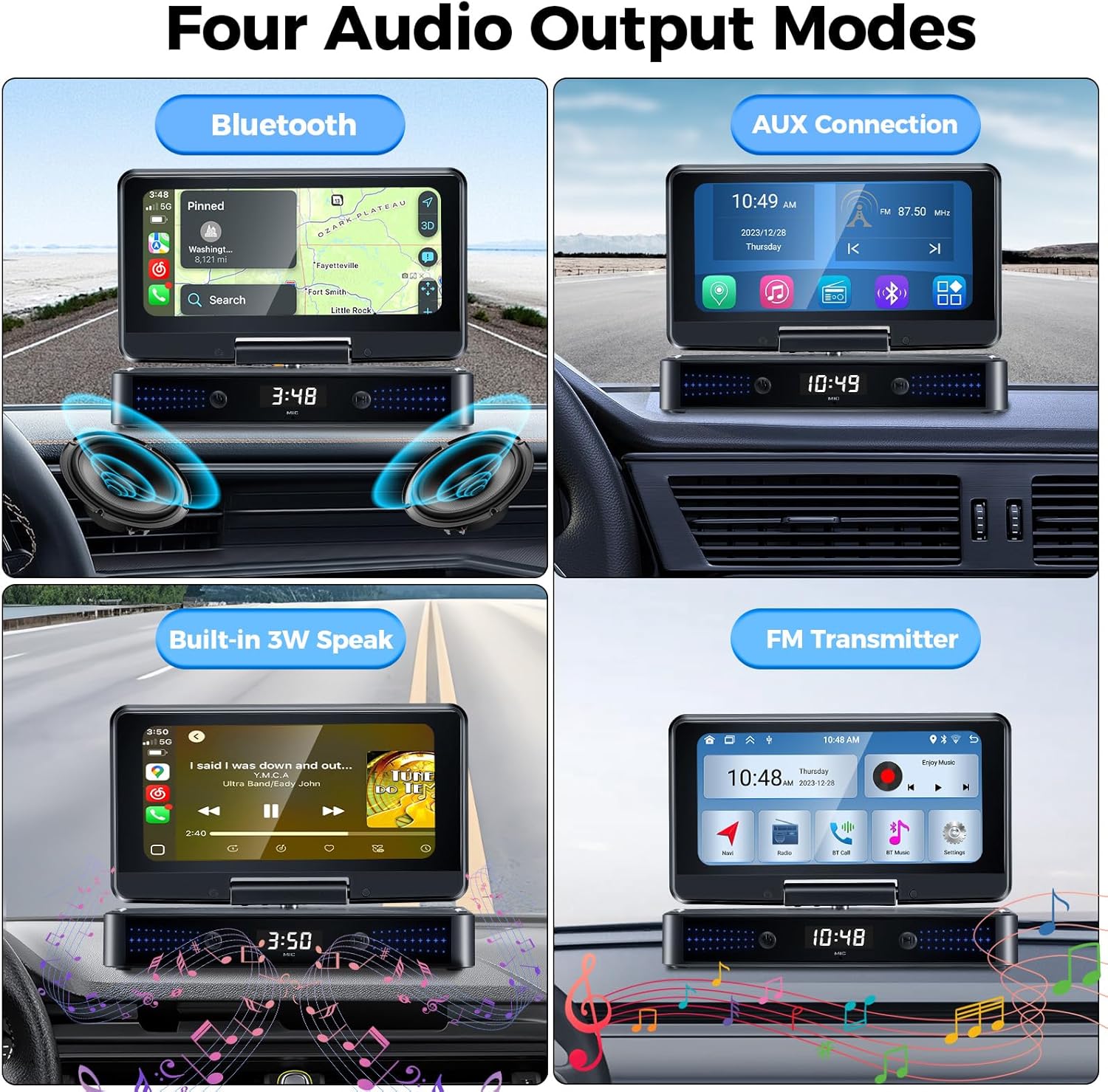
Image: A graphic illustrating the four available audio output methods: Bluetooth, AUX connection, built-in speaker, and FM transmitter.

Image: A visual highlighting the unit's built-in 3W dual-chamber speakers, designed for enhanced stereo surround sound.
4.6 Siri/Google Voice Control
Once connected via Apple CarPlay or Android Auto, you can utilize Siri or Google Assistant for voice commands. This allows for hands-free control of navigation, music playback, calls, and more.
- To activate, simply say "Hey Siri" or "Hey Google" (if enabled on your phone).
- Alternatively, tap the voice assistant icon on the screen.

Image: A graphic demonstrating the use of Siri and Google Voice Control for hands-free operations like making calls or navigating.
4.7 GPS Navigation
When connected to your phone via CarPlay or Android Auto, you can use popular map applications (e.g., Google Maps, Waze) directly on the CP8-US screen for accurate real-time location and navigation.

Image: The unit's 1560x720 high-resolution screen displaying navigation, with a smartphone mirroring content below it.
4.8 Reversing Image / Dash Cam (Optional)
The unit supports external reversing cameras and dash cams. Connect the reversing video input cable to the appropriate port on the unit and your camera. Refer to your camera's manual for specific installation details.
5. Maintenance
- Cleaning: Use a soft, dry cloth to clean the screen and unit. Do not use abrasive cleaners or solvents.
- Temperature: Avoid exposing the unit to extreme temperatures (hot or cold) for prolonged periods.
- Storage: If storing the unit for an extended period, disconnect it from power and store it in a cool, dry place.
6. Troubleshooting
| Problem | Possible Cause | Solution |
|---|---|---|
| Unit does not power on. | No power from cigarette lighter socket; loose connection. | Check cigarette lighter fuse; ensure power cable is securely plugged in. |
| Cannot connect to Apple CarPlay/Android Auto. | Incorrect phone settings; incompatible phone OS version; Bluetooth/Wi-Fi issues. | Ensure phone's Bluetooth and Wi-Fi are on; verify phone OS is iOS 12+ or Android 10+; restart both phone and unit. |
| No audio or poor audio quality. | Incorrect audio output mode selected; low volume; FM interference. | Adjust volume; try different audio output modes (Bluetooth, AUX, FM); if using FM, find a clear frequency. |
| Mirror Link connection unstable. | Weak Wi-Fi signal; phone hotspot issues (for Android). | Ensure strong Wi-Fi connection; verify Android hotspot settings are correct. |
| Time/settings reset after power off. | No built-in battery for data retention. | This is normal behavior as there is no built-in battery to save settings. Settings will need to be reconfigured after power cycle. |
If the problem persists after attempting these solutions, please contact gearelec customer support.
7. Specifications
| Feature | Detail |
|---|---|
| Model Number | CP8-US |
| Screen Resolution | 1560 x 720 pixels |
| Product Dimensions | 4.02"D x 7.24"W x 1.57"H |
| Item Weight | 1.04 pounds |
| Connectivity Technology | Bluetooth, USB |
| Controller Type | Android, iOS |
| Special Features | Apple CarPlay, Android Auto, Mirror Link, Reversing Image, Dash Cam, Siri, GPS, BT, AUX |
| Audio Output Mode | Stereo (Built-in 3W Dual-Chamber Speaker, Bluetooth, AUX, FM Transmitter) |
| Color | Black |
| Manufacturer | GEARELEC |
8. Warranty and Support
gearelec is committed to providing professional technical support and customer service. For any questions regarding installation, operation, or product issues, please contact us directly.
- Warranty Information: Please refer to the warranty card included in your package or visit the official gearelec website for detailed warranty terms and conditions.
- Customer Service: For assistance, please reach out to gearelec customer support through the contact information provided on the product packaging or the official brand website.
Related documentsCP8-US

Ask a question about this manual
Ask about setup, troubleshooting, compatibility, parts, safety, or missing instructions. Manuals+ will review the question and use this page’s manual context to help answer it.