
1. Introduction
This manual provides detailed instructions for the Intepoll 4K Mini Action Camera, Model BS-BC-GH88. This compact and versatile camera is designed for capturing high-quality video in various environments, including underwater, and offers multiple mounting options for hands-free recording.

Figure 1: Intepoll 4K Mini Action Camera highlighting its features: 100ft waterproof, 90 minutes battery life, 4K 30fps video, back clip, magnetic neck strap, and Wi-Fi connectivity.
2. What's in the Box
The Intepoll 4K Mini Action Camera package includes the following components:
- Camera Body
- Waterproof Case
- Magnetic Neck Strap
- Back Clip
- Helmet Mount
- Bicycle/Vehicle Bracket
- USB Charging Cable
- User Manual (this document)
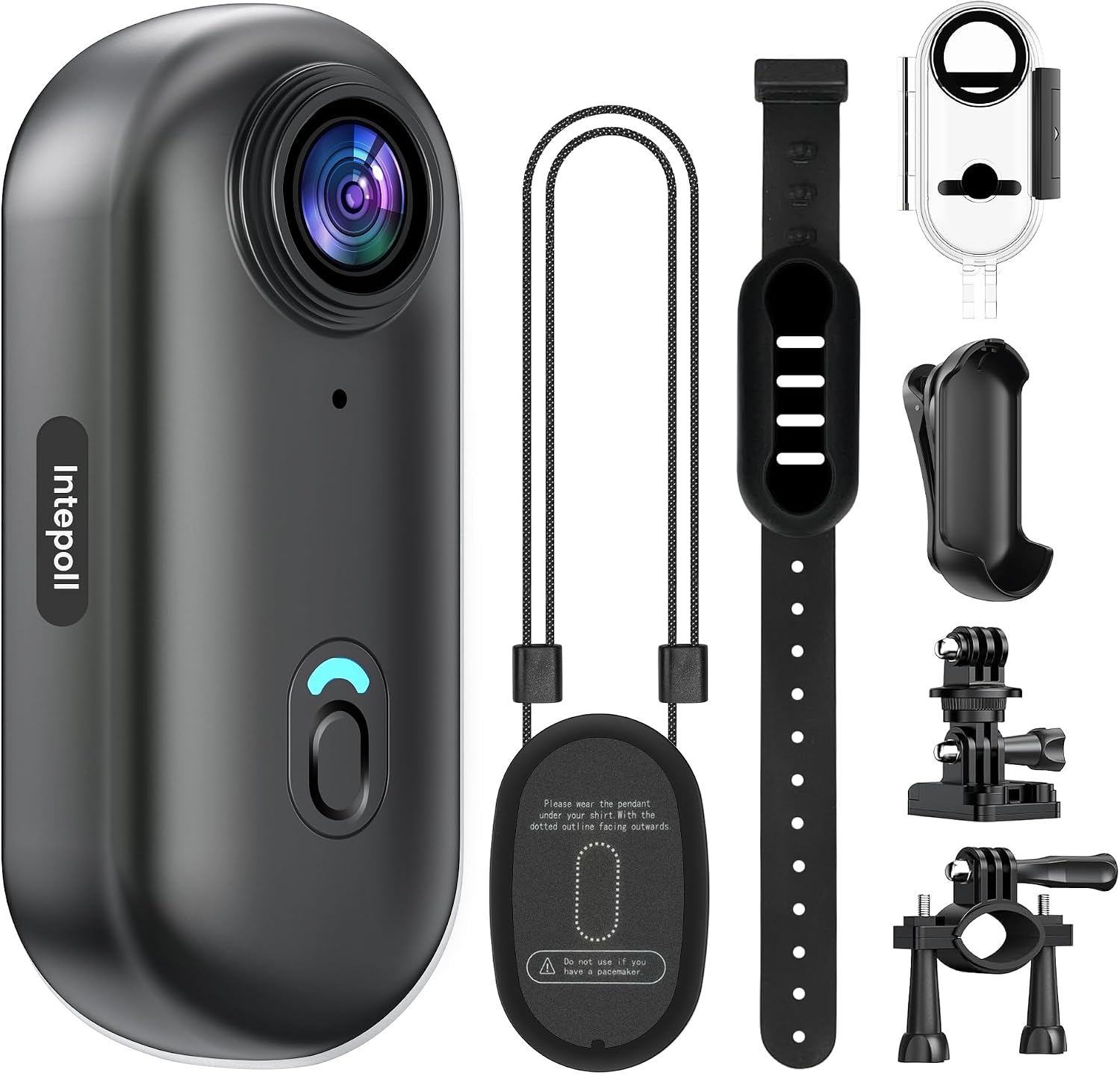
Figure 2: All components included with the Intepoll 4K Mini Action Camera.

Figure 3: An overview of the practical accessories provided with the camera, designed for versatile mounting.
3. Product Overview
The Intepoll 4K Mini Action Camera is designed for portability and ease of use. Its compact size allows for discreet recording and flexible mounting.
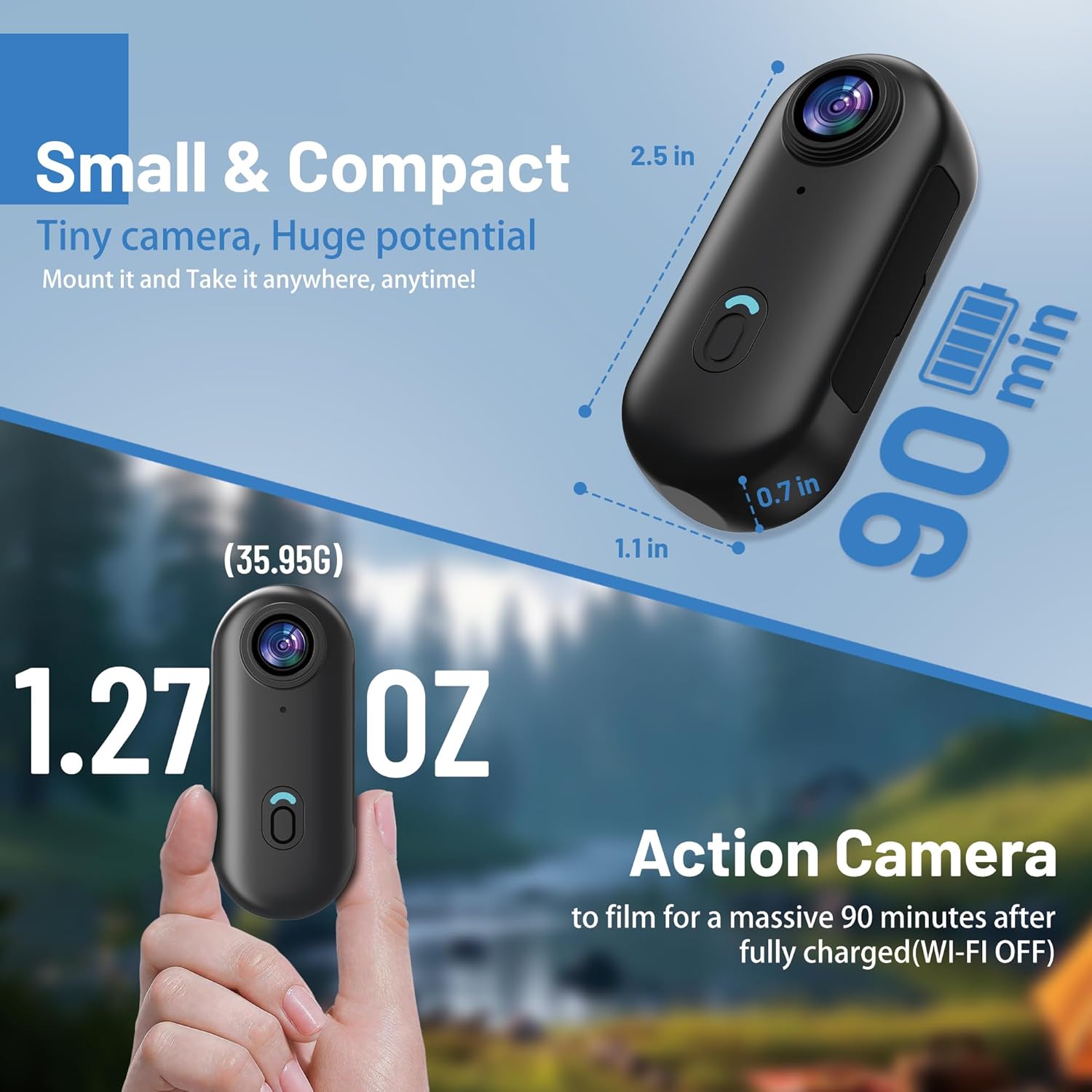
Figure 4: Dimensions and weight of the Intepoll 4K Mini Action Camera, highlighting its compact design.
3.1 Key Features
- Thumb Size Design: Extremely compact (1.1"x0.7"x2.5"inch, 1.27oz) for easy portability and discreet use.
- IPX7 Waterproof: With the included waterproof case, the camera is submersible up to 100ft (30m).
- 4K Video Recording: Captures high-resolution 4K 2160P@30FPS video.
- Extended Runtime: Up to 90 minutes of continuous recording (Wi-Fi OFF).
- Wide Field of View: Expansive view for immersive POV footage.
- Magnetic Body Design: Allows for easy attachment to metallic surfaces or use with the magnetic neck strap.
- Wi-Fi Connectivity: For live preview, playback, and file transfer via a dedicated mobile application.
4. Setup
4.1 Charging the Camera
Before first use, fully charge the camera. Connect the camera to a USB power source (e.g., computer USB port or USB wall adapter) using the provided USB cable. The charging indicator light will provide feedback on the charging status.
4.2 Inserting a Micro SD Card
The camera requires a Micro SD card (not included) for storing recordings. Locate the Micro SD card slot on the camera. Gently insert the Micro SD card with the contacts facing the correct direction until it clicks into place. Ensure the card is properly seated to avoid data loss.
4.3 Powering On/Off
- Power On: Simply press the home button on the front of the mini camera. The blue LED will illuminate, indicating the camera is on.
- Power Off: Press and hold the home button for approximately 3 seconds. The LED will turn off, indicating the camera is powered down.

Figure 5: Instructions for powering on/off and selecting recording modes.
4.4 Connecting to the Mobile App (Wi-Fi)
To access live preview, playback, and download features, connect the camera to your smartphone via Wi-Fi.
- Ensure the camera is powered on.
- Quickly press the home button two times after powering on to activate Wi-Fi mode. The green LED will flash.
- Download and install the dedicated mobile application (check product packaging or manufacturer's website for app name).
- On your smartphone, go to Wi-Fi settings and connect to the camera's Wi-Fi network (SSID will typically start with "TO S3" or similar).
- Open the mobile application. You should now be able to view a live feed, play back recordings, and download files.

Figure 6: Live preview and playback functionality via the mobile application, showing camera mounted on a bicycle.
4.5 Mounting Options
The camera comes with various accessories for flexible mounting:
- Magnetic Neck Strap: Wear the camera around your neck for POV (Point of View) recording. Ensure the pendant is worn under your shirt with the dotted surface facing outwards.
- Back Clip: Attach the camera to clothing, bags, or other surfaces.
- Helmet Mount: Securely attach the camera to a helmet for action sports.
- Bicycle/Vehicle Bracket: Mount the camera on handlebars or other suitable surfaces on bikes or vehicles.
- Waterproof Case: Use this case for underwater activities or in harsh weather conditions. It allows diving up to 100ft (30m).

Figure 7: Examples of camera mounting for various activities like skiing, cycling, and driving.

Figure 8: Detailed view of different mounting accessories and their applications.
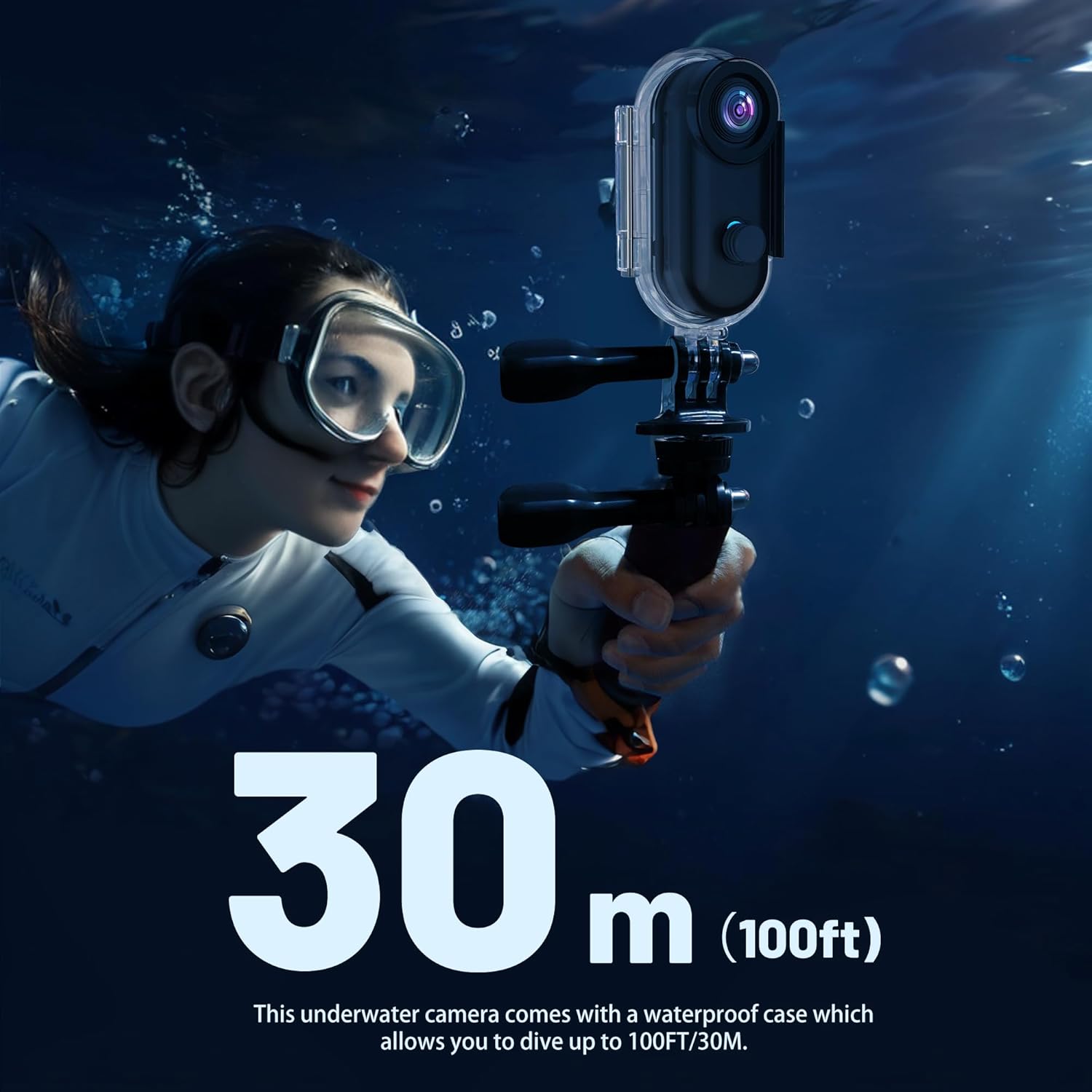
Figure 9: The camera in its waterproof case, suitable for underwater use up to 100 feet (30 meters).
5. Operating the Camera
5.1 Quick Capture Recording
To start or stop recording instantly when the camera is on:
- Simply press the home button on the front of the camera.
- The blue LED will flash to indicate recording is in progress.
- Press the button again to stop recording.
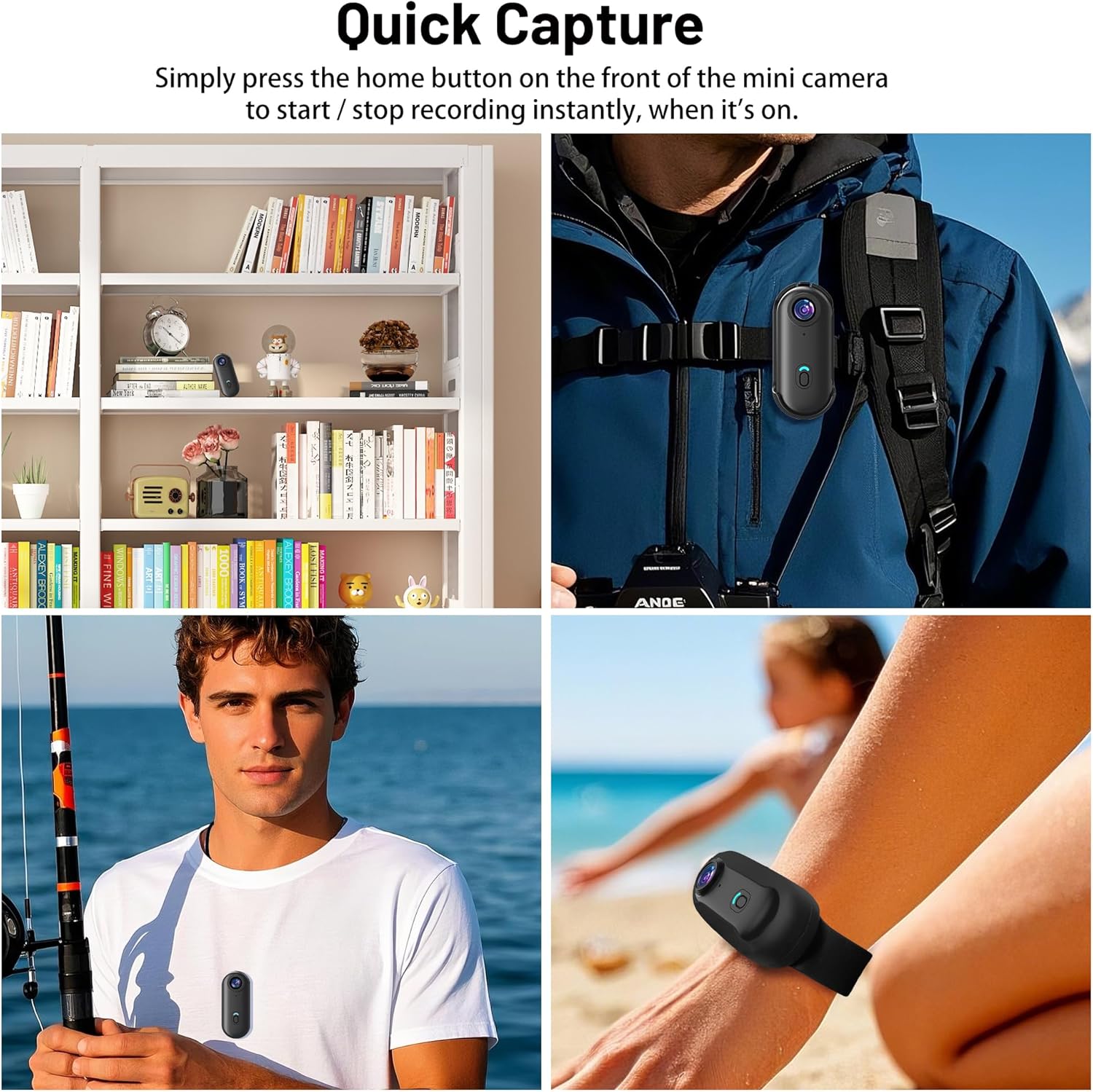
Figure 10: Examples of quick capture in various settings, highlighting the camera's versatility.

Figure 11: Immediate playback and file management via the mobile application after filming.
5.2 File Transfer
You can transfer files from your camera using several methods:
- On Phone via App (Wi-Fi): Connect your phone to the camera's Wi-Fi network and use the mobile app to download videos and images directly to your phone.
- On Phone via Cable: Connect the camera to your phone using a compatible USB-C to USB-C or Lightning to USB-C cable. Your phone should recognize the camera as an external storage device.
- On Computer via Cable: Connect the camera to your computer using the provided USB cable. The camera will appear as a removable disk, allowing you to drag and drop files.
- On Computer via Card Reader: Remove the Micro SD card from the camera and insert it into a card reader connected to your computer. This method often provides the fastest transfer speeds.

Figure 12: Various methods for transferring files from the camera to a phone or computer.
6. Maintenance
- Cleaning: Use a soft, dry cloth to clean the camera body. For the lens, use a specialized lens cleaning cloth and solution. Do not use harsh chemicals.
- Waterproof Case Care: After using the waterproof case in saltwater, rinse it thoroughly with fresh water and allow it to air dry. Inspect the O-ring seal regularly for any debris or damage and ensure it is clean before each use.
- Storage: Store the camera in a cool, dry place away from direct sunlight and extreme temperatures. If storing for extended periods, ensure the battery is partially charged (around 50%) to prolong its lifespan.
- Firmware Updates: Check the manufacturer's official website periodically for any available firmware updates to ensure optimal performance and new features.
7. Troubleshooting
| Problem | Possible Cause | Solution |
|---|---|---|
| Camera does not power on. | Low battery; Camera frozen. | Charge the camera fully. If unresponsive, try resetting the camera (refer to manual for reset procedure, if available, or hold power button for extended period). |
| Cannot connect to Wi-Fi / App. | Wi-Fi not activated; Out of range; App issue; Camera frozen. | Ensure Wi-Fi is activated on camera (green LED flashing). Keep phone within 32ft (10m) of camera. Restart the app and camera. Try connecting with a different phone. |
| Recording stops unexpectedly. | SD card full; SD card error; Low battery. | Check available space on SD card. Format the SD card (this will erase all data). Ensure battery is sufficiently charged. Use a high-speed, reputable brand SD card. |
| Poor video quality. | Dirty lens; Low light conditions; Incorrect settings. | Clean the camera lens. Ensure adequate lighting. Check camera settings for resolution and frame rate. |
| Camera not recognized by computer. | Faulty USB cable; Driver issue; Camera not in correct mode. | Try a different USB cable and USB port. Restart computer and camera. Ensure camera is powered on when connected. Try using an SD card reader. |
8. Specifications
| Feature | Detail |
|---|---|
| Brand | Intepoll |
| Model Number | BS-BC-GH88 |
| Dimensions | 2.5 x 1.1 x 2.5 inches |
| Item Weight | 1.27 ounces (35.95g) |
| Color | Black |
| Video Capture Resolution | 4K (2160P@30FPS) |
| Waterproof Rating | IPX7 (up to 100ft/30m with waterproof case) |
| Battery Life | Up to 90 minutes (Wi-Fi OFF) |
| Flash Memory Type | Micro SD (up to 128GB, not included) |
| Connectivity Technology | Wi-Fi |
| Screen Size | 1 Inch (visible screen diagonal) |
| Maximum Aperture | 1 f |
| Video Capture Format | MP4 |
| Supported Audio Format | AAC, MP3 |
9. Warranty and Support
For warranty information and technical support, please refer to the official Intepoll website or contact their customer service directly. Keep your purchase receipt as proof of purchase for any warranty claims.
Protection plans are available for purchase separately to extend coverage beyond the standard manufacturer's warranty. Details on these plans can be found where the product was purchased.
