
JOMAA Foldable Bluetooth Keyboard with Touchpad
JOMAA Foldable Bluetooth Keyboard with Touchpad User Manual
Model: Foldable Bluetooth Keyboard with Touchpad
Brand: JOMAA
Introduction
This manual provides detailed instructions for the JOMAA Foldable Bluetooth Keyboard with Touchpad. Designed for portability and multi-device compatibility, this keyboard supports seamless connection across iOS, Android, Windows, and Mac OS devices. Please read this manual thoroughly to ensure proper setup, operation, and maintenance of your new keyboard.
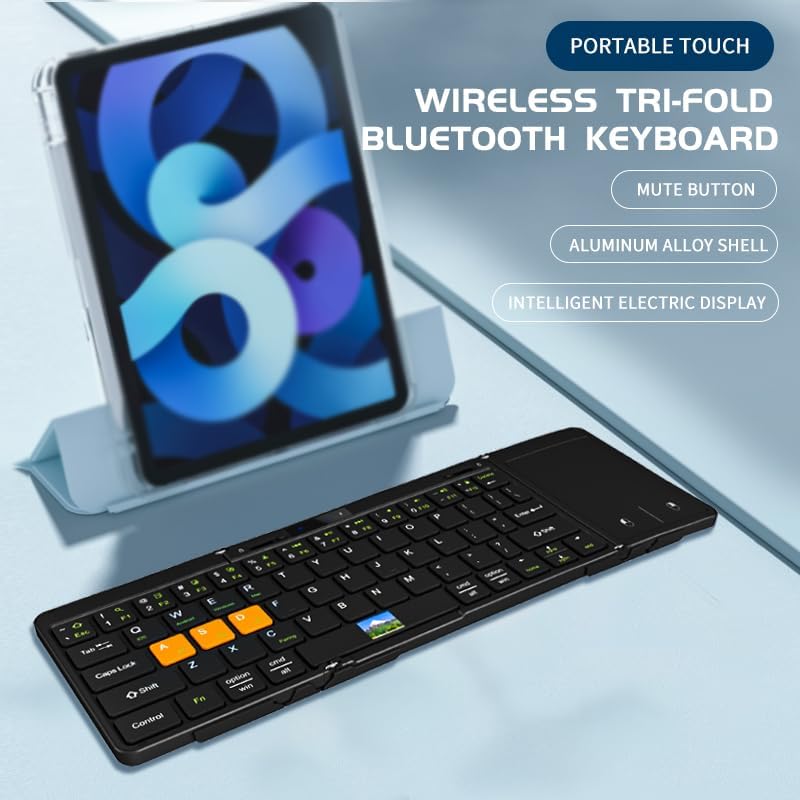
The JOMAA Foldable Bluetooth Keyboard with Touchpad, shown alongside a tablet, highlighting its portable design and compatibility with mobile devices.
1. Setup
1.1 Powering On
To power on the keyboard, locate the ON/OFF switch on the side of the device. Slide the switch to the 'ON' position. The keyboard will automatically unfold and prepare for use.

The side of the JOMAA keyboard, illustrating the ON/OFF switch and the Type-C charging port.
Official product video demonstrating the power-on process, Bluetooth pairing, typing, and folding mechanism of the JOMAA Foldable Bluetooth Keyboard.
1.2 Bluetooth Pairing
The JOMAA keyboard supports connection to up to three devices simultaneously. Follow these steps to pair your keyboard:
- Ensure the keyboard is powered on.
- Press and hold one of the dedicated Bluetooth pairing buttons (BT1, BT2, or BT3) located on the keyboard until the pairing indicator light flashes.
- On your device (smartphone, tablet, laptop), navigate to the Bluetooth settings.
- Search for available devices and select "BT Keyboard-XXXX" (where XXXX is a unique identifier) from the list.
- Confirm the pairing on your device. The indicator light on the keyboard will become solid once successfully paired.
- To switch between paired devices, simply press the corresponding BT button (BT1, BT2, or BT3).
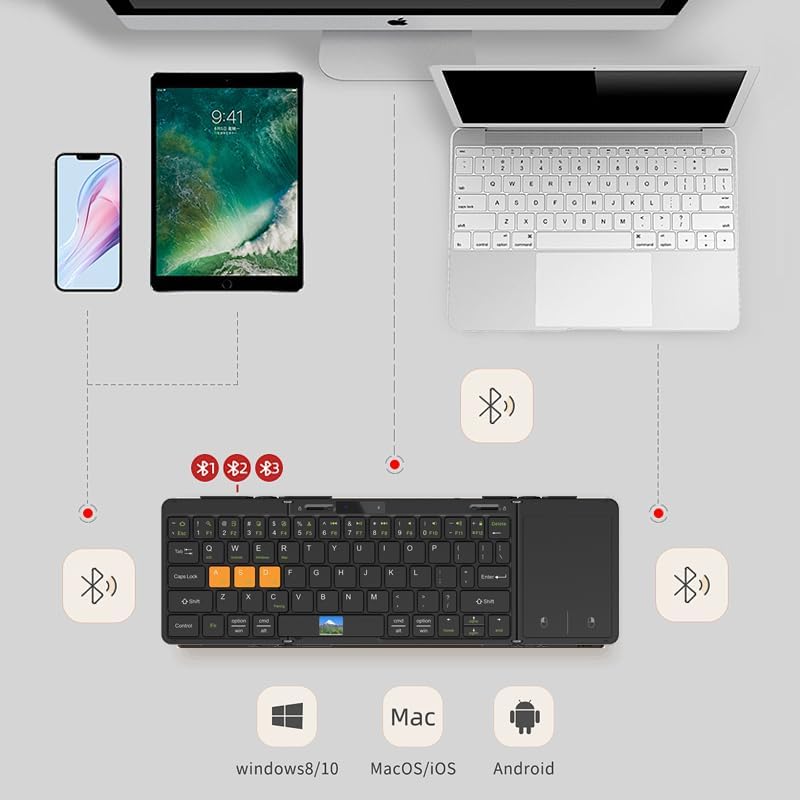
Illustration of the keyboard's multi-device Bluetooth connectivity, allowing it to connect to a smartphone, tablet, and laptop simultaneously.
2. Operating Instructions
2.1 Typing Experience
The JOMAA keyboard features a scissor-footed switch design, ensuring a quiet and comfortable typing experience. This design minimizes noise, making it suitable for various environments.

The silent design feature of the keyboard, ensuring a quiet typing experience.
2.2 Touchpad Functionality
The integrated touchpad provides convenient mouse functionality, enhancing productivity without the need for an external mouse. Use standard touchpad gestures for navigation and interaction.
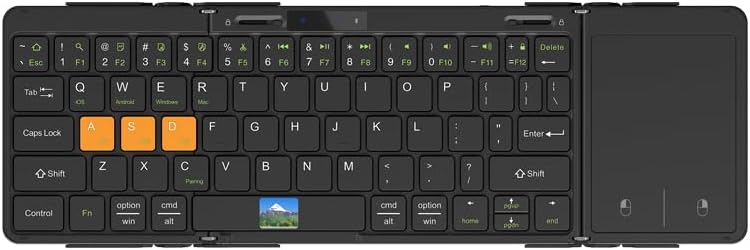
A comprehensive view of the keyboard layout, highlighting the integrated touchpad for seamless navigation.
2.3 Folding and Unfolding
The keyboard features a unique folding mechanism with a dual-axis hinge and latch design for stability. To unfold, gently open the two sections. To fold, release the latches and bring the sections together. The latch mechanism ensures the keyboard remains flat and stable during use, preventing accidental bending.

The integrated latch design provides enhanced stability when the keyboard is unfolded for use.

The dual-axis hinge ensures smooth and secure folding and unfolding of the keyboard.
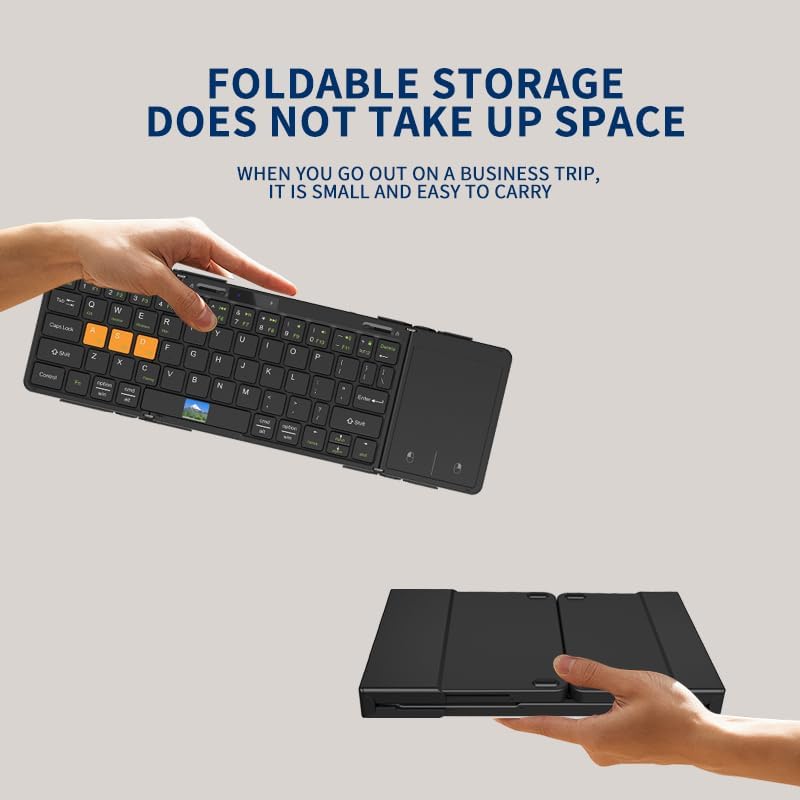
The keyboard folds compactly for easy storage and portability, ideal for travel.
2.4 Display Features
The keyboard is equipped with a small display that shows important information such as the current battery level and connection status, allowing you to monitor its performance at a glance.
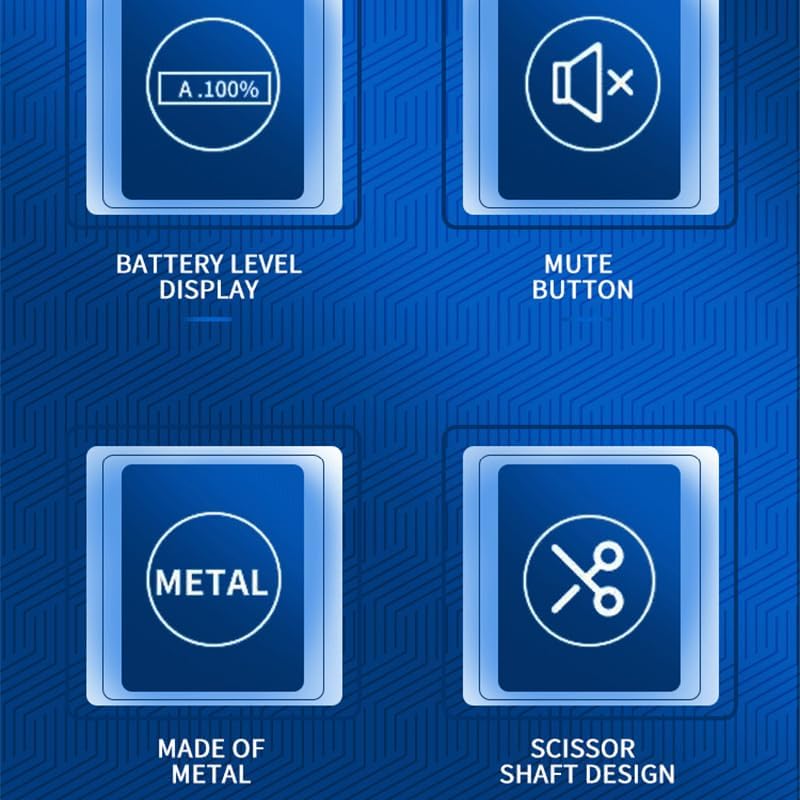
Key features indicated by icons: Battery Level Display, Mute Button, Metal Construction, and Scissor Shaft Design.
3. Maintenance
3.1 Charging
The keyboard has a built-in rechargeable lithium battery. When the battery is low, a battery display will appear on the screen. Charge the keyboard using the provided Type-C charging cable. Connect the cable to the Type-C port on the side of the keyboard and to a compatible USB power source.
3.2 Cleaning
To clean your keyboard, gently wipe the surface with a soft, dry, lint-free cloth. For stubborn dirt, a slightly damp cloth can be used, ensuring no moisture enters the keyboard's internal components. Avoid using harsh chemicals or abrasive materials.
4. Troubleshooting
4.1 Keyboard Not Connecting/Pairing
- Ensure Bluetooth is enabled on your device.
- Make sure the keyboard is fully charged.
- Verify the keyboard is in pairing mode (indicator light flashing).
- Forget the device from your device's Bluetooth settings and attempt to re-pair.
- Restart both the keyboard (turn off and on) and your device.
4.2 Keys Not Responding
- Check if the keyboard is properly connected to your device.
- Ensure the keyboard is fully unfolded and the latch mechanism is engaged to prevent bending during typing.
- Recharge the keyboard if the battery is low.
- Try connecting to a different device to rule out device-specific issues.
4.3 Touchpad Not Working
- Ensure the keyboard is fully unfolded and stable.
- Check your device's settings to ensure touchpad functionality is enabled.
- Clean the touchpad surface to remove any dirt or debris.
5. Specifications
| Feature | Detail |
|---|---|
| Brand | JOMAA |
| Connectivity Technology | Bluetooth |
| Compatible Devices | Gaming Console, Laptop, Smartphone, Tablet |
| Keyboard Description | Multi Functional |
| Special Feature | Foldable |
| Number of Keys | 64 |
| Power Source | Battery Powered |
| Item Weight | 12.3 ounces |
| Package Dimensions | 7.87 x 4.72 x 1.18 inches |
| Batteries | 1 P76 battery required (included) |
| Date First Available | January 16, 2025 |
Technical drawing illustrating the dimensions of the keyboard when unfolded and folded.
6. Warranty Information
Specific warranty details for the JOMAA Foldable Bluetooth Keyboard with Touchpad are not provided in this manual. Please refer to the product packaging or the official JOMAA website for comprehensive warranty terms and conditions.
7. Customer Support
For further assistance, technical support, or inquiries regarding your JOMAA product, please visit the official JOMAA Store on Amazon or contact their customer service through the provided channels on their website.