
Eurannit E11
Eurannit E11 Mini Handheld Inkjet Printer User Manual
Model: E11
1. Introduction
This manual provides comprehensive instructions for the safe and efficient operation of your Eurannit E11 Mini Handheld Inkjet Printer. Please read this manual thoroughly before using the device and retain it for future reference.
The Eurannit E11 is a compact and versatile inkjet printer designed for marking various surfaces with text, dates, QR codes, barcodes, and logos. Its portable design and quick-drying ink system make it suitable for a wide range of applications.
2. Product Overview
2.1 Package Contents
The Eurannit E11 Mini Handheld Inkjet Printer package includes:
- E11 Printer Unit
- Touch Pen
- Power Adapter
- Black Ink Cartridge (ER520)
- Precision Positioning Board
2.2 Device Components
Familiarize yourself with the main components of your E11 printer:

Image: Front view of the E11 Mini Handheld Inkjet Printer, highlighting the touch screen, synchronizer, and nozzle.
- Touch Screen: 2.4" intuitive display for editing and operating.
- Nozzle: Inkjet output for printing.
- Synchronizer: Ensures smooth and consistent printing.
- Charging Interface: USB Type-C port for power.
- Switch Button: Power on/off control.
3. Setup
3.1 Charging the Device
Before initial use, fully charge the printer using the provided power adapter and USB Type-C cable. The battery indicator on the screen will show charging status.
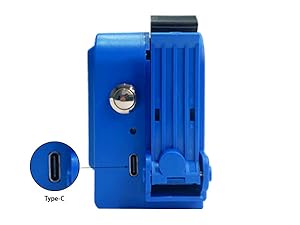
Image: Side view of the E11 printer showing the USB Type-C charging port.
3.2 Installing the Ink Cartridge
- Remove the protective dust cover from the ink cartridge.
- Press the cartridge compartment button to open the cover.
- Insert the ink cartridge at a 45-degree angle into the compartment.
- Align the ink cartridge nozzles and gently push until it clicks into place.
- Close the cartridge compartment cover.
Video: This video demonstrates the process of installing the ink cartridge into the E11 Mini Handheld Inkjet Printer, including removing the dust cover, opening the compartment, inserting the cartridge, and closing the cover.
4. Operating Instructions
4.1 Powering On/Off
To power on, long-press the control button until the screen illuminates. To power off, navigate to 'Settings' on the touchscreen and select 'Shutdown'.
4.2 Creating and Editing Print Content
The E11 printer features a 2.4" touchscreen for direct content creation and editing. Use the touch pen for precise input.
- From the main screen, select 'Add' to create new content.
- Choose from options like 'Text', 'Date', 'Image', 'Bar Code', 'QR Code', 'Counter', etc.
- For text, type your desired message using the on-screen keyboard.
- Adjust font, size, spacing, width, and rotation as needed.
- Images can be imported via USB (.txt, .jpg, .png, .bmp formats supported).
- Arrange multiple content elements on the screen to form your desired print layout.
Video: This video demonstrates how to edit printed content directly on the E11 Mini Handheld Inkjet Printer's touchscreen interface.
4.3 Printing Process
Once your content is ready:
- Select 'Start' on the touchscreen. The printer will enter waiting mode.
- Position the printer's nozzle against the surface you wish to print on.
- Press the control button (or press twice for continuous printing) and smoothly roll the printer across the surface.
- The quick-drying ER520 ink ensures immediate smudge-proof results.
Video: This video demonstrates the printing process, including preparing the content, initiating printing, and applying the printer to a surface.
4.4 Printing on Various Surfaces
The E11 printer is suitable for a wide range of materials, including:
- Cardboard
- Wood
- Fabric
- Plastic
- Leather
- Glass
- Ceramics
- Metal (e.g., steel pipes)

Image: Examples of the E11 Mini Handheld Inkjet Printer printing on wood, carton, pipe, ceramic, stone, metal, egg, plastic, cloth, and foam.
For curved or uneven surfaces, utilize the included precision positioning board to ensure consistent print quality.

Image: The E11 printer being used with its external conveyor wheel to print on a bottle, demonstrating its capability for curved surfaces.
Video: This video showcases the XMINI printer's suitability for printing on various materials, including glass, lipstick, hand essence tubes, plastic bottles, paper cups, cartons, plastic packaging, nonwoven masks, foam, cards, and nonwoven cloth, as well as curved and concave surfaces.
5. Maintenance
5.1 Ink Cartridge Care
To prevent clogging and ensure optimal print quality, always place the ink cartridge cap back on when the printer is not in use for more than 10 minutes.
Video: This video demonstrates how to properly remove the ink cartridge and replace its protective cap for storage.
5.2 Cleaning the Printhead
If you experience ink jet breakage or unclear printing, follow these steps to clean the printhead nozzles:
- Exit print mode and turn off the printer by long-pressing the print button.
- Remove the ink cartridge from the device.
- Gently press a clean tissue against the printhead nozzles and shake it up and down a few times.
- Wipe the nozzles gently in one direction a few times until no ink residue is visible.
- Reinstall the cleaned cartridge and print again to verify improved quality.
Video: This video provides instructions on how to clean the ink cartridge nozzles to restore normal operation and improve print clarity.
6. Troubleshooting
If you encounter issues with your Eurannit E11 printer, consider the following common solutions:
- Poor Print Quality: Ensure the printhead is clean (refer to Section 5.2). Check if the ink cartridge is properly installed and has sufficient ink.
- Device Not Powering On: Verify the battery is charged. Connect the printer to the power adapter and try again.
- Touchscreen Unresponsive: Try restarting the device. If the issue persists, perform a factory reset via the 'Settings' menu.
- Content Not Saving/Loading: Ensure sufficient internal storage or check the USB drive connection if importing/exporting files.
7. Specifications
| Feature | Detail |
|---|---|
| Model Name | Mini Handheld Inkjet printer (E11) |
| Brand | Eurannit |
| Printing Technology | Inkjet |
| Printer Output | Monochrome |
| Maximum Black and White Print Resolution | 600 |
| Maximum Color Print Resolution | 4800 x 1200 dpi |
| Print Height | 0.5 inches (12.7 mm) |
| Ink Color | Black (ER520 Ink Cartridge) |
| Connectivity Technology | USB Type C |
| Item Weight | 1.12 pounds |
| Product Dimensions | 1.77"D x 2.75"W x 4.13"H |
| Batteries | 1 9V batteries required (included) |
8. Warranty and Support
Eurannit provides 12-hour response technical support for your E11 Mini Handheld Inkjet Printer. For assistance, please contact Eurannit's customer service through the Amazon platform.

Image: Visual guide on how to contact the seller, Eurannit, through the Amazon platform for support.
You can also visit the official Eurannit store on Amazon for more information and resources: Eurannit Amazon Store
Related documentsE11


Ask a question about this manual
Ask about setup, troubleshooting, compatibility, parts, safety, or missing instructions. Manuals+ will review the question and use this page’s manual context to help answer it.