
1. Introduction
This manual provides detailed instructions for the installation, operation, maintenance, and troubleshooting of your MSI MPG B850 Edge TI WiFi Motherboard. Designed for the AMD AM5 platform, this ATX motherboard supports AMD Ryzen 9000, 8000, and 7000 series processors, offering advanced features for high-performance computing.

Figure 1: MSI MPG B850 Edge TI WiFi Motherboard Overview
Key features include robust power delivery, DDR5 memory support up to 8400+ MT/s (OC), multiple PCIe 5.0 and M.2 Gen5 slots, and integrated Wi-Fi 7 and 5G LAN for superior connectivity.
2. Setup and Installation
2.1. Safety Precautions
- Always disconnect the power supply from the wall outlet before installing or removing any components.
- Wear an anti-static wrist strap or frequently touch a grounded metal object to discharge static electricity.
- Handle the motherboard by its edges to avoid touching sensitive components.
2.2. Component Installation
Ensure all components are compatible with the MSI MPG B850 Edge TI WiFi Motherboard before installation.

Figure 2: Motherboard with key component areas highlighted
2.2.1. CPU Installation
- Locate the AM5 CPU socket on the motherboard.
- Open the CPU retention lever and carefully align the CPU with the socket, ensuring the triangular markers match.
- Gently place the CPU into the socket without forcing it.
- Close the retention lever to secure the CPU.
2.2.2. DDR5 RAM Installation
The motherboard features 4 DDR5 DIMM slots. For optimal performance, refer to your CPU and RAM manufacturer's guidelines for dual-channel configuration.
- Open the clips at both ends of the DIMM slot.
- Align the RAM module with the slot, ensuring the notch on the module matches the key in the slot.
- Press down firmly on both ends of the RAM module until the clips snap into place.
2.2.3. M.2 SSD Installation
The motherboard includes 2 M.2 Gen5 x4 slots and 2 M.2 Gen4 slots, protected by Shield Frozr heatsinks.
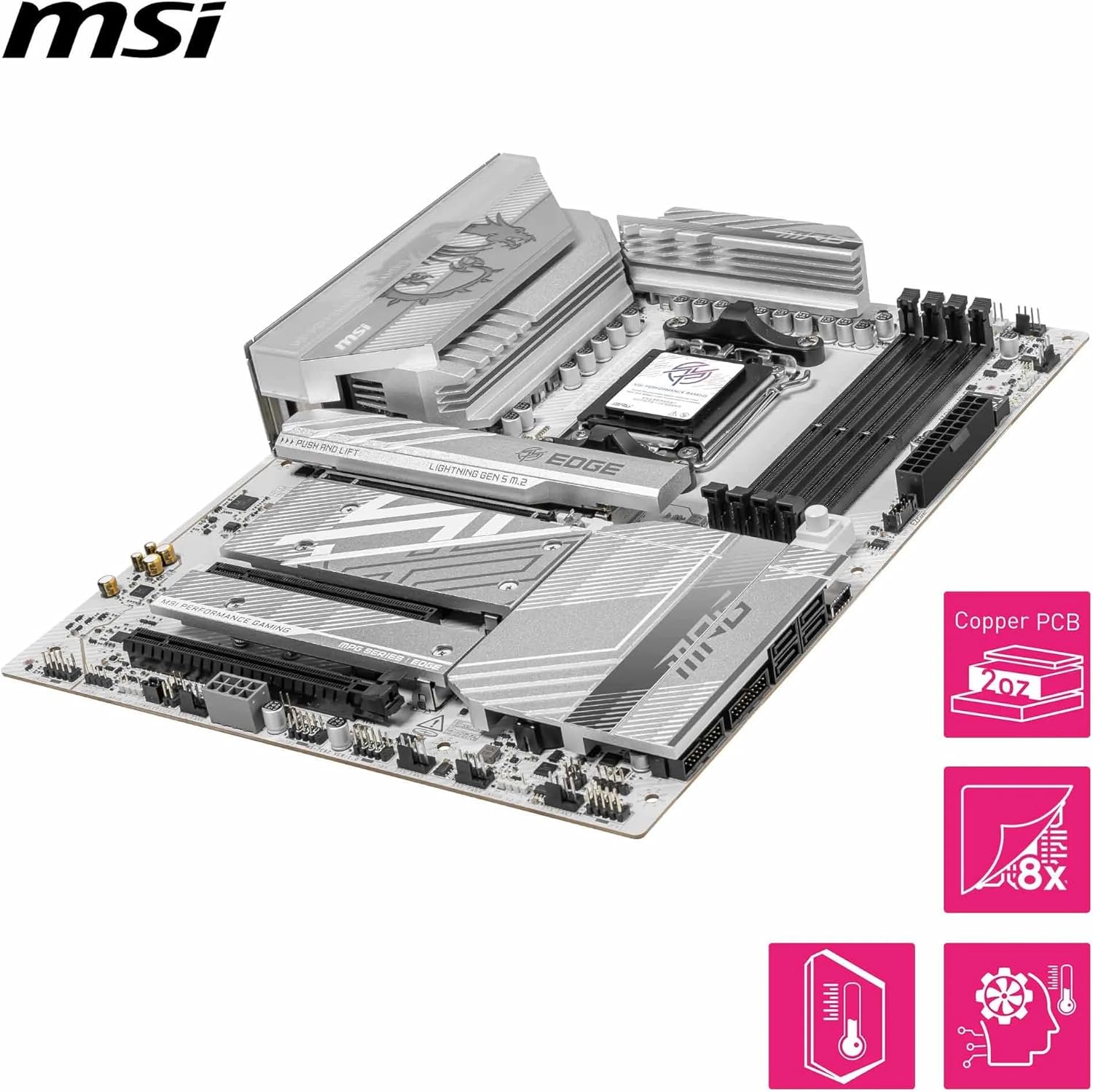
Figure 3: M.2 Slots with Shield Frozr Heatsinks
- Unscrew and remove the M.2 Shield Frozr heatsink from the desired slot.
- Insert the M.2 SSD into the slot at a slight angle.
- Gently push down the SSD and secure it with the EZ M.2 Clip II or screw.
- Reattach the M.2 Shield Frozr heatsink.
2.2.4. PCIe 5.0 x16 Graphics Card Installation
The primary PCIe 5.0 x16 slot features Steel Armor II for enhanced durability.
- Open the retention clip on the PCIe x16 slot.
- Align your graphics card with the slot and press down firmly until it is fully seated and the retention clip locks.
- Secure the graphics card to your PC case with screws.
2.3. Power Connections
- Connect the 24-pin ATX main power connector from your power supply to the motherboard.
- Connect the dual 8-pin CPU power connectors to the corresponding sockets on the motherboard.
2.4. Front Panel Connections
Connect your case's front panel cables (USB, audio, power switch, reset switch, LED indicators) to the appropriate headers on the motherboard. Refer to the motherboard diagram for exact locations.
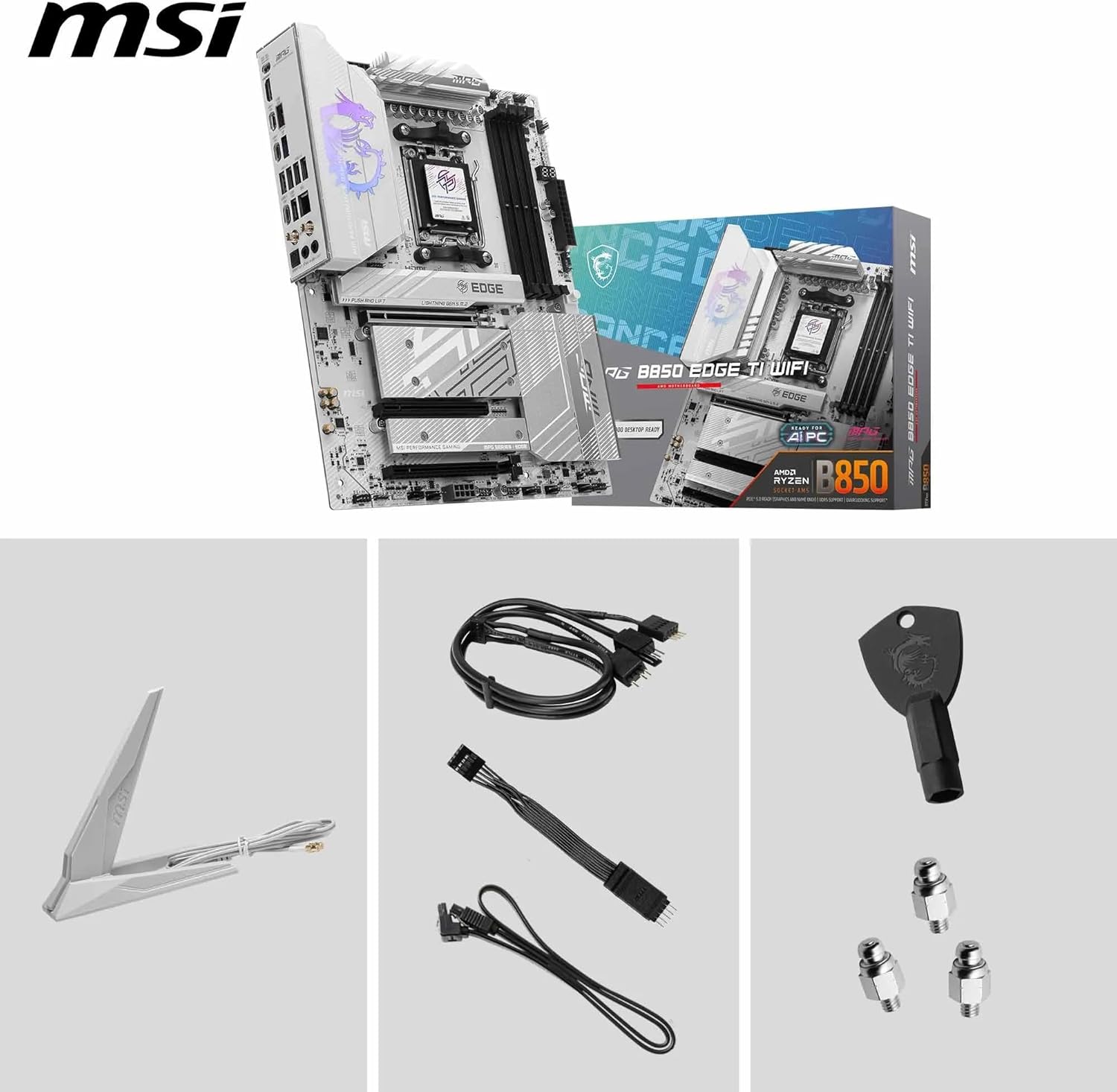
Figure 4: Included accessories for connectivity
3. Operation and Features
3.1. Power Delivery and Cooling
The MPG B850 Edge TI WiFi features a 14 Duet Rail Power System (80A, SPS) VRM for stable power delivery to the CPU. Advanced cooling solutions, including Frozr Guard with 7W/mK MOSFET thermal pads and an Extended Heatsink, ensure optimal thermal performance under load.
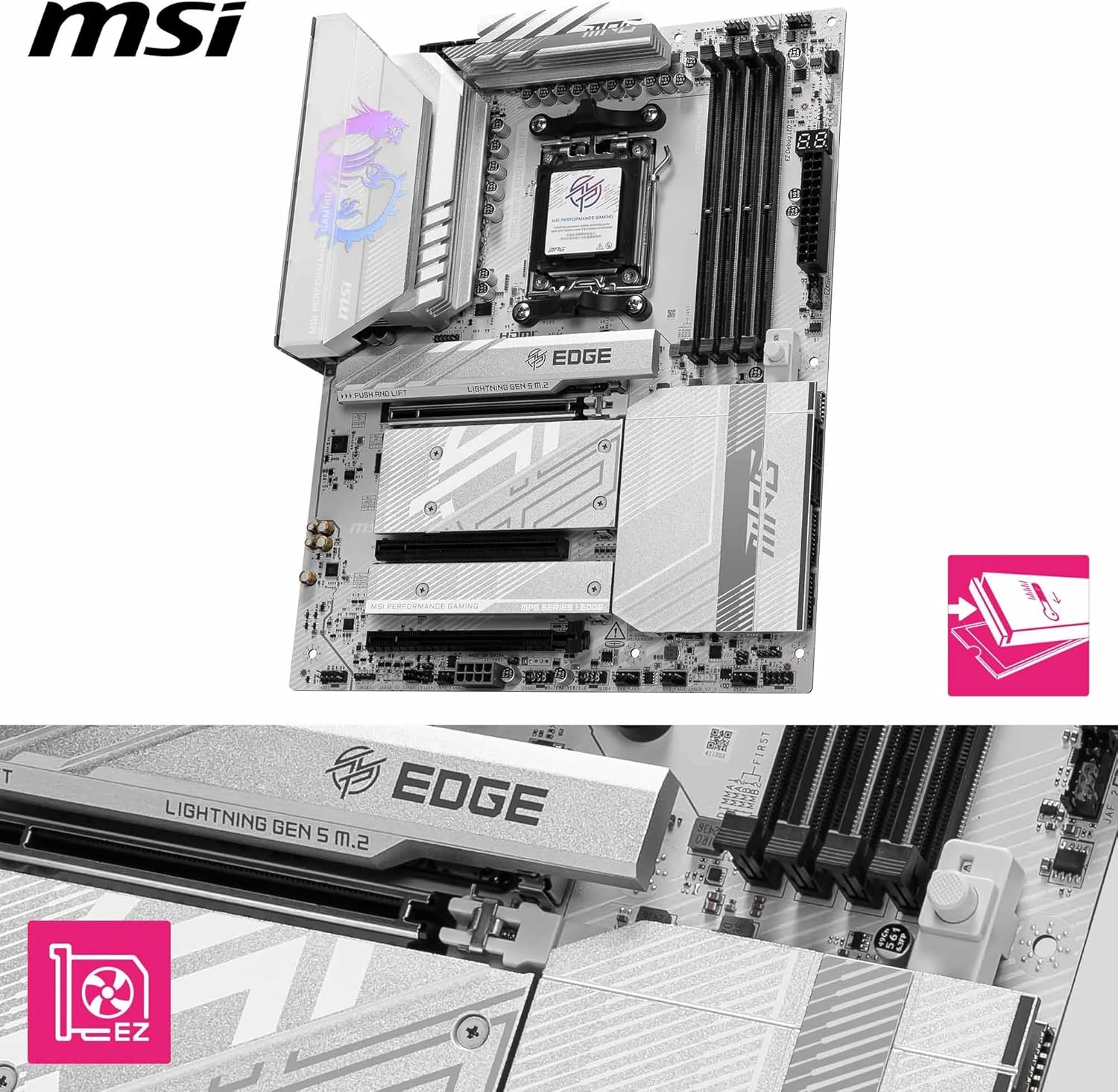
Figure 5: Motherboard with prominent heatsinks
3.2. Memory and Storage
- DDR5 Memory: Supports DDR5 memory modules with speeds up to 8400+ MT/s through overclocking.
- M.2 Connectors: Equipped with two M.2 Gen5 x4 128Gbps slots and two M.2 Gen4 slots (one x4 64Gbps, one x2 32Gbps) for high-speed NVMe SSDs. All M.2 slots include Shield Frozr heatsinks to prevent thermal throttling.
- SATA Ports: Six SATA ports are available for traditional storage devices.
3.3. Connectivity
The motherboard offers comprehensive connectivity options:
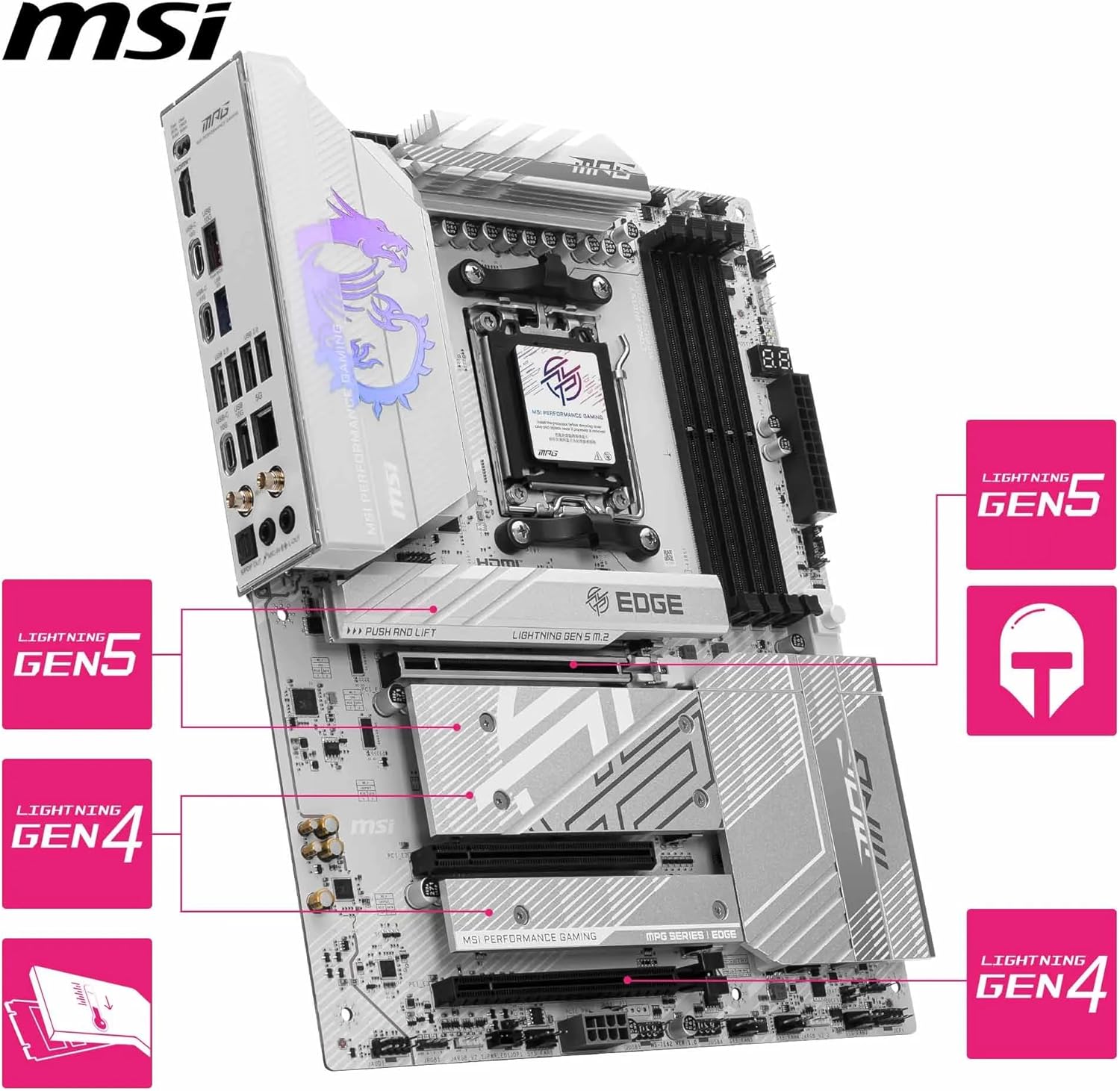
Figure 6: Rear I/O Panel
- Wireless: Integrated Wi-Fi 7 module with Bluetooth 5.4 for high-speed wireless networking.
- Wired LAN: Realtek 5G LAN for ultra-fast wired network connections.
- USB Ports: Includes USB Type-C 20Gbps, multiple USB 10Gbps (Type-A and Type-C), and USB 2.0 ports.
- Audio: 7.1 USB High Performance Audio with Audio Boost 5, supporting S/PDIF output.
3.4. BIOS and Software
The motherboard's BIOS (Basic Input/Output System) allows configuration of hardware settings. Access the BIOS by pressing the 'Del' key during startup. Regularly check MSI's official website for the latest BIOS updates and utility software to ensure optimal performance and compatibility.
4. Maintenance
Proper maintenance ensures the longevity and stable operation of your motherboard.
- Dust Cleaning: Regularly clean dust from the motherboard and case using compressed air. Pay attention to heatsinks and fan areas.
- Airflow: Ensure proper airflow within your PC case to prevent overheating. Keep cables tidy and unobstructed.
- Driver Updates: Keep all device drivers (chipset, audio, LAN, etc.) updated to the latest versions from the MSI support website.
- BIOS Updates: Periodically check for and install BIOS updates. Follow MSI's instructions carefully when updating the BIOS.
- Connection Checks: Occasionally check all power and data cable connections to ensure they are secure.
5. Troubleshooting
If you encounter issues, the following steps may help resolve common problems.
5.1. Debug LED
The motherboard features a Debug LED display that shows a two-digit code during startup. This code indicates the status of the system or identifies a specific component causing a boot failure. Refer to the detailed motherboard manual (available on MSI's website) for a complete list of Debug LED codes and their meanings.
5.2. Common Issues and Solutions
- No Power/No POST:
- Check all power connections (24-pin ATX, 8-pin CPU).
- Ensure the power supply is switched on.
- Re-seat the CPU, RAM, and graphics card.
- Try booting with only essential components (CPU, one RAM stick, graphics card).
- System Instability/Crashes:
- Check CPU and GPU temperatures.
- Ensure RAM is properly seated and running at stable speeds (disable XMP/EXPO profiles for testing).
- Update chipset and graphics drivers.
- Network Connectivity Issues:
- Ensure LAN cable is securely connected.
- Install the latest LAN and Wi-Fi drivers from MSI's website.
- Check router/modem status.
- Clear CMOS: If the system fails to boot after making BIOS changes, clear the CMOS by either removing the CMOS battery for a few minutes or using the dedicated Clear CMOS button/jumper on the motherboard (refer to your motherboard diagram).
6. Specifications
| Feature | Specification |
|---|---|
| Brand | MSI |
| Model Name | MPG B850 Edge TI WiFi |
| CPU Socket | Socket AM5 |
| Compatible Processors | AMD Ryzen 9000/8000/7000 Series Desktop Processors |
| Chipset Type | B850 |
| RAM Memory Technology | DDR5 |
| Memory Clock Speed (OC) | 8400+ MHz |
| Memory Slots Available | 4 |
| Memory Storage Capacity (Max) | 256 GB |
| Graphics Card Interface | PCI Express 5.0 x16 |
| M.2 Slots | 2 x M.2 Gen5 x4, 2 x M.2 Gen4 |
| Total SATA Ports | 6 |
| Wireless Connectivity | Wi-Fi 7, Bluetooth 5.4 |
| Wired LAN | 5G LAN |
| USB Ports | USB Type-C 20Gbps, USB 10Gbps, USB 2.0 |
| Audio | 7.1 USB High Performance Audio (Audio Boost 5) |
| Platform | Windows 11 |
| Item Weight | 4.94 Pounds |
7. Warranty and Support
The MSI MPG B850 Edge TI WiFi Motherboard comes with a 3-Year Manufacturer Warranty.
For technical support, driver downloads, BIOS updates, and additional documentation, please visit the official MSI website. You can also find FAQs and community forums for further assistance.
Always refer to the latest information available on the manufacturer's website for the most up-to-date support and warranty details.


