
1. Introduction
This user manual provides comprehensive instructions for the AOC Gaming Q27G42XE monitor. It covers setup, operation, maintenance, and troubleshooting to ensure optimal performance and longevity of your device. Please read this manual carefully before using the monitor and retain it for future reference.
2. Safety Information
- Always place the monitor on a stable, flat surface to prevent it from falling.
- Do not expose the monitor to rain or moisture to avoid electric shock or fire.
- Keep the monitor away from direct sunlight, heat sources, or excessive dust.
- Ensure proper ventilation around the monitor. Do not block ventilation openings.
- Use only the power adapter and cables supplied with the monitor.
- Unplug the power cord from the outlet if the monitor will not be used for an extended period.
- Do not attempt to service the monitor yourself. Refer all servicing to qualified service personnel.
3. Package Contents
Please check the package contents upon unpacking. If any items are missing or damaged, contact your retailer.
- AOC Gaming Q27G42XE Monitor
- Monitor Stand (Base and Neck)
- Power Cable
- HDMI Cable
- Quick Setup Guide (or similar documentation)
4. Setup
4.1 Physical Assembly
Follow these steps to assemble the monitor stand and attach it to the display panel:
- Carefully remove the monitor and stand components from the packaging.
- Attach the stand neck to the base, securing it with the provided screw (if applicable).
- Align the assembled stand with the mounting holes on the back of the monitor panel.
- Gently push the stand into place until it clicks or secure it with screws as indicated in the specific assembly instructions provided in the box.

Figure 4.1: Front view of the AOC Gaming Q27G42XE monitor on its stand.
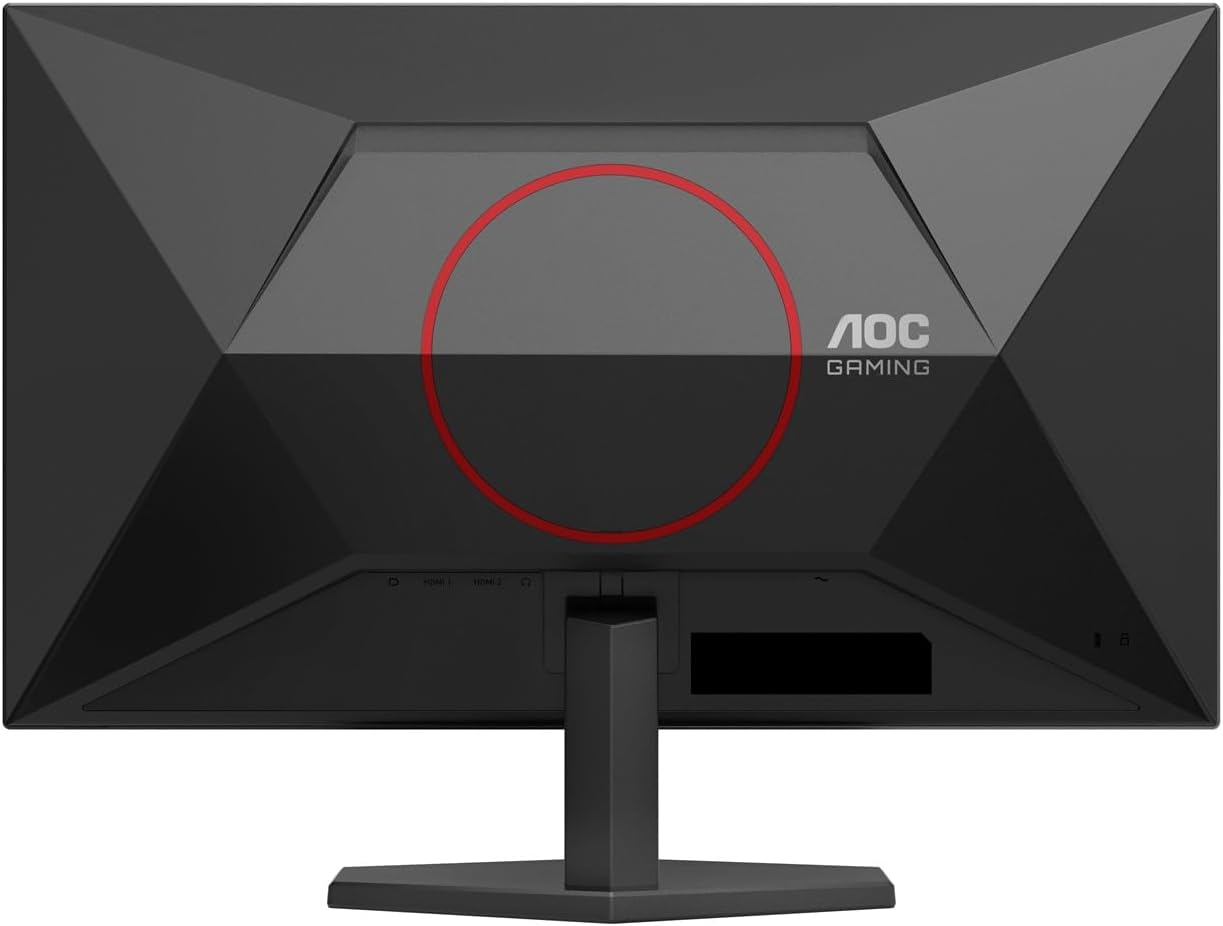
Figure 4.2: Back view of the AOC Gaming Q27G42XE monitor on its stand, showing the AOC Gaming logo.
4.2 Connecting the Monitor
Connect the monitor to your computer or other devices using the appropriate cables.
- Power Connection: Connect the power cable to the monitor's power input and then to a power outlet.
- Video Connection:
- For optimal performance, use the supplied HDMI or DisplayPort cable.
- Connect one end of the HDMI cable to an HDMI port on your computer's graphics card and the other end to one of the monitor's HDMI 2.0 ports.
- Alternatively, connect one end of a DisplayPort cable to your computer's graphics card and the other end to the monitor's DisplayPort 1.4.
- Audio Output: If desired, connect external speakers or headphones to the Audio Out port on the monitor.
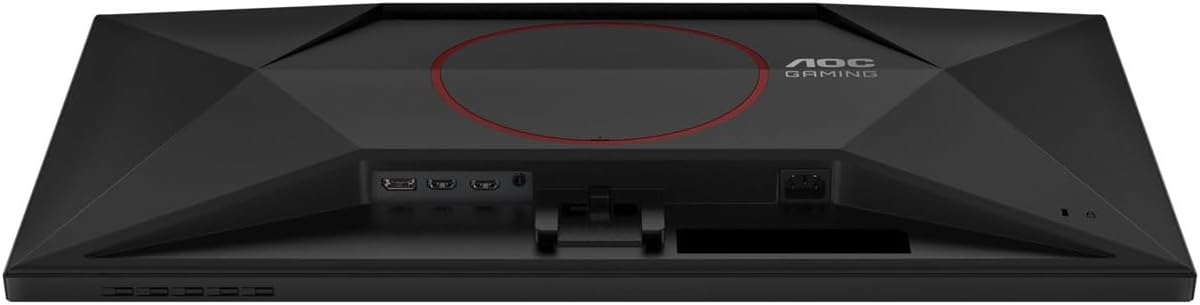
Figure 4.3: Rear view of the monitor highlighting the HDMI, DisplayPort, and Audio Out connections.
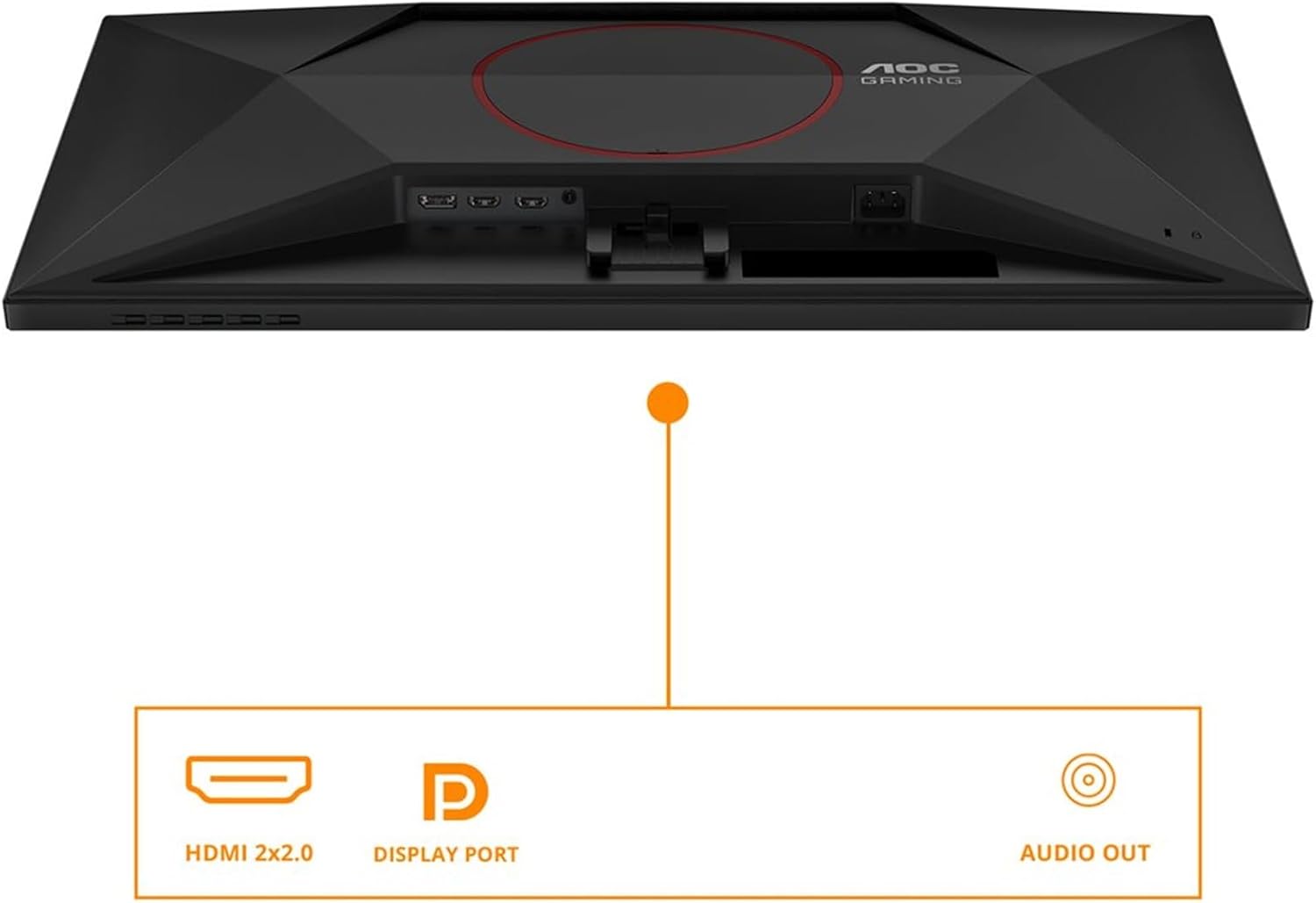
Figure 4.4: Detailed view of the monitor's input and output ports.
5. Operating the Monitor
5.1 Power On/Off
Press the power button, usually located on the bottom right or back of the monitor, to turn the display on or off. The power indicator light will show the monitor's status.
5.2 On-Screen Display (OSD) Menu
The OSD menu allows you to adjust various settings of your monitor, such as brightness, contrast, color, input source, and gaming features. Use the navigation buttons (joystick or individual buttons) typically found on the back or bottom edge of the monitor to access and navigate the OSD menu.

Figure 5.1: Example of the On-Screen Display (OSD) menu for monitor settings.
5.3 Key Features
The AOC Gaming Q27G42XE monitor is equipped with several features designed to enhance your gaming and viewing experience:
- 180Hz Refresh Rate: Experience ultra-smooth visuals with a high refresh rate, reducing motion blur and providing a competitive edge in fast-paced games.
- 1ms GTG Response Time: The fast 1ms Gray-to-Gray (GTG) response time minimizes ghosting and blurring, ensuring crisp and clear images even during intense action sequences.
- Adaptive Sync (FreeSync Premium & G-Sync Compatible): Synchronizes the monitor's refresh rate with your graphics card's frame rate, eliminating screen tearing and stuttering for a fluid gaming experience.
- HDR10 Support: High Dynamic Range (HDR10) provides enhanced contrast and color accuracy, delivering a more vibrant and immersive visual experience with compatible content.
- Low Input Lag: Reduces the delay between your input and the on-screen action, providing a more responsive gaming experience.
- Flicker-Free Technology: Reduces screen flickering, minimizing eye strain and discomfort during prolonged use.

Figure 5.2: Visual representation of 180Hz refresh rate benefits.

Figure 5.3: Visual representation of 1ms GTG response time benefits.

Figure 5.4: Adaptive Sync technology prevents screen tearing.

Figure 5.5: HDR10 enhances visual quality with improved contrast and colors.

Figure 5.6: Low Input Lag provides a more responsive gaming experience.
6. Maintenance
6.1 Cleaning the Monitor
To maintain the clarity and appearance of your monitor, follow these cleaning guidelines:
- Always unplug the monitor from the power outlet before cleaning.
- Use a soft, lint-free cloth slightly dampened with water or a mild, non-abrasive screen cleaner.
- Do not spray cleaning solutions directly onto the screen. Apply to the cloth first.
- Wipe the screen gently to remove dust and smudges.
- For the monitor casing, use a soft, dry cloth. Avoid harsh chemicals or abrasive materials.
7. Troubleshooting
If you encounter issues with your monitor, refer to the following common problems and solutions:
| Problem | Possible Cause | Solution |
|---|---|---|
| No power | Power cable not connected; Power outlet not working; Monitor off | Ensure power cable is securely connected; Test outlet with another device; Press the monitor's power button |
| No signal | Video cable not connected; Incorrect input source selected; Computer not powered on | Check video cable connections (HDMI/DisplayPort); Select correct input source via OSD; Ensure computer is on and outputting video |
| Flickering screen | Incorrect refresh rate; Faulty cable; Graphics card issue | Adjust refresh rate in OS display settings; Try a different video cable; Update graphics card drivers |
| Image too dark/bright | Brightness/Contrast settings incorrect | Adjust Brightness and Contrast settings in the OSD menu |
| Colors are incorrect | Color settings incorrect; Faulty cable | Adjust color settings in the OSD menu; Try a different video cable |
If the problem persists after trying these solutions, please contact AOC customer support.
8. Specifications
Below are the technical specifications for the AOC Gaming Q27G42XE monitor:
| Feature | Specification |
|---|---|
| Model Number | Q27G42XE |
| Screen Size | 27 inches |
| Panel Type | IPS |
| Resolution | 2560 x 1440 (QHD wide 1440p) |
| Aspect Ratio | 16:9 |
| Refresh Rate | 180 Hz |
| Response Time (GTG) | 1 ms |
| Brightness | 300 cd/m² |
| Contrast Ratio | 1000:1 |
| Viewing Angle | 178 Degrees (Horizontal/Vertical) |
| Connectivity | 2x HDMI 2.0, 1x DisplayPort 1.4, Audio Out |
| Adaptive Sync Technology | FreeSync Premium, G-Sync Compatible |
| HDR Support | HDR10 |
| Special Features | Adaptive Sync, High Refresh Rate, Flicker-Free |
| Dimensions (D x W x H) | 17.7 x 61.4 x 46 cm |
| Weight | 5.2 Kilograms |
| Color | Black/Red |
| Power Voltage | 28 Volts |
9. Warranty and Support
AOC monitors come with a standard manufacturer's warranty. For detailed warranty information, please refer to the warranty card included in your product packaging or visit the official AOC website. For technical support, driver downloads, or service inquiries, please visit the AOC support page or contact their customer service directly.
AOC Official Website: www.aoc.com


