
GMKtec GMKtec NUCBOX G9
GMKtec G9 Mini PC NAS User Manual
Model: GMKtec NUCBOX G9
1. Introduction
The GMKtec G9 Mini PC NAS is a versatile and compact computing solution designed for both personal and professional use. It combines the functionality of a mini PC with Network Attached Storage (NAS) capabilities, offering robust performance for routine tasks, office work, home entertainment, and data management. Featuring an Intel N150 CPU, 12GB DDR5 RAM, and multiple M.2 NVMe slots, the G9 is engineered for efficiency and expandability.
Official product overview video for the GMKtec G9 Mini PC NAS, highlighting its features and capabilities.
2. Key Features
- Hybrid Mini PC NAS: Integrates 4x M.2 2280 PCIe slots for NAS software alongside standard PC features.
- Intel N150 CPU: Utilizes the latest Twin Lake N150 CPU (4 Core, 4 Threads, 6MB cache, up to 3.6GHz) for enhanced performance.
- Dual Boot System: Pre-installed with Windows 11 Pro (default) and Linux 24.10+ (on 64GB eMMC), with Windows on the SSD.
- Rich Connectivity: Features 3x USB 3.2 (10Gbps), 2x HDMI (4K@60Hz), 1x Type-C (DP/DATA/PD), 3.5mm Audio Jack, WiFi 6, and Bluetooth 5.2.
- Dual 2.5GbE NIC: Two Intel i226v 2.5 Gigabit Ethernet ports for high-speed network connectivity, compatible with various server OS.
- Triple Screen Display: Supports up to three 4K@60Hz displays via two HDMI 2.0 ports and one full-function Type-C port.
- Efficient Cooling: Equipped with three cooling fans (two for SSD/DDR, one for CPU) for quiet and effective heat dissipation.
- Expandable Storage: Supports up to 16TB total storage across four M.2 NVMe slots (4TB per slot).

An infographic detailing the key specifications and features of the GMKtec Nucbox G9, including its processor, memory, storage, and connectivity options.
3. Setup Guide
3.1 Package Contents
Before you begin, ensure all components are present:
- 1x GMKtec NUCBOX G9 Mini PC
- 1x Power Adapter
- 1x HDMI Cable
- 1x User Manual (this document)
3.2 Connecting Peripherals
Connect your monitor, keyboard, and mouse to the Mini PC:
- Connect your monitor(s) to the HDMI ports or the Type-C port on the rear of the Mini PC. The G9 supports up to three 4K@60Hz displays.
- Plug your USB keyboard and mouse into any of the three USB 3.2 ports on the front or rear.
- For network access, connect an Ethernet cable to one of the 2.5GbE RJ45 ports, or use the built-in WiFi 6 for wireless connectivity.
- Connect the power adapter to the DC input port and then to a power outlet.
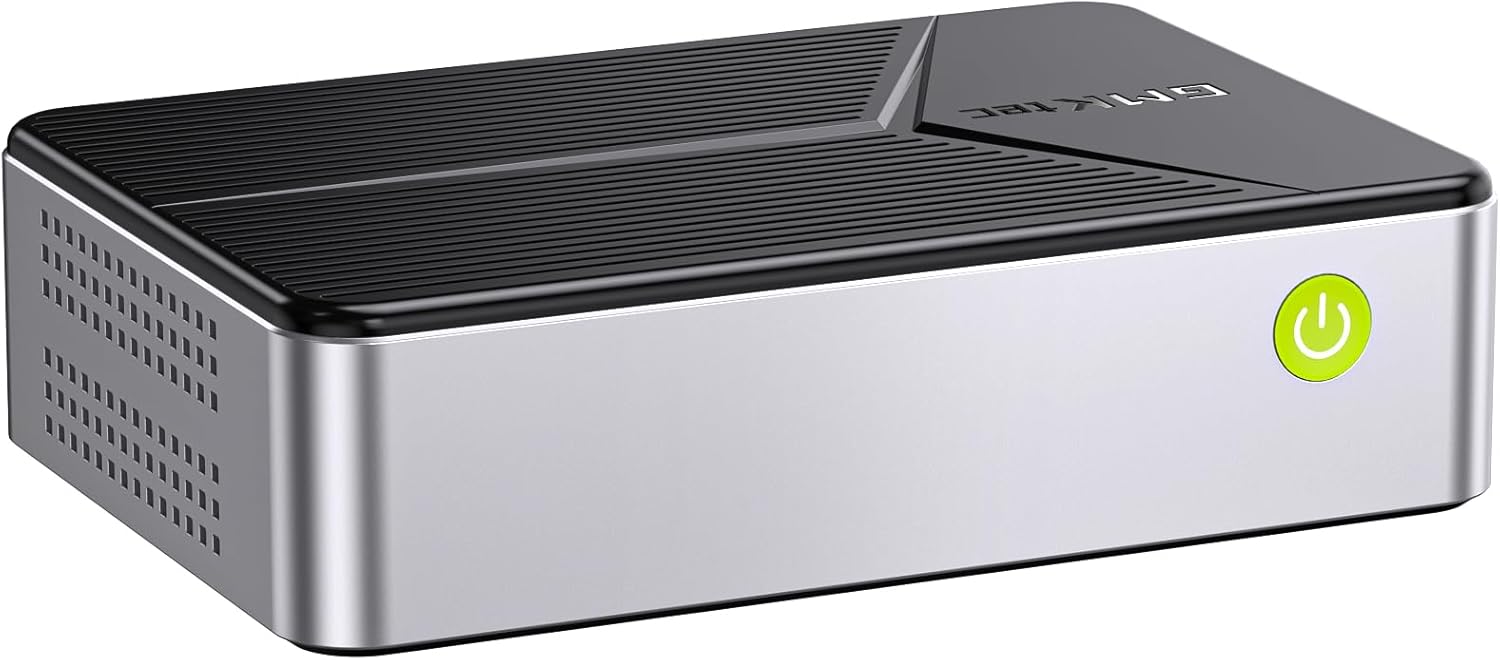
Front view of the GMKtec G9 Mini PC, showing the power button and USB ports.

Rear view of the GMKtec G9 Mini PC, illustrating the various ports including HDMI, USB-C, and dual 2.5GbE LAN ports.
3.3 Initial Power On
Press the power button located on the front of the Mini PC. The system will boot into Windows 11 Pro by default. Follow the on-screen instructions for initial Windows setup.
3.4 Dual Boot System
The G9 Mini PC comes with a dual boot system, featuring Windows 11 Pro and Linux (version 24.10 or higher). Windows 11 Pro is installed on the SSD, while Linux resides on the 64GB eMMC storage. To switch between operating systems, restart the Mini PC and access the boot menu (usually by pressing F7 or Del during startup, refer to your specific BIOS settings for exact key).

Image demonstrating the dual boot capability of the GMKtec G9, showing separate monitors running Windows and Linux operating systems.
3.5 NAS Storage Expansion
The G9 Mini PC is equipped with four M.2 2280 PCIe slots, allowing for significant storage expansion up to 16TB (4TB per slot). This enables you to transform the PC into a powerful Network Attached Storage (NAS) device for backing up files, sharing photos, streaming videos, and hosting servers.
To install additional M.2 SSDs:
- Carefully remove the top cover of the Mini PC.
- Locate the four M.2 2280 slots.
- Insert your M.2 SSDs into the slots and secure them with the provided screws (if applicable).
- Replace the top cover.
- Install appropriate NAS software (not provided by GMKtec) to utilize the storage for network functions.

An exploded view showing the easy installation process for M.2 2280 SSDs into the four available slots within the GMKtec G9 Mini PC.

Visual representation of the GMKtec G9's capability to expand NAS storage up to 16TB using four M.2 NVMe slots.
4. Operating Instructions
4.1 Power On/Off
- Power On: Press the power button on the front of the device.
- Power Off:
- Software Shutdown: In Windows, go to Start > Power > Shut down. In Linux, use the system shutdown option.
- Force Shutdown: Press and hold the power button for 5-7 seconds until the device turns off. Use this only if the system is unresponsive.
4.2 Network Connectivity
The G9 Mini PC supports both wired and wireless network connections:
- Wired (Ethernet): Connect an RJ45 Ethernet cable to either of the two 2.5GbE ports for high-speed wired internet.
- Wireless (WiFi 6): The device supports WiFi 6 for fast and stable wireless connectivity. Configure your WiFi settings through the operating system's network settings.
- Bluetooth 5.2: Connect wireless peripherals such as keyboards, mice, or headphones via Bluetooth 5.2.

Illustration highlighting the dual 2.5GbE high-speed Ethernet ports, capable of 2500 MB/s read/write speeds.

Depiction of the GMKtec G9's wireless capabilities, including WiFi 6 and Bluetooth 5.2 for seamless connectivity.
4.3 Triple Display Output
The G9 Mini PC supports connecting up to three independent 4K@60Hz displays simultaneously, enhancing productivity and multimedia experiences. Use the two HDMI 2.0 ports and the full-function Type-C port for multi-monitor setups.

An image showcasing the triple screen display capability of the Nucbox G9, allowing users to extend their workspace across three 4K monitors.
5. Maintenance
5.1 Cooling System
The GMKtec G9 features a triple cooling fan system to maintain optimal operating temperatures and ensure stable performance. This includes two fans for the SSD/DDR compartments and a larger fan for the CPU. To ensure efficient cooling, keep the ventilation openings clear of obstructions.

Diagram illustrating the internal cooling system of the GMKtec G9, showing the main CPU cooling fan and two additional fans for SSD/DDR compartments, along with exhaust vents.
5.2 General Care
- Keep the device in a clean, dry environment, away from direct sunlight and excessive heat or humidity.
- Avoid placing heavy objects on top of the Mini PC.
- Clean the exterior with a soft, dry cloth. Do not use liquid cleaners or aerosols.
- Regularly back up your data, especially if using the NAS features.
6. Troubleshooting
| Problem | Possible Cause | Solution |
|---|---|---|
| No display on monitor | Loose cable connection, incorrect input source on monitor, power issue. | Check HDMI/Type-C cable connections. Ensure monitor is on correct input. Verify power adapter is securely connected. |
| System does not power on | Power adapter not connected, faulty power outlet. | Check power adapter and outlet. Try a different power outlet. |
| Network connectivity issues | Loose Ethernet cable, incorrect WiFi password, router issue. | Ensure Ethernet cable is secure. Re-enter WiFi password. Restart router/modem. |
| SSD not recognized after installation | Improper installation, unformatted drive. | Re-seat the SSD. Check Disk Management (Windows) or GParted (Linux) to format and partition the new drive. |
| System running slow or freezing | Overheating, too many applications running, low disk space. | Ensure proper ventilation. Close unnecessary applications. Free up disk space. Check for malware. |
7. Specifications
| Feature | Detail |
|---|---|
| Brand | GMKtec |
| Model Name | GMKtec NUCBOX G9 |
| Processor | Intel Twin Lake N150 (4 Core, 4 Threads, up to 3.6GHz) |
| Graphics | Integrated Intel Graphics (max 1000MHz) |
| RAM | 12GB LPDDR5 4800MT/s (On Board) |
| Storage | 64GB eMMC (for Linux), 512GB M.2 SSD (for Windows), 4x M.2 2280 PCIe slots (Max 4TB each, 16TB total) |
| Operating System | Windows 11 Pro (Default), Linux 24.10+ |
| USB Ports | 3x USB 3.2 (10Gbps) |
| Video Output | 2x HDMI (4K@60Hz), 1x Type-C (DP/DATA/PD) - Triple Display Support |
| Network | Dual Intel i226v 2.5GbE RJ45, WiFi 6, Bluetooth 5.2 |
| Audio | 3.5mm Audio Jack |
| Dimensions | 18 x 16 x 14.99 cm |
| Weight | 1 kg |
8. Warranty and Support
GMKtec is committed to providing high-quality products and excellent customer service.
- Warranty: The GMKtec G9 Mini PC comes with a 2-year brand warranty.
- Technical Support: Lifetime technical support is provided for your product.
- Satisfying Service: Enjoy 24-months of satisfying service.
For any inquiries or support, please contact GMKtec customer service:
- Email: support@gmktec.com
- Amazon Support: Log in to your Amazon account, navigate to "Your Orders," and select "Ask Product Question" for assistance.

An image detailing GMKtec's warranty and support offerings, including Amazon support and direct email contact.
Related documentsGMKtec NUCBOX G9


Ask a question about this manual
Ask about setup, troubleshooting, compatibility, parts, safety, or missing instructions. Manuals+ will review the question and use this page’s manual context to help answer it.