
1. Introduction
This manual provides comprehensive instructions for the installation, operation, and maintenance of your Eonon Android 14 Car Stereo, model VWX7. This advanced head unit is designed to integrate seamlessly with your vehicle, offering enhanced connectivity, entertainment, and navigation features.

Image 1.1: Eonon Android 14 Car Stereo (VWX7) with accessories.
2. Compatibility and Installation
2.1 Applicable Car Models
The VWX7 car stereo is compatible with a wide range of Volkswagen, SEAT, and SKODA models. Please refer to the compatibility chart below to confirm if your vehicle is supported.
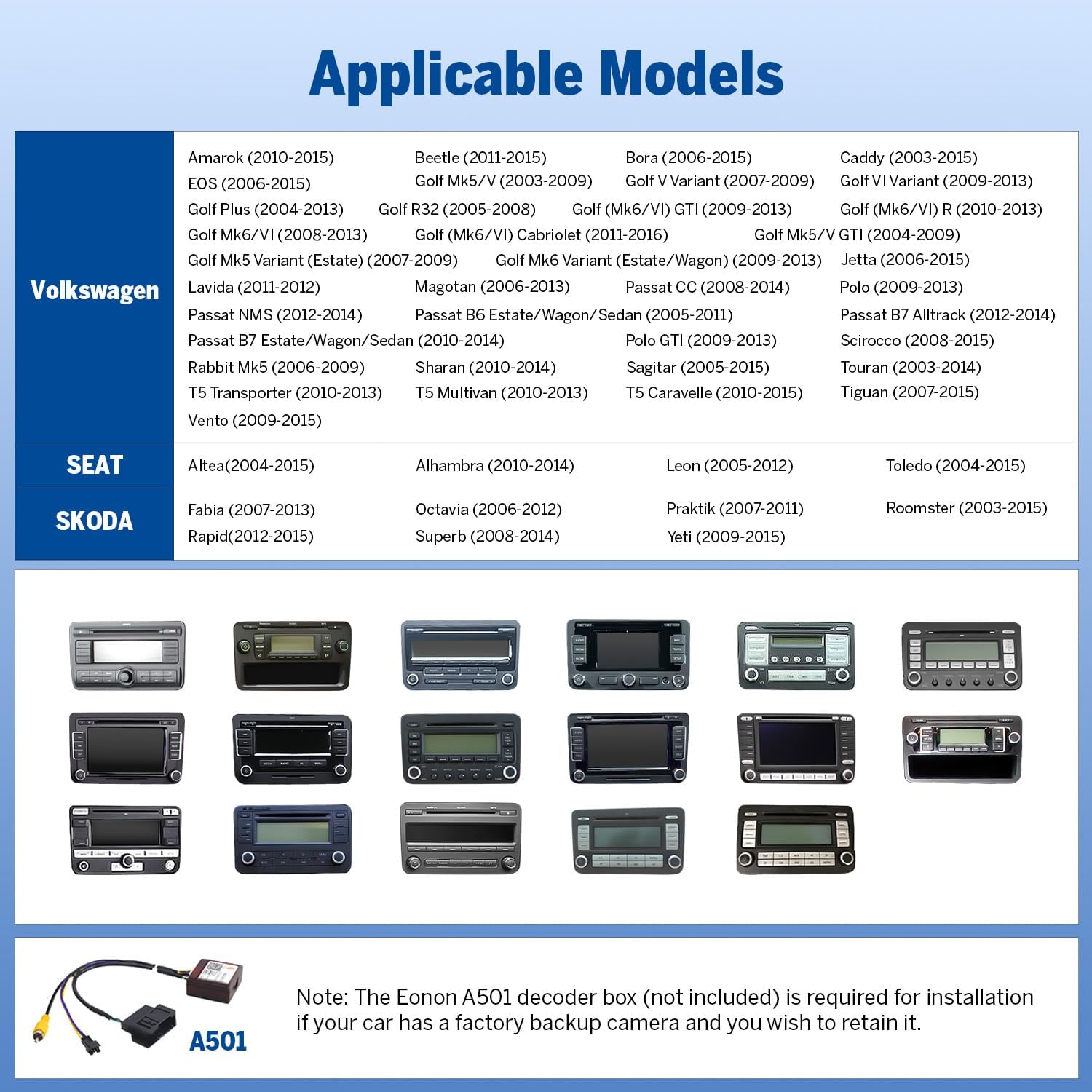
Image 2.1: Compatibility chart for Volkswagen, SEAT, and SKODA vehicles.
2.2 Installation Requirements
An installation kit (not included) may be required if your factory radio matches the examples shown below. This ensures proper fitment and integration.

Image 2.2: Factory radio types indicating installation kit necessity or incompatibility.
Note: If your car has a factory backup camera and you wish to retain its functionality, the Eonon A501 decoder box (not included) is required for installation.
2.3 Plug & Play Features
The VWX7 unit is designed for plug-and-play installation, supporting most original vehicle functions through the included CANBUS system. These features include:
- Steering Wheel Controls (SWC)
- Dynaudio & Fender audio system integration
- Air conditioning information display
- Radar sensors and vehicle information display
- Door reminder
- Parking sensor and reversing guidelines (with compatible camera)

Image 2.3: Supported factory features and integrations.
3. Key Features Overview
3.1 Android 14 System
The VWX7 operates on the latest Android 14 system (API level 34) with 3GB RAM and 32GB ROM. It is equipped with a cutting-edge Rockchip processor, ensuring superior performance and energy efficiency for a smooth user experience.

Image 3.1: Android 14 system interface and performance metrics.
3.2 Wireless/Wired CarPlay & Android Auto
Enjoy seamless integration with your smartphone using wireless or wired Apple CarPlay and Android Auto. This allows for hands-free control of navigation, music, calls, and messages via voice commands (Siri or Google Assistant).

Image 3.2: Wireless CarPlay and Android Auto interfaces.
3.3 Built-in DSP and Bluetooth 5.4
The integrated Digital Signal Processing (DSP) chip, along with a 4x45W output and 36-band equalizer, provides a richer and more immersive audio experience. The independent Bluetooth 5.4 module ensures quick, stable connections, noise reduction, and crystal-clear call quality.

Image 3.3: Built-in DSP and Bluetooth module details.
3.4 9-inch IPS Display
The unit features a 9-inch IPS display with a 1280x720 resolution and a 178° viewing angle, providing vibrant colors and sharp details for navigation and entertainment.
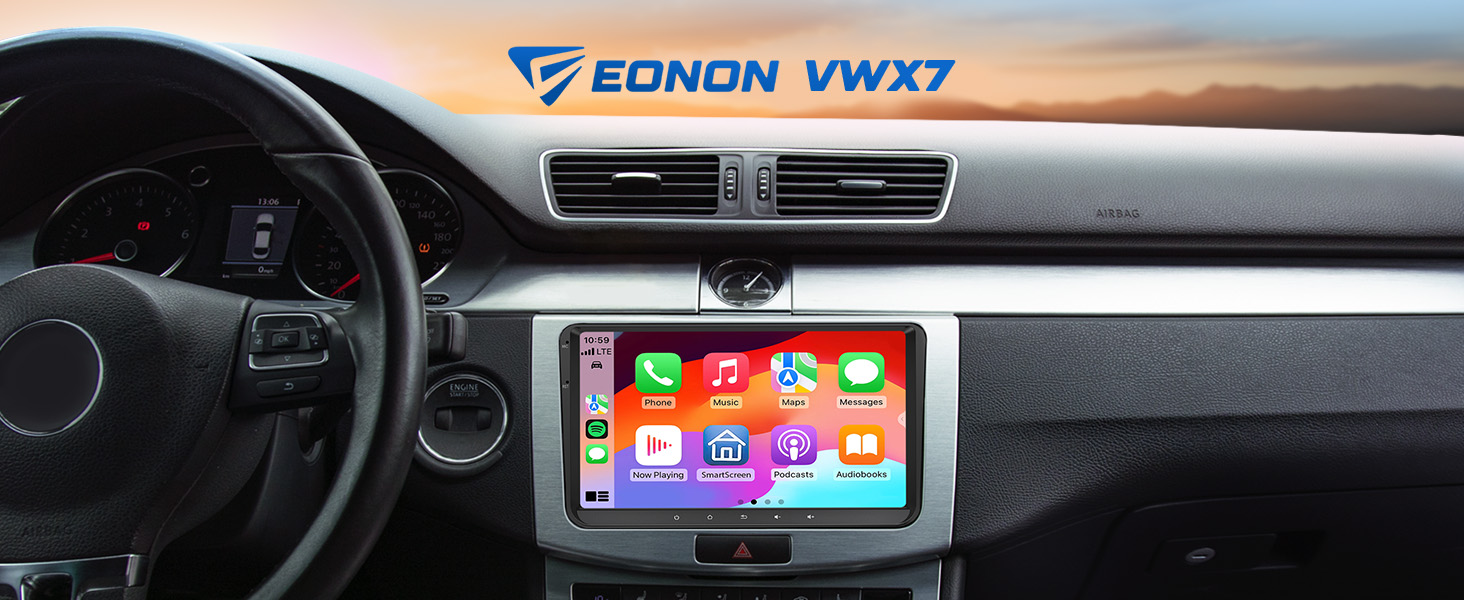
Image 3.4: 9-inch IPS Display features.
3.5 Internal Components
The Eonon X7 series is built with high-quality components, including a 4-layer automotive PCB, ST 4x45W amplifier, ultra-low latency Wi-Fi 6 & Bluetooth 5.4 module, Silicon Labs Si4755 Tuner, and top-grade Silicongo eMMC memory.

Image 3.5: Internal components of the Eonon X7 Series.
4. Setup and Operation
4.1 Wireless CarPlay Connection
- Click the Zlink5 app on the car stereo.
- Turn on Wi-Fi and Bluetooth on your iPhone.
- Find 'EONON' in your phone's Bluetooth device list and enter 0000 to pair. Once connected, tap 'Use CarPlay'.
- Wait a few seconds to complete the connection.
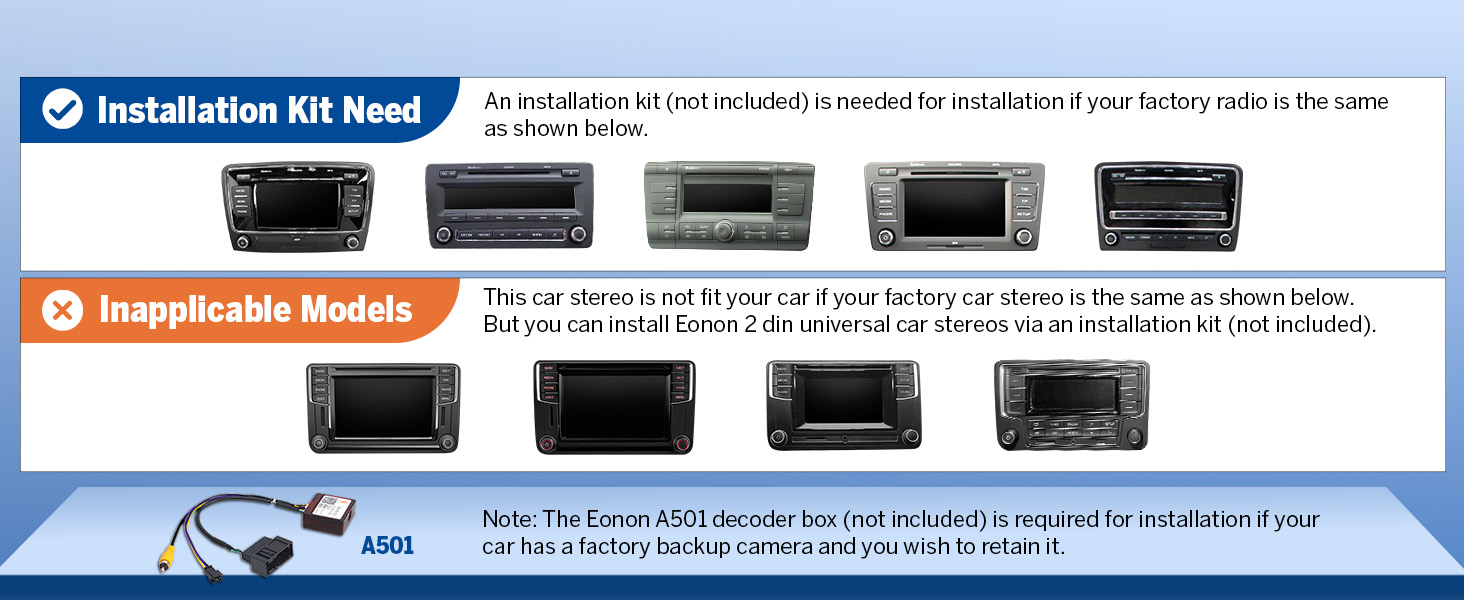
Image 4.1: Wireless Apple CarPlay connection steps.
4.2 Wireless Android Auto Connection
- Click the Zlink5 app on the car stereo.
- Turn on Wi-Fi and Bluetooth on your Android phone.
- Find 'EONON' in your phone's Bluetooth device list, enter 0000 to pair, and click 'OK'.
- Wait a few seconds to complete the connection.
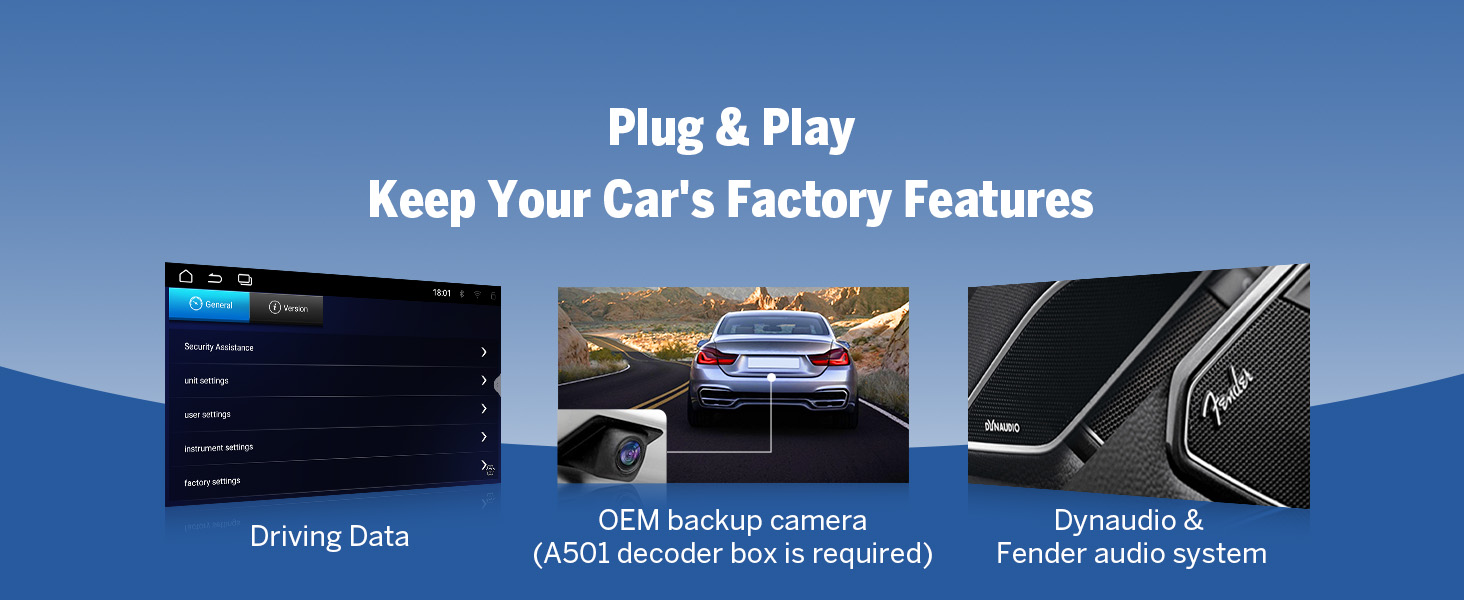
Image 4.2: Wireless Android Auto connection steps.
4.3 Screen Mirroring
The unit supports screen mirroring for both iOS and Android devices, allowing you to display your phone's screen directly on the car stereo.
For iOS:
- Click the Zlink5 app on the car stereo, then set the car stereo to iPhone wireless screen mirroring mode.
- Turn on the iPhone hotspot and connect to the car stereo.
- Turn on the iPhone screen mirroring function and select "zj-airplay".
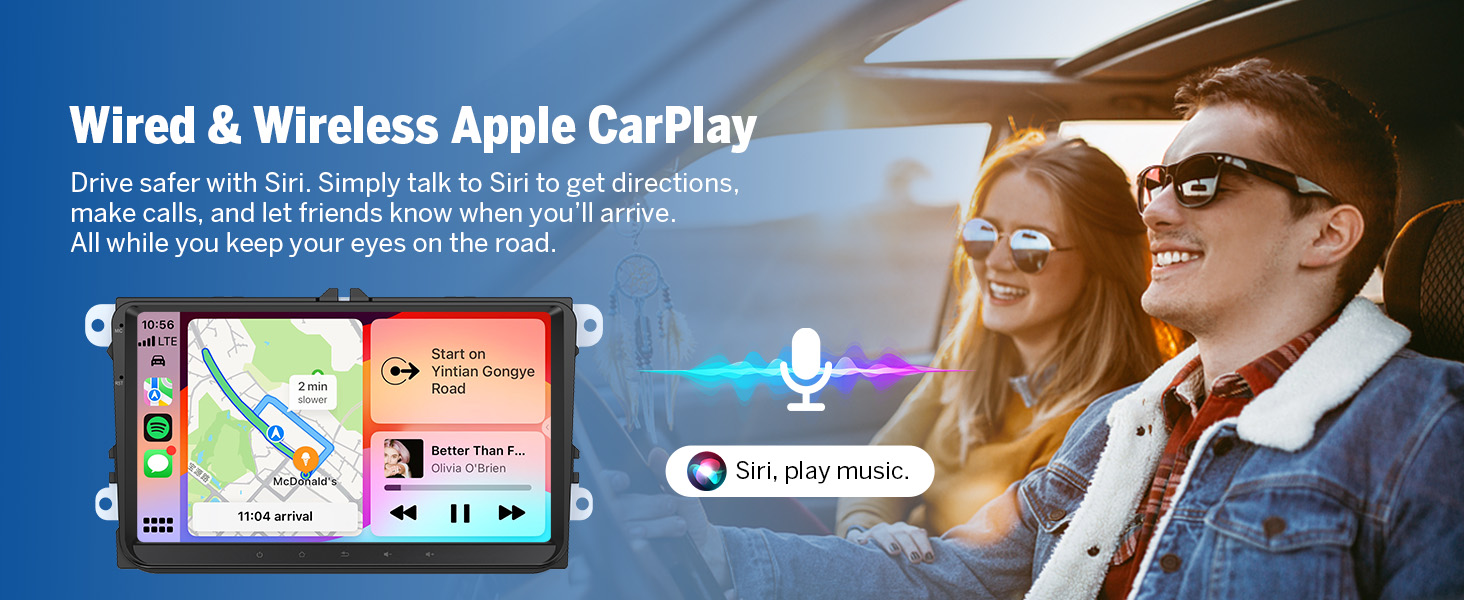
Image 4.3: Screen Mirroring for iOS devices.
For Android:
- Click the Zlink5 app on the car stereo, then set the car stereo to Android wireless screen mirroring mode.
- Turn on your phone's Bluetooth. Find 'EONON' in your phone's Bluetooth device list, enter 0000 to pair.
- Turn on the phone's hotspot and connect to the car stereo.
- Install the Zplus app on your phone. Turn on the app and select "wireless connection".
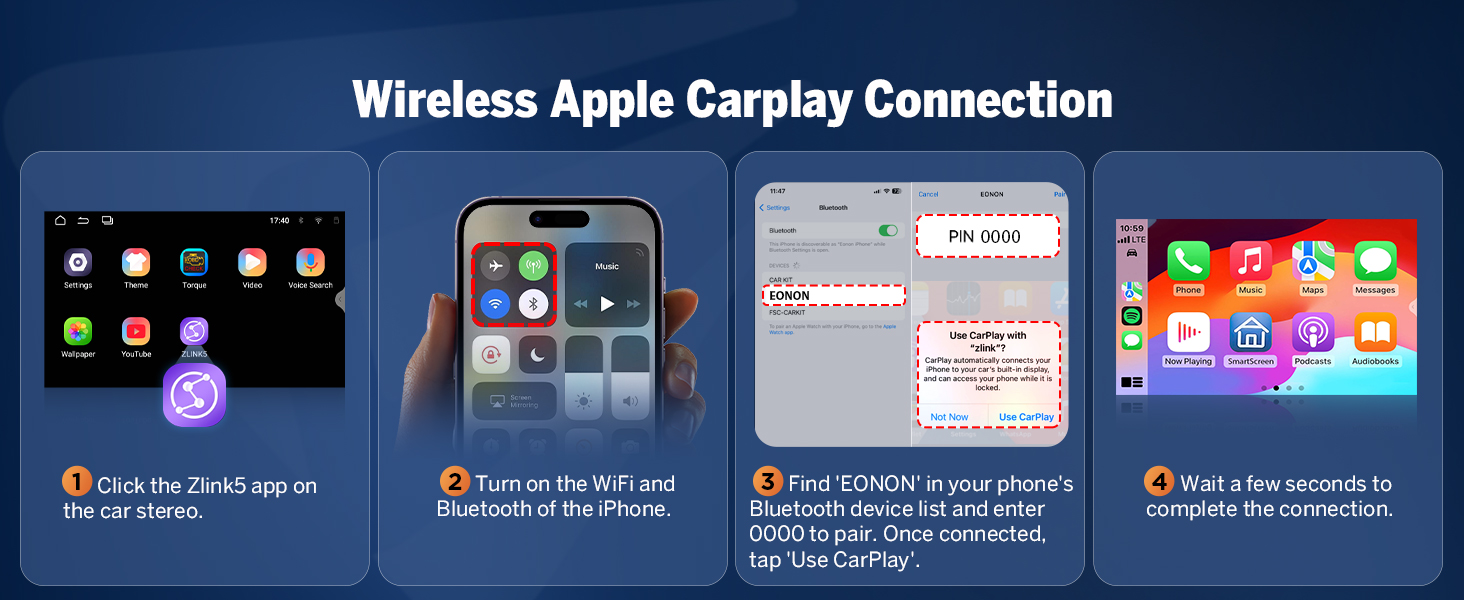
Image 4.4: Screen Mirroring for Android devices.
4.4 Customization Options
Personalize your car stereo's interface with various customization options:
- Boot Logo: Set a custom boot logo.
- Button Color: Change the color of the physical buttons.
- Wallpaper: Choose from pre-installed wallpapers or upload your own.
- UI Themes: Select from 3 different user interface themes to match your preference.
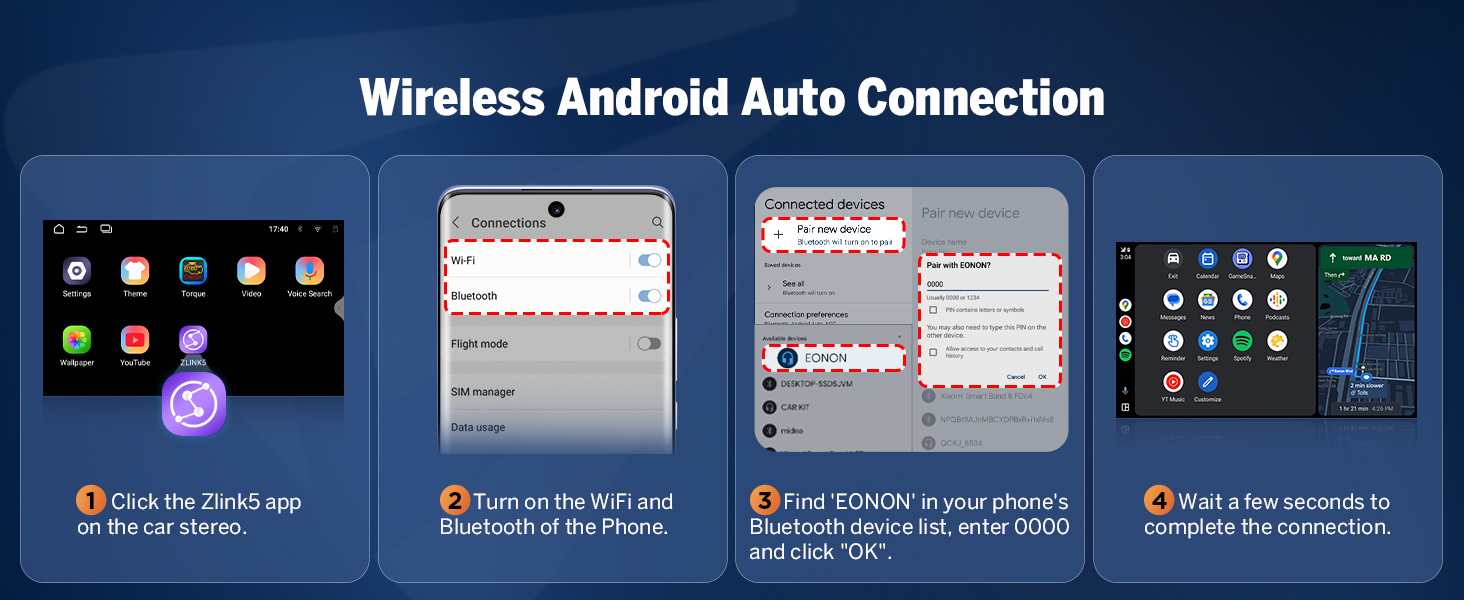
Image 4.5: Interface customization options.
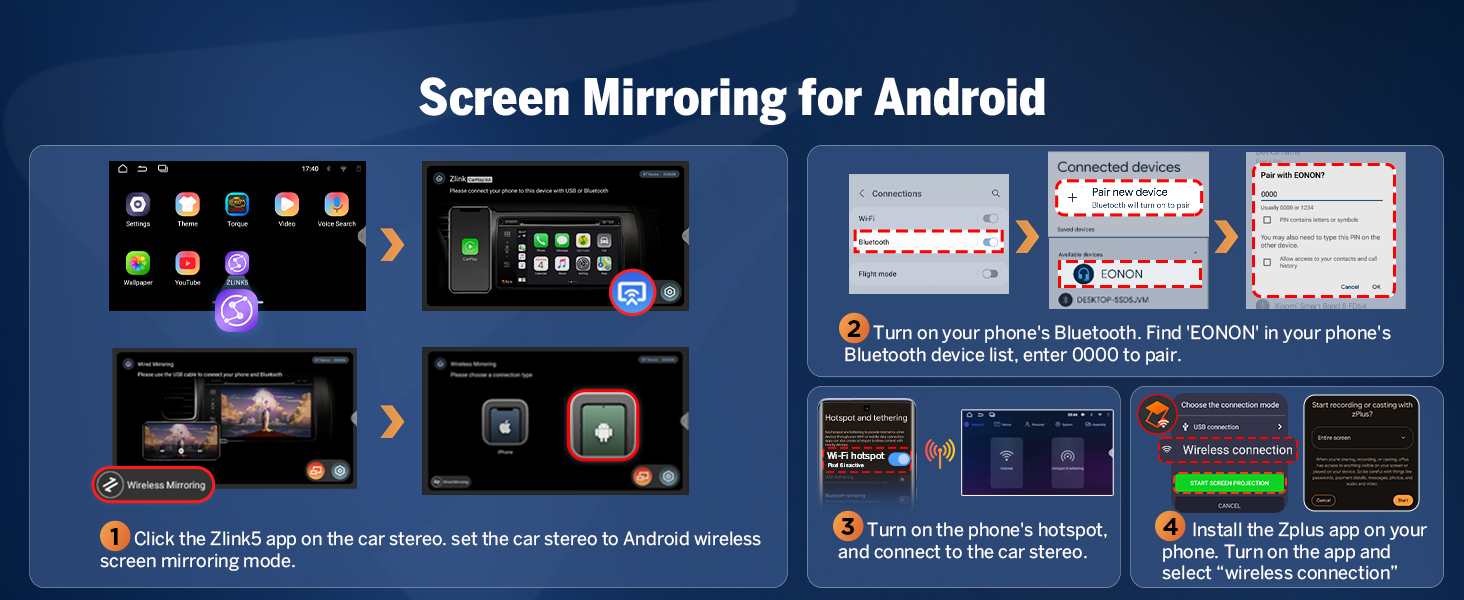
Image 4.6: Available UI Themes.
4.5 Additional Features
The VWX7 unit includes several other useful features:
- 1-second fast boot time.
- Support for online and offline maps.
- Three USB ports for external devices.
- RCA output for external amplifiers or subwoofers.
- Dual-band Wi-Fi (2.4G/5G).
- AM/FM radio tuner with 18 preset channels.
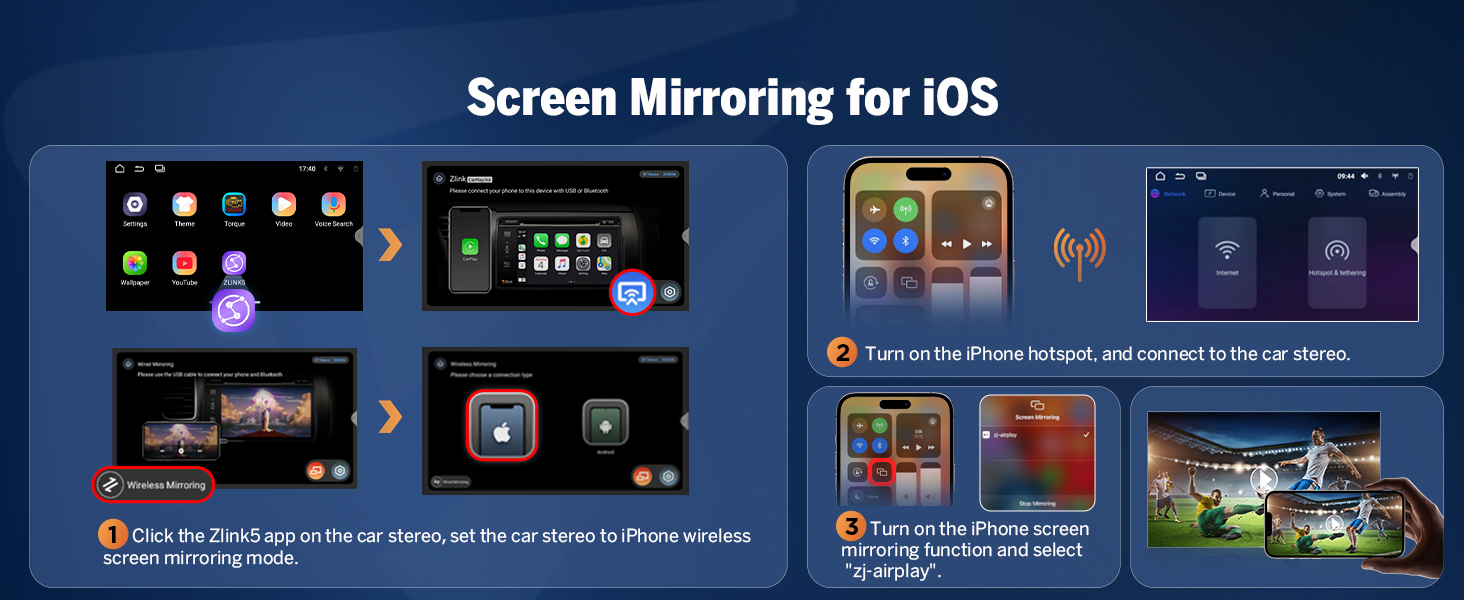
Image 4.7: Overview of additional features.
5. Maintenance
5.1 Over-the-Air (OTA) Firmware Updates
The Eonon VWX7 supports Over-the-Air (OTA) updates, allowing you to keep your car stereo's software up-to-date. These updates can fix software issues and enhance security. Simply check for updates within the system settings and follow the on-screen prompts. Note that these updates are for the software and do not upgrade the core Android system version.

Image 5.1: Over-the-Air Firmware Update process.
6. Troubleshooting
This section addresses common issues you might encounter with your Eonon Android 14 Car Stereo.
6.1 Wireless Connectivity Issues (CarPlay/Android Auto/Wi-Fi)
If you experience intermittent disconnections or difficulty connecting wirelessly:
- Ensure both Wi-Fi and Bluetooth are enabled on your phone and the car stereo.
- Try forgetting the device in your phone's Bluetooth settings and re-pairing.
- Restart both your phone and the car stereo.
- Ensure the Zlink5 app is running on the car stereo.
- Check for any obstructions or interference near the unit.
6.2 OEM Functionality (Backup Camera, Steering Wheel Controls, etc.)
If original car functions are not working as expected after installation:
- Verify that the CANBUS decoder is correctly connected.
- For OEM backup cameras, ensure the A501 decoder box (if required for your model) is properly installed and connected.
- Double-check all wiring connections according to the wiring diagram.
- Consult the installation kit instructions if one was used, as specific wiring might be required.
6.3 GPS Signal Issues
If the GPS unit is not receiving a signal or navigation is inaccurate:
- Ensure the GPS antenna is securely connected to the unit.
- Place the GPS antenna in a location with a clear view of the sky, away from metal obstructions (e.g., on the dashboard near the windshield).
- Test with a different navigation app to rule out app-specific issues.
6.4 Audio Quality Issues
If audio quality is poor or distorted:
- Check speaker connections.
- Adjust the DSP settings and equalizer bands to optimize sound for your vehicle's acoustics.
- Ensure the volume levels are appropriately set on both the unit and any connected devices.
7. Specifications
| Feature | Specification |
|---|---|
| Product Dimensions | 8.67 x 5.12 x 1.34 inches |
| Item Weight | 2.64 pounds (1.2 Kilograms) |
| Model Number | VWX7 |
| Operating System | Android 14 |
| RAM + ROM | 3GB RAM + 32GB ROM |
| Processor | Rockchip |
| Display Size | 9 inches (23 cm) |
| Display Resolution | 1280x720 IPS |
| Viewing Angle | 178° |
| CarPlay / Android Auto | Wireless/Wired Support |
| Bluetooth Version | 5.4 |
| Wi-Fi | Dual-band (2.4G/5G) |
| Audio Output Power | 4x45W |
| Equalizer | 36-band (DSP) |
| USB Ports | 3 |
| Tuner Technology | FM, AM |
| Power Source | Car Battery |
8. Package Contents and Wiring
8.1 What's in the Box
Your Eonon Android 14 Car Stereo package includes the following components:
- Audio Video Adapter Cable x1
- Audio Adapter Cable x1
- CarPlay & Android Auto USB Adapter Cable x1
- USB Adapter Cable x1
- Backup Camera Video Input Cable x1
- Radio Antenna Adapter Cable x1
- Power Cable x1
- GPS Antenna x1
- External Microphone x1
- CAN Bus x1
- Spare Fuse x1
- Adhesive Pad x1
- User Manual x1
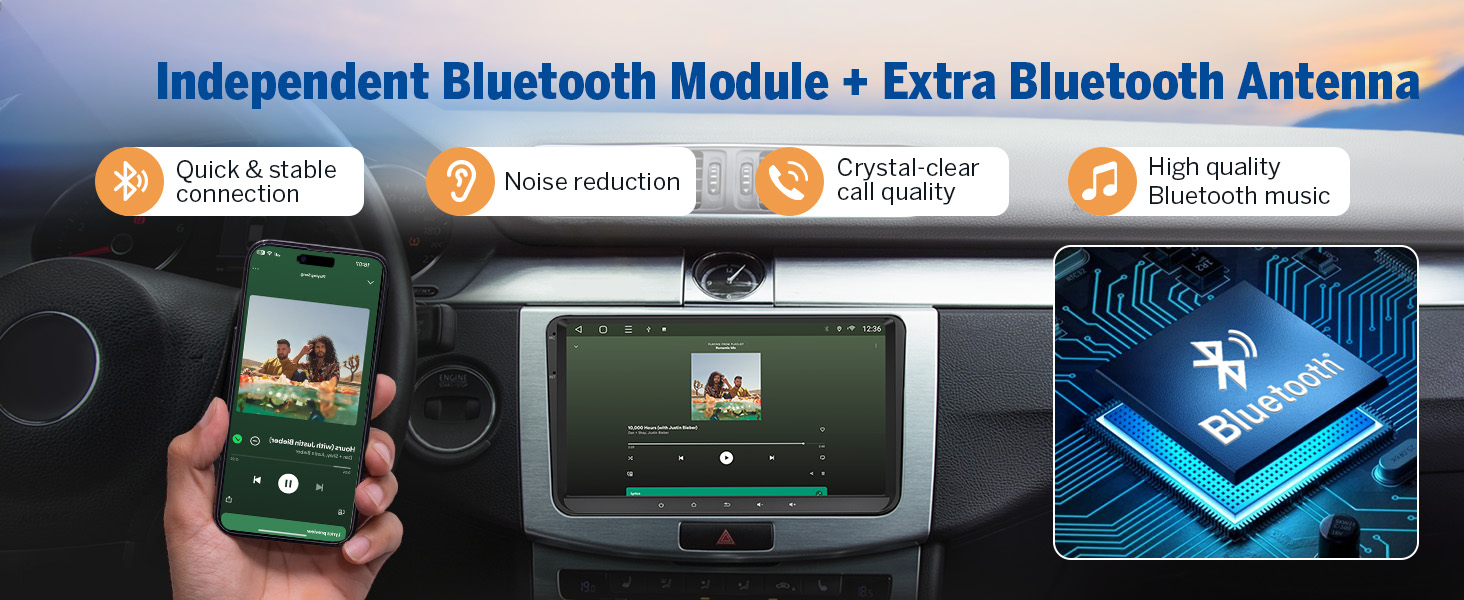
Image 8.1: Contents of the product package.
8.2 Wiring Diagram
Refer to the following diagram for proper connection of all cables and accessories to the main unit.
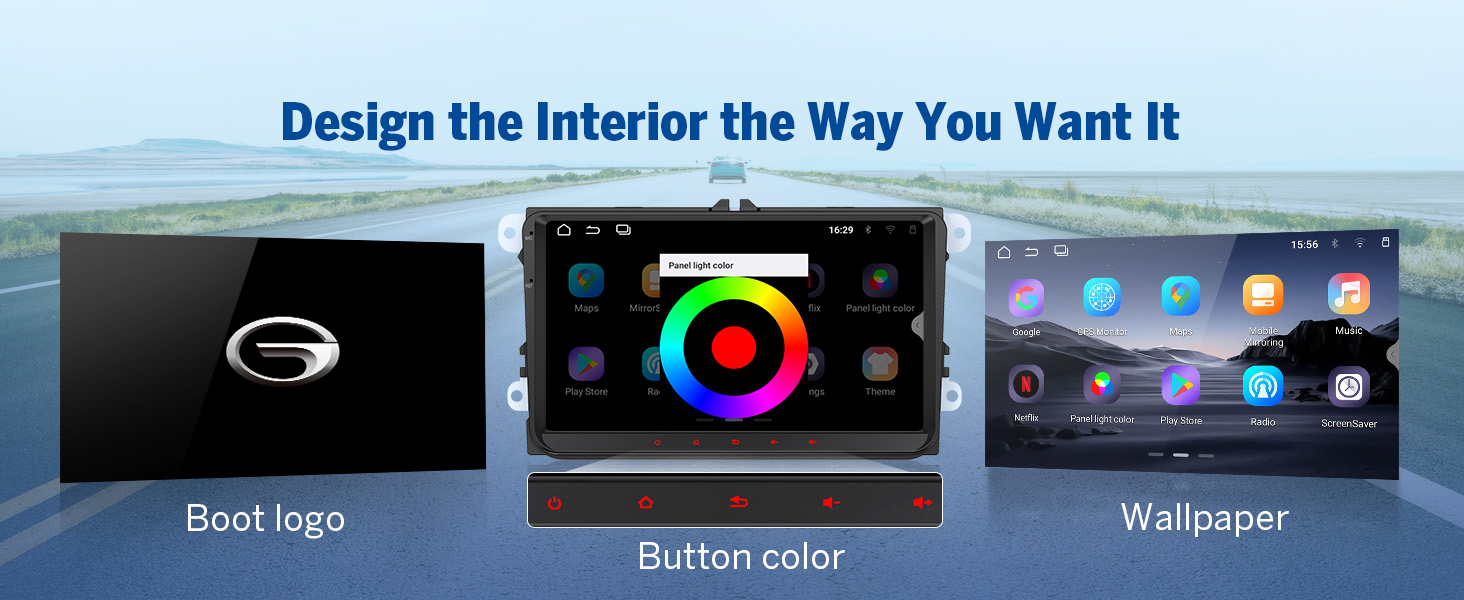
Image 8.2: Comprehensive wiring diagram.
9. Support and Warranty
For technical assistance, troubleshooting beyond this manual, or warranty inquiries, please contact Eonon customer support through their official website or the retailer where you purchased the product. Specific warranty terms and conditions may vary by region and retailer.