
Eonon VWX7
Eonon Android 14 Car Stereo User Manual
Model: VWX7
Brand: Eonon
1. Introduction
This manual provides detailed instructions for the installation, operation, and maintenance of your Eonon Android 14 Car Stereo (Model VWX7). Please read this manual thoroughly before using the product to ensure proper functionality and safety.
The Eonon VWX7 is an advanced car stereo system designed to enhance your driving experience with its powerful Android 14 operating system, seamless smartphone integration, and superior audio capabilities. It features a 9-inch IPS display, built-in DSP, Wireless CarPlay/Android Auto, and Bluetooth 5.4 connectivity.
2. Compatibility
The Eonon VWX7 (Upgraded VWA13) is compatible with a wide range of Volkswagen, SEAT, and SKODA models. Please verify your vehicle's compatibility before installation.
- Volkswagen: Jetta (2006-2015), Golf MK6/VI/6 (2008-2013, including GTI, R, Wagon/Estate/Variant, Cabriolet), Golf MK5/V/5 (2003-2009, including GTI and Estate/Variant models), Golf MK5 (2003-2008, GTI, R32, Rabbit North American models), Golf Plus (2004-2013), Tiguan (2007-2015), Passat B6 / 3C (2005-2010, Estate / Sedan / Wagon), Passat B7 / 3C (2010-2014, Estate / Sedan / Wagon / Alltrack), Passat CC (2008-2011), Beetle (2011-2015), Caddy (2003-2015), Bora (2006-2015), EOS (2006-2015), Lavida (2011-2012), Magotan (2006-2013), Sharan (2010-2014), Sagitar (2005-2015), Scirocco (2008-2015).
- SEAT: Altea (2004-2015), Alhambra (2010-2014), Leon (2005-2012), Toledo (2004-2015).
- SKODA: Fabia (2007-2013), Octavia (2006-2012), Praktik (2007-2011), Roomster (2003-2015), Rapid (2012-2015), Superb (2008-2014), Yeti (2009-2015).
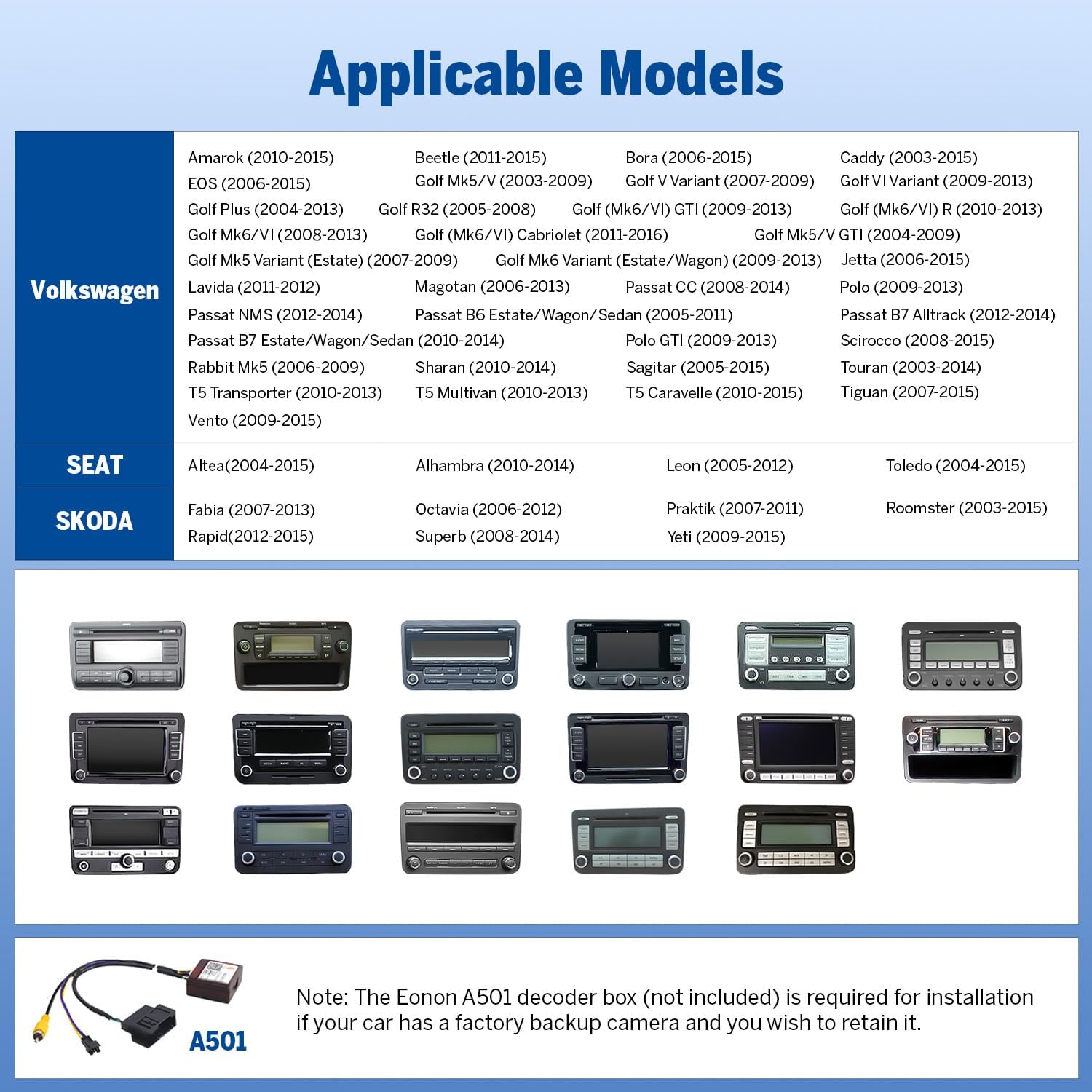
Image: Applicable Models for Eonon VWX7 Car Stereo. This table lists various Volkswagen, SEAT, and SKODA models compatible with the VWX7 unit, including specific years and body types.

Image: Installation Kit Requirements and Inapplicable Models. This image illustrates which factory radio types require an installation kit (not included) for the Eonon VWX7, and which factory radios are incompatible, requiring a universal 2-DIN stereo with an installation kit.
Note: If your car has a factory backup camera, an Eonon A501 decoder box (not included) is required to retain its functionality.
3. Setup
3.1 What's in the Box
Verify that all components are present in the package:
- Eonon VWX7 Car Stereo Unit
- Backup Camera (1)
- Power Cord (1)
- GPS Antenna (1)
- USB Adapter Cable (2)
- Audio and Video Adapter Cable (2)
- Reverse Video Input Cable (1)
- 15A Fuse (1)
- External Microphone (1)
- CANBUS (1)
- Instruction Manual (1)
- Double Sided Adhesive Tape (1)
- Radio Antenna Adapter Cable (1)
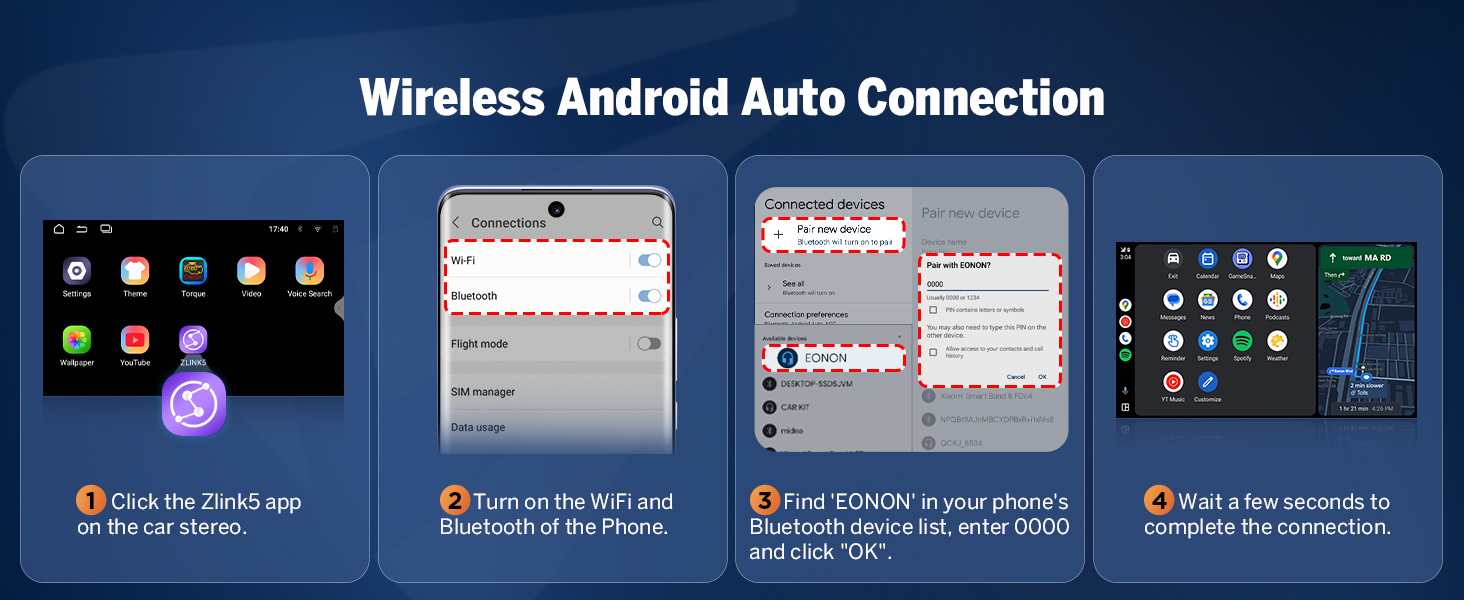
Image: Contents of the Eonon VWX7 package. This visual guide shows the main unit and all included accessories, such as cables, antennas, and the backup camera, with numbered labels for easy identification.
3.2 Wiring Diagram
Refer to the detailed wiring diagram for correct connections. Improper wiring can damage the unit or your vehicle's electrical system.
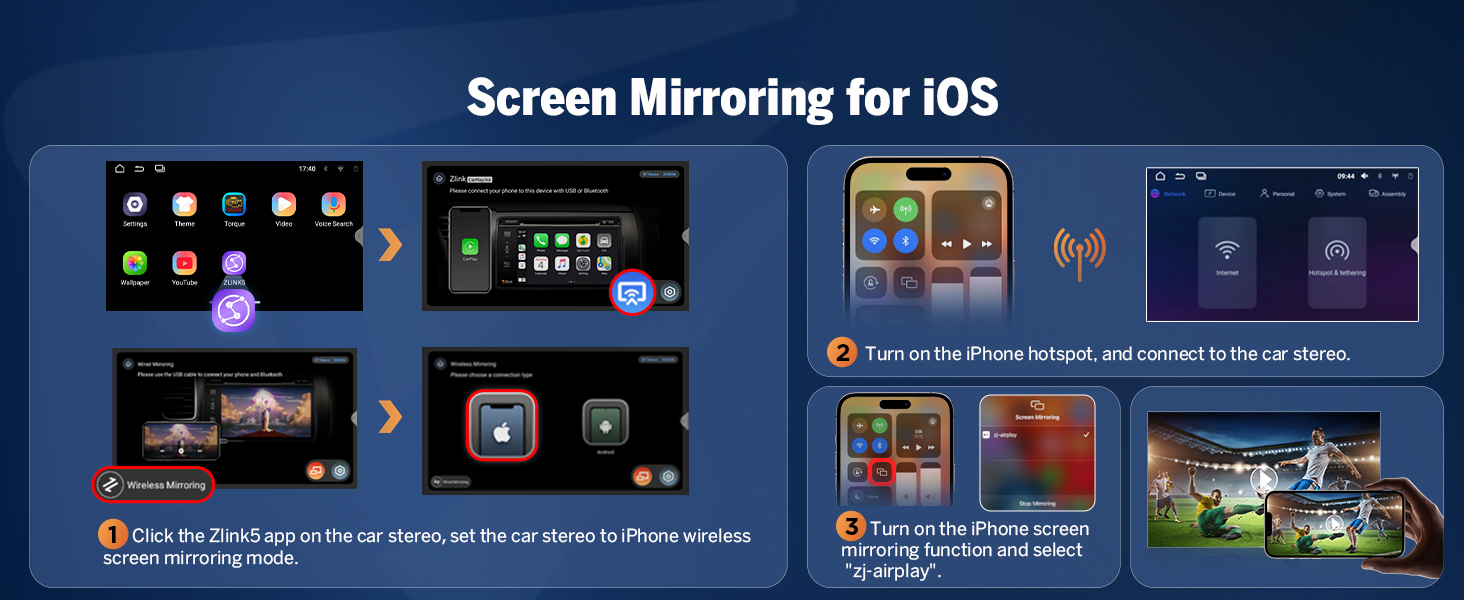
Image: Comprehensive wiring diagram for the Eonon VWX7 car stereo. This diagram labels all input and output ports on the unit and corresponding cables, including power, audio, video, USB, GPS, and CANBUS connections.
3.3 Installation Steps (General)
- Carefully remove your vehicle's existing stereo unit.
- Connect the provided wiring harness to the car stereo and your vehicle's factory harness. Ensure all connections are secure.
- Connect the GPS antenna, Wi-Fi antenna, and external microphone. Position the antennas for optimal signal reception.
- If installing the backup camera, route the cable to the rear of the vehicle and connect it to the reverse video input.
- Integrate the CANBUS module as per the wiring diagram to retain factory features like steering wheel controls and door reminders.
- Test the unit's basic functions (power on, audio, radio) before fully reassembling the dashboard.
- Secure the Eonon VWX7 unit into the dashboard opening.
- Reassemble the dashboard trim.
3.4 Initial Power On and Setup
Upon first power-on, the unit may guide you through an initial setup process. Follow the on-screen prompts to configure basic settings such as language, time zone, and network connection.
4. Operating Instructions
4.1 User Interface and Customization
The VWX7 runs on Android 14, offering a highly customizable and intuitive user experience. You can personalize the interface to match your preferences.
- Preloaded UI Themes: Choose from 3 distinct UI themes to change the overall look and feel of the system.
- Customizable Button Lights: Adjust the color of the physical button backlights to match your vehicle's interior lighting.
- Wallpaper and Boot Logo: Set custom wallpapers and boot logos for a personalized startup experience.
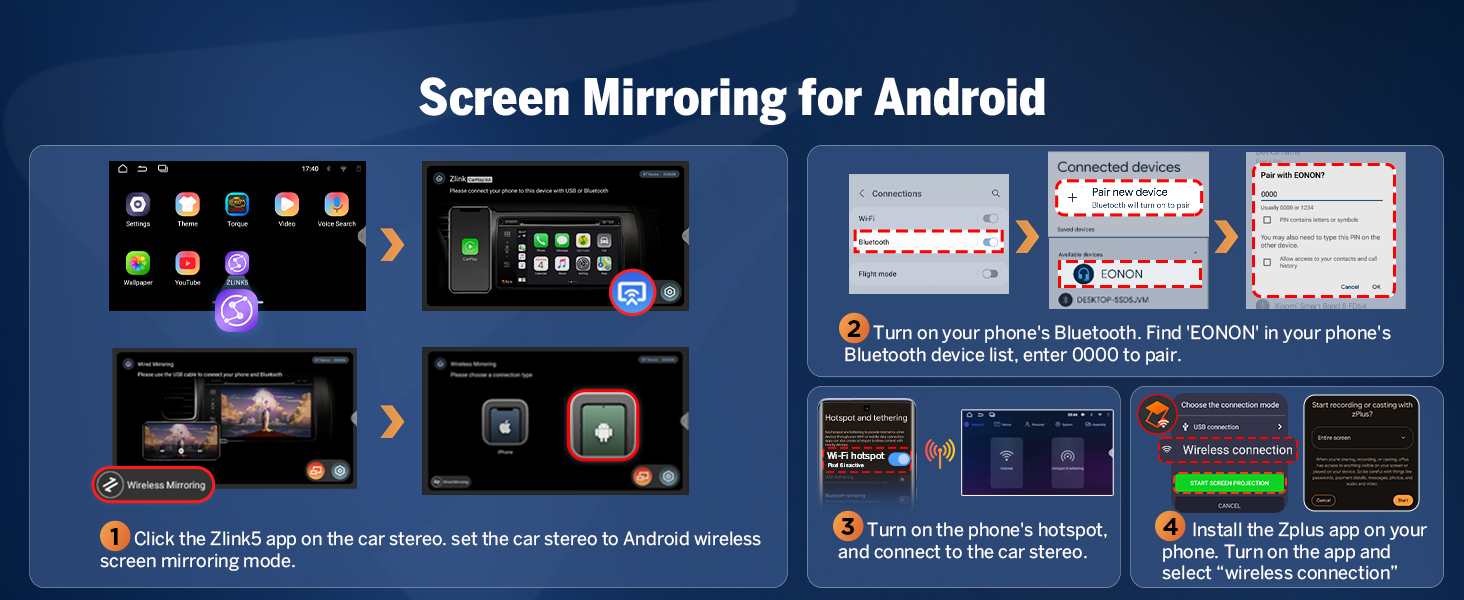
Image: Three sets of user interface themes available on the Eonon VWX7. This image displays different visual styles for the main screen, allowing users to customize the appearance of their car stereo.

Image: Customization options for the Eonon VWX7, including boot logo, button color, and wallpaper. This image shows how users can personalize the visual elements of their car stereo.
4.2 Seamless Connectivity
The VWX7 offers multiple connectivity options for an integrated experience.
- Wireless & Wired CarPlay / Android Auto: Connect your smartphone for navigation, calls, messages, and media access.

Image: Wireless CarPlay and Android Auto interfaces displayed on the Eonon VWX7. This image highlights the integration of smartphone features like calls, messages, music, and GPS navigation directly on the car stereo screen.
Wireless Apple CarPlay Connection:
- Click the Zlink5 app on the car stereo.
- Turn on Wi-Fi and Bluetooth on your iPhone.
- Find 'EONON' in your phone's Bluetooth device list and enter '0000' to pair.
- Once connected, tap 'Use CarPlay' and wait a few seconds to complete the connection.
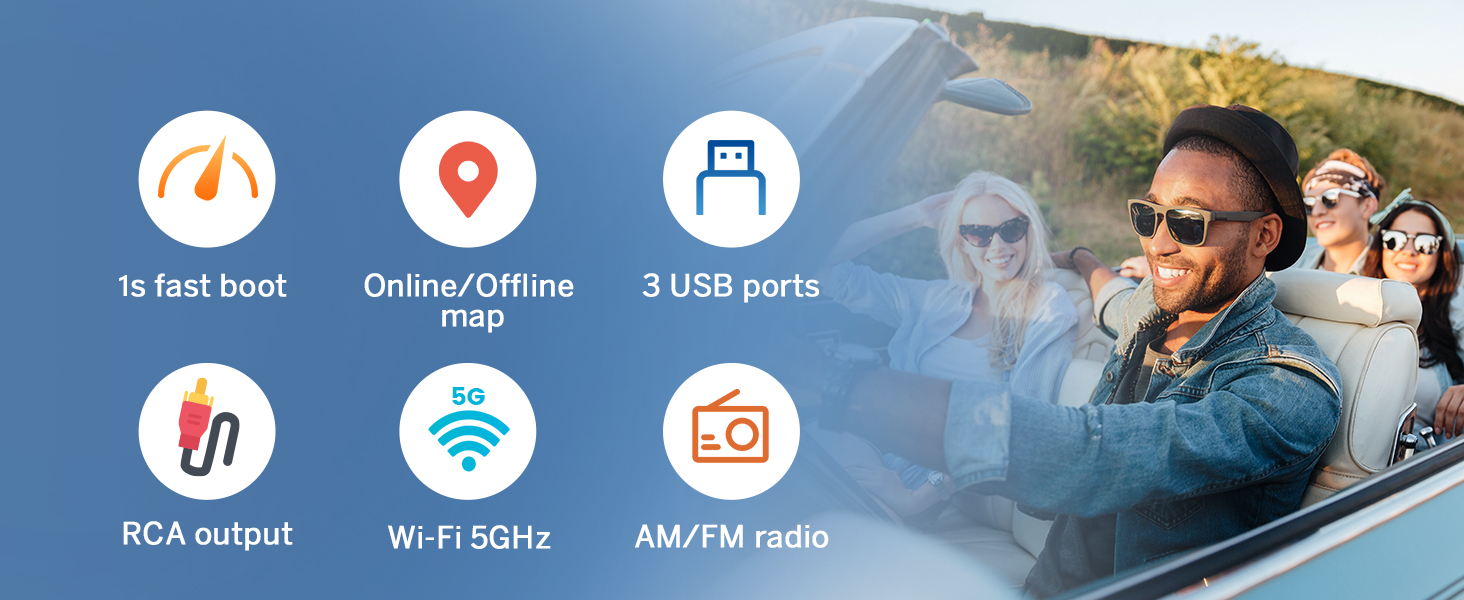
Image: Step-by-step guide for connecting Wireless Apple CarPlay to the Eonon VWX7. This visual instruction shows the process from opening the Zlink5 app to pairing via Bluetooth and Wi-Fi.
Wireless Android Auto Connection:
- Click the Zlink5 app on the car stereo.
- Turn on Wi-Fi and Bluetooth on your Android phone.
- Find 'EONON' in your phone's Bluetooth device list, enter '0000' to pair, and click 'OK'.
- Wait a few seconds to complete the connection.
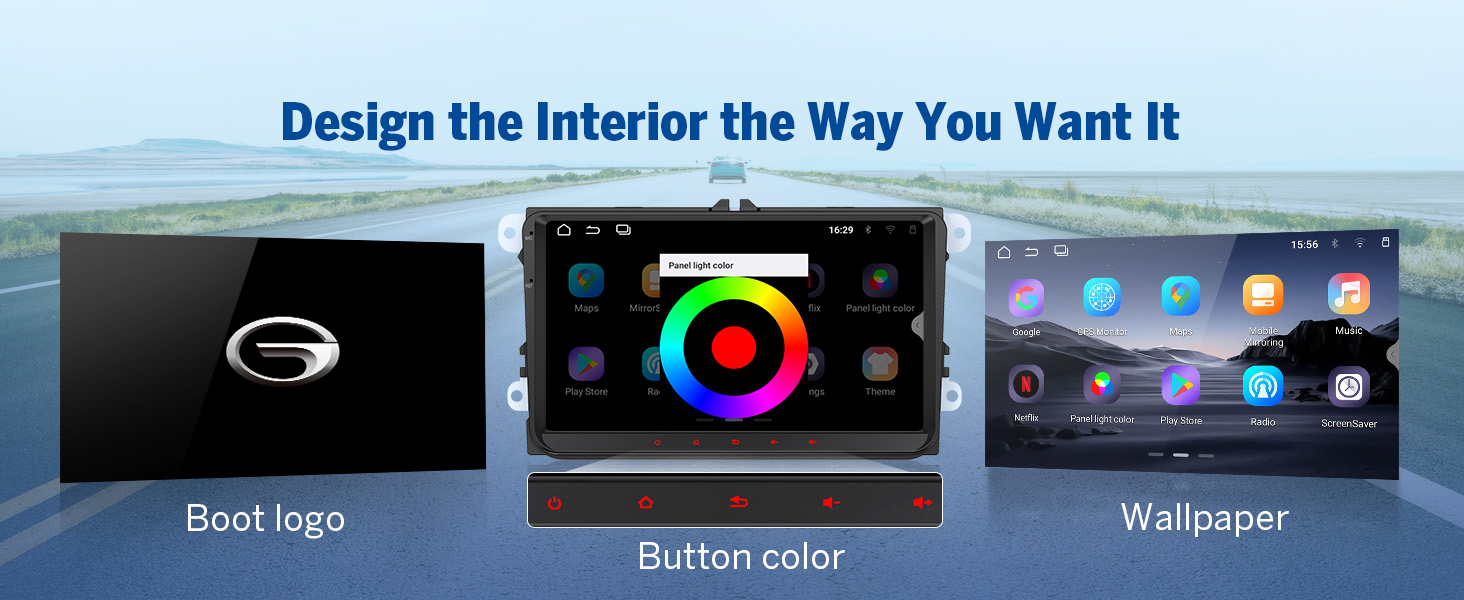
Image: Step-by-step guide for connecting Wireless Android Auto to the Eonon VWX7. This visual instruction shows the process from opening the Zlink5 app to pairing via Bluetooth and Wi-Fi.
- Bluetooth 5.4: Ensures fast and stable connections for hands-free calls and high-quality audio streaming.

Image: Independent Bluetooth Module and Extra Bluetooth Antenna for Eonon VWX7. This image highlights features like quick and stable connection, noise reduction, crystal-clear call quality, and high-quality Bluetooth music streaming.
- Screen Mirroring: Display your phone’s screen directly on the car’s display.
Screen Mirroring for iOS:
- Click the Zlink5 app on the car stereo, then set the car stereo to iPhone wireless screen mirroring mode.
- Turn on the iPhone hotspot and connect to the car stereo.
- Turn on the iPhone screen mirroring function and select "zj-airplay".
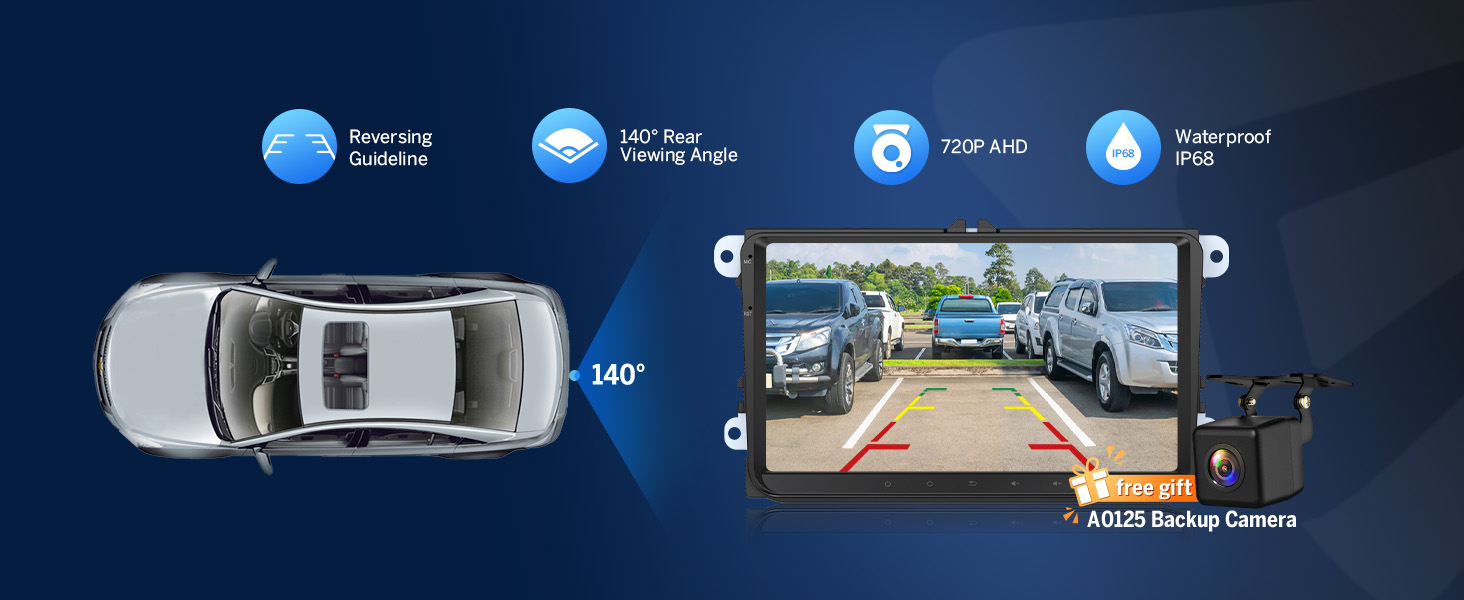
Image: Step-by-step guide for Screen Mirroring from iOS devices to the Eonon VWX7. This visual instruction shows how to use the Zlink5 app, connect via hotspot, and activate AirPlay for screen mirroring.
Screen Mirroring for Android:
- Click the Zlink5 app on the car stereo, then set the car stereo to Android wireless screen mirroring mode.
- Turn on your phone's Bluetooth. Find 'EONON' in your phone's Bluetooth device list, enter '0000' to pair.
- Turn on the phone's hotspot and connect to the car stereo.
- Install the Zplus app on your phone. Turn on the app and select "wireless connection".
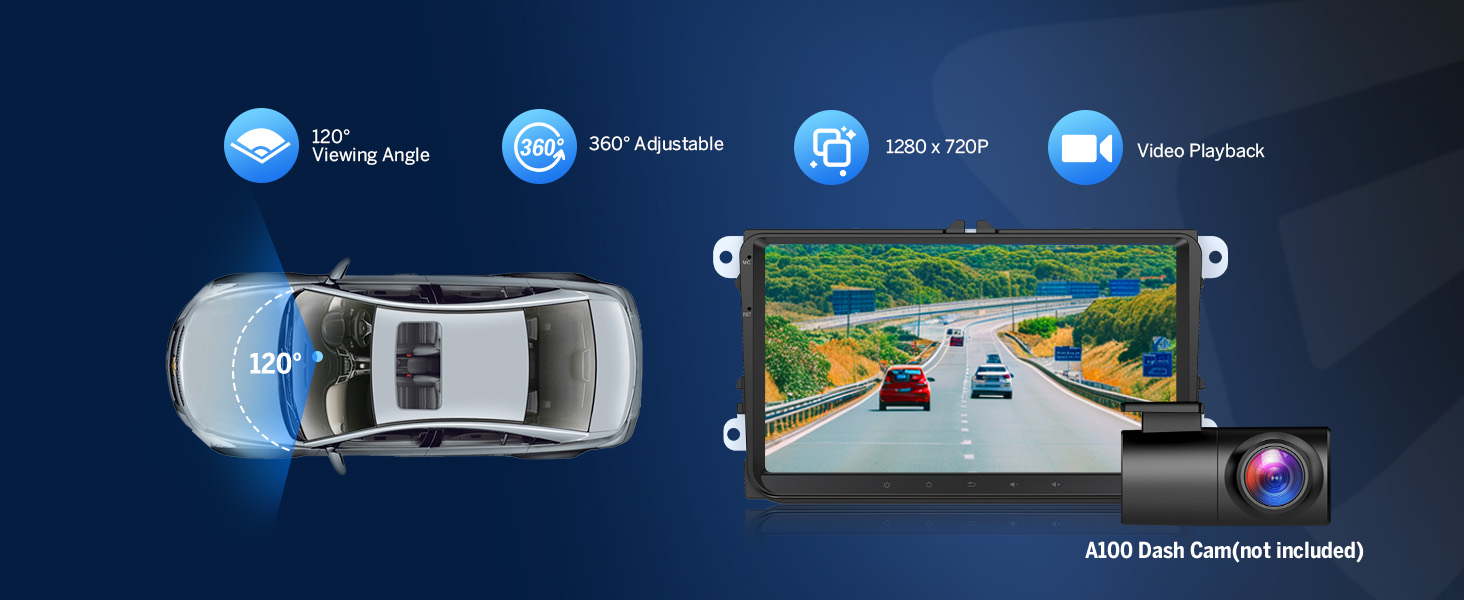
Image: Step-by-step guide for Screen Mirroring from Android devices to the Eonon VWX7. This visual instruction shows how to use the Zlink5 app, pair via Bluetooth, connect via hotspot, and use the Zplus app for wireless connection.
- Wi-Fi: Supports 5GHz Wi-Fi for fast internet access.
- USB Ports: Multiple USB ports for media playback and device charging.
4.3 Immersive Audio Experience
The VWX7 is equipped with advanced audio processing for superior sound quality.
- Built-in DSP Audio Processor: Features a 48-band equalizer for precise sound customization.
- EQ Modes: Choose from Custom, Standard, Popular, Rock, Classical, and Jazz for tailored sound profiles.
- ST TDA7388 Amplifier: Delivers 4x45W surround sound output.
- RCA Audio Outputs: Includes 4-Channel FR/FL/RR/RL outputs + 1 Subwoofer output for professional-grade audio setups.

Image: Eonon VWX7 DSP Audio Features. This image highlights the professional 32-bit DSP with FFT acceleration, 48-band EQ with 3D Surround & Virtual Bass, and optimization for car acoustics, including time alignment and Hi/Lo-Pass filtering.

Image: Built-in DSP functionality of the Eonon VWX7. This image explains how Digital Signal Processing enables time alignment for improved sound quality and precision, showcasing the ST TDA7388 amplifier, 4x45W max output power, 48-band graphic equalizer, and 6 EQ modes.
4.4 Navigation
The unit supports both online and offline navigation. You can download maps for offline use or use online mapping services via Wi-Fi or your smartphone's data connection through CarPlay/Android Auto.
4.5 Camera Integration
- 1080P AHD Rearview Camera: Enhances safety with a clear view while reversing. The included camera provides reversing guidelines.

Image: Reversing Guideline and A0125 Backup Camera features of the Eonon VWX7. This image illustrates the 140-degree rear viewing angle, 720P AHD resolution, and IP68 waterproof rating of the included backup camera, along with dynamic reversing guidelines on the display.
- Dash Cam Compatibility: Compatible with Eonon dash cams (e.g., A100, not included) for front-view recording.

Image: Dash Cam Compatibility with Eonon VWX7. This image shows the A100 Dash Cam (not included) and its features, including 120-degree viewing angle, 360-degree adjustability, 1280x720P resolution, and video playback on the head unit.
4.6 OBD2 Diagnostic Tools
The VWX7 is compatible with Eonon V0056 OBD2 diagnostic tools (not included) for vehicle fault diagnosis and real-time status monitoring.

Image: Android Car Stereo Essentials for Eonon VWX7. This image illustrates compatibility with A100 dash cam, A0125 backup camera, and V0056 OBD2 diagnostic tool, showing how these accessories integrate with the head unit for enhanced functionality.
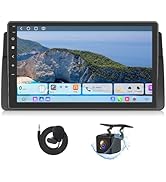
Image: Eonon VWX7 OBD2 Integration. This image shows the Torque app interface on the car stereo, demonstrating vehicle fault diagnosis and real-time status display when connected to a V0056 OBD2 device (not included).
4.7 Other Features
- Steering Wheel Controls: Retains functionality of your vehicle's factory steering wheel controls.
- Door Reminder: Displays door open status.
- Parking Sensor / Reversing Guideline: Integrates with existing parking sensors and provides visual guidelines for reversing.
- AC Information: Displays climate control information on the screen.

Image: Plug & Play features of the Eonon VWX7 that retain your car's factory functionalities. This image shows the integration of steering wheel controls, OEM backup camera (with A501 decoder box requirement), and Dynaudio & Fender audio system compatibility.

Image: Plug & Play features of the Eonon VWX7, showcasing retained factory functionalities. This image highlights steering wheel controls, door reminder, parking sensor/reversing guideline, and AC information displayed on the unit.
- Power-Off Playback Memory: Resumes playback from where you left off, even after restarting the car.
- Fast Boot: Quick startup time for immediate use.
- AM/FM Radio: Built-in radio tuner with strong and stable signal reception.
5. Maintenance
To ensure the longevity and optimal performance of your Eonon VWX7 car stereo, follow these maintenance guidelines:
- Cleaning: Use a soft, dry cloth to clean the screen and unit. Avoid abrasive cleaners or solvents that could damage the surface.
- Software Updates: The unit supports over-the-air firmware updates. Periodically check for and install available updates to ensure the latest features and bug fixes.
- Temperature: Avoid exposing the unit to extreme temperatures, both hot and cold, for extended periods.
- Connections: Periodically check all wiring connections to ensure they are secure and free from corrosion.
6. Troubleshooting
If you encounter issues with your Eonon VWX7, refer to the following common problems and solutions:
| Problem | Possible Cause | Solution |
|---|---|---|
| Unit does not power on. | Loose power connection, blown fuse, vehicle battery issue. | Check power cables and connections. Inspect the 15A fuse (included spare). Verify vehicle battery health. |
| No sound or distorted audio. | Incorrect speaker wiring, volume too low, DSP settings. | Check speaker connections. Adjust volume. Reset DSP settings to default or adjust equalizer. Ensure RCA outputs are correctly connected if using external amplifier. |
| Bluetooth connection issues. | Incorrect pairing, device not discoverable, interference. | Ensure Bluetooth is enabled on both devices. Re-pair the device. Clear previous pairings. Move closer to the unit. |
| CarPlay/Android Auto not connecting. | Incorrect app usage (Zlink5), Wi-Fi/Bluetooth off, phone settings. | Ensure Zlink5 app is open on the stereo. Verify Wi-Fi and Bluetooth are active on your phone. Check phone's CarPlay/Android Auto settings. Try wired connection if wireless fails. |
| Backup camera shows "No Signal". | Loose video input cable, incorrect wiring, A501 decoder box missing/faulty. | Check the reverse video input cable connection. Ensure the camera is powered. If using a factory camera, confirm the A501 decoder box is correctly installed and functioning. |
| Battery drain when car is off. | Incorrect power wiring (constant vs. accessory power). | Consult a professional installer to verify the ACC (accessory) and B+ (constant) power wires are correctly connected to prevent parasitic drain. |
| Unit is slow or glitchy. | Too many apps running, low storage, software bug. | Close unnecessary background apps. Clear cache. Perform a factory reset (note: this will erase all data). Check for and install firmware updates. |
If the problem persists after attempting these solutions, please contact Eonon customer support for further assistance.
7. Specifications
| Feature | Specification |
|---|---|
| Model | VWX7 |
| Operating System | Android 14 |
| CPU | RK3562 Quad-core ARM Cortex-A53 @ 2.0GHz |
| RAM | 3GB |
| ROM | 32GB |
| Display Size | 9-inch IPS |
| Display Resolution | 1280*720 |
| Bluetooth Version | 5.4 |
| Amplifier | ST TDA7388 (4x45W max output) |
| DSP | Built-in, 48-band equalizer |
| Connectivity | Bluetooth, USB, Wi-Fi (5GHz supported) |
| CarPlay/Android Auto | Wireless & Wired |
| Audio Output Type | RCA (4-Channel FR/FL/RR/RL + 1 Subwoofer) |
| Supported Internet Services | Browser, Netflix, YouTube, iTunes |
| Included Accessories | Backup camera, power cord, GPS antenna, USB adapter cables, audio/video adapter cables, reverse video input cable, fuse, external microphone, CANBUS, instruction manual, adhesive tape, radio antenna adapter cable. |
8. Warranty and Support
Eonon is committed to providing high-quality products and excellent customer service.
- Warranty: The Eonon VWX7 comes with a 2-year warranty.
- Replacement Policy: Replacement is available within 90 days of purchase.
- Returns: Enjoy 30-day free returns.
- After-Sales Service: Eonon provides lifelong after-sales service for its products.
- Customer Support: For any inquiries or technical assistance, please contact Eonon customer support. Responses are typically provided within 24 hours (excluding weekends).
Related documentsVWX7


Ask a question about this manual
Ask about setup, troubleshooting, compatibility, parts, safety, or missing instructions. Manuals+ will review the question and use this page’s manual context to help answer it.