
1. Introduction
This user manual provides comprehensive instructions for the DAREU EK87PRO 80% Wireless Mechanical Keyboard. Designed for both gaming and professional use, this keyboard offers versatile connectivity options, a comfortable typing experience, and customizable RGB lighting. Please read this manual thoroughly to ensure proper setup, operation, and maintenance of your new keyboard.
2. Package Contents
Ensure all items listed below are present in your product package:
- Keyboard Body (1 unit)
- USB Cable (1 unit)
- Receiver (1 unit)
- Keycap Puller (1 unit)
- Add-on Keycaps (7 units)
- Instruction Manual (1 unit)

Image: The DAREU EK87PRO keyboard shown with its accessories, including the USB cable, wireless receiver, keycap puller, and additional keycaps.
3. Key Features
-
3.1. Silent Gasket Mechanical Keyboard
Experience quiet typing with the true gasket mechanical keyboard structure. It features a 6-layer silicone-filled interior, 12 high-resilience gaskets, and a 1.5mm polymer plate to eliminate hollow echoes. The precision PCB with per-switch 1.2mm grooves ensures uniform keystrokes, providing a balance between soft cushioning and stable feedback for both gaming and office work.

Image: An exploded view diagram illustrating the 6-layer gasket structure of the keyboard, highlighting components like PBT keycaps, customized switches, top cover, center frame, PC positioning plate, latex foam, IXPE under shaft pad, silicone sleeve, PCB circuit board, latex backing foam, EVA bottom pad, and bottom cover.
-
3.2. Hot-Swappable Switches
The keyboard supports 3/5-pin hot-swappable mechanical switches, allowing for easy customization of your typing experience. It comes pre-installed with linear Cloud switches, offering 1.8mm ultra-responsive actuation and an optimized 3.4mm travel distance to reduce finger fatigue.

Image: A close-up view of the PCB hot-swappable sockets, demonstrating compatibility with both 3-pin and 5-pin mechanical switches, along with an image of a switch being removed with a puller.

Image: Detailed view of the Cloud switches and pre-lubed steel stabilizers, including a force-travel diagram for the switches.
-
3.3. 80% TKL Layout & Full NKRO
The 80% Tenkeyless (TKL) layout maximizes desk space while retaining essential controls. Advanced N-Key Rollover ensures zero ghosting across all 87 keys, crucial for complex macros and rapid data entry.

Image: A visual comparison showing the compact 80% TKL layout of the keyboard next to a full-size keyboard, illustrating the space-saving benefit.
-
3.4. Tri-Mode Connectivity
Seamlessly switch between BT 5.1, 2.4GHz wireless, and USB-C wired connections. The keyboard can pair with up to 5 devices simultaneously and is compatible with Windows, macOS, iOS, and Android operating systems.

Image: Diagram illustrating the three connectivity modes: USB wired, 2.4GHz wireless, and BT 5.1, along with key combinations for switching between Bluetooth channels and Windows/Mac modes.
-
3.5. South-Facing RGB Backlight
Personalize your setup with 26 lighting modes and 16.8 million colors via intuitive software. All macros and keys are customizable. South-facing LEDs illuminate characters from the typist's perspective, reducing glare and enhancing legend visibility.

Image: Visual representation of the 16.8 million RGB color options and key combinations for adjusting brightness and backlight colors.
-
3.6. High-Capacity Battery
Equipped with a 4000mAh high-capacity battery, providing extended usage. Approximately 45 days with backlight off and 7 days with backlight on (based on continuous 4 hours of playtime/day).

Image: Diagram showing the 4000mAh battery capacity and estimated battery life with backlight on and off.
4. Setup
4.1. Initial Charging
Before first use, it is recommended to fully charge the keyboard. Connect the provided USB-C cable to the keyboard's USB-C port and the other end to a power source (e.g., computer USB port, USB wall adapter).
4.2. Connecting via USB-C (Wired Mode)
For a direct and stable connection, plug the USB-C cable into the keyboard and your computer. The keyboard will automatically be recognized and ready for use.
4.3. Connecting via 2.4GHz Wireless Mode
- Locate the 2.4GHz wireless receiver (USB dongle) in the package.
- Insert the receiver into an available USB port on your computer.
- On the keyboard, locate the connection mode switch (usually on the side or top edge) and slide it to the "2.4G" position.
- The keyboard should automatically connect to your computer.
4.4. Connecting via Bluetooth 5.1 Mode
- On the keyboard, slide the connection mode switch to the "BT" position.
- Press and hold the Fn key along with one of the Bluetooth channel keys (1, 2, or 3) for 3-5 seconds until the indicator light starts flashing, indicating pairing mode.
- On your device (PC, laptop, smartphone, tablet), go to Bluetooth settings and search for "DAREU EK87PRO".
- Select the keyboard from the list to complete the pairing process.
- You can pair up to 3 Bluetooth devices by assigning them to different channels (Fn+1, Fn+2, Fn+3).
5. Operating Instructions
5.1. Basic Typing
The keyboard functions as a standard 87-key TKL layout. Simply begin typing after successful connection.
5.2. Function Key Combinations (Fn Key)
The Fn key (Function key) is used in combination with other keys to access multimedia controls, lighting effects, and system functions.
- Fn + F1-F12: Access various multimedia and system functions (e.g., volume control, media playback, web browser, calculator). Refer to the keycap legends for specific functions.
- Fn + 1/2/3: Switch between paired Bluetooth devices.
- Fn + { [: Cycle through RGB lighting effects.
- Fn + } ]: Cycle through single RGB colors.
- Fn + Up Arrow: Increase backlight brightness.
- Fn + Down Arrow: Decrease backlight brightness.
- Fn + Spacebar: Cycle through brightness levels.
- Fn + Win: Lock/Unlock Windows key.
5.3. Macro Customization
The keyboard supports macro customization and key remapping through dedicated driver software. Please visit the official DAREU website to download the latest software for your EK87PRO model. The software allows you to:
- Customize shortcut keys.
- Adjust RGB backlight effects and colors.
- Create and assign macros.
- Set text templates.
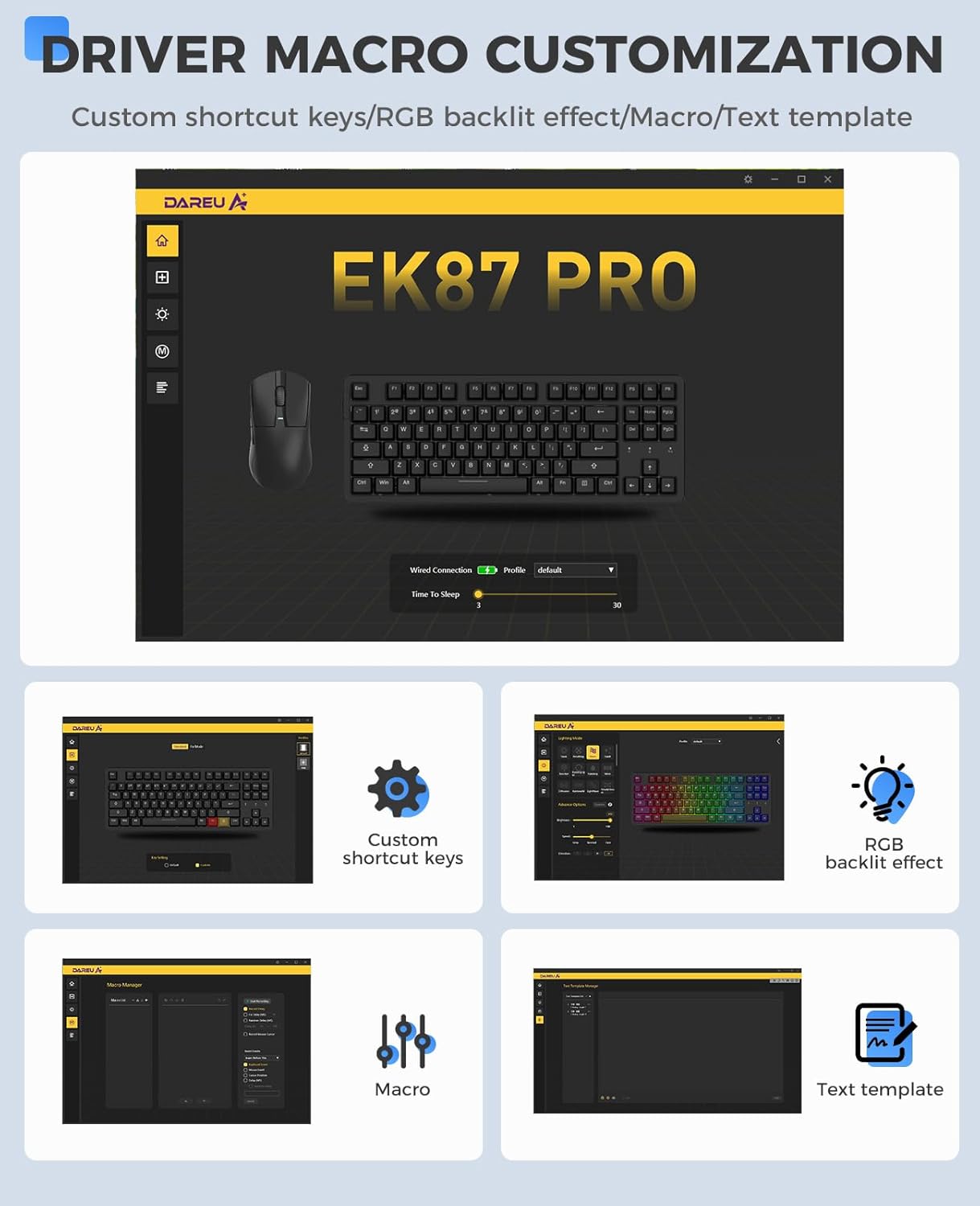
Image: Screenshot of the DAREU EK87 PRO driver software interface, showing options for custom shortcut keys, RGB backlight effects, macro creation, and text templates.
6. Maintenance
6.1. Cleaning the Keyboard
To maintain your keyboard's performance and appearance:
- Use a soft, lint-free cloth to wipe down the keycaps and frame.
- For deeper cleaning, use a keycap puller to remove keycaps and a can of compressed air to clear debris from beneath the keys.
- Avoid using harsh chemicals or abrasive materials.
6.2. Keycap and Switch Replacement
Thanks to the hot-swappable design, you can easily replace keycaps and switches:
- Use the provided keycap puller to gently remove keycaps.
- Use the switch puller (often integrated with the keycap puller) to carefully remove switches from their sockets.
- Align the pins of the new switch with the holes on the PCB and press firmly until it clicks into place.
- Reattach the keycap.
7. Troubleshooting
If you encounter issues with your DAREU EK87PRO keyboard, please refer to the following common solutions:
- Keyboard Not Responding:
- Ensure the keyboard is charged.
- Check the connection mode switch (USB, 2.4G, BT) is set correctly.
- For wired connection, try a different USB port or cable.
- For 2.4GHz, ensure the receiver is securely plugged in.
- For Bluetooth, re-pair the device (Fn + channel key).
- Keys Not Registering or Double Typing:
- This might indicate a faulty switch. Use the switch puller to replace the affected switch.
- Ensure switches are fully seated in their sockets.
- RGB Lighting Issues:
- Adjust brightness using Fn + Up/Down Arrow keys.
- Cycle through lighting modes using Fn + { [ key.
- Ensure the keyboard is sufficiently charged, as low battery can affect lighting.
- Check driver software settings for advanced customization.
- Connectivity Drops (Wireless):
- Ensure no strong interference sources are nearby (e.g., other wireless devices, large metal objects).
- Keep the keyboard within optimal range of the receiver/device.
- Update keyboard firmware via the DAREU software if available.
8. Specifications
| Feature | Detail |
|---|---|
| Product Dimensions | 14.33 x 5.9 x 1.61 inches |
| Item Weight | 1.63 pounds |
| Item Model Number | EK87 PRO-WB-C |
| Battery | 1 Lithium Ion battery (included), 4000mAh |
| Connectivity Technology | 2.4GHz, BT 5.1, USB-C |
| Number of Keys | 87 |
| Keyboard Description | 80% Layout Mechanical Gaming Keyboard |
| Keyboard Backlighting | RGB (16.8 Million Colors, 26 modes) |
| Special Features | Backlit, Hot-Swappable, Integrated Stand, Programmable Keys, Noise-Canceling |
| Compatible Devices | Laptop, PC, Smartphone, Tablet |
9. Warranty and Support
For detailed warranty information and technical support, please refer to the warranty card included in your product packaging or visit the official DAREU website. Keep your proof of purchase for any warranty claims.
For further assistance, you may also contact DAREU customer service through their official channels.

