
ESR TSAJHBQ11
ESR Stylus Pen for iPad (Model TSAJHBQ11) User Manual
Comprehensive instructions for setup, operation, and maintenance.
1. Introduction
This manual provides detailed instructions for the ESR Stylus Pen, Model TSAJHBQ11. Please read this manual carefully before using the product to ensure proper function and longevity.

Image 1.1: The ESR Stylus Pen, showcasing its sleek black design and included replacement nibs and USB-C charging port.
2. Compatibility
The ESR Stylus Pen is compatible with specific iPad models released in 2018 or later, running iOS 12.2 and above. Verify your iPad model against the list below to ensure compatibility.
- NEW 2025 iPad 11th (A16) & 10th Generation (Writing & Magnetic Attachment)
- iPad Air 11-inch & 13-inch (M3)
- iPad Pro 11-inch & 13-inch (M4)
- iPad 9th/8th/7th/6th Generation
- iPad Air 11/13 (M2)
- iPad Air 3rd/4th/5th Generation
- iPad Pro 11 inch 1st/2nd/3rd/4th Generation
- iPad Pro 12.9 inch 3rd/4th/5th/6th Generation
- iPad Mini 5th/6th Generation
Note: This stylus is not compatible with other iPad models, iPhone, Android devices, Microsoft devices, or any other non-listed devices.

Image 2.1: Detailed compatibility chart showing supported iPad models and their corresponding model numbers. Models with a blue 'U' icon support magnetic attachment.
3. Setup and First Use
3.1 Charging the Stylus
Before first use, fully charge the stylus. The stylus features a USB-C charging port.
- Locate the USB-C charging port on the stylus.
- Connect a USB-C cable to the stylus and a power source.
- A full charge takes approximately 30 minutes, providing up to 13 hours of in-use time or 5 minutes for standby mode.

Image 3.1: The ESR Stylus Pen connected to a USB-C charging cable, illustrating the charging process.
3.2 Activating the Stylus
The ESR Stylus Pen does not require Bluetooth pairing with your iPad. Simply double-tap the top of the stylus to turn it on or off.

Image 3.2: A hand demonstrating the double-tap gesture on the top of the stylus to power it on or off.
4. Operating the Stylus
4.1 Smooth and Precise Writing
The stylus provides a smooth and precise writing and drawing experience with minimal lag. The 1.5mm tip allows for detailed work.
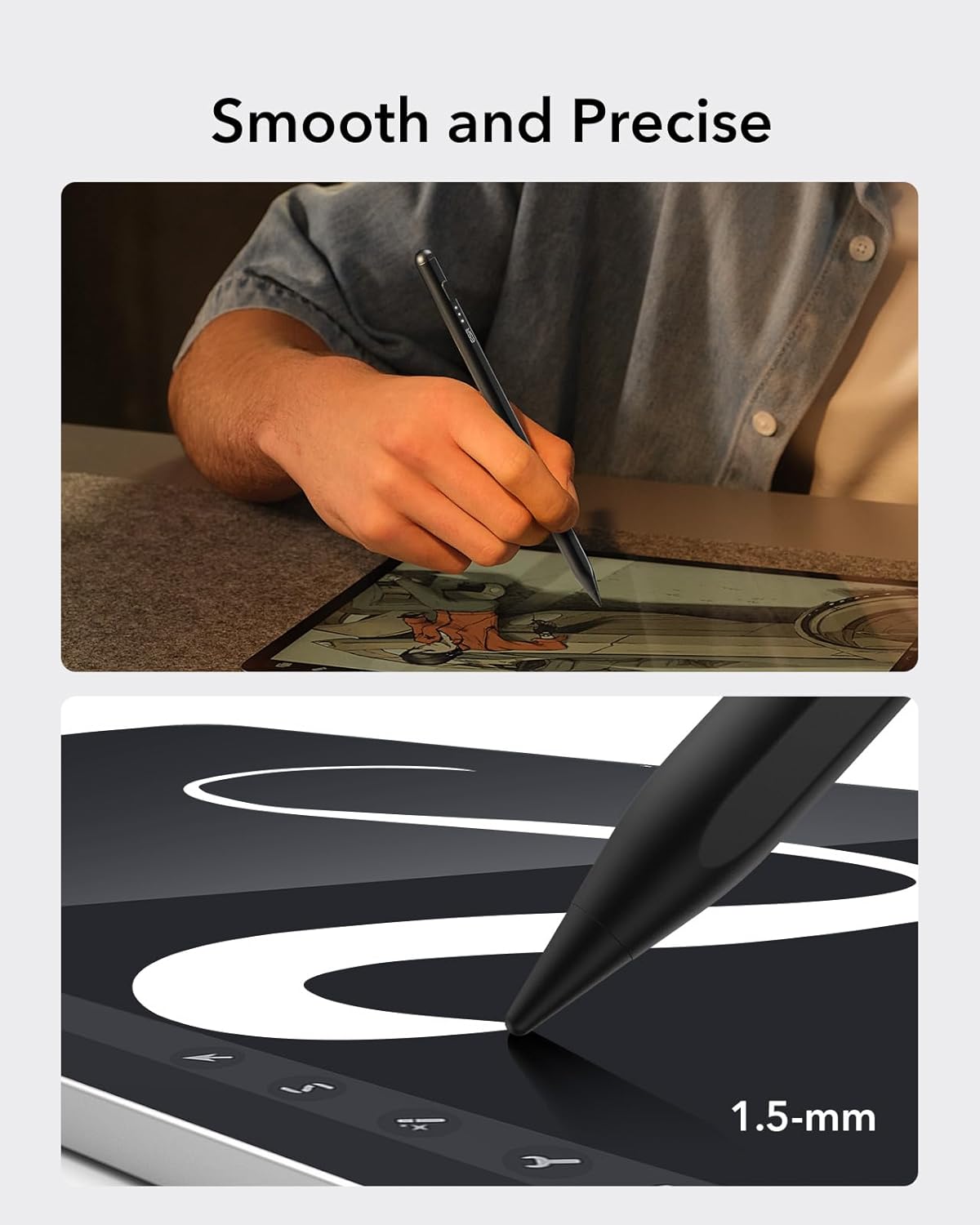
Image 4.1: A close-up view of the stylus tip interacting with an iPad screen, illustrating its precision for drawing and writing.
4.2 Palm Rejection
Rest your hand naturally on the iPad screen while using the stylus. The palm rejection feature prevents unintended marks from your hand, allowing for comfortable and accurate use.

Image 4.2: A user's hand resting on the iPad screen while drawing with the stylus, highlighting the palm rejection functionality.
4.3 Tilt Sensitivity
The built-in sensor detects the angle of the stylus, allowing you to vary line thickness and create shading effects. Adjust the angle of the nib to achieve different artistic results, similar to a traditional pencil.

Image 4.3: Illustrations showing how the stylus creates different line widths based on the tilt angle (90°, 60°, 45°).
4.4 Magnetic Attachment
For convenient storage, the stylus can magnetically attach to compatible iPad models. This feature helps keep your stylus secure and easily accessible. Note that magnetic attachment does not provide wireless charging for this model.

Image 4.4: The stylus attached magnetically to the side of an iPad, indicating secure storage. A note clarifies that wireless charging is not supported.
5. Maintenance
5.1 Replacing the Nib
The stylus comes with durable, replaceable nibs. Regular use may cause wear, and replacement nibs are included to ensure continued optimal performance.
- Gently twist the existing nib counter-clockwise to remove it.
- Select a new replacement nib.
- Twist the new nib clockwise onto the stylus until it is securely fastened.

Image 5.1: The ESR Stylus Pen shown with three additional replacement nibs, illustrating the replaceable design.
5.2 Cleaning
Wipe the stylus body with a soft, dry cloth. Avoid using harsh chemicals or abrasive materials.
6. Troubleshooting
| Problem | Solution |
|---|---|
| Stylus does not turn on. | Ensure the stylus is charged. Double-tap the top of the stylus firmly to activate. |
| Stylus is not responding on iPad. |
|
| Inaccurate or inconsistent lines. |
|
| Stylus disconnects frequently. | Ensure the stylus is fully charged. If the issue persists, contact customer support. |
7. Specifications
| Feature | Detail |
|---|---|
| Model Number | TSAJHBQ11 |
| Brand | ESR |
| Material | Aluminum |
| Color | Black |
| Item Weight | 1.76 ounces (0.05 Kilograms) |
| Package Dimensions | 7.99 x 2.2 x 0.67 inches |
| Batteries | 1 Nonstandard Battery required (not included) |
| Charging Port | USB-C |
| Charging Time | Approx. 30 minutes for full charge |
| Usage Time | Up to 13 hours (continuous use) |
| Standby Time | 5 minutes (before auto-power off) |
| Key Features | Tilt Sensitivity, Palm Rejection, Magnetic Attachment (for compatible iPads), No Bluetooth Pairing Required |
8. Warranty and Support
ESR provides comprehensive customer support for this product, including:
- Detailed setup videos and FAQs.
- A comprehensive 12-month warranty.
- Lifetime support.
- Personalized help.
For assistance, please visit the official ESR support website or contact their customer service team directly.
Ask a question about this manual
Ask about setup, troubleshooting, compatibility, parts, safety, or missing instructions. Manuals+ will review the question and use this page’s manual context to help answer it.