
Introduction
This manual provides comprehensive instructions for the installation, operation, and maintenance of your Energizer Smart Deadbolt Door Lock (Model EDL6-1001-BLK). This smart lock offers multiple access methods including fingerprint recognition, app control, keypad entry, key fobs, and traditional keys, enhancing security and convenience for your home.
Package Contents
Before installation, verify that all components are present:
- Energizer Smart Deadbolt Door Lock (Front Panel and Back Panel)
- Mounting Kit
- 2 Key Fobs
- 2 Traditional Keys
- Quick Start Guide (This manual serves as a detailed guide)
Note: 4 AA batteries are required and are not included in the package.
Setup and Installation
The Energizer Smart Deadbolt Door Lock is designed for straightforward installation on standard doors. A template is included for new door installations, but the lock is typically compatible with existing deadbolt holes.
1. Prepare the Door
- Ensure your door meets the following specifications:
- Door Thickness: 1.38" - 2.08" (35 - 53mm)
- Backset: 2.36" or 2.75" (60mm or 70mm)
- Bore Hole Diameter: 2.125" (54mm)
- Remove any existing deadbolt hardware from the door.

Image: Door Measurement Guide. This image illustrates the required door dimensions for proper installation of the smart deadbolt, including door thickness, backset, and bore hole diameter.
2. Install the Deadbolt Latch
- Insert the deadbolt latch into the edge of the door. Ensure the "UP" arrow on the latch is pointing upwards.
- Secure the latch with the provided screws.
3. Install the Exterior Assembly
- Feed the cable and spindle through the deadbolt latch hole.
- Align the exterior assembly with the door and secure it.
4. Install the Interior Assembly
- Connect the cable from the exterior assembly to the interior assembly.
- Attach the mounting plate to the interior side of the door, securing it with screws.
- Install 4 AA batteries into the battery compartment.
- Attach the interior assembly to the mounting plate.
5. Initial Calibration
- After battery installation, the lock will perform an automatic calibration to determine door handing. Follow any voice prompts.
Operating Instructions
The Energizer Smart Deadbolt Door Lock offers multiple methods for locking and unlocking.
1. Mobile App Control
The Energizer Connect app allows for remote management and control of your smart lock via Bluetooth when within range.
- Download the App: Search for "Energizer Connect" in your mobile device's app store.
- Create Account: Follow the in-app instructions to create a new user account.
- Add Device:
- Ensure Bluetooth is enabled on your phone.
- Open the Energizer Connect app and select "Add Device" or the "+" icon.
- Follow the on-screen prompts to pair your smart lock.
- App Functions: Through the app, you can:
- Lock and unlock the door.
- Manage user access (add/delete fingerprints, passcodes, key fobs).
- View activity logs.
- Adjust auto-lock settings.
- Monitor battery level.

Image: Mobile App Control. This image shows a user interacting with the Energizer Connect mobile application to control the smart door lock, demonstrating local control capabilities.
2. Fingerprint Entry
The lock supports up to 50 unique fingerprints for quick and secure access.
- Adding Fingerprints:
- Access the fingerprint management section in the Energizer Connect app.
- Follow the app's instructions to register new fingerprints. You will typically be prompted to place your finger on the sensor multiple times from different angles.
- Unlocking with Fingerprint:
- Place your registered finger on the fingerprint sensor located on the top of the exterior keypad.
- The lock will unlock if the fingerprint is recognized.
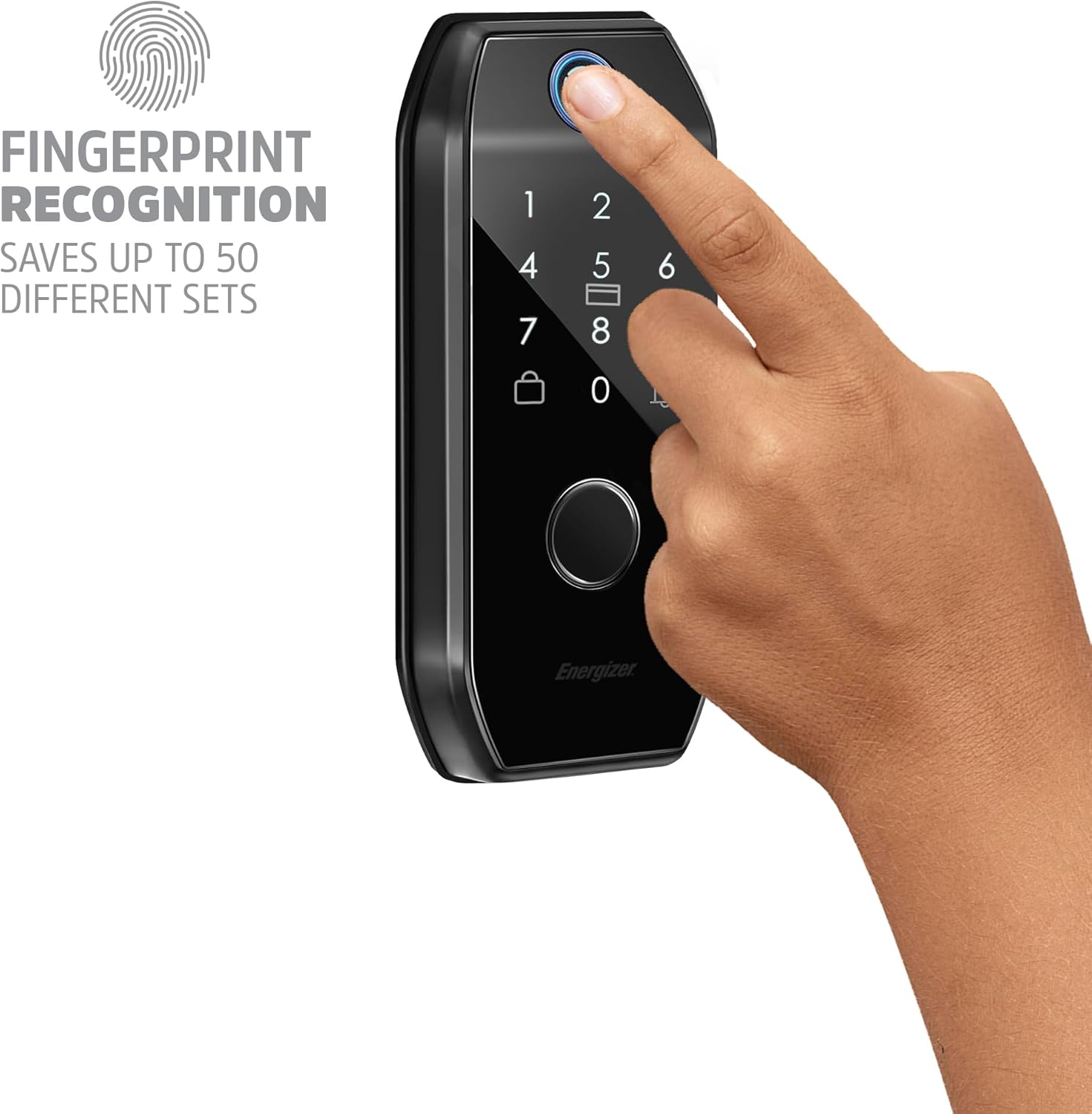
Image: Fingerprint Recognition. This image highlights the fingerprint sensor on the smart lock's exterior panel, demonstrating how a user would place their finger for biometric access.
3. Keypad Entry (Passcode)
Use the touchscreen keypad to enter a numerical passcode.
- Setting Passcodes:
- Passcodes are managed through the Energizer Connect app.
- You can set temporary or permanent passcodes for different users.
- Unlocking with Passcode:
- Touch the keypad to activate it.
- Enter your registered passcode.
- The lock will unlock upon correct entry.
- Anti-Peep Passcode: To prevent others from observing your passcode, you can enter random digits before or after your actual code. For example, if your code is 1234, you can enter 56123478. The lock will still recognize the correct sequence within the longer entry.
4. Key Fob Entry
The included key fobs provide an alternative keyless entry method.
- Pairing Key Fobs:
- Key fobs are paired via the Energizer Connect app.
- Follow the app's instructions to register each key fob.
- Unlocking with Key Fob:
- Touch the key fob to the keypad area of the lock.
- The lock will unlock if the key fob is recognized.
5. Traditional Key Entry
For manual override or in case of battery depletion, traditional keys are provided.
- Accessing Keyhole: The keyhole is located beneath a protective cover on the exterior assembly. Slide or remove the cover to expose the keyhole.
- Unlocking: Insert the traditional key and turn to unlock the deadbolt.

Image: Protective Keyhole Cover. This image shows the exterior of the smart lock with a close-up on the protective cover that conceals the traditional keyhole, ensuring its protection from elements and tampering.
6. Locking the Door
- One-Touch Locking: Press the dedicated lock button on the exterior keypad to manually lock the door.
- Auto-Lock Feature: The lock can be configured via the Energizer Connect app to automatically lock after a set period (e.g., 30 seconds, 1 minute). This feature is off by default.

Image: Auto-Lock and One-Touch Locking. This diagram visually explains how the auto-lock feature engages the deadbolt automatically and how to use the one-touch locking button for manual security.
7. Doorbell Function
The smart lock includes an integrated doorbell function.
- Activating Doorbell: Press the doorbell icon on the exterior keypad.
- Sound: The lock will emit an audible chime to alert occupants.
- Volume Adjustment: Doorbell volume can be adjusted through the Energizer Connect app.
Maintenance
1. Battery Replacement
The lock requires 4 AA batteries. The Energizer Connect app provides a battery level indicator, and the lock will issue a voice prompt when batteries are low.
- Access Battery Compartment: The battery cover is located on the interior assembly. Gently pull the cover from the bottom to remove it.
- Replace Batteries: Remove old batteries and insert four new AA batteries, ensuring correct polarity.
- Reattach Cover: Snap the battery cover back into place.

Image: Low Battery Alert. This image shows the smart lock indicating a low battery status, prompting the user to replace the batteries soon.
2. Cleaning
- Wipe the exterior keypad and lock body with a soft, damp cloth.
- Avoid using abrasive cleaners or solvents, as these can damage the finish or electronic components.
Troubleshooting
- Lock not responding:
- Check battery level and replace if necessary.
- Ensure the lock is properly installed and all cables are connected.
- Fingerprint not recognized:
- Ensure your finger is clean and dry.
- Try different angles or re-register your fingerprint in the app.
- App connectivity issues:
- Ensure Bluetooth is enabled on your phone and you are within range of the lock (approximately 30 feet).
- Restart the Energizer Connect app.
- Restart your phone.
- Keypad not lighting up:
- Touch the keypad to activate it.
- Check battery level.
- Auto-lock not engaging:
- Verify that the auto-lock feature is enabled and configured with the desired delay in the Energizer Connect app.
Specifications
| Feature | Detail |
|---|---|
| Brand | Energizer |
| Model Name | Energizer Smart Deadbolt Door Lock |
| Model Number | EDL6-1001-BLK |
| Lock Type | Deadbolt |
| Control Methods | App, Fingerprint, Key Fob, Keypad, Traditional Key |
| Fingerprint Capacity | Up to 50 unique fingerprints |
| Power Source | 4 AA Batteries (not included) |
| Item Dimensions (L x W x H) | 5.9 x 3.5 x 7.5 inches |
| Item Weight | 2.64 pounds |
| Color | Black |
| Special Features | Anti-Peep Passcode, One-Touch Locking, Auto-Lock, Built-in Doorbell, Low Battery Warning, IP54 Weather Resistant |
Warranty and Support
For technical assistance, troubleshooting, or warranty inquiries, please contact Energizer's USA-based customer service team.
Refer to the product packaging or the Energizer Connect app for the most current contact information.

Image: Live Technical Support. This image emphasizes the availability of live technical support and a USA-based customer service team for assistance with the Energizer Smart Deadbolt Door Lock.


