
1. Introduction
Welcome to the user manual for your new TP-Link Archer NX600 5G Wi-Fi 6 AX3600Mbps Dual Band Router. This guide provides detailed instructions to help you set up, operate, and maintain your device, ensuring a seamless and high-speed internet experience. The Archer NX600 leverages advanced 5G and Wi-Fi 6 technologies to deliver exceptional performance for your home or office network.
2. Package Contents
- TP-Link Archer NX600 Router
- Power Adapter (1.5m)
- RJ45 Ethernet Cable
- Quick Installation Guide

Image showing the TP-Link Archer NX600 router and its retail packaging, indicating the included components.
3. Product Overview
3.1 Front Panel
The front panel of the Archer NX600 features LED indicators that provide status information about the device's operation.

Front view of the TP-Link Archer NX600 router, highlighting the status indicator lights.
3.2 Rear Panel
The rear panel contains all the necessary ports for connectivity and control buttons.
- 5G/4G External Antenna Ports (SMA-F): Connect external antennas for improved signal reception.
- Reset/WPS Button: Press and hold to reset the router to factory settings or briefly press for WPS connection.
- LAN1/LAN2 (1 Gbps) Ports: Standard Gigabit Ethernet ports for wired connections.
- LAN3/WAN (2.5 Gbps) Port: A versatile 2.5 Gigabit port that can function as either a LAN port or a WAN port for internet connection.
- ON/OFF Power Button: To power the device on or off.
- Power Input: Connect the provided power adapter here.

Rear view of the TP-Link Archer NX600 router, detailing the various ports and buttons including external antenna ports, reset/WPS button, LAN ports, 2.5G LAN/WAN port, and power controls.
4. Setup
4.1 Step 1: Insert SIM Card
Locate the SIM card slot at the bottom of the router. Insert your Nano SIM card into the slot until it clicks into place. Ensure the SIM card is correctly oriented.

Image illustrating the SIM card slot location on the bottom of the TP-Link Archer NX600 router.
4.2 Step 2: Power On
Connect the provided power adapter to the router's power input and plug it into a power outlet. Press the ON/OFF Power button. The router will power on and the indicators will light up.
4.3 Step 3: Connect to the Network
Wireless Connection: Find the Wi-Fi network name (SSID) and password printed on the label at the bottom of the router. Connect your wireless devices (smartphones, laptops, etc.) to this network.
Wired Connection: Connect your computer or other wired devices to one of the LAN ports (LAN1, LAN2, or LAN3/WAN) using an Ethernet cable.
4.4 Step 4: Access Router Management
Open a web browser on a connected device and enter http://tplinkwifi.net or http://192.168.1.1 in the address bar. Follow the on-screen instructions to set up your router, including creating a new login password and configuring internet settings.
Alternatively, download the TP-Link Tether app from your mobile app store for easy setup and management.

Screenshot showing the TP-Link Tether app interface on mobile devices, demonstrating its intuitive setup and management capabilities.
5. Operating the Router
5.1 5G Connectivity
The Archer NX600 automatically detects and connects to the available 5G network after SIM card insertion. Enjoy high-speed internet with download speeds up to 4.67 Gbps.

Image illustrating the superior 5G broadband connection speed of 4.67 Gbps compared to 4G-LTE, highlighting higher speed, lower latency, and larger capacity.
5.2 Wi-Fi 6 AX3600 Dual Band
The router supports Wi-Fi 6 (802.11ax) technology, providing faster speeds and improved efficiency for multiple devices. It operates on dual bands: 2402 Mbps on 5 GHz and 1148 Mbps on 2.4 GHz.

Visual representation of Wi-Fi 6 Dual Band AX3600 capabilities, showing speeds up to 2402Mbps in 5GHz and 1148Mbps in 2.4GHz.
5.3 EasyMesh Compatibility
The Archer NX600 is EasyMesh compatible, allowing it to collaborate with other EasyMesh devices to create a flexible and cost-effective Mesh network. This provides seamless whole-home Wi-Fi coverage under a single Wi-Fi name.
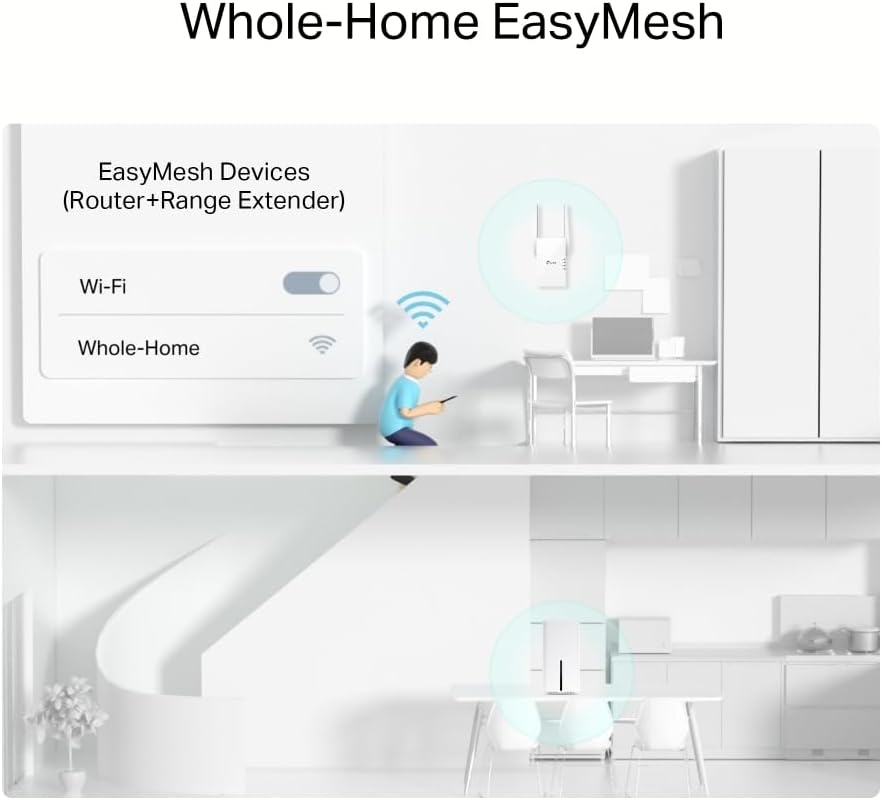
Diagram showing how EasyMesh devices (router + range extender) work together to provide seamless whole-home Wi-Fi coverage.
5.4 Versatile WAN/LAN Port
The 2.5 Gigabit WAN/LAN port allows the NX600 to function as a traditional wireless router, compatible with cable, fiber, and DSL modems, in addition to its 5G capabilities.

Illustration demonstrating the flexibility of the 2.5 Gbps WAN/LAN port, allowing the router to connect to various internet sources like modems or directly to Ethernet WAN.
5.5 Application Scenarios
The plug-and-play nature of the Archer NX600 makes it suitable for various environments where a stable internet connection is needed, including lodging, farms, temporary stores, and holiday homes.

Collage of images depicting various application scenarios for the router's SIM Card Plug & Play feature, such as lodging, farms, temporary stores, and holiday homes.
6. Maintenance
- Firmware Updates: Regularly check for and install firmware updates through the router's web management interface or the Tether app to ensure optimal performance and security.
- Placement: Place the router in a central location, away from obstructions and sources of interference (e.g., microwaves, cordless phones) to maximize Wi-Fi coverage.
- Cleaning: Keep the router clean and free from dust. Use a soft, dry cloth for cleaning. Do not use liquid cleaners.
- Ventilation: Ensure proper ventilation around the router to prevent overheating. Do not cover the ventilation holes.
7. Troubleshooting
7.1 No Internet Connection
- Check if the SIM card is properly inserted and activated.
- Verify that the router's indicators are showing a stable connection.
- Restart the router by unplugging the power adapter, waiting 10 seconds, and plugging it back in.
- Log in to the web management interface or Tether app to check the internet status and settings.
7.2 Weak Wi-Fi Signal
- Relocate the router to a more central position in your home or office.
- Avoid placing the router near large metal objects or electronic devices that may cause interference.
- Consider adding EasyMesh compatible range extenders for larger areas.
7.3 Forgot Login Password
If you forget your router's login password, you can reset the router to factory default settings by pressing and holding the Reset button on the rear panel for about 5-10 seconds until the indicators flash. Note that this will erase all your custom settings.
8. Specifications
| Feature | Detail |
|---|---|
| Brand | TP-Link |
| Model Name | Archer NX600 |
| Wireless Standard | 802.11n, 802.11ax, 802.11ac |
| Frequency | Dual Band (2.4 GHz & 5 GHz) |
| Wi-Fi Speed | AX3600 (2402 Mbps on 5 GHz + 1148 Mbps on 2.4 GHz) |
| Connectivity Technology | 5G, Ethernet, LTE, Fiber Optic Port |
| Compatible Devices | Personal Computer, Laptop, Streaming Device, Tablet, Smartphone |
| Operating System | RouterOS |
| Number of Ports | 3 (1x 2.5G WAN/LAN, 2x 1G LAN) |
| Included Components | Archer NX600, Power Adapter, RJ45 Ethernet Cable, Quick Installation Guide |
| Recommended Uses | Home, Streaming |
| Manufacturer | TP-LINK |
| Country of Origin | China |
| Special Features | Plug & Play, EasyMesh Compatible, 4K-QAM, 8x5G/LTE, 2x Wi-Fi Internal Antennas |
9. Warranty and Support
9.1 Warranty Information
For detailed warranty information, please refer to the warranty card included in your product package or visit the official TP-Link website.
9.2 Technical Support
If you encounter any issues or have questions regarding your TP-Link Archer NX600 router, please visit the TP-Link support website or contact their customer service.
Official TP-Link Support: www.tp-link.com/support/


