
1. Introduction
This user manual provides comprehensive instructions for the setup, operation, maintenance, and troubleshooting of your Acer Nitro 34-inch Curved Gaming Monitor. Please read this manual thoroughly before using your monitor to ensure proper functionality and to maximize your viewing experience.
2. Product Overview
The Acer Nitro 34-inch Curved Gaming Monitor is designed to deliver an immersive visual experience with its Ultra-Wide QHD resolution and 1000R curvature. Key features include:
- Display: 34-inch UWQHD (3440 x 1440) 1000R Curved Widescreen Display
- Refresh Rate: Up to 120Hz for smooth motion
- Response Time: 1ms Visual Response Boost (VRB) to minimize ghosting
- Adaptive Sync: AMD FreeSync Premium technology for tear-free gameplay
- Color: sRGB 99% color saturation for vibrant and accurate colors
- Design: Zero-Frame design for an expansive view
- Audio: Integrated 2 x 3 Watt speakers
- Connectivity: Two DisplayPort 1.2 and two HDMI 2.0 ports
- Ergonomics: Tilt adjustment from -5° to 15°
- Mounting: VESA mounting compliant (100 x 100mm)
Visual Clarity and Immersion

Image: This graphic illustrates the enhanced detail and wider viewing area provided by UWQHD (3440x1440) resolution compared to a standard resolution.

Image: The 1000R curvature of the monitor is shown, emphasizing its immersive design for gaming and viewing.
Video: A user demonstrates the visual quality and immersive curve of the Acer Nitro 34-inch monitor, highlighting its suitability for various content.
3. Package Contents
Verify that all items listed below are included in your package:
- Acer Nitro 34-inch Curved Gaming Monitor
- Monitor Stand (Base and Neck)
- Power Cord
- DisplayPort Cable
- User Manual (this document)
4. Setup
4.1 Attaching the Stand
- Carefully place the monitor face down on a soft, clean surface to prevent scratches.
- Align the stand neck with the mounting slot on the back of the monitor.
- Secure the stand neck to the monitor using the provided screws.
- Attach the stand base to the bottom of the stand neck and tighten the screw.

Image: The back of the monitor with the stand attached, illustrating the assembly points.
4.2 Connecting Cables
- Connect the DisplayPort cable from your computer's graphics card to one of the DisplayPort 1.2 inputs on the monitor. Alternatively, use an HDMI 2.0 cable for HDMI connections.
- Connect the power cord to the monitor's power input and then to a power outlet.
- Press the power button on the monitor to turn it on.

Image: A detailed view of the monitor's input ports, including DisplayPort and HDMI connections.
Video: A user demonstrates the physical setup of the Acer Nitro monitor, including connecting cables and showing the curved display.
5. Adjusting the Monitor
5.1 Tilt Adjustment
The monitor can be tilted from -5° to 15° to achieve an optimal viewing angle. Gently hold both sides of the monitor and adjust it to your desired position.
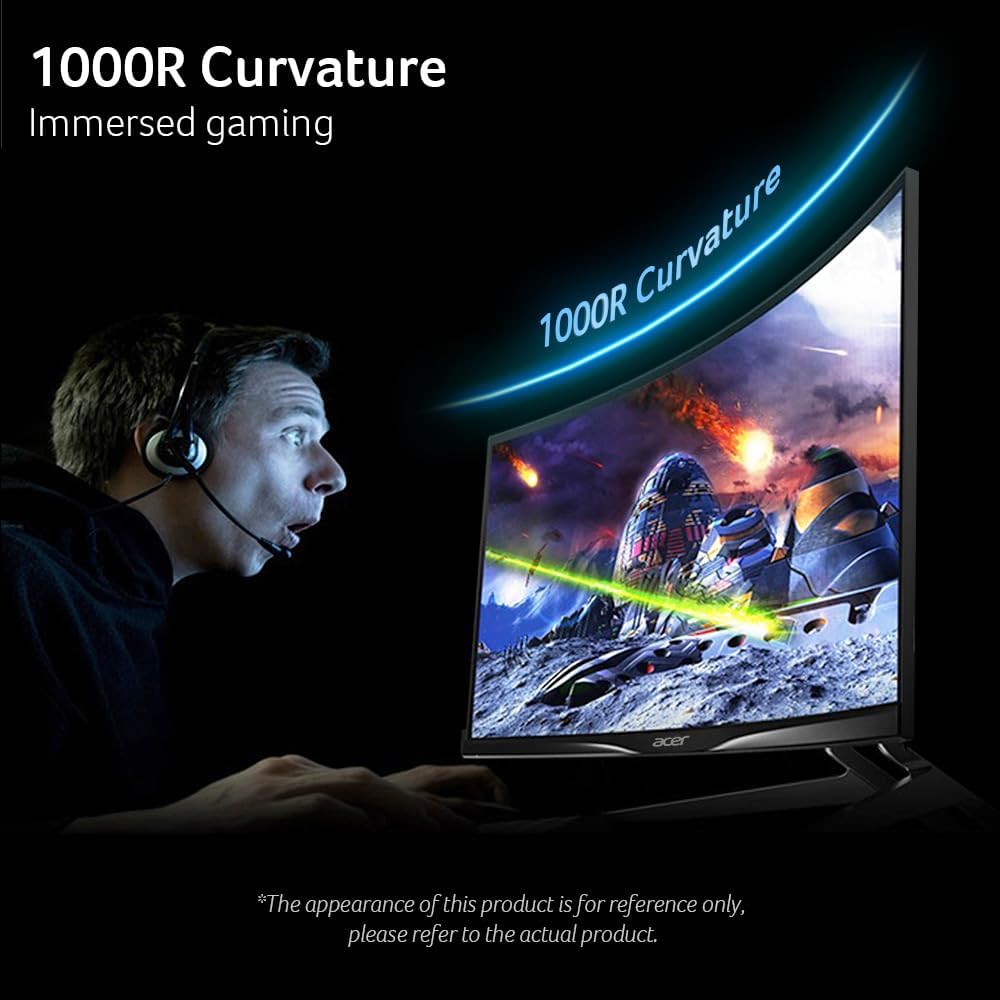
Image: The monitor is shown being tilted on its stand, demonstrating the range of ergonomic adjustment.
5.2 VESA Mounting
This monitor is VESA mounting compliant (100 x 100mm). To mount the monitor on a wall or an adjustable arm, remove the stand and attach the VESA-compatible mount using appropriate screws (not included).
6. Operating the Monitor
6.1 On-Screen Display (OSD) Menu
The OSD menu allows you to adjust various monitor settings. Use the buttons located on the bottom right side of the monitor to navigate and select options.
6.2 Picture Settings
- Brightness: Adjust the overall luminance of the display.
- Contrast: Modify the difference between light and dark areas.
- Low Blue Light: Reduce blue light emission for eye comfort.
- Black Boost: Enhance visibility in dark scenes.
- HDR: Enable High Dynamic Range for improved contrast and color.
- Super Sharpness: Adjust image sharpness.
6.3 Color Settings
- Color Space: Select color profiles, including HDR.
- Grayscale Mode: Display content in black and white.
- G-axis Hue/Saturate: Fine-tune specific color components.
6.4 Gaming Features
- Over Drive: Accelerate pixel response time.
- FreeSync: Enable AMD FreeSync Premium for adaptive refresh rates.
- Refresh Rate Num: Display the current refresh rate.
- VRB (Visual Response Boost): Reduce motion blur.
- Ultra-Low Latency: Minimize input lag.
- Aim Point: Display an on-screen crosshair for improved aiming.

Image: This graphic demonstrates the effect of AMD FreeSync Premium, showing smooth visuals on the Acer monitor compared to a tearing image without it.

Image: An illustration of the 120Hz refresh rate, showing clear motion compared to a lower refresh rate.

Image: A visual comparison highlighting the 1ms VRB (Visual Response Boost) feature, showing reduced blur on the Acer monitor.
Video: This video showcases the immersive experience of the 34-inch curved monitor, ideal for gaming setups.
7. Maintenance
7.1 Care and Cleaning
- Always power off the monitor and unplug the power cord before cleaning.
- Use a soft, lint-free cloth lightly dampened with water or a mild, non-abrasive screen cleaner.
- Avoid using alcohol, ammonia, or abrasive cleaners, as they may damage the screen surface.
- Wipe the screen gently in one direction from top to bottom.
- For the monitor casing, use a soft, dry cloth.
8. Troubleshooting
If you encounter issues with your monitor, refer to the following common problems and solutions:
8.1 No Display / No Signal
- Ensure the power cord is securely connected to the monitor and a working power outlet.
- Verify that the video cable (DisplayPort or HDMI) is firmly connected to both the monitor and your computer.
- Check if the correct input source is selected in the monitor's OSD menu.
- Confirm your computer is powered on and not in sleep mode.
8.2 Image Quality Issues (Blurry, Distorted, Incorrect Colors)
- Adjust the resolution and refresh rate settings on your computer to match the monitor's native resolution (3440 x 1440) and supported refresh rate (up to 120Hz).
- Reset the monitor's OSD settings to factory defaults.
- Check your graphics card drivers for updates.
- Ensure the video cable is not damaged.
8.3 Power Indicator Not On
- Verify the power cord is properly connected.
- Check the power outlet by plugging in another device.
- Press the monitor's power button firmly.
9. Technical Specifications
| Feature | Specification |
|---|---|
| Screen Size | 34 Inches |
| Screen Resolution | 3440 x 1440 (UWQHD) |
| Aspect Ratio | 21:9 |
| Curvature | 1000R |
| Refresh Rate | Up to 120Hz |
| Response Time | 1ms (VRB) |
| Adaptive Sync Technology | AMD FreeSync Premium |
| Color Saturation | sRGB 99% |
| Video Inputs | 2 x DisplayPort 1.2, 2 x HDMI 2.0 |
| Speakers | 2 x 3 Watts |
| Ergonomic Adjustments | Tilt (-5° to 15°) |
| VESA Mount Compatibility | 100 x 100mm |
| Dimensions (LxWxH) | 9.13 x 31.77 x 18.74 inches |
| Item Weight | 21.5 pounds |
| Model Number | EDA343CUR J0bmiippx |
10. Warranty Information and Support
Your Acer Nitro monitor comes with a limited warranty. For detailed warranty terms, technical support, or service inquiries, please visit the official Acer support website or contact Acer customer service. Keep your purchase receipt for warranty validation.
Online Support: www.acer.com/us-en/support


