
Metz 32MTE7000Z
Contents
Metz 32MTE7000Z 32-Inch Portable Smart LED TV User Manual
Model: 32MTE7000Z
1. Important Safety Information
Please read all safety instructions carefully before using your TV. Keep this manual for future reference.
- Power Supply: Ensure the TV is connected to a power source within the specified voltage range. Do not overload power outlets.
- Ventilation: Do not block ventilation openings. Allow adequate space around the TV for proper airflow to prevent overheating.
- Water and Moisture: Do not expose the TV to rain, moisture, or place objects filled with liquids on or near the TV.
- Cleaning: Unplug the TV before cleaning. Use a soft, dry cloth. Do not use liquid cleaners or aerosol cleaners.
- Placement: Place the TV on a stable, level surface. Avoid placing it in direct sunlight or near heat sources.
- Servicing: Do not attempt to service the TV yourself. Refer all servicing to qualified service personnel.
2. Package Contents
Verify that all items listed below are included in your package:
- Metz 32MTE7000Z TV Unit
- Remote Control
- Power Cable
- User Manual (this document)
- TV Bases (2x)
- Adapter
- Screws for Bases

3. TV Overview and Connections
3.1 Front View
The front of the Metz 32MTE7000Z features a boundless screen design and powerful front-facing speakers for an immersive audio-visual experience.

3.2 Rear View and Ports
The rear panel of your TV provides various input and output ports for connecting external devices.
- HDMI (x2): High-Definition Multimedia Interface for connecting devices like Blu-ray players, game consoles, or set-top boxes.
- USB (x2): Universal Serial Bus for connecting USB storage devices to play media or for software updates.
- DVB-S/S2 (x1): Satellite input for connecting to a satellite dish.
- DC IN (x1): Power input for the TV's adapter.
- Digital Audio Out (x1): For connecting to external audio systems with digital input.
- LAN (x1): Ethernet port for a wired internet connection.
- AV (x1): Audio/Video input for older devices using composite cables.
- DVB-T/T2/DVB-C ATV (x1): Antenna input for terrestrial or cable TV signals.
- Headphone (x1): 3.5mm jack for connecting headphones.

4. Setup
4.1 Attaching the Stands
- Carefully place the TV face down on a soft, flat surface to prevent screen damage.
- Align each stand with the corresponding slots on the bottom of the TV.
- Secure the stands using the provided screws. Ensure they are firmly attached.
4.2 Connecting Power
- Connect the power adapter to the 'DC IN' port on the back of the TV.
- Plug the other end of the power adapter into a wall outlet.
4.3 First-Time Power On and Google TV Setup
- Press the power button on the remote control or on the TV itself.
- Follow the on-screen instructions to select your language, country, and connect to your Wi-Fi network.
- Sign in with your Google account to access Google TV features, apps, and personalized recommendations.
- Complete the channel scan for over-the-air or cable broadcasts if applicable.
5. Operating Your TV
5.1 Remote Control
Use the provided remote control to navigate the TV's interface, adjust settings, and access various functions. Familiarize yourself with the buttons for power, volume, channel, input selection, and Google Assistant.
5.2 Google TV Interface
Your Metz TV runs on Google TV, providing a centralized hub for streaming services, live TV, and apps. The interface offers personalized recommendations based on your viewing habits.

5.3 Audio Features: Dolby Audio and DBX-TV
The TV is equipped with advanced audio technologies for a superior sound experience:
- Dolby Audio: Delivers rich, clear, and powerful sound for movies, shows, and music.
- DBX-TV Technology: Enhances audio quality with features like Total Sonics (noise reduction, clearer voices), Total Surround (more immersive sound), and Total Volume (prevents sudden volume changes).
- 2x10W Front Speakers: Powerful front-facing speakers project sound directly towards you for clear and immersive audio without external speakers.


5.4 Display Features: HDR10 and Eye Comfort
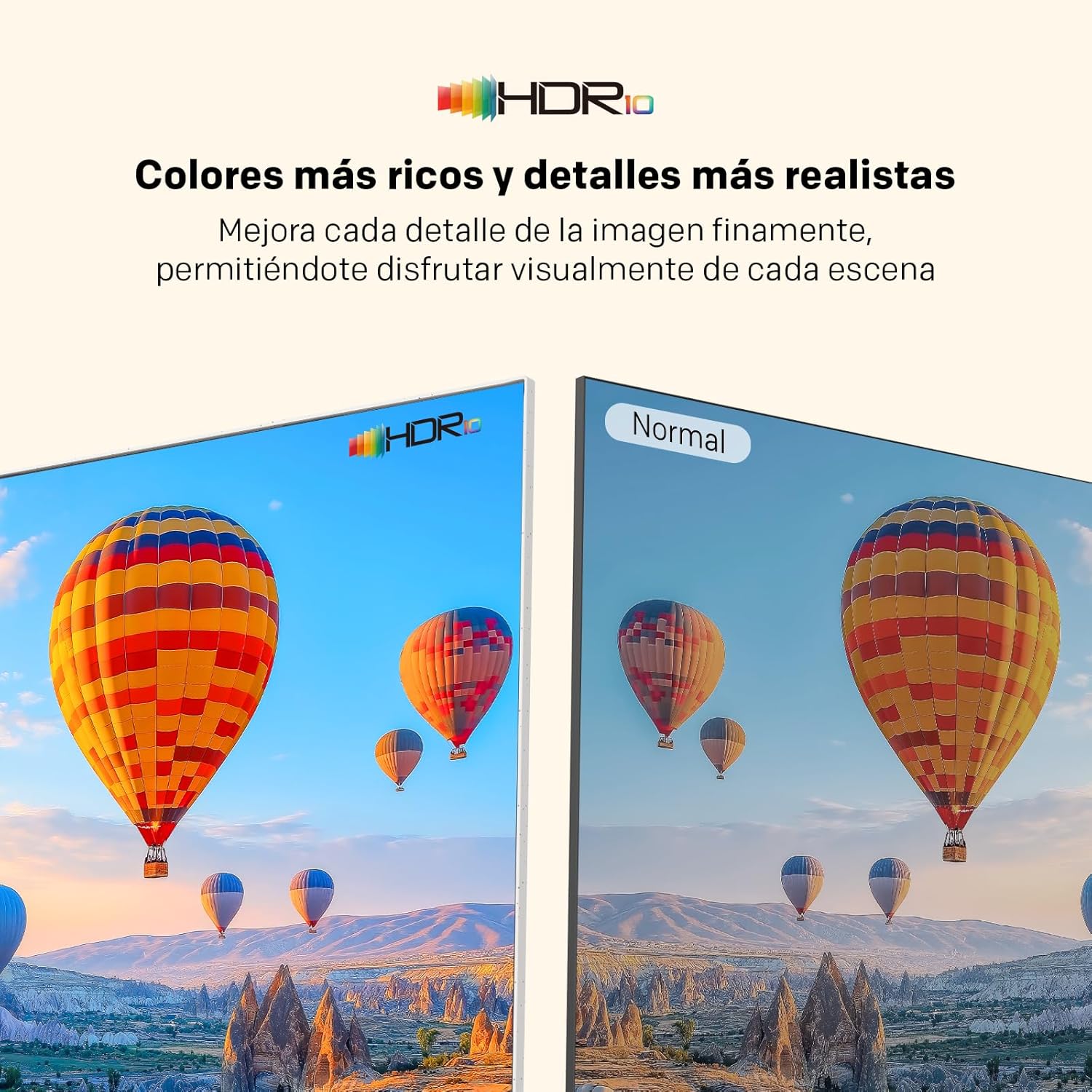
- HDR10: High Dynamic Range 10 provides richer colors and more realistic details, enhancing visual depth and contrast in compatible content.
- Eye Comfort Mode: Reduces harmful blue light and eliminates flicker, providing a more comfortable and safer viewing experience during extended periods.
5.5 Chromecast Built-in
The TV includes Chromecast built-in, allowing you to cast content (videos, music, photos) from your compatible smartphone, tablet, or computer directly to the TV screen.
5.6 Google Assistant
Utilize the integrated Google Assistant by pressing the dedicated button on your remote. Use voice commands to search for content, control smart home devices, get answers, and more.
6. Portable Design Features
The Metz 32MTE7000Z is designed for portability and aesthetic appeal:
- Lightweight: Weighing less than 3 kg, the TV is easy to move between rooms or for outdoor use.
- Integrated Carry Handle: A convenient handle on the top rear of the TV allows for easy transportation.
- Elegant Checkered Back: The rear panel features a stylish checkered pattern, combining modern aesthetics with functionality.
- Versatile White Base: The clean white base complements various interior and exterior settings.


7. Maintenance
7.1 Cleaning the Screen
To clean the screen, first unplug the TV. Gently wipe the screen with a soft, lint-free cloth. For stubborn marks, slightly dampen the cloth with water or a specialized screen cleaner, then wipe dry immediately. Avoid harsh chemicals or abrasive materials.
7.2 General Care
Keep the TV free from dust by regularly wiping the cabinet with a soft, dry cloth. Ensure ventilation openings are clear. Do not place heavy objects on the TV or expose it to extreme temperatures.
8. Troubleshooting
If you encounter issues with your TV, refer to the following common problems and solutions:
- No Power:
- Check if the power cable is securely connected to the TV and the wall outlet.
- Ensure the wall outlet is functioning by plugging in another device.
- Try pressing the power button on the TV itself, not just the remote.
- No Picture, But Sound is Present:
- Check the input source. Press the 'Input' button on your remote to cycle through sources.
- Ensure external devices (e.g., cable box, game console) are powered on and connected correctly.
- No Sound, But Picture is Present:
- Increase the volume using the remote control.
- Check if the TV is muted. Press the 'Mute' button on the remote.
- Verify audio settings in the TV menu.
- Remote Control Not Working:
- Replace the batteries in the remote control.
- Ensure there are no obstructions between the remote and the TV's IR sensor.
- Point the remote directly at the TV.
- Network Connection Issues:
- Restart your Wi-Fi router.
- Check network settings on the TV to ensure correct Wi-Fi password or wired connection.
- Try connecting to a different Wi-Fi network if available.
9. Specifications
Detailed technical specifications for the Metz 32MTE7000Z TV:
| Feature | Specification |
|---|---|
| Screen Size | 32 Inches |
| Brand | Metz |
| Display Technology | LED |
| Resolution | 768p |
| Refresh Rate | 60 Hz |
| Special Features | Auto Volume Leveller, Chromecast, Bezel-less Design, Eye Comfort Mode |
| Included Components | Remote Control, Cable, Manual, Bases |
| Connectivity Technology | Bluetooth, USB, Wi-Fi |
| Aspect Ratio | 16:9 |
| Product Dimensions (DxWxH) | 13.9 x 71.9 x 47 cm |

10. Warranty and Customer Support
Your Metz 32MTE7000Z TV comes with a standard manufacturer's warranty. Please refer to the warranty card included in your package for specific terms and conditions, including the warranty period and coverage details.
For technical assistance, troubleshooting beyond this manual, or warranty claims, please contact Metz customer support. Contact information can typically be found on the Metz official website or on your warranty documentation.
Documents and downloads
Ask a question about this manual
Ask about setup, troubleshooting, compatibility, parts, safety, or missing instructions. Manuals+ will review the question and use this page’s manual context to help answer it.