
1. Introduction
Thank you for choosing the CHIQ L32FM9E 32-inch FHD Smart Google TV. This manual provides essential information for setting up, operating, and maintaining your new television. Please read it thoroughly before using the product to ensure safe and optimal performance.

Front view of the CHIQ L32FM9E 32-inch FHD Smart Google TV, highlighting its Google TV, HDR10, and frameless design features.

An infographic showcasing the main features of the CHIQ M9 Smart Google TV, such as Full HD resolution, HDR10 support, Dolby Audio, a powerful Quad-core A55 processor, and dual-band Wi-Fi connectivity.
2. Safety Information
Always follow basic safety precautions when using this television to reduce the risk of fire, electric shock, and injury.
- Do not expose the TV to rain or moisture.
- Do not block ventilation openings.
- Do not place the TV on an unstable cart, stand, tripod, bracket, or table.
- Protect the power cord from being walked on or pinched.
- Unplug the TV during lightning storms or when unused for long periods.
- Refer all servicing to qualified service personnel.
3. What's in the Box
Carefully unpack your television and ensure all items are present:
- User Manual
- Stand
- Remote Control
- Power Cord
- Screws for Stand Installation
4. Setup
4.1 Physical Setup
Your CHIQ TV can be set up using the included stand or mounted on a wall (wall mount sold separately).
Stand Installation:
- Carefully place the TV face-down on a soft, flat surface to prevent screen damage.
- Attach the stand bases to the bottom of the TV, aligning the screw holes.
- Secure the stand bases with the provided screws.
Wall Mounting:
For wall mounting, please refer to the instructions provided with your wall mount bracket. Ensure the VESA mounting pattern (MIS-F, 20 x 20 cm) is compatible.
4.2 Connecting Peripherals
Connect your external devices to the appropriate ports on the back or side of the TV.

This image displays the various input and output ports available on the CHIQ TV, including USB 2.0, two HDMI 1.4 ports, an AV input, and two RF inputs for antenna or satellite connections.
- HDMI: Connect Blu-ray players, game consoles, or set-top boxes. (2 ports available)
- USB: Connect USB drives for media playback. (1 port available)
- AV IN (mini AV): Connect older devices using an AV adapter.
- RF: Connect an antenna or cable for broadcast TV. (2 ports available)
- Wi-Fi: Connect to your home wireless network for Smart TV features.
4.3 Initial Power On & Setup Wizard
After connecting all necessary cables, plug the power cord into an electrical outlet. The TV will power on and guide you through the initial setup wizard, including language selection, network connection, and channel scanning.
5. Operating Your TV
5.1 Remote Control Overview
The included remote control allows you to navigate the TV's features. Familiarize yourself with its buttons for power, volume, channel, navigation, and dedicated app buttons.
5.2 Google TV Interface Navigation
Your CHIQ TV runs on Google TV, providing a personalized and intuitive user experience.
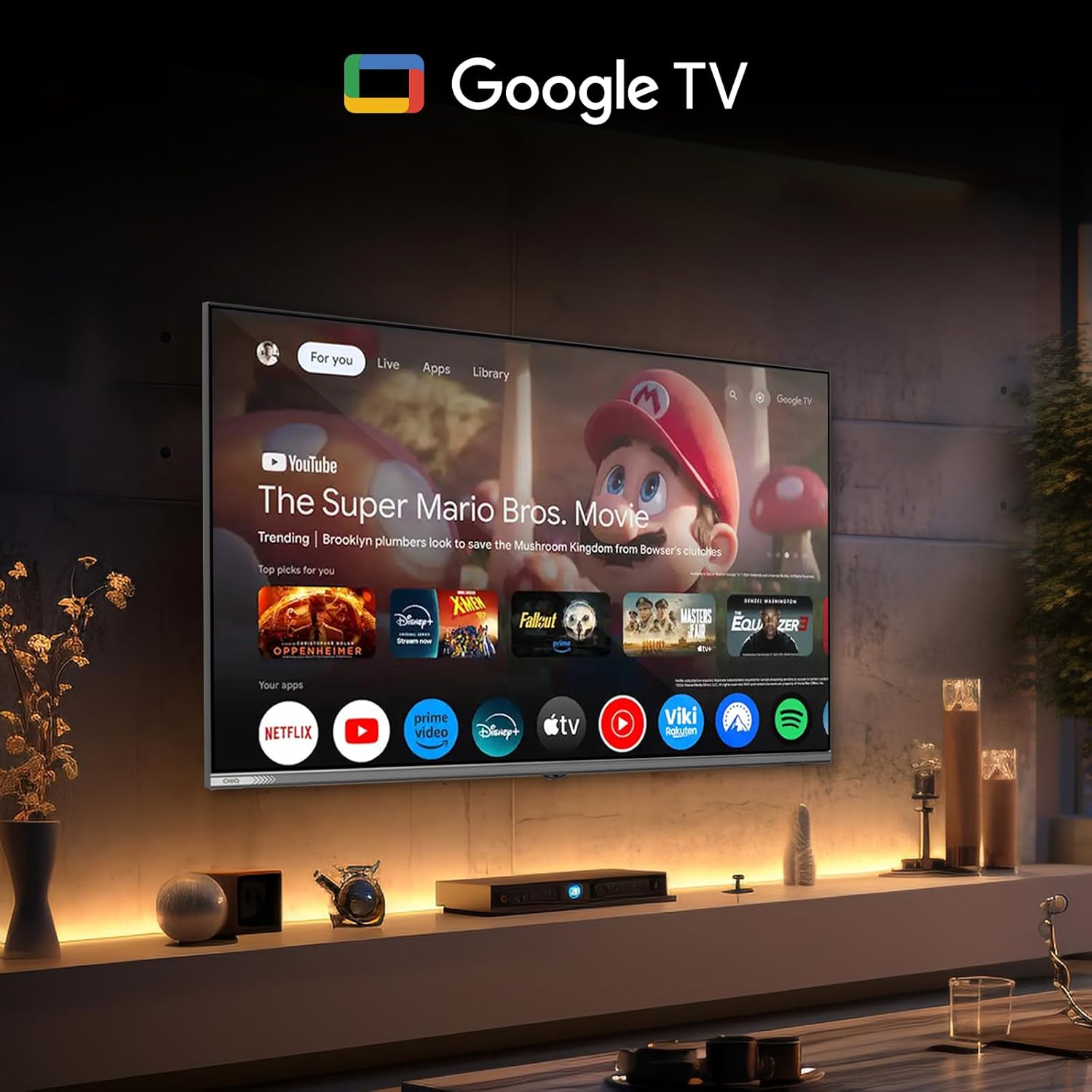
The CHIQ TV screen showing the intuitive Google TV interface, providing easy access to a wide range of streaming applications and personalized content recommendations.
- Use the directional pad on your remote to navigate through menus and content.
- The home screen provides quick access to your favorite apps, personalized recommendations, and live TV.
5.3 Accessing Streaming Applications
Easily access popular streaming services like YouTube, Netflix, and Disney+ directly from the Google TV home screen. You can also download more apps from the Google Play Store.
5.4 Using Google Assistant
The integrated Google Assistant allows for convenient voice control of your TV and smart home devices.

A person using the integrated Google Assistant on the CHIQ TV, demonstrating voice commands for tasks such as checking the weather, searching for movies, and adjusting the volume.
- Press the Google Assistant button on your remote.
- Speak clearly into the remote's microphone to issue commands, such as "What's the weather today?" or "Open Netflix."
5.5 Chromecast Built-in
Mirror content from your compatible mobile devices directly to your TV screen using Chromecast built-in.

This image demonstrates the Chromecast built-in functionality, allowing users to easily cast content from their mobile devices to the larger TV screen with a single touch.
- Ensure your mobile device and TV are connected to the same Wi-Fi network.
- Open a Chromecast-enabled app on your mobile device and tap the Cast icon.
- Select your CHIQ TV from the list of available devices.
5.6 Picture Settings
Optimize your viewing experience with various picture settings.

A visual comparison demonstrating the superior clarity and detail offered by Full HD (1920x1080) resolution compared to standard HD (1280x720), illustrating how FHD doubles the pixel count for a sharper image.
- FHD (Full HD): Enjoy crisp and detailed images with 1920x1080 resolution.
- HDR10: Experience enhanced contrast and vibrant colors with HDR10 technology.
- Dynamic Noise Reduction (DNR): This feature helps reduce visual noise for clearer images.

A side-by-side comparison demonstrating the effectiveness of Dynamic Noise Reduction (DNR) technology, which reduces visual noise for clearer and more impeccable images.
5.7 Audio Settings
Customize your audio experience with Dolby Audio and dbx-tv technologies.
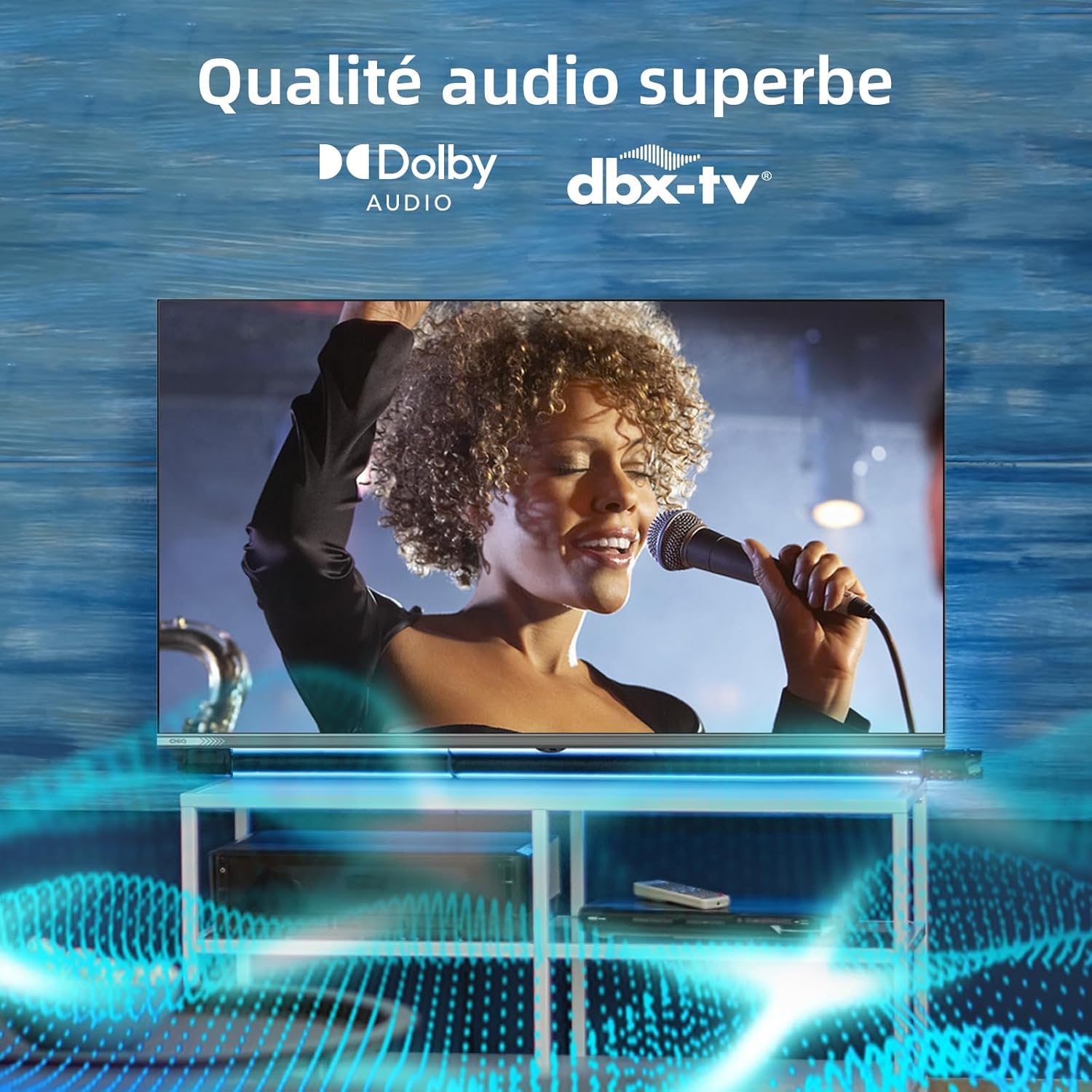
A visual representation emphasizing the superior sound quality delivered by Dolby Audio and dbx-tv technologies, providing clear and rich audio for an immersive entertainment experience.
- Access the audio settings menu to adjust bass, treble, and select sound modes.
- Enable Dolby Audio and dbx-tv for enhanced sound clarity and depth.
5.8 Control from Phone
You can also control your CHIQ TV using a compatible smartphone application.

An image showing a smartphone screen with a remote control application, illustrating how the CHIQ TV can be conveniently controlled using a mobile phone, simplifying various actions.
6. Maintenance
6.1 Cleaning Your TV
- Always unplug the TV before cleaning.
- Use a soft, dry cloth to wipe the screen and cabinet.
- For stubborn marks, lightly dampen the cloth with water or a mild, non-abrasive cleaner specifically designed for electronics.
- Do not spray cleaner directly onto the screen.
6.2 Software Updates
Your TV may receive software updates periodically to improve performance and add new features. Ensure your TV is connected to the internet to receive these updates automatically or check for them manually in the settings menu.
7. Troubleshooting
If you encounter issues with your TV, refer to the following common solutions:
| Problem | Possible Solution |
|---|---|
| No Power | Check if the power cord is securely plugged into the TV and the wall outlet. Try a different outlet. |
| No Picture, but Sound is Present | Ensure the correct input source is selected. Check cable connections to external devices. |
| No Sound, but Picture is Present | Check volume level and mute status. Verify audio cable connections. Check TV audio output settings. |
| Remote Control Not Working | Replace batteries. Ensure no obstructions between remote and TV. Point remote directly at the TV's IR sensor. |
| Cannot Connect to Wi-Fi | Check Wi-Fi password. Restart your router. Ensure TV is within Wi-Fi range. |
| Smart TV Apps Not Loading | Check internet connection. Restart the TV. Clear app cache or reinstall the app. |
If the problem persists, please contact customer support.
8. Specifications
Detailed technical specifications for the CHIQ L32FM9E TV:

This image provides precise dimensions of the CHIQ L32FM9E television, both with and without its stand, alongside an illustration of the included remote control and a table detailing technical specifications like resolution, refresh rate, and memory.
| Feature | Specification |
|---|---|
| Brand | CHIQ |
| Model Number | L32FM9E |
| Screen Size | 32 Inches (80 cm) |
| Display Technology | LED |
| Resolution | 1080p Full HD (1920x1080) |
| Refresh Rate | 60 Hz |
| Operating System | Google TV |
| HDR Support | HDR10 & HLG |
| Audio Technology | Dolby Audio, dbx-tv |
| Tuner Type | DVB-C/T/T2/S/S2 Triple Tuner |
| Connectivity | 2x HDMI, 1x USB, Wi-Fi (Dual Band), AV In, RF |
| Special Features | Google Assistant, Built-in Chromecast, Frameless Metal Design |
| Dimensions (with stand) | 718 x 199.6 x 448.5 mm |
| Dimensions (without stand) | 718 x 84.2 x 421.6 mm |
| Weight | 3.7 kg |
| VESA Mounting | MIS-F, 20 x 20 cm |
8.1 Energy Efficiency

The official EU energy label for the CHIQ L32FM9E television, indicating its energy efficiency class F and an energy consumption of 27 kWh per 1000 hours. For more details, visit eprel.ec.europa.eu/qr/2178041.

A comprehensive product information sheet providing detailed technical specifications such as screen size (32 inches / 82 cm), resolution (1920x1080 pixels), and energy consumption data. For more details, visit eprel.ec.europa.eu/qr/2178041.
8.2 Durability Information

A detailed calculation sheet for the durability index of a television, outlining various criteria related to reliability and repairability, including resistance to external constraints, maintenance, and availability of spare parts.
9. Warranty and Support
Your CHIQ L32FM9E TV comes with a 2-year manufacturer's warranty. This warranty covers defects in materials and workmanship under normal use.
For technical support, warranty claims, or service inquiries, please contact CHIQ customer service through their official website or the contact information provided in your product packaging.
Please retain your proof of purchase for warranty purposes.


