
podofo 0185eb7d-e77e-453f-8c77-59fdddc93796
Podofo 10.1-Inch Android 13.0 Car Radio User Manual for Skoda Octavia (2004-2014)
Model: 0185eb7d-e77e-453f-8c77-59fdddc93796
Introduction
This manual provides detailed instructions for the installation, operation, and maintenance of your Podofo 10.1-inch Android 13.0 Car Radio. Designed specifically for Skoda Octavia models from 2004 to 2014, this unit offers advanced features including wireless CarPlay, Android Auto, DSP audio processing, GPS navigation, and a rear-view camera input. Please read this manual thoroughly before installation and use to ensure proper function and safety.
Compatibility Notice
This car radio is compatible with Skoda Octavia models manufactured between 2004 and 2014. It is crucial to confirm compatibility with your vehicle's dashboard before purchase and installation. If you are unsure, please consult with a professional or contact customer support with a photo of your dashboard for assistance.

Image: Compatibility check for Skoda Octavia dashboards. Image A shows a compatible dashboard, while Image B shows an incompatible one. Always verify your vehicle's dashboard layout.
Package Contents
Before beginning installation, please verify that all items listed below are present in your package:
- 1 x Car Radio (including frame)
- 1 x Rear Camera
- 1 x Canbus Decoder
- 2 x Power Cables (two types)
- 1 x GPS Antenna
- 1 x Rear Camera Input Cable
- 1 x External Microphone
- 1 x RCA Cable
- 2 x USB Cables
- 1 x Installation Tools set
- 1 x English Version Manual
- Installation Accessories
Setup and Installation
Professional installation is highly recommended. Incorrect wiring or installation can damage the unit or your vehicle. Refer to the included wiring diagrams for specific connections.
General Installation Steps:
- Preparation: Disconnect the vehicle's battery before starting any electrical work.
- Remove Old Unit: Carefully remove the existing car radio and dashboard trim.
- Mounting the Frame: Install the provided frame into the dashboard opening.
- Wiring Connections:
- Connect the main power cables (ensure correct polarity).
- Connect the Canbus decoder to integrate with vehicle controls.
- Attach the GPS antenna, positioning it for optimal signal reception.
- Connect the rear camera input cable and install the rear camera (refer to camera-specific instructions).
- Connect the external microphone for improved call quality.
- Connect RCA cables for external amplifiers or other audio/video devices if applicable.
- Connect USB cables for external storage or device charging.
- Test Connections: Before fully securing the unit, reconnect the battery and perform a basic function test (power on, audio, touch screen response).
- Secure the Unit: Carefully slide the new car radio into the frame and secure it. Reinstall any removed dashboard trim.
- Final Checks: Verify all functions, including radio, navigation, Bluetooth, and camera.
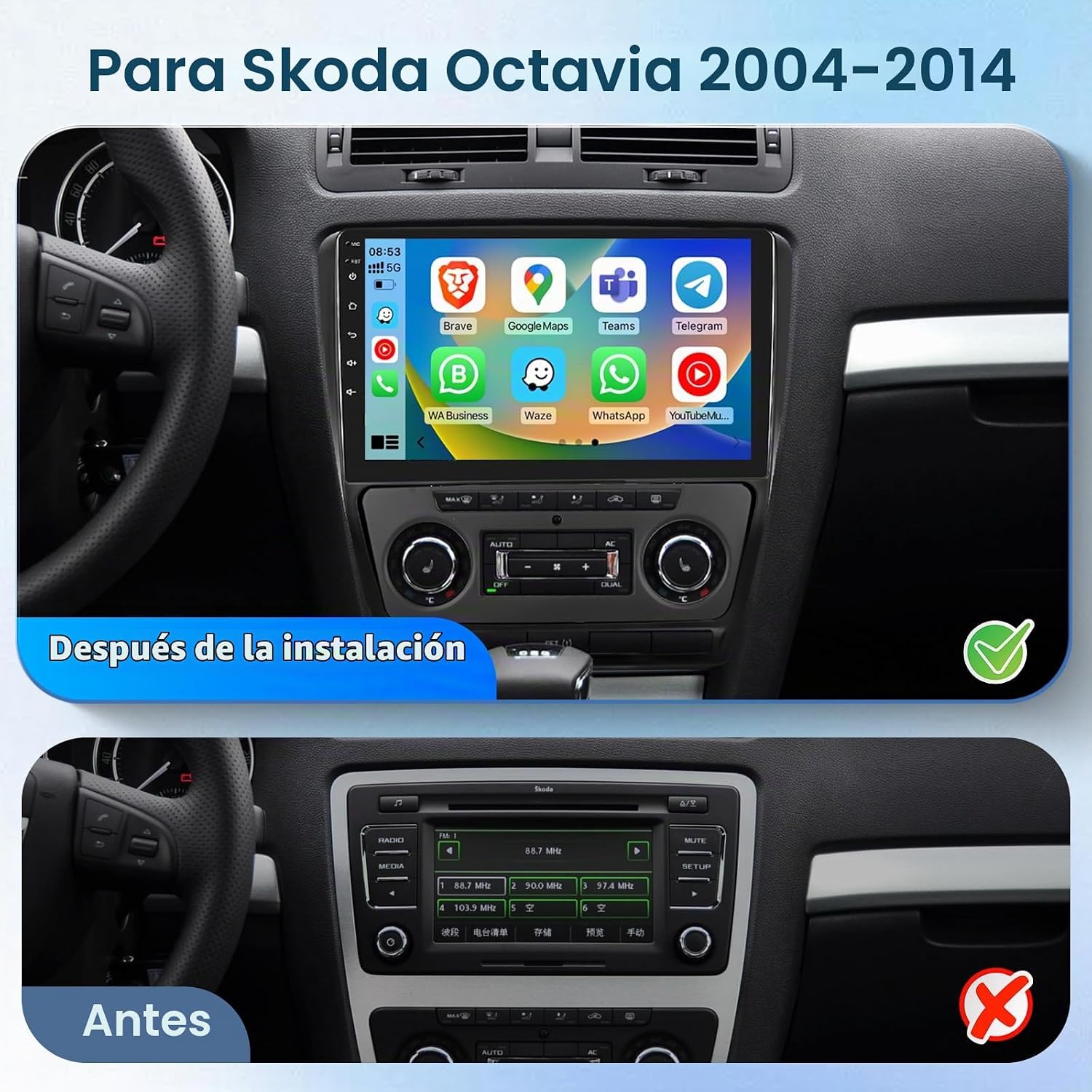
Image: Visual comparison of the car dashboard before and after the Podofo car radio installation, highlighting the integrated appearance.
Operating Instructions
Your Podofo car radio runs on Android 13.0, offering a user-friendly interface and access to various applications.
1. System Overview

Image: The 2.5D glass screen with Android 13 interface, showcasing the system's 2GB RAM and 64GB ROM for smooth operation and ample storage.
- Operating System: Android 13.0
- Memory: 2GB RAM + 64GB ROM
- Display: 10.1-inch 1024*600 pixel touchscreen with 2.5D glass.
2. Smart Connectivity (Wireless CarPlay & Android Auto, Mirror Link)
Connect your smartphone for enhanced functionality and entertainment.

Image: Demonstrates wireless CarPlay and Android Auto integration, allowing seamless access to phone apps. Also shows Mirror Link, duplicating the phone screen onto the car radio display.
- Wireless CarPlay & Android Auto: Connect your iOS or Android smartphone wirelessly to access navigation, music, calls, and messages directly from the car radio display.
- Mirror Link: Duplicate your smartphone's screen onto the car radio display, allowing you to view phone content on the larger screen.
3. Bluetooth & WiFi/Hotspot
Stay connected and entertained with integrated wireless features.

Image: Illustrates the WiFi/Hotspot capability for online video streaming and web browsing, alongside Bluetooth functionality for hands-free calling and wireless music playback.
- Bluetooth: Pair your phone for hands-free calling and wireless audio streaming.
- WiFi/Hotspot: Connect to a WiFi network or your phone's hotspot to access online content, stream videos, and browse the web.
4. Radio FM/RDS & GPS Navigation
Enjoy your favorite radio stations and navigate with ease.

Image: Displays the Radio RDS FM interface, allowing selection of radio stations within the 87.5-108 MHz range. Also shows GPS navigation with both online and offline map capabilities.
- FM/RDS Radio: Tune into FM radio stations (87.5-108 MHz) with RDS (Radio Data System) for station information. Save up to 6 channels.
- GPS Navigation: Utilize the built-in GPS module for online and offline navigation. Online maps require an internet connection for initial data download. You can also use your preferred map application.
5. DSP Audio Setup
Customize your audio experience with the Digital Signal Processor (DSP).

Image: The DSP audio setup screen, featuring a graphic equalizer and sound balance controls to fine-tune audio output for an optimized listening experience.
- The DSP technology precisely processes audio signals, allowing you to optimize each frequency band to match your listening preferences. Adjust equalizer settings and sound balance for a personalized sound.
6. Steering Wheel Control & Split Screen
Enhance convenience and multitasking capabilities.

Image: Illustrates the integration with steering wheel controls for safe operation. Also shows the split-screen feature, allowing simultaneous display of navigation and media playback or web browsing.
- Steering Wheel Control: Control essential functions of the car radio directly from your vehicle's steering wheel buttons for safer driving.
- Split Screen: Use two applications simultaneously on the 10.1-inch display, for example, navigation on one side and music or a web browser on the other.
7. Rear Camera
- The included HD 1280x720 pixel rear camera features IP67 waterproofing and excellent night vision. It provides a clear view when reversing, complete with a reverse grid line for assistance. The display automatically switches to the camera view when reverse gear is engaged.
Maintenance
- Screen Cleaning: Use a soft, lint-free cloth to clean the touchscreen. Do not use abrasive cleaners or solvents.
- Software Updates: Periodically check for software updates to ensure optimal performance and access to new features. Updates can typically be found on the manufacturer's website or through the device's settings if an internet connection is available.
- General Care: Avoid exposing the unit to extreme temperatures, direct sunlight for prolonged periods, or excessive moisture.
Troubleshooting
If you encounter issues with your car radio, refer to the following common solutions:
- Unit Does Not Power On:
- Check all power connections and fuses.
- Ensure the vehicle's battery is properly connected and charged.
- No Sound:
- Verify speaker connections.
- Check volume levels on the unit and any connected devices.
- Ensure the mute function is not active.
- Rear Camera Not Displaying Image:
- Confirm the rear camera input cable is securely connected to the unit.
- Check the camera's power supply and video signal cable connections.
- Ensure the reverse trigger wire is correctly connected to the vehicle's reverse light circuit.
- Screen Freezes or Shuts Off Unexpectedly:
- Perform a soft reset by pressing the reset button (if available) or by disconnecting and reconnecting the car battery.
- Ensure adequate ventilation around the unit to prevent overheating.
- If the issue persists, it may indicate a power supply problem or a software glitch. Contact customer support.
- Bluetooth Connectivity Issues:
- Ensure Bluetooth is enabled on both the car radio and your smartphone.
- Delete previous pairings and attempt to re-pair the devices.
- Move the phone closer to the unit to rule out signal interference.
- GPS Signal Loss or Inaccuracy:
- Ensure the GPS antenna is properly installed and has a clear view of the sky.
- Check for any obstructions that might block the GPS signal.
- Verify that your map application is up to date.
Specifications
| Feature | Detail |
|---|---|
| System | Android 13.0 |
| Screen Size | 10.1 inches |
| Storage | 2GB RAM + 64GB ROM |
| Screen Resolution | 1024*600 pixels |
| Output Power | 4*45W (max) |
| Working Temperature | -20℃ to 75℃ |
| Radio | FM/RDS (87.5-108 MHz) |
| GPS | Online and Offline (initial download required for offline) |
| USB | Dual USB interface |
| Audio Formats | APE/FLAC/WAV/MP3/WMA etc. |
| Video Formats | MKV/RMVB/AVI/MP4/MDV etc. |
| Image Formats | PNG/JPEG/JPG/GIF/WBMP/BNP etc. |
| Factory Settings Password | 000000 |
| Supported Languages | Chinese, English, French, Italian, Korean, Japanese, Arabic, Spanish, Portuguese, Russian, Turkish, Vietnamese, Hebrew, Polish, German, etc. |
| Dimensions | 7 x 27.7 x 26.5 cm (D x W x H) |
| Weight | 1.35 kg |
| Connectivity Technology | Bluetooth, Ethernet, USB, Wi-Fi |
| Control Method | Touch |
| Special Features | GPS Navigation, Rear Camera Input, DSP Audio, Wireless CarPlay, Android Auto, Mirror Link, Split Screen, Steering Wheel Control |
Warranty and Support
Podofo products are designed for reliability and performance. For warranty information, please refer to the terms and conditions provided at the time of purchase or contact the seller directly.
Customer Support:
If you require technical assistance, have questions about installation, or need to report an issue, please contact the seller, Podofo, through the platform where you made your purchase. Typically, this involves:
- Navigate to the product details page.
- Click on the seller's name, "Podofo".
- Select the option to "Ask a Question" or "Send a Message to the Seller".

Image: Visual guide on how to contact Podofo customer support via the e-commerce platform, by clicking the seller's name and then the 'Ask a Question' button.
Related documents0185eb7d-e77e-453f-8c77-59fdddc93796


Ask a question about this manual
Ask about setup, troubleshooting, compatibility, parts, safety, or missing instructions. Manuals+ will review the question and use this page’s manual context to help answer it.