
Machenike G1 Pro
Machenike G1 Pro 1000Hz Wireless Gaming Controller
User Manual
Model: G1 Pro | Brand: Machenike
1. Introduction
The Machenike G1 Pro is a high-performance wireless gaming controller designed for precision and versatility across multiple platforms. Featuring advanced TMR (Tunnel Magnetoresistance) joysticks and triggers, it offers exceptional accuracy and durability. This manual provides detailed instructions for setting up, operating, and maintaining your G1 Pro controller.
Key Features:
- Dual TMR Triggers: 255 levels of 1mm millisecond accuracy for stable, linear output.
- Dual TMR Joysticks: Zero-drift performance with 10-bit ADC sampling and 0.08ms response time, customizable circular/square gate options.
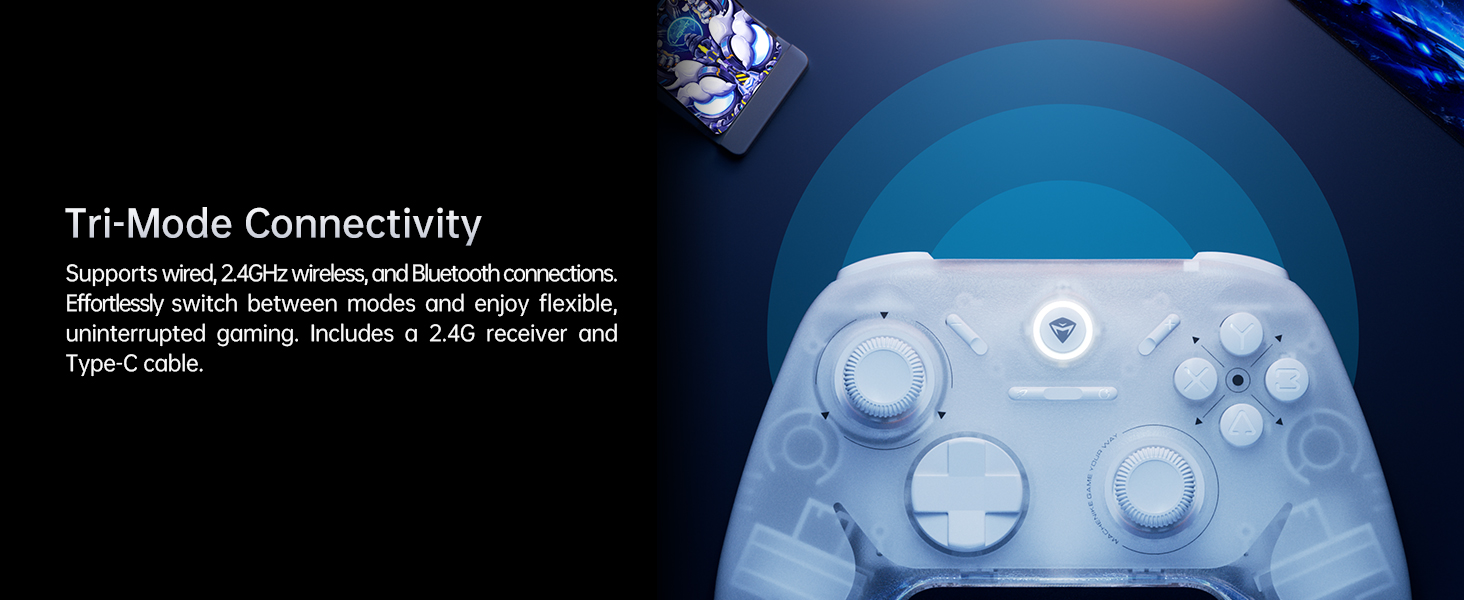
- Tri-Mode Connectivity: Supports wired (USB 2.0), 2.4GHz wireless, and Bluetooth connections.
- Long Battery Life: 600mAh Li-Ion battery provides up to 8 hours of gaming.
- Ergonomic Design: Asymmetrical grip and contoured joysticks for extended comfort.
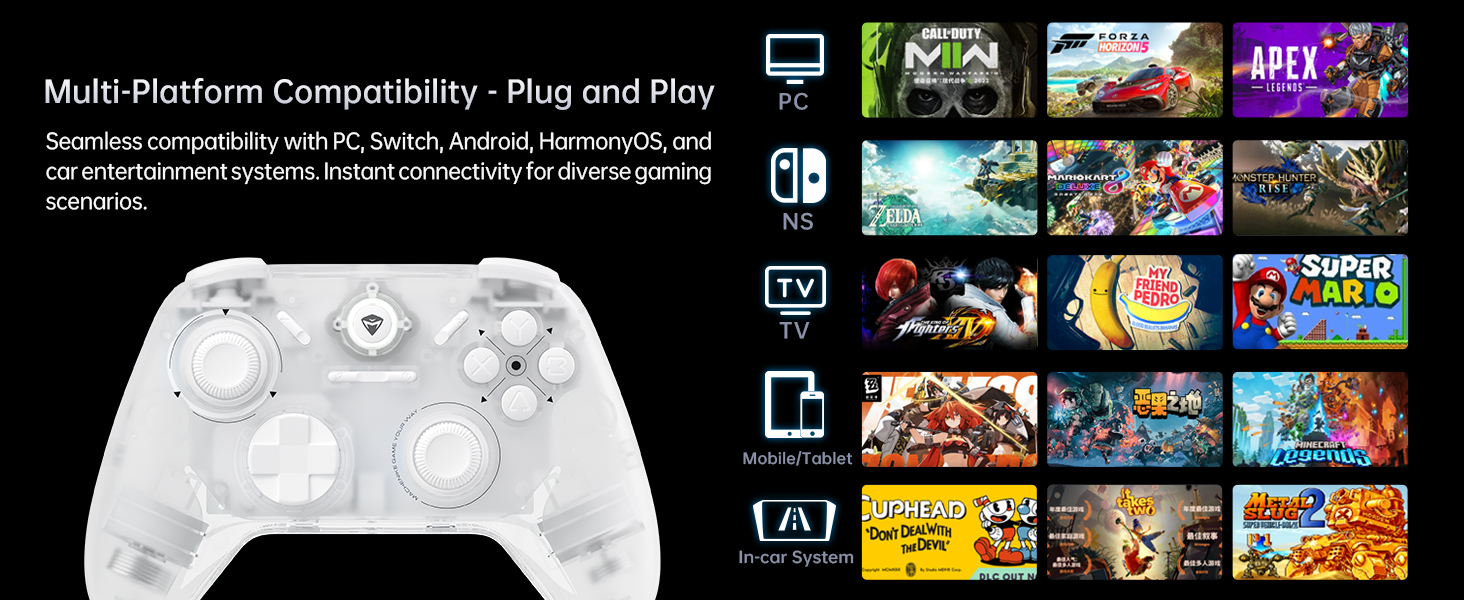
- Multi-Platform Compatibility: Seamlessly works with PC, Windows, Android, iOS, and Nintendo Switch.
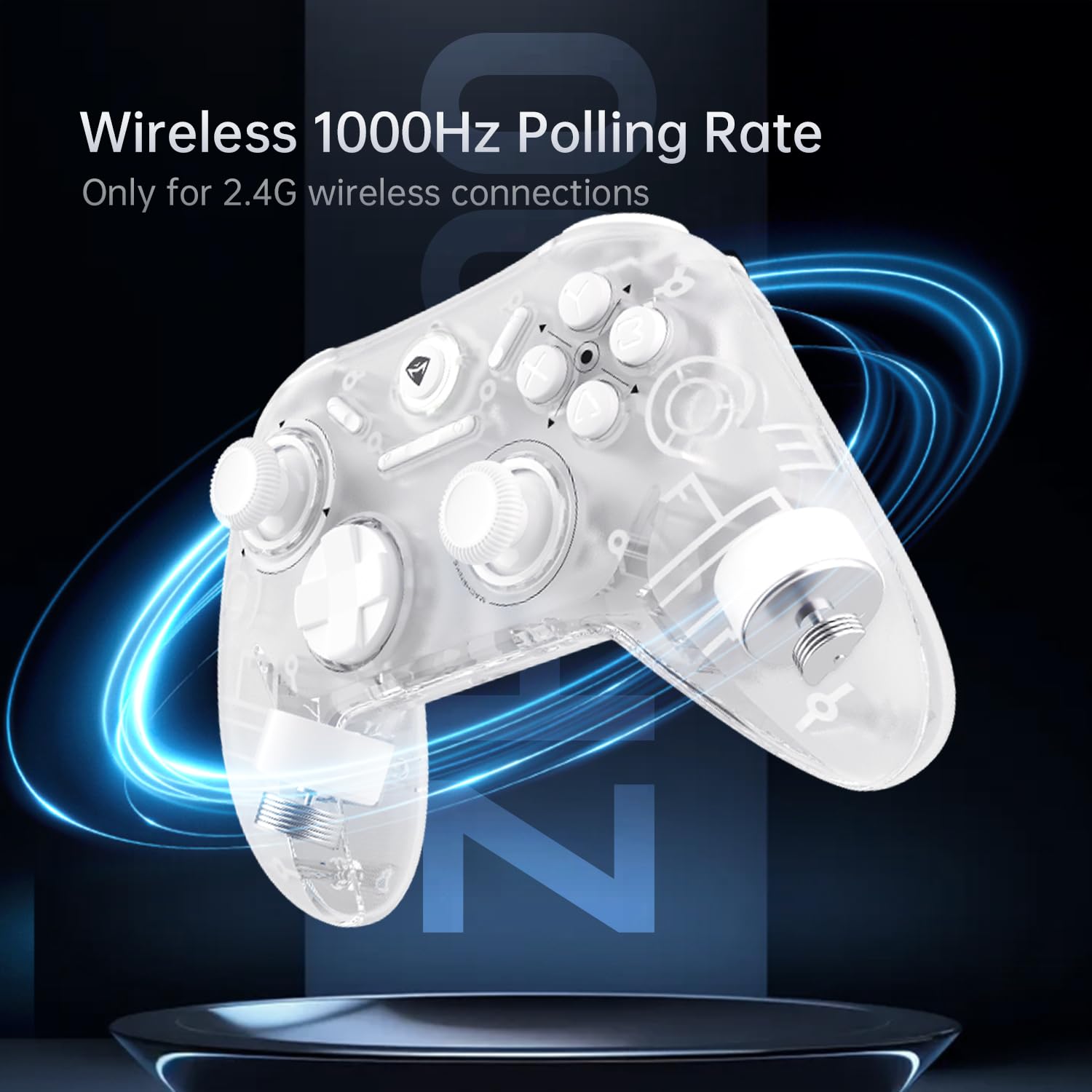
- 1000Hz Polling Rate: Achieves ultra-low latency for responsive gameplay (2.4G wireless and wired).
2. Package Contents
Please verify that all items are present in your package:
- Machenike G1 Pro Wireless Gaming Controller
- 2.4GHz USB Receiver
- USB-C to USB-A Charging/Data Cable (2m)
- User Manual (this document)

3. Setup
3.1 Charging the Controller
Before first use, fully charge the controller. Connect the USB-C end of the provided cable to the controller's USB-C port and the USB-A end to a USB power source (e.g., PC, wall adapter). The indicator light will show charging status and turn off when fully charged.
3.2 Wired Connection (PC/Windows)
Connect the controller directly to your PC using the provided USB-C to USB-A cable. The controller will be automatically recognized by your system. This mode supports a 1000Hz polling rate for ultra-low latency.
3.3 2.4GHz Wireless Connection (PC/Windows)
- Insert the 2.4GHz USB receiver into an available USB port on your PC.
- Turn on the controller. It will automatically connect to the receiver.
- This mode also supports a 1000Hz polling rate for optimal wireless performance.
3.4 Bluetooth Connection (Android/iOS/Switch)
- Ensure the controller is powered off.
- Press and hold the Bluetooth pairing button (refer to controller diagram in Operating Instructions) until the indicator light flashes rapidly.
- On your device (Android, iOS, or Switch), go to Bluetooth settings and select "Machenike G1 Pro" from the list of available devices to pair.
- Once paired, the indicator light will become solid.
4. Operating Instructions
4.1 Button Layout and Functions
The Machenike G1 Pro features a standard gaming controller layout with additional advanced components.
- TMR Joysticks: Left and Right analog sticks for precise 360-degree movement.
- D-Pad: Directional pad for digital input.
- ABXY Buttons: Standard action buttons.
- Shoulder Buttons (LB, RB): Top-mounted buttons.
- TMR Triggers (LT, RT): Analog triggers with precise pressure detection.
- Function Button: Used for special commands and mode switching.
- Home Button: Central button for system functions.
4.2 TMR Joysticks and Triggers
The G1 Pro utilizes advanced TMR (Tunnel Magnetoresistance) technology for its joysticks and triggers. This provides superior accuracy, eliminates drift, and offers a more consistent and linear response compared to traditional Hall effect sensors.


4.3 Dual Vibration Motors
The controller is equipped with asymmetric rotor motors that provide immersive vibration feedback, synchronized with in-game events for a realistic gaming experience.

4.4 Multi-Platform Compatibility
The G1 Pro controller offers broad compatibility:
- PC/Windows: Connect via wired USB or 2.4GHz wireless receiver.
- Nintendo Switch: Connect via Bluetooth. Note that button legends on the controller are standard ABXY, while Switch uses BAYX. The controller supports remapping for Switch compatibility (refer to advanced settings).
- Android/iOS: Connect via Bluetooth.
4.5 Customization with Keylinker 2.0 App
Personalize your gaming experience using the Keylinker 2.0 App. This application allows for fine-tuning various controller settings:
- Button Settings (remapping)
- Vibration Intensity adjustment
- Joystick Sensitivity calibration
- Trigger Functionality adjustment
- Turbo Functions setup
- Controller Testing
Download the Keylinker 2.0 App from the official Machenike website or your device's app store.

4.6 Polling Rate
The G1 Pro supports a 1000Hz polling rate for wired and 2.4GHz wireless connections, ensuring minimal input lag. Bluetooth connections operate at 125Hz.
4.7 Cooperative Play (Dual-Core Receiver)
The 2.4G receiver supports simultaneous connection with two controllers, enabling cooperative play. To set up:
- Connect G1 Pro via 2.4G mode.
- Power off Controller B, then connect Controller B via Bluetooth.
- Power on G1 Pro; it will automatically reconnect.
Note: Compatibility may vary for some controllers due to protocol differences. Contact customer support for details.
4.8 Official Product Videos
Video 1: Overview of the Machenike G1 Pro Wireless Gaming Controller, showcasing its features and design.
Video 2: Demonstrating the Machenike G1 Pro PC Game Controller in action across various games and platforms.
5. Maintenance
5.1 Cleaning
To clean your controller, use a soft, dry cloth. For stubborn dirt, slightly dampen the cloth with water or a mild, non-abrasive cleaner. Avoid using harsh chemicals or abrasive materials, as they can damage the controller's finish and internal components.
5.2 Storage
Store the controller in a cool, dry place away from direct sunlight, extreme temperatures, and high humidity. When not in use for extended periods, ensure the controller is fully charged before storage to preserve battery health.
5.3 Battery Care
- Avoid completely draining the battery frequently.
- Do not expose the battery to extreme heat or cold.
- If the controller will not be used for a long time, charge it to about 50% every few months to prevent deep discharge.
6. Troubleshooting
6.1 Controller Not Connecting
- Check Battery: Ensure the controller is sufficiently charged.
- Verify Mode: Make sure the controller is in the correct connection mode (wired, 2.4GHz, or Bluetooth) for your device.
- Re-pair: For wireless connections, try re-pairing the controller with your device.
- USB Receiver: For 2.4GHz, ensure the USB receiver is securely plugged in and not obstructed. Try a different USB port.
- Driver Issues (PC): On PC, check Device Manager for any driver conflicts. Reinstalling drivers might be necessary.
6.2 Input Lag or Unresponsive Controls
- Polling Rate: Ensure you are using wired or 2.4GHz wireless for the lowest latency (1000Hz). Bluetooth has a higher latency (125Hz).
- Interference: For wireless connections, move closer to the receiver/device and minimize other wireless interference sources.
- Battery Level: Low battery can sometimes affect performance.
6.3 Joystick Drift or Inaccuracy
- Recalibration: Use the Keylinker 2.0 App to recalibrate the joysticks.
- Firmware Update: Check the Machenike website for any available firmware updates for the controller, which may address performance issues.
- Cleaning: Ensure no debris is obstructing the joystick movement.
7. Specifications
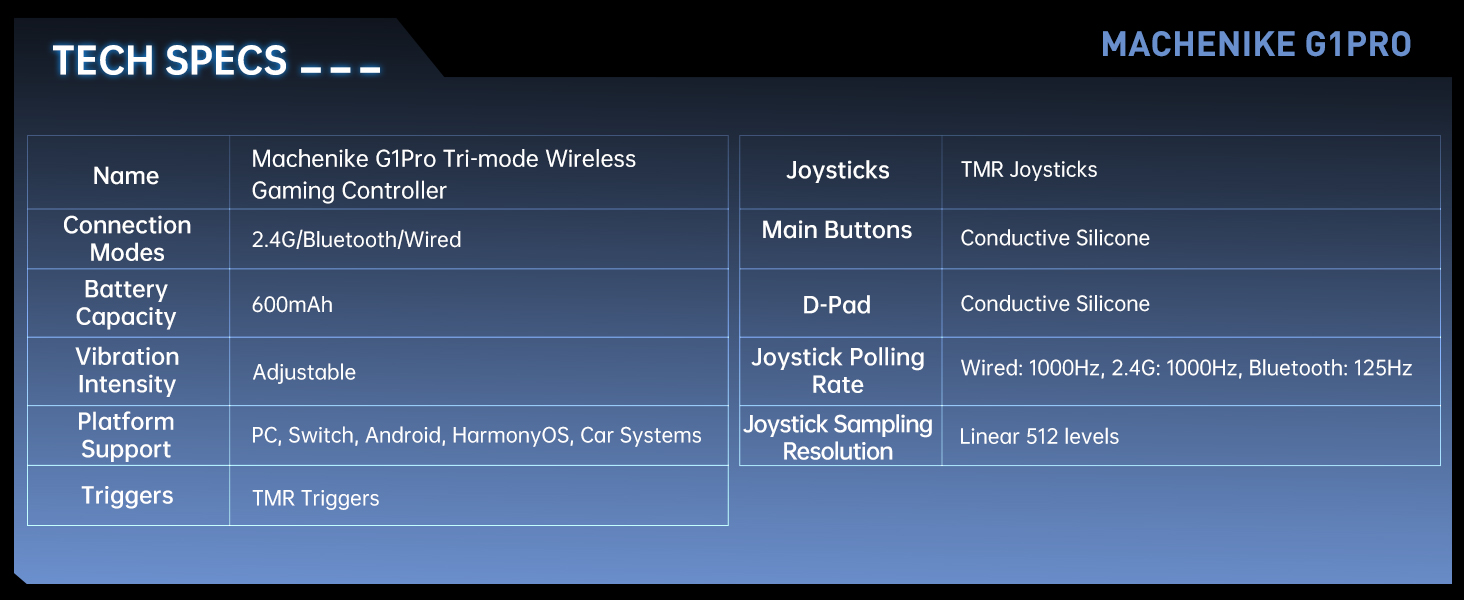
| Feature | Detail |
|---|---|
| Model Name | Machenike G1 Pro Tri-mode Wireless Gaming Controller |
| Connection Modes | 2.4G / Bluetooth / Wired (USB-C) |
| Battery Capacity | 600mAh Lithium Metal (included) |
| Vibration Intensity | Adjustable |
| Platform Support | PC, Switch, Android, iOS, HarmonyOS, Car Systems |
| Triggers | TMR Triggers (255 levels, <1mm response) |
| Joysticks | TMR Joysticks (10-bit ADC, 0.08ms response) |
| Main Buttons | Conductive Silicone (1 million press lifespan) |
| D-Pad | Conductive Silicone |
| Joystick Polling Rate | Wired: 1000Hz, 2.4G: 1000Hz, Bluetooth: 125Hz |
| Joystick Sampling Resolution | Linear 512 levels |
| Product Dimensions | 6.69 x 5.31 x 2.36 inches |
| Item Weight | 11.7 ounces |
| Manufacturer | Machenike |
| Country of Origin | China |
| Date First Available | September 24, 2024 |
8. Warranty and Support
For warranty information, technical support, and frequently asked questions, please visit the official Machenike website or contact their customer service directly. Keep your purchase receipt as proof of purchase for warranty claims.
Machenike Official Website: www.machenike.com
Machenike US Store on Amazon: Amazon Store Link
Related documentsG1 Pro


Ask a question about this manual
Ask about setup, troubleshooting, compatibility, parts, safety, or missing instructions. Manuals+ will review the question and use this page’s manual context to help answer it.