
1. Safety Information
Please read all instructions carefully before assembly and operation. Failure to follow these instructions may result in injury or damage to the product.
- Ensure all components are present and undamaged before assembly.
- Keep children and pets away from the desk during operation.
- Do not place hands or other objects near moving parts of the desk frame.
- Ensure the power cord is not pinched or damaged.
- Do not overload the desk. The maximum load capacity is 220 lbs (100 kg).
- Only use the desk on a level surface.
- Disconnect power before cleaning or maintenance.
2. Package Contents
The FLEXISPOT E6 Essential Standing Desk is typically shipped in two separate packages: one for the desktop and one for the frame components. Verify that all parts listed below are included in your packages.
2.1. Desktop Package
- Whole-piece Desktop (48x24 Inch, Mahogany)
2.2. Frame and Accessories Package
- Desk Legs (2)
- Feet (2)
- Crossbar/Frame Support
- Control Box
- Intelligent Keypad
- Power Adapter and Cable
- Cable Management Clips/Ties
- Hardware Kit (screws, Allen wrenches)
- Instruction Manual
3. Assembly Instructions
Assembly requires careful attention to detail. It is recommended to have two people for assembly, especially when handling the desktop. Ensure you have a clear, spacious area for assembly.
3.1. Tools Required
- Included Allen wrenches
- Phillips head screwdriver (not included)
- Drill (optional, for pilot holes if needed)
3.2. Step-by-Step Assembly
- Unpack Components: Carefully remove all parts from their packaging and lay them out on a soft, clean surface to prevent scratches. Verify all parts are present against the package contents list.
- Assemble Desk Legs and Feet: Attach the feet to the bottom of each desk leg using the provided screws and Allen wrench. Ensure they are securely fastened.
- Attach Crossbar: Connect the crossbar/frame support between the two desk legs. Adjust the length of the crossbar to match the width of your desktop (48 inches for this model). Secure with screws.
- Mount Control Box and Keypad: Attach the control box to the designated area on the underside of the desk frame. Mount the intelligent keypad to the front edge of the desktop, typically on the right side, using the provided screws.
- Connect Cables: Connect the motor cables from each leg to the control box. Connect the keypad cable to the control box. Finally, connect the power adapter to the control box.
- Attach Desktop to Frame: Carefully place the desktop upside down on a soft surface. Position the assembled frame onto the desktop, aligning the pre-drilled holes (if available) or marking new pilot holes. Secure the desktop to the frame using the provided screws. Note: Some desktops may require drilling new pilot holes for optimal alignment.
- Cable Management: Use the included cable management clips or ties to neatly route and secure all cables under the desk, preventing them from dangling or getting caught.
- Upright the Desk: With assistance, carefully flip the desk upright and place it in its desired location. Ensure the power cable is accessible and not obstructed.

Image: The FLEXISPOT E6 Essential Standing Desk with a laptop, coffee cup, and plant, showcasing its design and workspace.
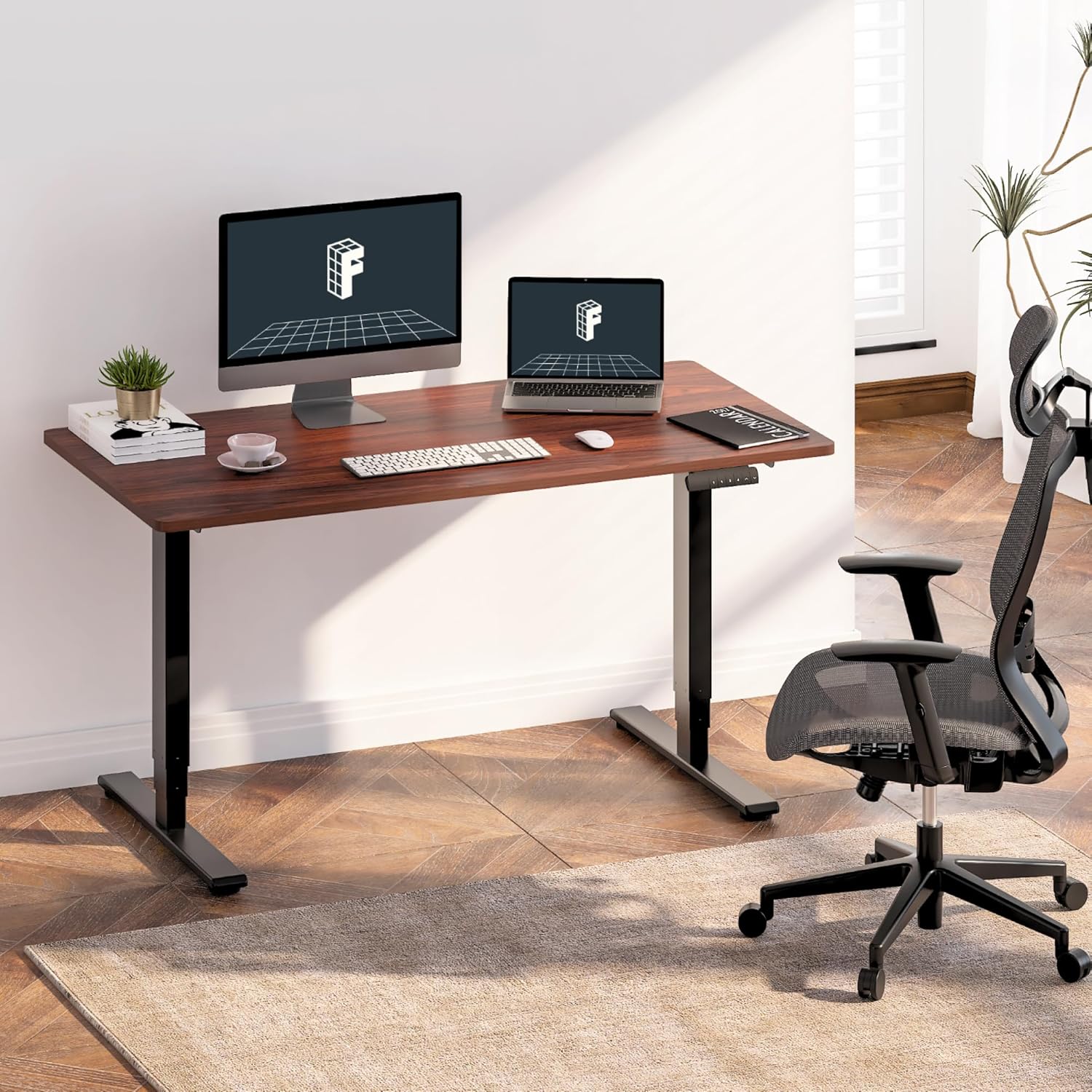
Image: The standing desk integrated into a home office, featuring dual monitors and an ergonomic chair, demonstrating its use.

Image: An illustration highlighting the strong steel structure of the desk frame, designed for stability and durability.
4. Operating Instructions
The FLEXISPOT E6 Essential desk features an intelligent keypad for easy height adjustment and memory settings.
4.1. Initial Power-Up
- Plug the power cable into a wall outlet. The LED display on the keypad should illuminate.
4.2. Height Adjustment
- Use the Up (▲) and Down (▼) arrow buttons on the keypad to raise or lower the desk to your desired height. The current height will be displayed on the LED panel.
- The desk operates smoothly and quietly with its dual motors, producing less than 50 dB of sound.
4.3. Memory Presets
The keypad allows you to save up to four preferred height settings for quick adjustments.
- Adjust the desk to your desired height using the Up/Down buttons.
- Press the M button (or similar memory set button, often labeled 'S' or 'SET'). The display may flash.
- Immediately press one of the numbered memory buttons (1, 2, 3, or 4) to save the current height to that preset.
- To recall a saved height, simply press the corresponding numbered memory button. The desk will automatically move to the saved position.
4.4. Anti-Collision System
The desk is equipped with an anti-collision system to prevent damage. If the desk encounters an obstacle during movement, it will automatically stop and reverse slightly.
- The sensitivity of the anti-collision system can often be adjusted via specific keypad combinations (refer to the full manual for advanced settings if available).

Image: A detailed view of the intelligent keypad, showing the LED display, memory buttons (1-4), and up/down controls.

Image: A visual representation of the desk's height range (23.6" to 48.8"), indicating suitability for various user heights from children to tall adults.

Image: The desk supporting two 110 lbs weights, illustrating its robust maximum load capacity of 220 lbs.

Image: An illustration demonstrating the anti-collision system, where the desk stops and reverses upon detecting an obstacle.
5. Maintenance
Regular maintenance ensures the longevity and optimal performance of your standing desk.
- Cleaning: Wipe the desktop and frame with a soft, damp cloth. Avoid harsh chemicals or abrasive cleaners that could damage the finish.
- Cable Check: Periodically inspect all cables for wear, fraying, or damage. Ensure they are securely connected and properly managed.
- Fastener Check: Occasionally check all screws and bolts to ensure they remain tight. Retighten if necessary.
- Motor Operation: Listen for any unusual noises during height adjustment. If you notice grinding or excessive noise, discontinue use and consult the troubleshooting section or contact support.
6. Troubleshooting
If you encounter issues with your FLEXISPOT E6 Essential Standing Desk, refer to the following common problems and solutions.
| Problem | Possible Cause | Solution |
|---|---|---|
| Desk does not move or respond to keypad. | Power cable disconnected; control box issue; motor cable disconnected. | Check power connection to wall and control box. Ensure all motor and keypad cables are securely plugged into the control box. Try resetting the desk (unplug for 30 seconds, then replug). |
| Desk moves unevenly or makes unusual noise. | Uneven load; loose fasteners; motor issue. | Ensure weight is evenly distributed on the desktop. Check and tighten all assembly screws. If the issue persists, contact customer support. |
| Anti-collision system triggers too easily or not at all. | Sensitivity setting; obstruction. | Ensure no objects are obstructing the desk's path. Refer to the full manual for instructions on adjusting anti-collision sensitivity. |
| Memory presets are not saving or recalling correctly. | Incorrect saving procedure. | Follow the memory preset saving steps precisely: adjust height, press 'M' (or 'S'), then immediately press the desired number button (1-4). |
7. Specifications
Detailed technical specifications for the FLEXISPOT E6 Essential Standing Desk.
| Feature | Specification |
|---|---|
| Model | E6 Essential |
| Desktop Size | 48" x 24" (47.5"D x 23.6"W) |
| Desktop Material | FSC-Certified Wood (Mahogany finish) |
| Frame Color | Black |
| Frame Material | Metal |
| Lift System | 3-Stage Dual Motor |
| Height Range | 23.6" to 48.8" |
| Maximum Load Capacity | 220 lbs (100 kg) |
| Noise Level | < 50 dB |
| Control Panel | Intelligent Keypad with 4 Memory Presets |
| Safety Features | Anti-Collision System |
| Assembly Required | Yes |
| Item Weight | 55 Pounds (approximate, frame and desktop combined) |
| UPC | 840460433792 |
8. Warranty and Support
FLEXISPOT provides a limited warranty for the E6 Essential Standing Desk.
8.1. Warranty Coverage
- 5-Year Coverage: Applies to the desk frame and motor components.
- 2-Year Coverage: Applies to the control panel and electronic components.
This warranty covers defects in materials and workmanship under normal use. It does not cover damage caused by misuse, accidents, unauthorized modifications, or failure to follow the instructions in this manual.
8.2. Customer Support
For warranty claims, technical assistance, or any questions regarding your FLEXISPOT E6 Essential Standing Desk, please contact FLEXISPOT customer service. Refer to the contact information provided with your purchase or visit the official FLEXISPOT website.
You can also visit the FLEXISPOT Store on Amazon for additional resources and product information.


