
TMEZON C433A-W2
TMEZON Dual Lens Outdoor Security Camera User Manual
Model: C433A-W2
1. Introduction
This manual provides comprehensive instructions for the installation, operation, and maintenance of your TMEZON Dual Lens Outdoor Security Camera (Model: C433A-W2). This 2K HD WiFi PTZ camera is designed for home security, featuring auto-tracking, human detection, and 30m color night vision capabilities. Please read this manual thoroughly before using the product to ensure proper setup and optimal performance.
2. Product Overview
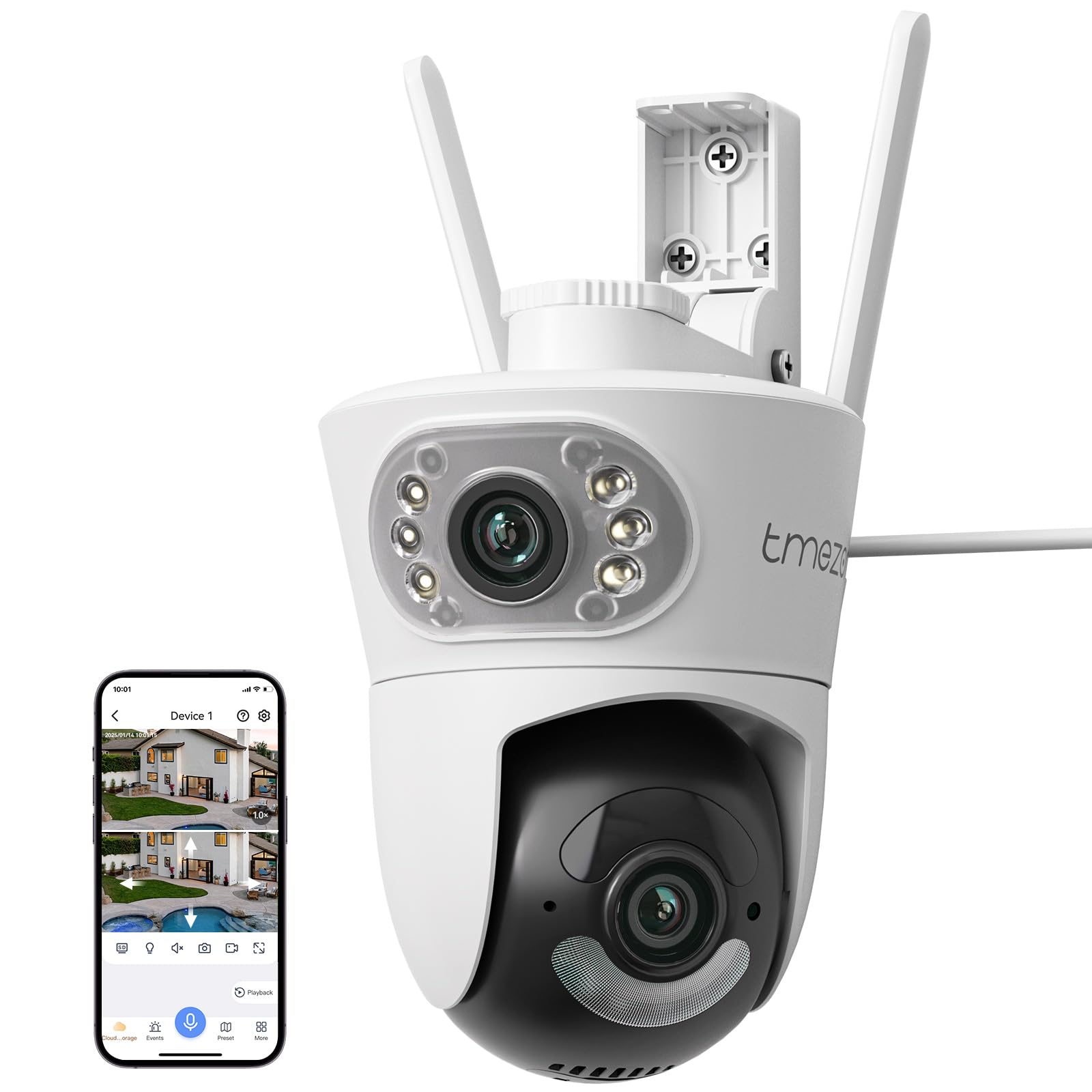
Figure 2.1: TMEZON Dual Lens Outdoor Security Camera with a smartphone displaying its live feed and controls.
Key Features:
- Dual Lens System: Provides comprehensive coverage and detailed imaging.
- 2K HD Resolution: Delivers clear and sharp video footage.
- WiFi Connectivity: Enables wireless connection to your home network.
- PTZ Functionality: Pan, Tilt, and Zoom capabilities for flexible monitoring.
- Auto Tracking: Automatically follows detected subjects.
- Human Detection: Intelligently identifies human figures to reduce false alarms.
- 30m Color Night Vision: Offers full-color surveillance even in low-light conditions up to 30 meters.
- Two-Way Audio: Allows for communication through the camera.
- Wall Mountable: Designed for secure outdoor installation.
What's in the Box:
- TMEZON Dual Lens Outdoor Security Camera (Model: C433A-W2)
- Mounting Accessories (screws, wall plugs)
- Power Adapter
- User Manual
3. Setup and Installation
3.1 Pre-Installation Checklist
- Ensure you have a stable 2.4GHz Wi-Fi network available at the installation location.
- Verify power outlet availability for the camera's corded electric power source.
- Prepare necessary tools: drill, screwdriver, pencil.
- Download the compatible mobile application (e.g., "TMEZON" app) on your smartphone (Android compatible).
3.2 Physical Installation (Wall Mount)
- Choose a suitable outdoor location for mounting, ensuring clear line of sight and proximity to a power source.
- Use the mounting bracket as a template to mark drill holes on the wall.
- Drill holes and insert wall plugs if necessary.
- Secure the mounting bracket to the wall using the provided screws.
- Attach the camera securely to the mounting bracket.
- Connect the power adapter to the camera and plug it into a power outlet.
3.3 Network Configuration
- Open the TMEZON mobile application on your smartphone.
- Register or log in to your account.
- Follow the in-app instructions to add a new device. This typically involves scanning a QR code on the camera or manually entering its ID.
- Connect the camera to your Wi-Fi network by entering your Wi-Fi password when prompted in the app.
- Once connected, the camera's status indicator will change, and you will see the live feed in the app.
4. Operating Instructions
4.1 Live View and Basic Controls
- From the app's home screen, tap on the camera's name (e.g., "Device 1") to access the live view.
- Use the on-screen joystick or swipe gestures to control the camera's Pan and Tilt movements.
- Tap the zoom icon (e.g., "1.0x") to digitally zoom in or out of the live feed.
- Utilize the microphone icon for two-way audio communication.
- Tap the speaker icon to listen to audio from the camera's surroundings.
4.2 Advanced Features
- Auto Tracking: Enable this feature in the camera settings to allow the camera to automatically follow detected human movement within its field of view.
- Human Detection: Configure detection zones and sensitivity settings to optimize human detection and minimize false alerts from other movements.
- Color Night Vision: The camera automatically switches to color night vision mode in low-light conditions, providing enhanced visibility. Ensure sufficient ambient light for optimal color performance.
- Recording and Playback:
- Record video manually by tapping the record button in live view.
- Access recorded footage via the "Playback" or "Cloud Storage" sections in the app.
- Review event-triggered recordings under the "Events" tab.
- Preset Positions: Save specific camera angles as presets for quick navigation.
5. Maintenance
5.1 Cleaning the Camera
- Ensure the camera is powered off before cleaning.
- Gently wipe the camera lens and body with a soft, damp cloth.
- Do not use harsh chemicals or abrasive cleaners, as they may damage the camera's surface or lens.
5.2 Firmware Updates
- Regularly check for firmware updates through the TMEZON mobile application.
- Updating firmware ensures optimal performance, security enhancements, and access to new features.
- Follow the in-app instructions carefully during the update process. Do not power off the camera during an update.
5.3 Storage Management
- If using a local storage card (not included), ensure it is properly inserted and formatted via the app.
- Manage cloud storage subscriptions and recorded footage through the "Cloud Storage" section of the app.
6. Troubleshooting
Common Issues and Solutions:
- Camera Offline:
- Check Wi-Fi signal strength at the camera's location.
- Ensure the camera is powered on and the power adapter is securely connected.
- Restart the camera by unplugging and re-plugging the power.
- Verify your Wi-Fi router is functioning correctly.
- Cannot Connect to Wi-Fi:
- Ensure you are connecting to a 2.4GHz Wi-Fi network. 5GHz networks are not supported.
- Double-check the Wi-Fi password entered in the app.
- Move the camera closer to the Wi-Fi router during initial setup.
- Reset the camera (refer to the app or product for reset instructions, typically a small button).
- Poor Video Quality:
- Clean the camera lens.
- Ensure adequate lighting, especially for color night vision.
- Check your internet connection speed.
- Motion Detection Not Working:
- Verify that motion detection and human detection are enabled in the app settings.
- Adjust sensitivity settings and detection zones.
- Ensure there are no obstructions blocking the camera's view.
7. Specifications
| Feature | Detail |
|---|---|
| Model Name | C433A-W2 |
| Brand | TMEZON |
| Indoor/Outdoor Usage | Outdoor (Designed for outdoor use as per product title) |
| Connectivity Technology | WiFi (for data), Wired (for power) |
| Power Source | Corded Electric |
| Video Capture Resolution | 2K HD (as per product title) |
| Special Feature | Dual Lens, PTZ, Auto Tracking, Human Detection, 30m Color Night Vision, 2-Way Audio |
| Mounting Type | Wall Mount |
| Product Dimensions | 1 x 1 x 1 inches (L x W x H) |
| Compatible Devices | Smartphone (Android) |
| First Available Date | January 14, 2025 |
Note: Specifications are subject to change without prior notice.
8. Warranty and Support
8.1 Product Warranty
TMEZON products typically come with a limited warranty covering manufacturing defects. Please refer to the warranty card included with your product or visit the official TMEZON website for detailed warranty terms and conditions specific to your region.
8.2 Customer Support
For technical assistance, troubleshooting, or any inquiries regarding your TMEZON Dual Lens Outdoor Security Camera, please contact TMEZON customer support. Contact information can usually be found on the product packaging, the official TMEZON website, or within the mobile application's 'About Us' or 'Help' section.
When contacting support, please have your product model (C433A-W2) and purchase information ready.
Related documentsC433A-W2


Ask a question about this manual
Ask about setup, troubleshooting, compatibility, parts, safety, or missing instructions. Manuals+ will review the question and use this page’s manual context to help answer it.