
SEUNKWANG TK100
SEUNKWANG TK100 Wired Mechanical Typewriter Keyboard User Manual
Model: TK100
Introduction
Thank you for choosing the SEUNKWANG TK100 Wired Mechanical Typewriter Keyboard. This keyboard combines a retro typewriter aesthetic with modern mechanical performance, featuring 104 keys, white backlighting, anti-ghosting technology, and durable blue switches. This manual provides essential information for setting up, operating, maintaining, and troubleshooting your new keyboard to ensure optimal performance and longevity.
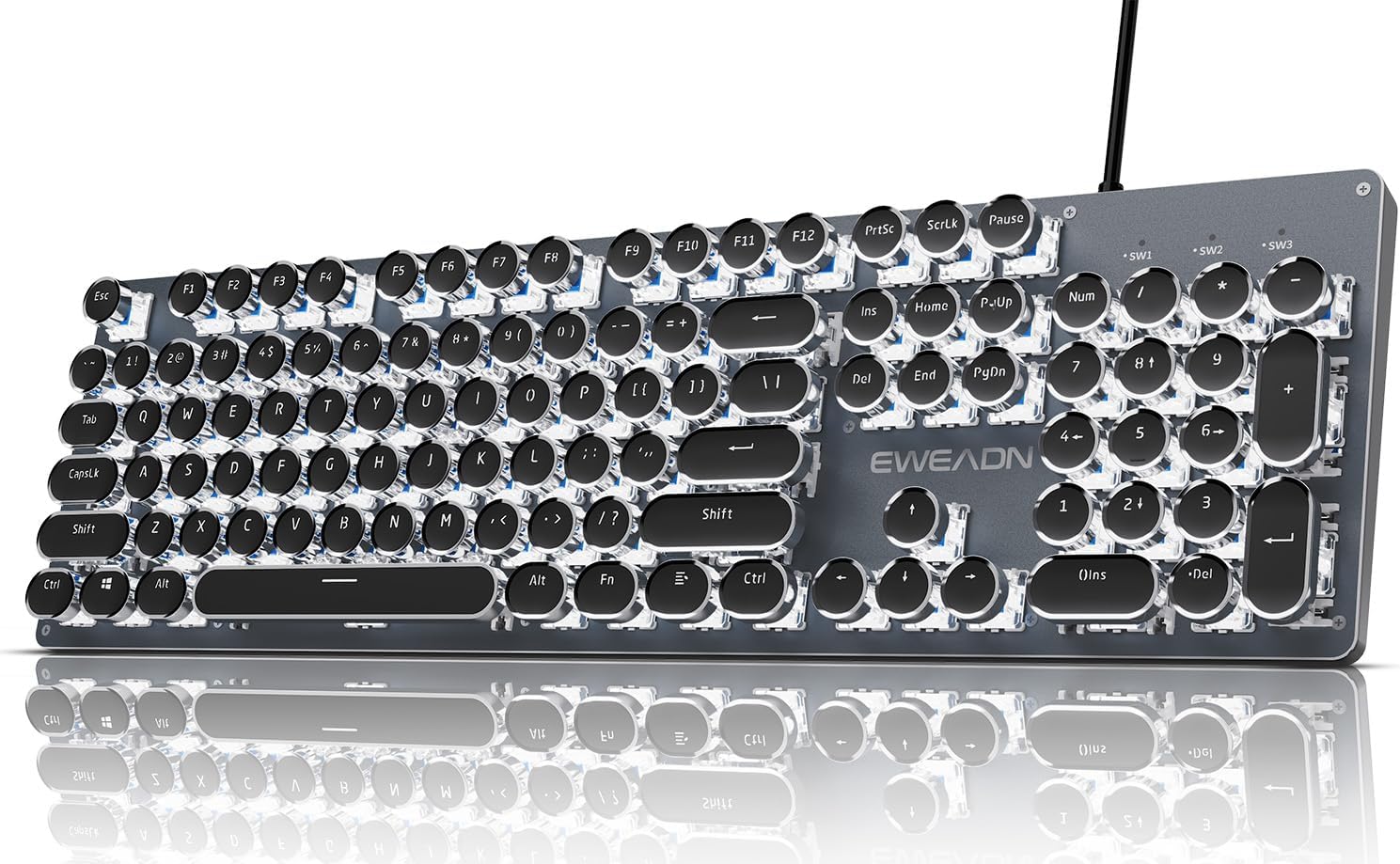
Figure 1: SEUNKWANG TK100 Wired Mechanical Typewriter Keyboard Overview
Package Contents
- 1 x SEUNKWANG TK100 Wired Mechanical Typewriter Keyboard
Please inspect the package contents upon arrival to ensure all items are present and undamaged. If any items are missing or damaged, please contact customer support.
Setup
The TK100 keyboard is designed for simple plug-and-play functionality. No additional drivers or software are required for basic operation.
Connecting the Keyboard
- Locate an available USB-A port on your computer (PC, Mac, laptop, desktop).
- Insert the USB-A connector of the TK100 keyboard into the USB-A port.
- The keyboard will be automatically recognized by your operating system and ready for use.
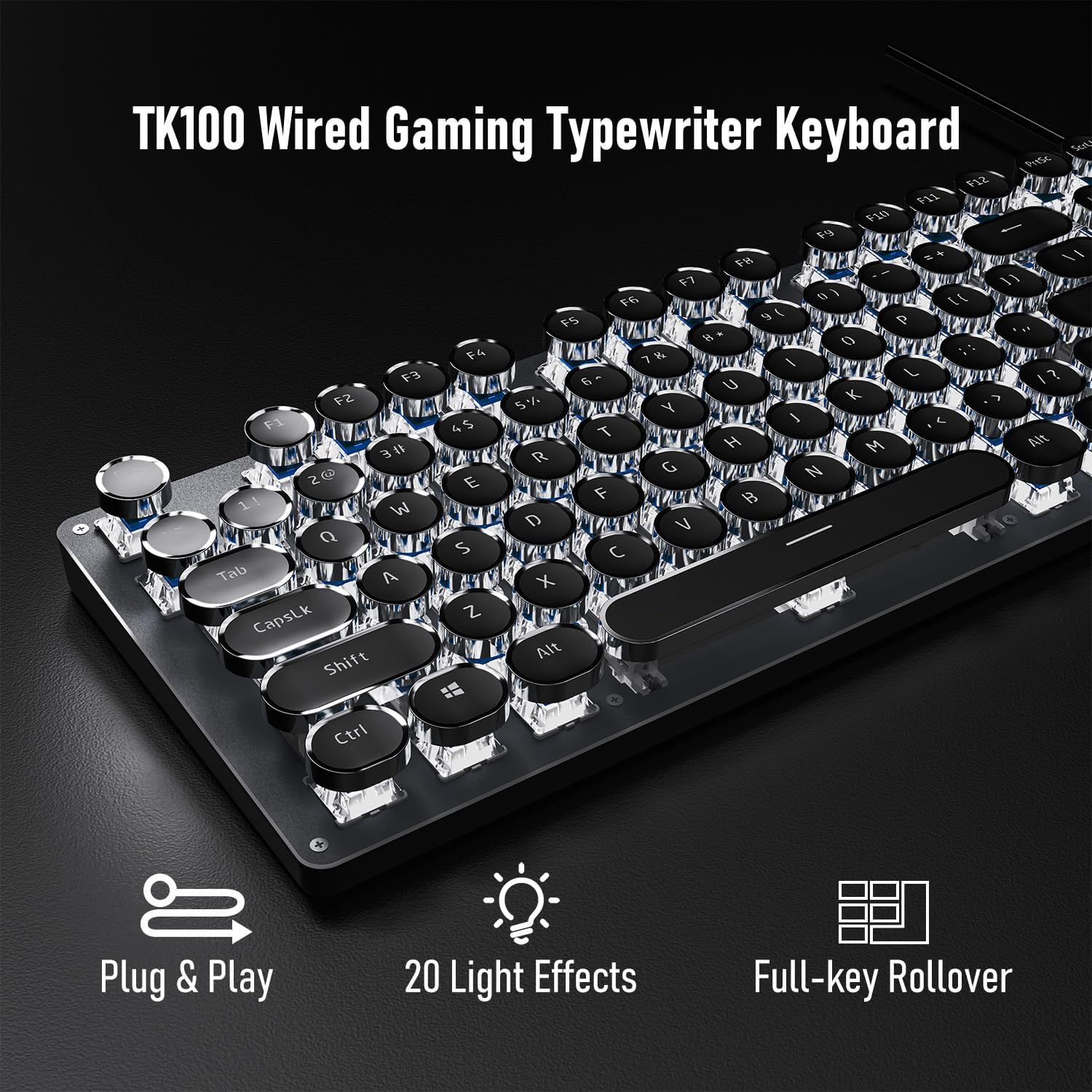
Figure 2: Plug & Play Connectivity
Adjusting Keyboard Feet
For ergonomic comfort, the TK100 keyboard features two-level adjustable feet on its underside. Flip out the feet to raise the keyboard to your preferred typing angle.
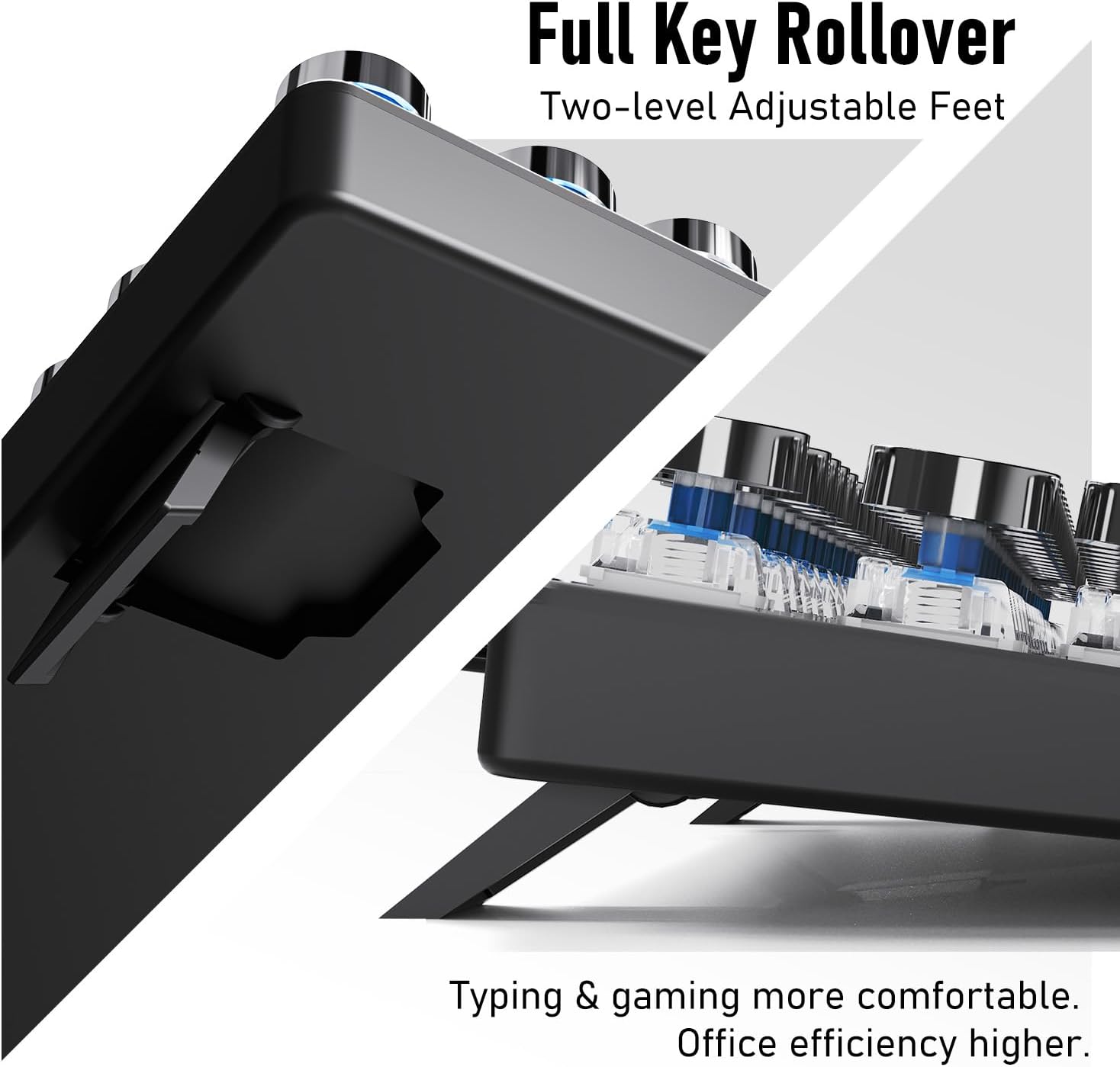
Figure 3: Two-level Adjustable Feet for Ergonomic Typing
Operating Instructions
Key Features
- Retro Typewriter Style Round Keycaps: Double-shot injection keycaps with clear backlighting for durability and aesthetic appeal.
- Mechanical Blue Switches: Provide a tactile and clicky feedback, designed for fast and responsive typing.
- Metal Panel: High-quality aluminum alloy panel for a smooth, durable, and easy-to-clean surface.
- 104-Key Anti-Ghosting: Ensures accurate registration of every keystroke, even during rapid multi-key commands.
- White Backlighting: Features 19 preset light effects, 5 brightness levels, and adjustable breathing speed.
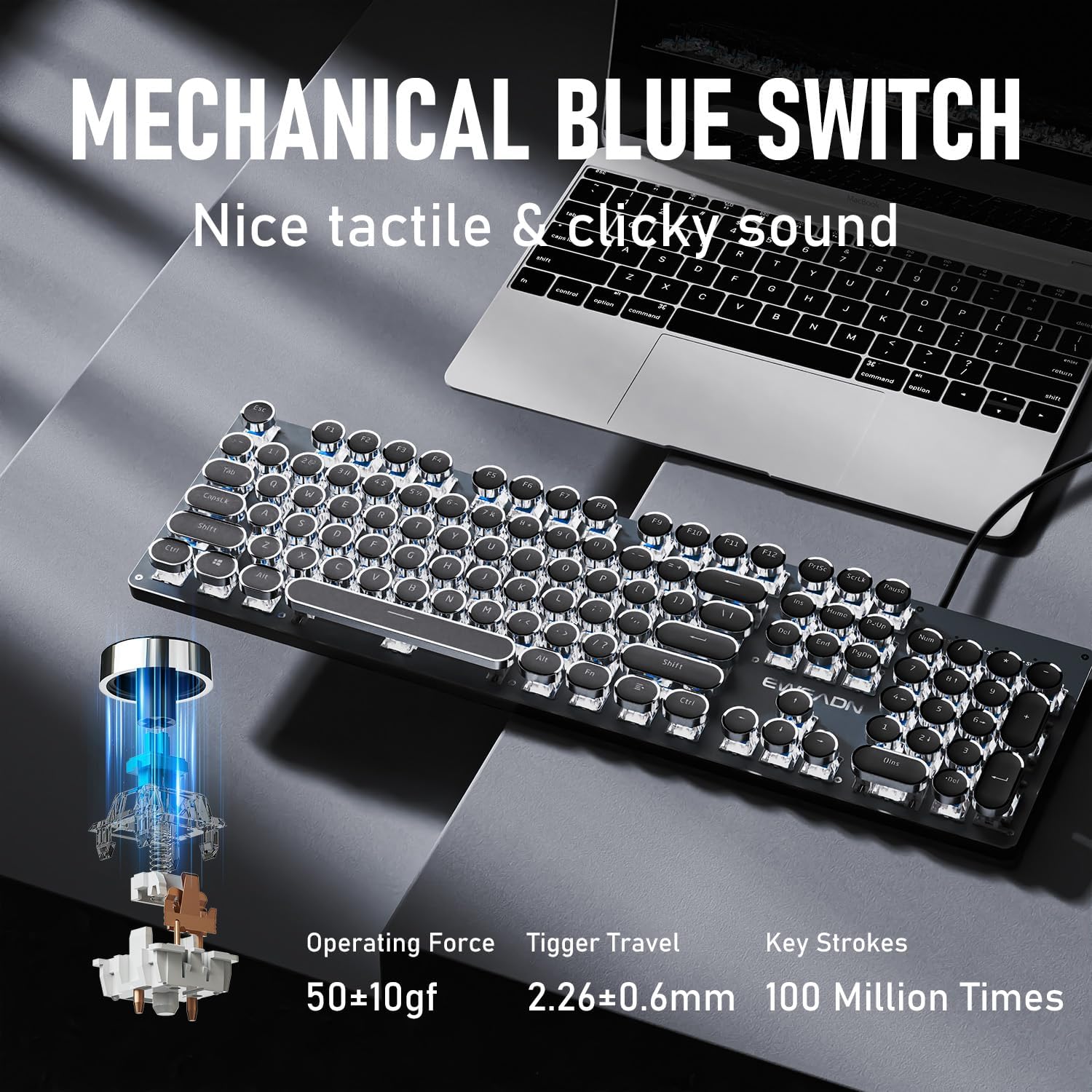
Figure 4: Mechanical Blue Switch Details

Figure 5: Retro Punk Round Keycaps
Backlight Control
The TK100 keyboard features a white backlight with various effects and adjustable brightness.
- To cycle through 19 preset light effects: Press FN + INS.
- To activate 4 game lighting effects: Press FN + 6, 7, 8, or 9.
- To adjust 5 brightness levels: Press FN + Up Arrow (↑) to increase, FN + Down Arrow (↓) to decrease.
- To adjust breathing speed: Press FN + Left Arrow (←) to decrease, FN + Right Arrow (→) to increase.
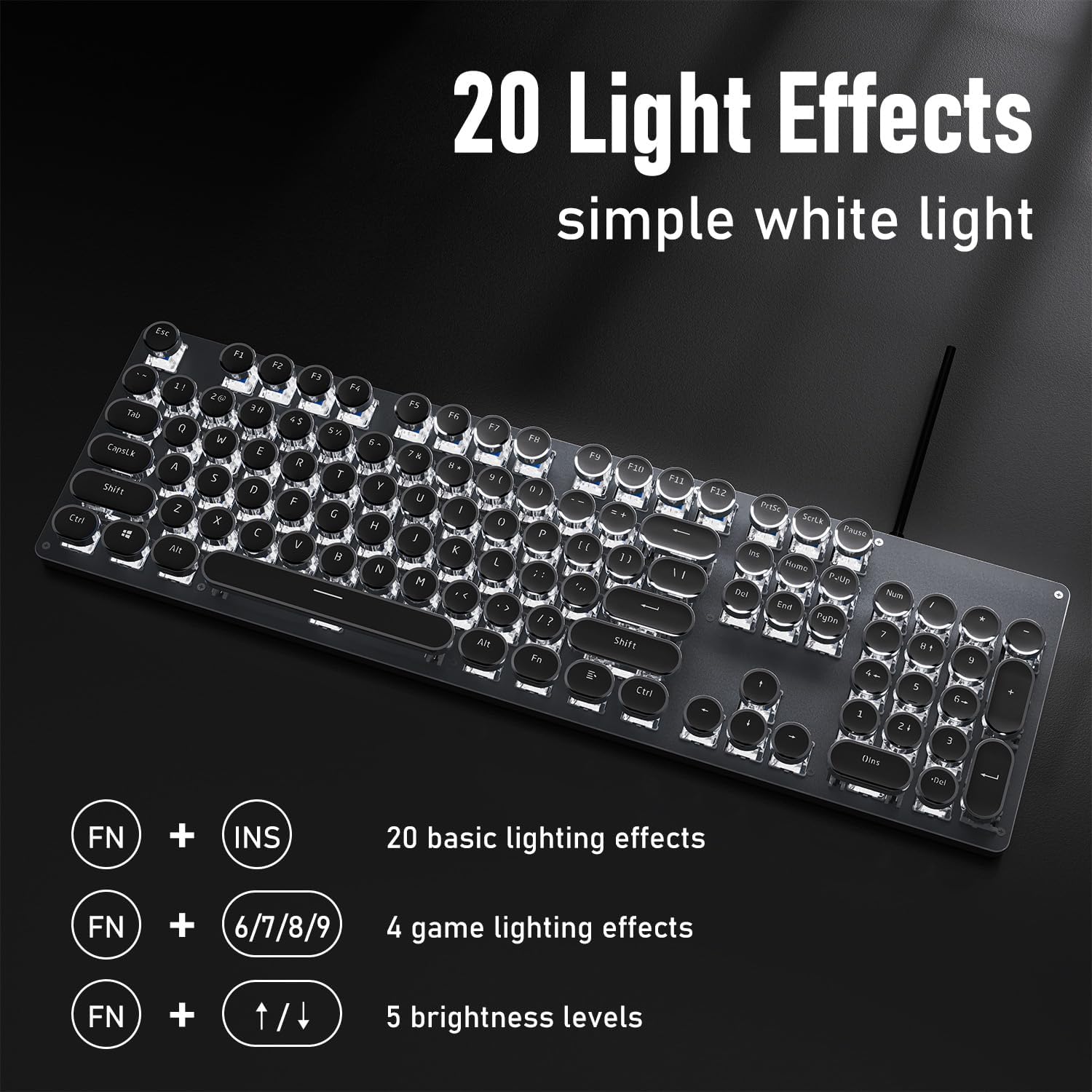
Figure 6: Backlight Control Functions
Multimedia Keys
The keyboard includes dedicated quick-access buttons for multimedia control:
- Volume control
- Backlight effects control
- Play/Pause
- Track switching
Refer to the keycap legends for specific multimedia functions.
Full Key Rollover
The TK100 features full N-key rollover (NKRO) with anti-ghosting technology, meaning every key press is registered accurately, even when multiple keys are pressed simultaneously. This is particularly beneficial for fast typing and gaming.
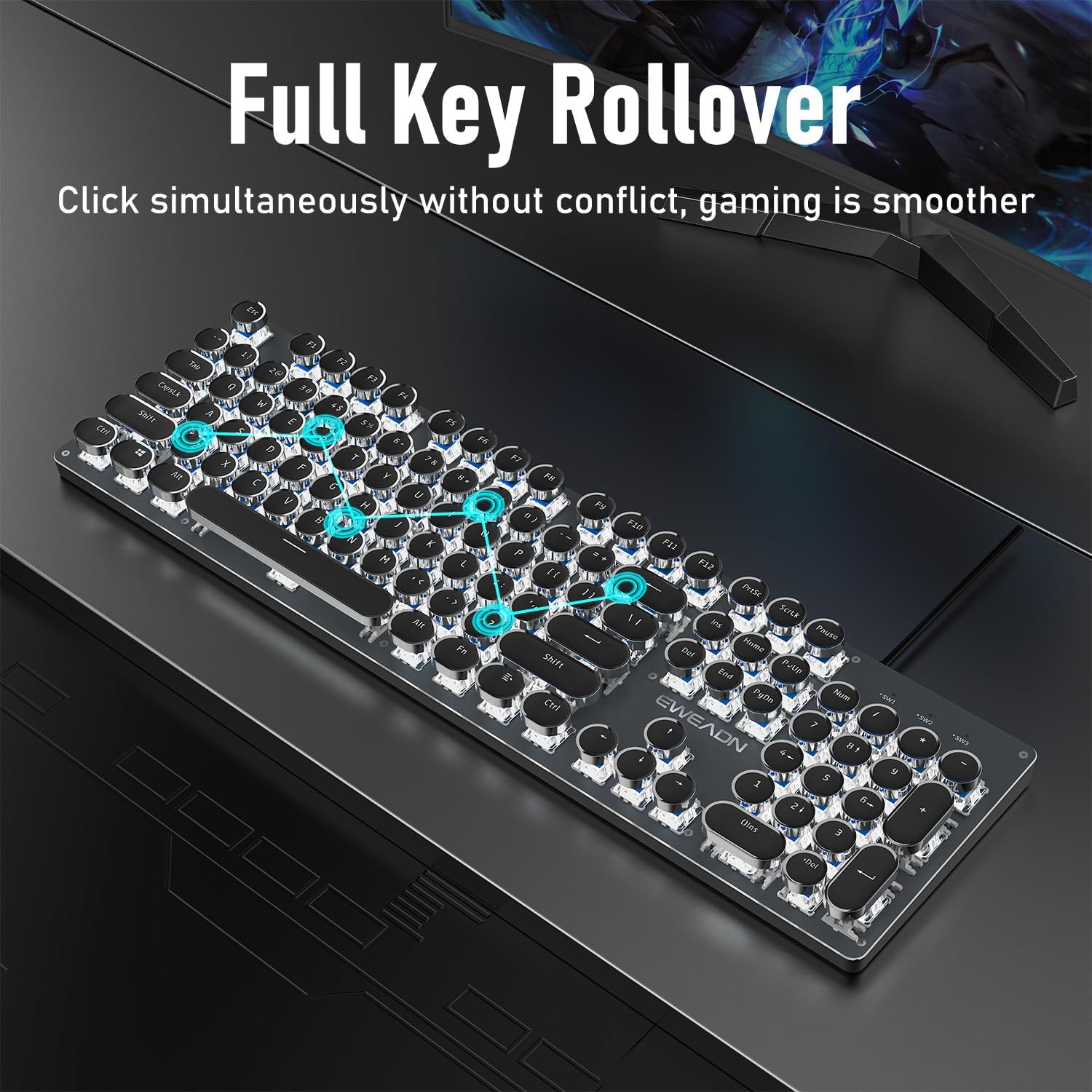
Figure 7: Full Key Rollover for Smooth Gaming
Product Videos
Video 1: Demonstrates the ultimate retro mechanical keyboard experience with the TK100, showcasing its design and functionality.
Video 2: Highlights how the TK100 blends retro style with modern mechanical performance, focusing on its tactile feedback and aesthetic.
Video 3: Showcases the black and white elegance of the TK100 wired typewriter keyboard, emphasizing its visual appeal and key features.
Maintenance
Proper maintenance will extend the life of your TK100 keyboard.
- Cleaning: Use a soft, dry cloth to wipe down the keyboard surface. For deeper cleaning, use a can of compressed air to remove dust and debris from between the keycaps. Avoid using harsh chemicals or abrasive materials.
- Spill Prevention: While the keyboard has some spill resistance, it is not fully waterproof. Avoid spilling liquids directly onto the keyboard. In case of a spill, immediately disconnect the keyboard from your computer and allow it to dry completely before reconnecting.
- Storage: When not in use for extended periods, store the keyboard in a clean, dry environment away from extreme temperatures and direct sunlight.
Troubleshooting
If you encounter issues with your TK100 keyboard, try the following troubleshooting steps:
| Problem | Possible Cause | Solution |
|---|---|---|
| Keyboard not responding | Loose USB connection, faulty USB port, operating system issue. | Ensure the USB cable is securely plugged into both the keyboard and the computer. Try a different USB port. Restart your computer. |
| Backlight not working or dim | Backlight turned off or set to lowest brightness. | Press FN + Up Arrow (↑) to increase brightness. Cycle through effects with FN + INS. |
| Keys not registering or ghosting | Software conflict, physical obstruction under keycap. | Ensure no software is interfering with keyboard input. Clean under the affected keycap with compressed air. |
If the problem persists after trying these steps, please contact customer support for further assistance.
Specifications
| Feature | Detail |
|---|---|
| Brand | SEUNKWANG |
| Model Number | TK100 |
| Manufacturer | EWEADN |
| Connectivity Technology | USB-A Wired |
| Number of Keys | 104 |
| Keyboard Description | Typewriter Style Mechanical Keyboard Wired |
| Special Features | Backlit, Ergonomic, Hotkeys and Media Keys, Round Key, Spill Proof |
| Keyboard Backlighting Color Support | Single Color (White) |
| Compatible Devices | Laptop, PC, Gaming Console, Tablet, Smartphone |
| Item Weight | 1.9 pounds |
| Package Dimensions | 19.13 x 7.05 x 2.13 inches |
| Country of Origin | China |
Warranty and Support
EWEADN, as a responsible company, operates sustainably and adheres to high environmental and social standards. We are committed to providing genuine brand support and ensuring customer satisfaction.
- Warranty: The TK100 keyboard comes with 48-month brand support. Please retain your proof of purchase for warranty claims.
- Customer Support: If you have any questions or concerns regarding your SEUNKWANG TK100 keyboard, please do not hesitate to contact us. Our expert team is always available to assist you.
For support, please refer to the contact information provided with your purchase or visit the official SEUNKWANG/EWEADN website.
Ask a question about this manual
Ask about setup, troubleshooting, compatibility, parts, safety, or missing instructions. Manuals+ will review the question and use this page’s manual context to help answer it.