
BOGASING Era S9 Pro
BOGASING Era S9 Pro Bluetooth Speaker User Manual
Model: Era S9 Pro | Brand: BOGASING
1. Introduction
This manual provides detailed instructions for the operation and maintenance of your BOGASING Era S9 Pro Bluetooth Speaker. Please read this manual thoroughly before use to ensure proper functionality and to maximize your listening experience.
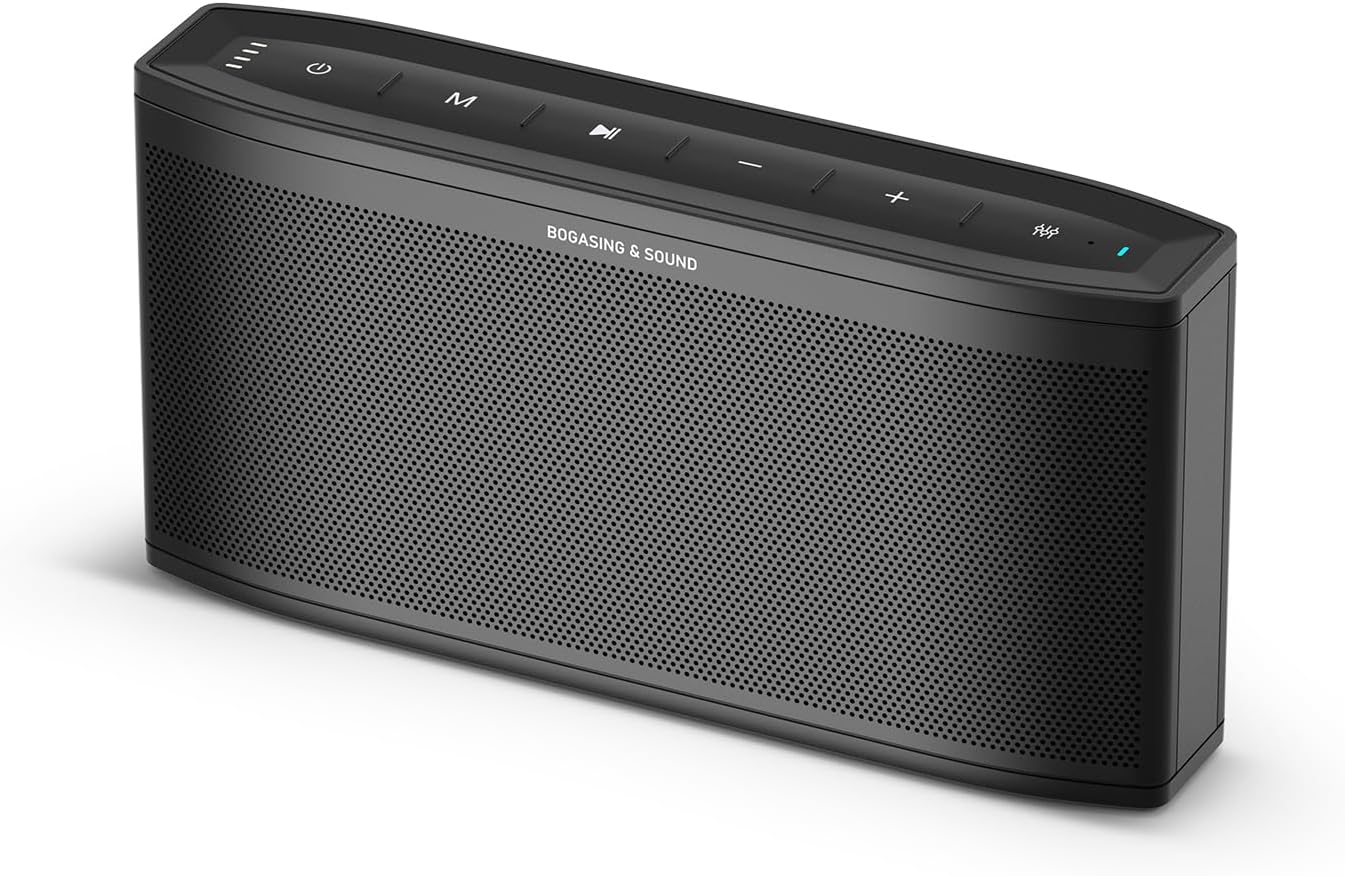
Figure 1: BOGASING Era S9 Pro Bluetooth Speaker, front view.
2. Key Features
- Enhanced Audio Performance: Features a 2-way system with a large-diameter driver, silk dome tweeter, and dual passive radiators for rich bass and clear audio details.
- Extended Playtime: Offers up to 48 hours of continuous music playback on a single charge.
- Premium Design: Constructed with high-quality metal mesh grilles and acoustic mesh fabric for improved frequency response and a sleek aesthetic.
- Multiple Sound Modes: Choose from Super Bass, Vocal, and 3D Stereo sound effects to suit your preferences.
- True Wireless Stereo (TWS): Pair two Era S9 Pro speakers for an immersive, wide soundstage.
- Versatile Connectivity: Equipped with Bluetooth 5.3 for stable wireless connection, and supports TF card, USB-C, and AUX inputs.
- Built-in Microphone: Allows for hands-free calling.
3. Package Contents
Please check the package contents upon unboxing:
- BOGASING Era S9 Pro Bluetooth Speaker
- USB-C Charging Cable
- AUX Cable
- User Manual (this document)
4. Controls and Indicators

Figure 2: Top panel controls and LED indicator light.
The speaker features intuitive controls located on the top panel and various input ports on the rear.
- Power Button: Press and hold to power on/off.
- Mode Button (M): Short press to switch between Bluetooth, TF Card, and AUX modes.
- Play/Pause Button: Press to play or pause audio.
- Volume Up (+): Increase volume.
- Volume Down (-): Decrease volume.
- EQ Button: Cycle through Super Bass, Vocal, and 3D Stereo sound modes. The LED indicator will change color to reflect the selected mode.
- LED Indicator Light: Displays power status, battery level, and current EQ mode.

Figure 3: Rear connectivity ports including TF, Type-C, and AUX.
5. Setup
5.1 Charging the Speaker
Before first use, fully charge the speaker. Connect the provided USB-C cable to the speaker's Type-C port and the other end to a USB power adapter (not included) or a computer's USB port. The LED indicator will show charging status and turn off when fully charged.
5.2 Powering On/Off
- To power on, press and hold the Power button until the LED indicator lights up.
- To power off, press and hold the Power button until the LED indicator turns off.
6. Operating Instructions
6.1 Bluetooth Pairing
- Ensure the speaker is powered on and in Bluetooth mode (indicated by a blue LED). If not, short press the Mode (M) button to switch.
- On your device (smartphone, tablet, etc.), enable Bluetooth and search for "BOGASING Era S9 Pro" in the list of available devices.
- Select "BOGASING Era S9 Pro" to pair. Once connected, the speaker will emit an audible confirmation, and the LED will remain solid blue.
The speaker will automatically attempt to reconnect to the last paired device when powered on.
6.2 True Wireless Stereo (TWS) Pairing
To achieve a wider stereo sound, you can pair two BOGASING Era S9 Pro speakers together.

Figure 4: Two Era S9 Pro speakers configured for True Wireless Stereo.
- Ensure both Era S9 Pro speakers are powered on and not connected to any Bluetooth device.
- On one speaker (this will be the primary speaker), double-press the Play/Pause button. The speaker will enter TWS pairing mode.
- The two speakers will automatically connect to each other. Once connected, the primary speaker's LED will flash blue, and the secondary speaker's LED will be solid blue.
- Now, connect your device to the primary speaker via Bluetooth as described in section 6.1. The primary speaker will then transmit audio to both speakers, creating a stereo sound experience.
6.3 Sound Modes (EQ)
The Era S9 Pro offers three distinct sound modes:

Figure 5: Speaker displaying different EQ modes.
- Super Bass (Green LED): Enhances low frequencies for a powerful bass experience.
- Vocal (Red LED): Optimizes mid-range frequencies for clear and prominent vocals.
- 3D Stereo (Blue LED): Creates a wider, more immersive soundstage.
To switch between modes, short press the EQ button on the top panel. The LED indicator will change color accordingly.
6.4 Using the Built-in Microphone
When connected via Bluetooth, the built-in microphone allows you to answer calls directly through the speaker.
- Answer Call: Short press the Play/Pause button.
- End Call: Short press the Play/Pause button.
- Reject Call: Press and hold the Play/Pause button.
7. Connectivity Options
7.1 TF Card Playback
Insert a TF (microSD) card loaded with audio files into the TF card slot on the rear of the speaker. The speaker will automatically switch to TF card mode and begin playback. Use the Play/Pause and Volume buttons to control playback.
7.2 AUX Input
Connect an external audio device (e.g., MP3 player, computer) to the speaker's AUX port using the provided 3.5mm AUX cable. The speaker will automatically switch to AUX mode. Control playback and volume from your connected device.
8. Maintenance
- Clean the speaker with a soft, dry cloth. Do not use abrasive cleaners or solvents.
- Avoid exposing the speaker to extreme temperatures, humidity, or direct sunlight.
- While the speaker is waterproof, avoid submerging it in water for extended periods. Ensure the charging port cover is securely closed when near water.
- Store the speaker in a cool, dry place when not in use.
9. Troubleshooting
| Problem | Possible Cause | Solution |
|---|---|---|
| Speaker does not power on. | Low battery. | Charge the speaker fully. |
| Cannot pair via Bluetooth. | Speaker not in pairing mode; device Bluetooth off; too far from speaker. | Ensure speaker is in Bluetooth mode; enable Bluetooth on device; move device closer (within 10m). |
| No sound. | Volume too low; incorrect input mode; device not playing. | Increase speaker/device volume; switch to correct input mode (Bluetooth, AUX, TF); ensure device is playing audio. |
| Sound distortion. | Volume too high; low battery. | Reduce volume; charge the speaker. |
| TWS pairing failed. | Speakers already connected to a device; too far apart. | Disconnect speakers from any devices; ensure speakers are close to each other during pairing. |
10. Specifications
| Feature | Detail |
|---|---|
| Model Name | Era S9 Pro |
| Brand | BOGASING |
| Connectivity Technology | Bluetooth 5.3, AUX, USB-C, TF Card |
| Speaker Type | Portable Bluetooth Speaker (2-Channel Audio) |
| Speaker Maximum Output Power | 50 Watts |
| Battery Life | Up to 48 Hours |
| Product Dimensions | 2.55"D x 11.66"W x 4.33"H |
| Item Weight | 1.94 pounds (0.88 Kilograms) |
| Material | Metal |
| Waterproof | Yes |
| Special Features | Hi-Res Audio, Built-in Microphone, EQ Modes (Super Bass, Vocal, 3D Stereo), TWS Pairing |
11. Official Product Video
Video 1: Official BOGASING Era S9 Pro Wireless Bluetooth Speaker for Home. This video demonstrates the speaker's features and sound capabilities.
12. Warranty and Support
BOGASING provides an 18-month warranty for the Era S9 Pro speaker. For any questions, concerns, or technical support, please contact BOGASING customer service.
How to Contact BOGASING Customer Service:
- Go to your order history.
- Find the BOGASING order in the list.
- Select order questions and choose your topic from the list displayed.
- Select "Contact us".
BOGASING aims to resolve inquiries within 24 hours.
Related documentsEra S9 Pro


Ask a question about this manual
Ask about setup, troubleshooting, compatibility, parts, safety, or missing instructions. Manuals+ will review the question and use this page’s manual context to help answer it.