
NGTeco NG-TC1MB2
NGTeco APP-Based Time Clock User Manual
Comprehensive guide for the NGTeco W2 Fingerprint+Password Time Clock (Model: NG-TC1MB2).
Introduction
This manual provides detailed instructions for the setup, operation, maintenance, and troubleshooting of your NGTeco APP-Based Time Clock. This device is designed to streamline employee time tracking for small businesses, offering fingerprint and password authentication, app-based management, and no monthly fees.
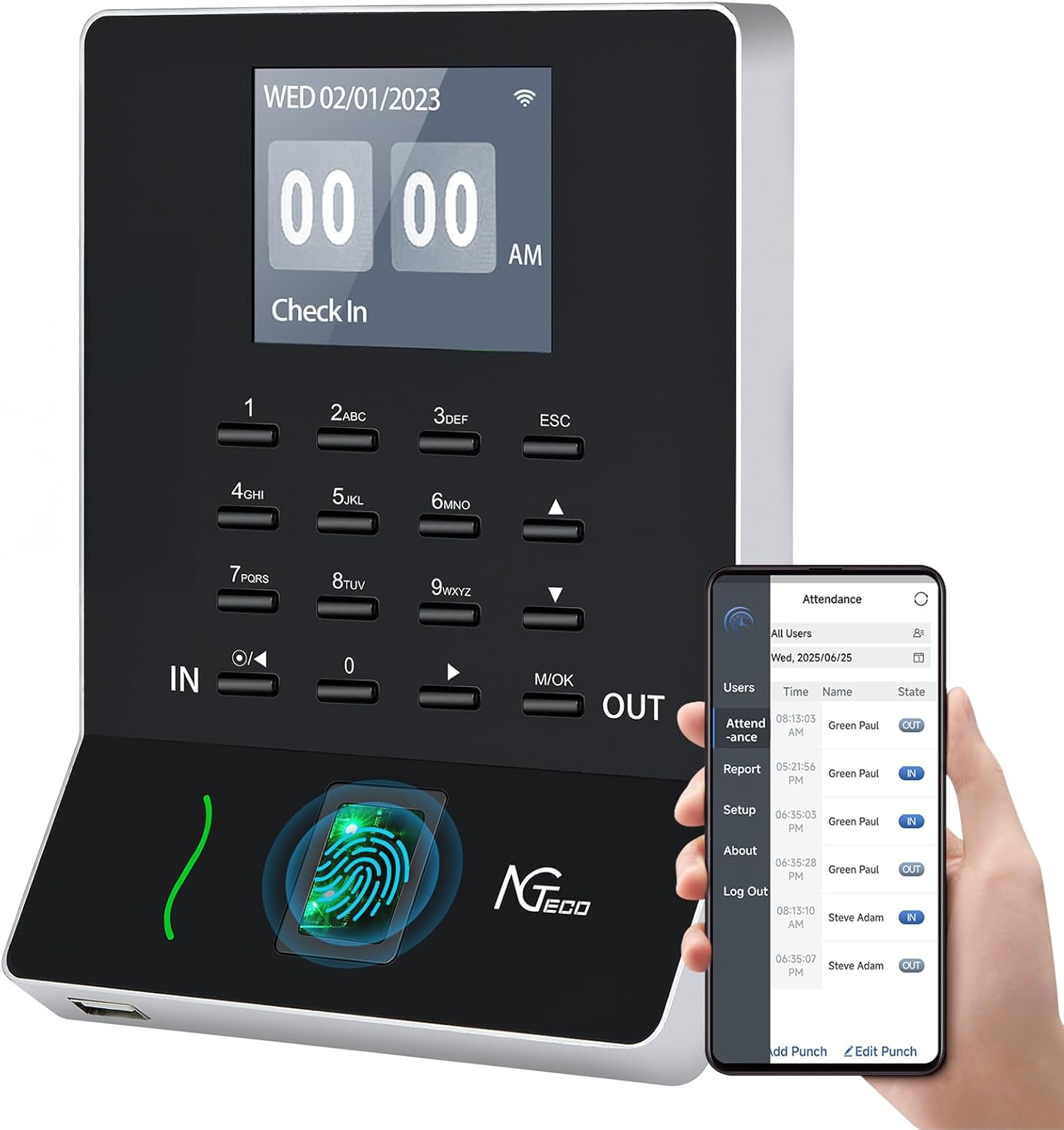
Figure 1: NGTeco APP-Based Time Clock (Model NG-TC1MB2) and its accompanying mobile application.
Setup Guide
Follow these steps for the initial setup of your NGTeco Time Clock:
- Unboxing and Power Connection: Carefully remove all components from the packaging. Connect the provided power supply to the time clock and plug it into a power outlet.
- Wi-Fi Connection: On the time clock's display, navigate to the network settings and connect to your 2.4GHz Wi-Fi network. Ensure a stable connection for app synchronization.
- Download the NGTeco Office App: Download the "NGTeco Office" app from your device's app store (iOS or Android).
- App Connection:
- On the time clock, navigate to "App Connection" to display a QR code.
- Open the NGTeco Office app on your smartphone and use the app's scan function to scan the QR code displayed on the time clock. This will link your device to the app.
- Add Users:
- Within the NGTeco Office app, go to the "Add User" section.
- Input employee details such as ID, First Name, Last Name, and a PIN.
- Set the permission level (Employee or Admin).
- Save and sync the user data to the time clock.
- Enroll Fingerprints (Optional but Recommended):
- On the time clock, navigate to the "User List" and select the employee you wish to enroll.
- Choose the "Enroll FP" (Fingerprint) option.
- Instruct the employee to place their finger on the fingerprint scanner three times as prompted by the device to ensure accurate enrollment.
Video 1: NGTeco Time Clock - Unboxing and Initial Setup. This video demonstrates the physical unboxing and the initial steps to connect the device to the app and enroll users.

Figure 2: Effortless App Management. The NGTeco Office app allows for easy user setup and configuration of settings.
Operating Instructions
Clocking In/Out
Employees can clock in or out using either their registered fingerprint or their assigned password (PIN).
- Fingerprint Scan: Place a registered finger firmly on the scanner. The device will confirm a successful scan. This method offers lightning-fast and ultra-secure authentication.
- Password (PIN) Entry: Enter your assigned PIN using the keypad on the device, then press the "IN" or "OUT" button as appropriate.

Figure 3: High-Precision Fingerprint Module. The advanced fingerprint detection system ensures reliable authentication even with wet or dry fingers.
Shift Schedules and Payroll
The NGTeco Office app allows for flexible management of shift schedules and payroll processing.
- Flexible Shift Scheduling: Admins can set up various shift schedules, including night shifts, directly through the app. The system automatically calculates work hours based on punches.
- Payroll Cycle Support: The device supports monthly, semi-monthly, bi-weekly, and weekly pay cycles for seamless payroll integration.
- Timesheet Export: Export timesheets via Email Reports or USB for quick and error-free payroll processing.

Figure 4: Supports All Payroll Cycles. The app provides comprehensive reporting for various pay periods.
Punch Correction
The NGTeco Office app provides intuitive tools for correcting attendance errors.
- Real-time Sync: All punch data is synchronized in real-time with the app.
- Hassle-free Editing: Admins can easily add missing punches or edit existing ones directly within the app, ensuring accurate payroll processing.

Figure 5: Punch Record Correction. Easily fix errors or missing punches directly from the mobile application.
Maintenance
- Cleaning: Use a soft, dry cloth to clean the device's screen and fingerprint scanner. Avoid using abrasive cleaners or solvents.
- Data Backup: Regularly export timesheet data via Email Reports or by using a USB drive to ensure data integrity and create backups.
- Software Updates: Check the NGTeco Office app periodically for any available firmware or software updates for the time clock to ensure optimal performance and security.
Troubleshooting
Common Issues and Solutions:
- Fingerprint Not Recognized:
- Ensure your finger is clean and dry.
- Try placing your finger in different positions on the scanner.
- If the issue persists, re-enroll your fingerprint through the app or device settings.
- Wi-Fi Connection Issues:
- Verify that your Wi-Fi network is 2.4GHz. The device does not support 5GHz networks.
- Check your Wi-Fi password and ensure it is entered correctly.
- Restart both the time clock and your Wi-Fi router.
- Ensure the device is within range of your Wi-Fi signal.
- App Synchronization Problems:
- Ensure both the time clock and your smartphone are connected to the internet.
- Verify that the time clock is correctly linked to your NGTeco Office app account (check the QR code connection).
- Close and reopen the app, or restart your smartphone.
- Incorrect Time/Date:
- Ensure the device is connected to Wi-Fi, as it typically syncs time automatically.
- Manually adjust the time and date settings through the device's menu if necessary.
Product Specifications
| Feature | Detail |
|---|---|
| Brand | NGTeco |
| Model Number | NG-TC1MB2 |
| Display Type | Digital |
| Connectivity | 2.4GHz WiFi, USB |
| Authentication Methods | Fingerprint, Password (PIN) |
| App Support | NGTeco Office App (iOS & Android) |
| Power Source | Corded Electric |
| Product Dimensions | 6.3"W x 5.1"H |
| Material | Premium ABS Plastic |
| Mounting Type | Wall Mount & Tabletop |
| Monthly Fees | None |
Warranty and Support
Your NGTeco APP-Based Time Clock comes with the following:
- 1-Year Warranty: A 1-year warranty covers any quality-related issues with the device.
- Free Lifetime U.S.-Based Service: NGTeco provides free lifetime technical support for customers in the U.S. Support is available Monday to Friday, 6 AM to 6 PM EST.
For further assistance, please refer to the contact information provided with your product packaging or visit the official NGTeco website.
Ask a question about this manual
Ask about setup, troubleshooting, compatibility, parts, safety, or missing instructions. Manuals+ will review the question and use this page’s manual context to help answer it.