
tenlamp G10+MIC
tenlamp G10+MIC Podcast Microphone Bundle User Manual
1. Introduction
Thank you for choosing the tenlamp G10+MIC Podcast Microphone Bundle. This comprehensive kit is designed to provide high-quality audio for podcasting, live streaming, gaming, and recording. It includes a G10 live sound card audio mixer and a 3.5mm condenser microphone, offering a versatile solution for content creators. This manual provides detailed instructions for setup, operation, maintenance, and troubleshooting to ensure optimal performance of your equipment.
2. Package Contents
Please verify that all items listed below are included in your package. If any components are missing or damaged, please contact customer support.
- G10 Live Sound Card Audio Mixer
- 3.5mm Condenser Microphone
- Microphone Desk Stand
- Microphone Shock Mount
- Pop Filter
- Microphone Foam Windscreen
- 3.5mm Audio Cables (x3)
- USB-C to USB-A Data Cable (for PC connection and charging)
- USB-C to USB-C OTG Cable (for mobile device connection)
- Monitoring Earphones
- User Manual

3. Setup Guide
Follow these steps to set up your tenlamp G10+MIC Podcast Microphone Bundle for optimal performance.
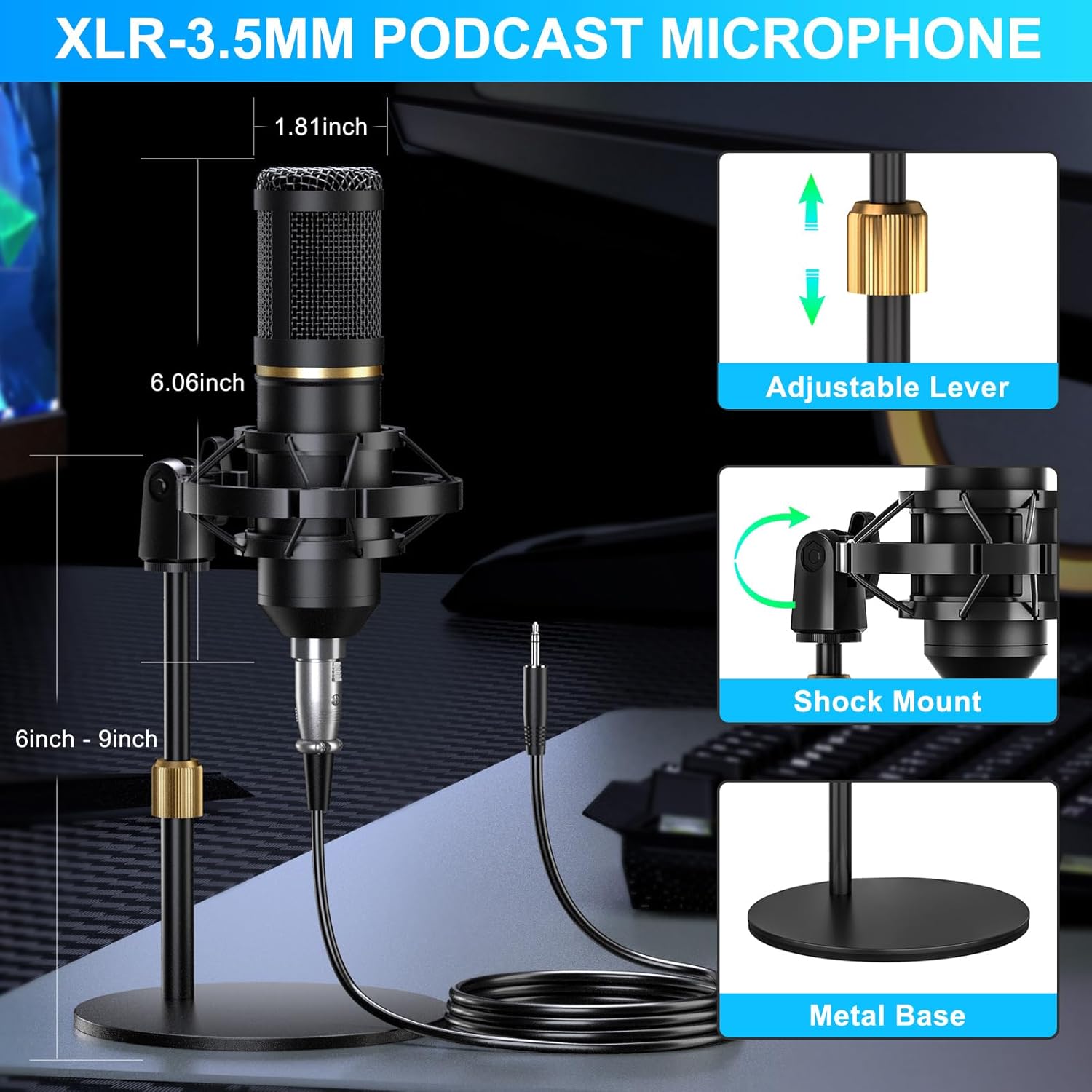
3.1 Microphone Assembly
- Attach the microphone shock mount to the desk stand.
- Gently place the 3.5mm condenser microphone into the shock mount.
- Secure the pop filter to the microphone stand, positioning it approximately 2-3 inches in front of the microphone.
- Place the foam windscreen over the microphone for additional protection against plosives and environmental noise.
3.2 Connecting the G10 Mixer
The G10 mixer offers multiple connectivity options for various devices and scenarios.
- Power Connection: Connect the USB-C to USB-A cable to the DC 5V port on the mixer and to a power adapter or a computer USB port for power and charging. The mixer has a built-in battery for portable use.
- Microphone Connection: Connect the 3.5mm condenser microphone to the 3.5mm MIC input port on the mixer. For XLR microphones (not included in this bundle), use the XLR MIC input.
- Monitoring Headphones: Plug your monitoring headphones into the "Monitor" jack on the mixer to hear your audio output.
- Computer Connection: Use the USB-C to USB-A data cable to connect the mixer's OTG port to your computer (PC or Mac). The mixer will be recognized as an audio input/output device.
- Mobile Device Connection: Use the USB-C to USB-C OTG cable to connect the mixer's OTG port to your smartphone or tablet. Alternatively, use the 3.5mm TRRS audio cables to connect the "Live1" or "Live2" ports to your mobile device's headphone jack.
- External Music Input: Connect an external music source (e.g., another phone, MP3 player) to the "Music" input port using a 3.5mm audio cable.
- Speaker Output: Connect external speakers to the "Output to Speaker" port if desired.

3.3 Bluetooth Connection
The G10 mixer supports Bluetooth for wireless music input.
- Press the BT button on the mixer to activate Bluetooth mode. The Bluetooth indicator will flash.
- On your mobile device, search for "G10 Mixer" in the Bluetooth settings and pair.
- Once connected, the Bluetooth indicator will remain solid. You can now play background music wirelessly through the mixer.

4. Operating Instructions
Familiarize yourself with the G10 mixer's controls and features to enhance your audio experience.
4.1 Basic Audio Controls
- Mic Volume Knob: Adjusts the input volume of the microphone.
- Music Volume Knob: Controls the volume of background music input (from external source or Bluetooth).
- Monitor Volume Knob: Adjusts the volume of your monitoring headphones.
- Reverb Knob: Controls the depth and length of the reverb effect.
- Denoise Button: Activates or deactivates the intelligent noise reduction feature.
- Ducking Button: When activated, this feature automatically lowers background music volume when you speak, amplifying your voice.

4.2 Sound Effects and Voice Modes
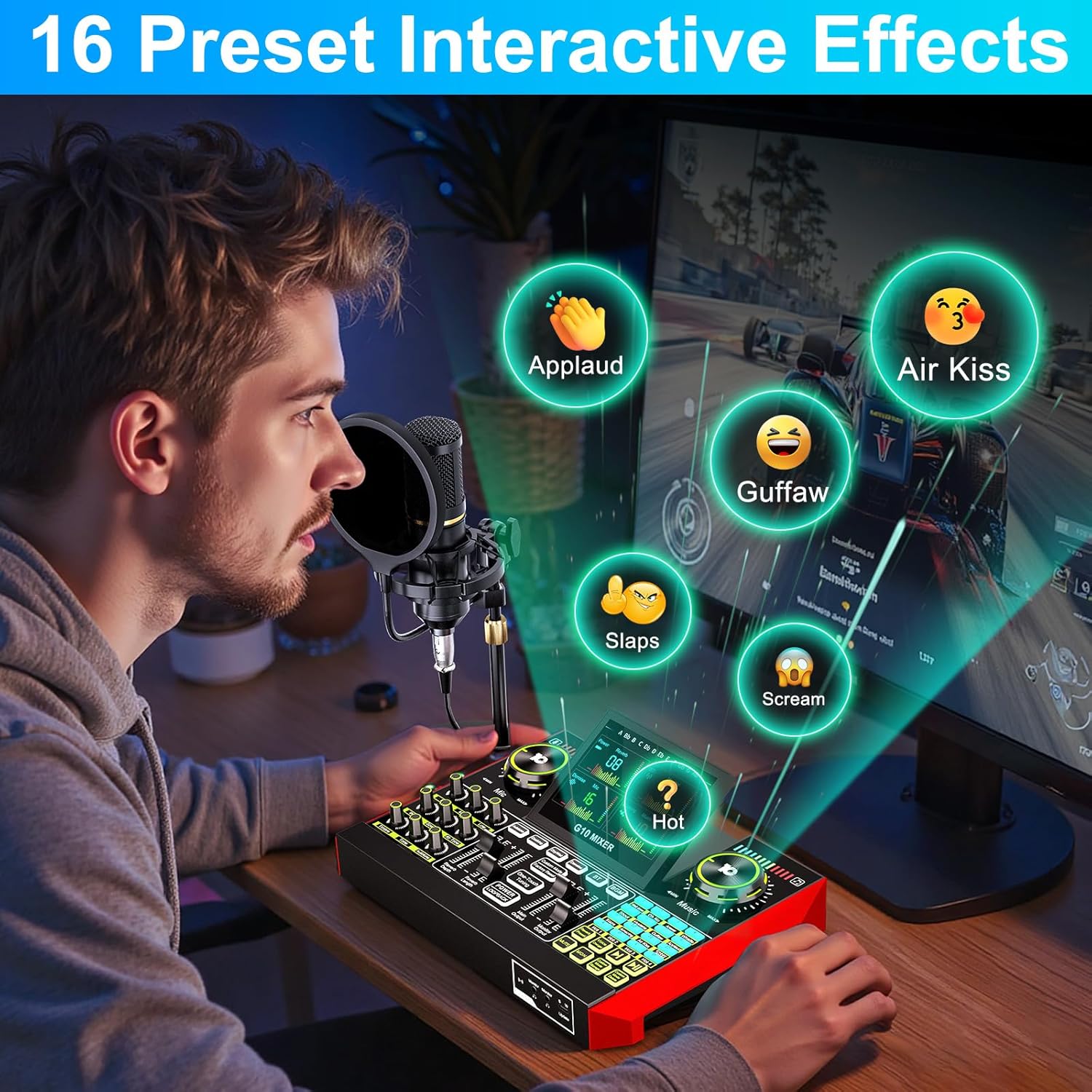
- Preset Interactive Effects: The mixer features 16 built-in sound effects (e.g., applause, laughter, air kiss). Press the corresponding buttons to trigger them during your stream or recording.
- Voice Changer: Transform your voice with various preset modes such as Female, Deep, Baby, or Uncle. Adjust bass and reverb to customize the effect.
- Preset Voice Modes: Explore 19 preset voice modes designed for different scenarios. You can also save your customized sound modes for quick access.
- Reverb Modes: Select from 5 preset reverb modes to add professional audio effects suitable for vocals or instruments.

4.3 Special Features
- Follow Singing (BGM) Mode: When activated, you can hear the original track while singing, but your audience will only hear the instrumental and your voice. This is ideal for live music performances.
- Remove Vocal: This function removes the original vocals from a song, allowing you to sing along to an instrumental track.
- Built-in Battery: The G10 mixer includes a built-in battery, providing up to 12 hours of usage for portable and outdoor recording or streaming.

5. Maintenance
Proper maintenance ensures the longevity and optimal performance of your tenlamp G10+MIC Podcast Microphone Bundle.
- Cleaning: Use a soft, dry cloth to wipe down the mixer and microphone. Avoid using liquid cleaners or abrasive materials, which can damage the surfaces or internal components.
- Storage: When not in use, store the equipment in a cool, dry place away from direct sunlight and extreme temperatures.
- Cable Care: Avoid bending or kinking cables sharply. Store them neatly to prevent damage.
- Battery Care: For the built-in battery, avoid fully discharging it frequently. Charge it regularly, even if not in constant use, to maintain battery health.
6. Troubleshooting
If you encounter issues with your tenlamp G10+MIC Podcast Microphone Bundle, refer to the following common solutions.
| Problem | Possible Cause | Solution |
|---|---|---|
| No sound from microphone | Microphone not connected properly; Mic volume too low; Denoise feature too aggressive; Incorrect input selected on computer/device. | Ensure microphone cable is securely plugged into the 3.5mm MIC input. Increase Mic volume knob. Temporarily disable Denoise. Verify "G10 Mixer" is selected as the input device in your computer's sound settings or streaming software. |
| No sound from headphones/speakers | Headphones/speakers not connected; Monitor/Output volume too low; Incorrect output selected on computer/device. | Ensure headphones are plugged into the Monitor jack or speakers into the Output port. Increase Monitor volume knob. Verify "G10 Mixer" is selected as the output device. |
| Distorted or unclear audio | Mic volume too high (clipping); Denoise feature affecting clarity; Faulty cable. | Reduce Mic volume. Adjust Denoise level or disable it. Try a different audio cable. |
| Voice changer not working as expected | Incorrect voice mode selected; Bass/Reverb settings interfering. | Cycle through different voice modes. Adjust Bass and Reverb settings to find the desired effect. Ensure the voice changer feature is activated. |
| Bluetooth connection issues | Bluetooth not activated; Device not in pairing mode; Interference. | Ensure the BT button is pressed and flashing. Make sure your mobile device's Bluetooth is on and searching. Move closer to the mixer and away from other wireless devices. |
If the problem persists after trying these solutions, please contact tenlamp customer support for further assistance.
7. Specifications
Key technical specifications for the tenlamp G10+MIC Podcast Microphone Bundle.
| Feature | Detail |
|---|---|
| Brand | tenlamp |
| Model Number | G10+MIC |
| Item Weight | 4.84 pounds (approx. 2.19 kg) |
| Product Dimensions (Mixer) | 10.9"D x 2.28"W x 7.67"H (approx. 27.7 x 5.8 x 19.5 cm) |
| Connectivity Technology | Bluetooth, USB |
| Number of Channels | 2 |
| Power Source | Battery Powered (Built-in) |
| Voltage | 5 Volts |
| Compatible Devices | Laptop, Personal Computer, Smartphone |
| Operating System Compatibility | Android, Windows, iOS, macOS |
| Microphone Type | 3.5mm Condenser Microphone |
| Battery Life (Mixer) | Up to 12 hours (approximate) |

8. Warranty and Support
tenlamp is committed to providing high-quality products and customer satisfaction.
- Replacement Policy: Enjoy a 365-day replacement policy for manufacturing defects.
- Customer Service: 24/7 customer service support is available to assist you with any inquiries or issues.
- Technical Support: Lifetime technical support is provided for your tenlamp G10+MIC Podcast Microphone Bundle.
For support, please refer to the contact information provided with your purchase or visit the official tenlamp website.
Related documentsG10+MIC


Ask a question about this manual
Ask about setup, troubleshooting, compatibility, parts, safety, or missing instructions. Manuals+ will review the question and use this page’s manual context to help answer it.