
1. Introduction
This manual provides essential information for the proper use and maintenance of your BNCF Bpad 10 Android 14 Tablet. Please read it thoroughly before operating your device to ensure optimal performance and longevity. The Bpad 10 is designed for a seamless user experience, powered by a Snapdragon 685 processor and running Android 14.
2. Package Contents
Verify that all items listed below are present in your product packaging:
- BNCF Bpad 10 Tablet
- User Manual
- Charging Adapter (5V/2A)
- Type-C Cable (5V/2A)
- SIM Card Ejector Pin

Figure 2.1: Package Contents and Tablet Components Overview
3. Product Overview
The BNCF Bpad 10 features a sleek design with strategically placed components for ease of use.

Figure 3.1: BNCF Bpad 10 Tablet Front and Rear View
3.1 Physical Components
- MicroSD Slot: For expandable storage.
- Type-C Port: For charging and data transfer.
- Volume Buttons: Adjust audio volume.
- Power Button: Turn the device on/off or lock/unlock the screen.
- Speakers: Dual stereo speakers for audio output.
- Microphone: For voice input.
- Rear Camera: Main camera for photos and videos.
- Front Camera: For video calls and selfies.
4. Setup
4.1 Initial Charging
Before first use, fully charge your BNCF Bpad 10 tablet using the provided Type-C cable and charging adapter. Connect the Type-C cable to the tablet's charging port and the adapter to a power outlet. The charging indicator will show the charging status.
4.2 Powering On/Off
- To Power On: Press and hold the Power Button until the BNCF logo appears on the screen.
- To Power Off: Press and hold the Power Button until the power options menu appears, then select 'Power Off'.
- To Restart: Press and hold the Power Button until the power options menu appears, then select 'Restart'.
4.3 Initial Configuration
Upon first power-on, the tablet will guide you through the initial setup process. This includes selecting your language, connecting to a Wi-Fi network, setting up your Google account, and configuring security options like facial recognition.
5. Operating Instructions
5.1 Android 14 Features
Your Bpad 10 runs on Android 14, offering enhanced multitasking, security, and user-friendly features:
- Facial Recognition: Securely unlock your device using your face.
- Split-Screen: Use two applications simultaneously by dividing the screen.
- Smart Projection: Cast your tablet's screen to compatible external displays.
- Three-Finger Screenshot: Capture screenshots quickly by swiping down with three fingers.
- Parental Controls: Manage and monitor device usage for children.
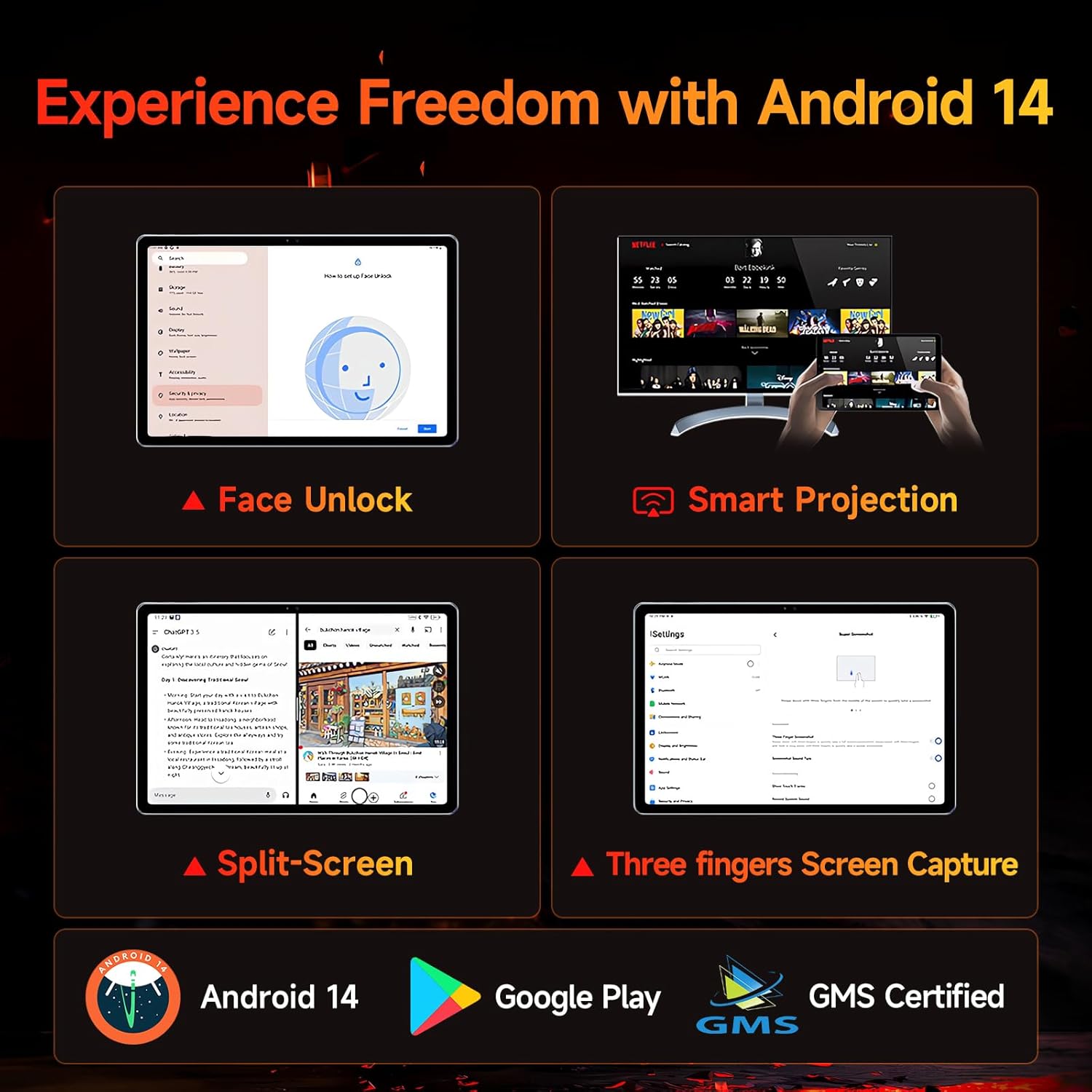
Figure 5.1: Android 14 User Interface and Features
5.2 Performance
The Bpad 10 is equipped with a 6nm Snapdragon 685 processor (2.8GHz) and Adreno 610 GPU, ensuring efficient performance for various tasks. A 6-Axis Gyro Sensor enhances gaming and video recording stability.

Figure 5.2: Snapdragon 685 Processor Details
5.3 Display and Audio
Experience clear visuals and immersive sound with the Bpad 10:
- Display: 10.1-inch FHD IPS screen with 1920x1200 resolution and a 60Hz refresh rate. It features 400 Nits brightness and Incell technology for improved touch accuracy.
- Widevine L1: Supports HD streaming on platforms like Netflix and Prime Video.
- Audio: Dual stereo speakers provide a cinematic audio experience.

Figure 5.3: Display and Widevine L1 Capabilities
5.4 Cameras
The tablet is equipped with 5MP front and 5MP rear cameras, suitable for capturing photos, 4K videos, and conducting HD video calls.
5.5 Connectivity
Stay connected with the following features:
- Wi-Fi: Supports 2.4G/5G dual-band Wi-Fi for stable internet access.
- Bluetooth 5.0: For connecting wireless accessories.
- GPS: For navigation and location services.
- Hall Sensor: Enables smart on/off functionality with compatible covers.
5.6 Storage and Battery
The Bpad 10 offers ample storage and long-lasting power:
- RAM: 12GB (4GB physical + 8GB virtual) for smooth multitasking.
- ROM: 128GB UFS storage, expandable up to 1TB via MicroSD card.
- Battery: 6500mAh battery supporting 18W PD fast charging for extended use.

Figure 5.4: Storage and Battery Specifications
6. Maintenance
To ensure the longevity and optimal performance of your BNCF Bpad 10 tablet, follow these maintenance guidelines:
- Cleaning: Use a soft, lint-free cloth to clean the screen and body. Avoid abrasive materials or harsh chemicals.
- Temperature: Operate the tablet within recommended temperature ranges. Avoid extreme heat or cold.
- Water Exposure: Keep the tablet away from water and high humidity. It is not waterproof.
- Storage: Store the tablet in a dry, cool place when not in use.
- Software Updates: Regularly check for and install system updates to ensure security and performance improvements.
7. Troubleshooting
If you encounter issues with your BNCF Bpad 10, refer to the following common troubleshooting steps:
| Problem | Possible Solution |
|---|---|
| Tablet does not power on | Ensure the battery is charged. Connect the charger and wait a few minutes before attempting to power on again. If unresponsive, perform a forced restart by holding the power button for 10-15 seconds. |
| Slow performance | Close unnecessary background applications. Clear cache for frequently used apps. Restart the tablet. Ensure sufficient storage space is available. |
| Wi-Fi connectivity issues | Restart your Wi-Fi router. Forget the network on your tablet and reconnect. Ensure the tablet is within range of the Wi-Fi signal. |
| Screen unresponsive | Restart the tablet. Ensure the screen is clean and free from moisture or debris. |
| Battery drains quickly | Reduce screen brightness. Close background apps. Disable unused features like Bluetooth or GPS. Check for apps consuming excessive power in battery settings. |
8. Specifications
Key technical specifications for the BNCF Bpad 10 tablet:
| Feature | Specification |
|---|---|
| Screen Size | 10.1 Inches |
| Screen Resolution | 1920 x 1200 pixels (FHD) |
| Operating System | Android 14 |
| Processor | Qualcomm Snapdragon 685 (2.8GHz) |
| RAM | 12GB (4GB + 8GB Virtual) |
| Flash Memory Size | 128 GB UFS (Expandable to 1TB) |
| Cameras | 5MP Front, 5MP Rear |
| Battery Capacity | 6500mAh |
| Charging | 18W PD Fast Charging |
| Wireless Type | 802.11b/g (2.4G/5G WiFi), Bluetooth 5.0 |
| Item Weight | 1.07 pounds (approx. 485g) |
| Product Dimensions | 7.9 x 4.9 x 0.3 inches (approx. 20.1 x 12.4 x 0.76 cm) |
| Color | Gray |
9. Warranty and Support
BNCF is committed to providing quality products and customer satisfaction.
9.1 Warranty Policy
BNCF offers a one-year warranty for its products. For tablets purchased from the BNCF Official Flagship Store, customers benefit from a 12-month free repair warranty and lifetime technical support.
9.2 Customer Support
If you encounter any issues or have inquiries regarding your BNCF Bpad 10 tablet, please contact BNCF customer service. You can expect a response within 24 hours. They can assist with troubleshooting, returns, or exchange services.
- Contact: Please refer to the contact information provided on the BNCF official website or your purchase platform.
- FAQs:
- Are you specialized in tablets? Yes, BNCF is dedicated to designing and manufacturing innovative tablets, prioritizing quality, performance, and user experience.
- What is the RMA policy for this tablet? We offer a one-year warranty. You can expect a response from us within 24 hours for any issues or inquiries.
- If my products have issues, what should I do? Please leave us a message, and we will use our expertise to solve the problem for you, or provide a return or exchange service.