
1. Introduction
This user manual provides detailed instructions for the GKU D900JP Dual Dash Cam. Please read this manual thoroughly before using the product to ensure proper operation and to maximize its features. Keep this manual for future reference.
The GKU D900JP is designed to record driving footage in high definition, offering both front and rear camera views. It incorporates advanced features such as a Sony IMX335 STARVIS sensor, 5GHz WiFi connectivity, integrated GPS, High Dynamic Range (HDR) for improved image clarity, 24-hour parking monitoring, G-sensor emergency recording, and continuous loop recording.
2. Product Overview
2.1. Package Contents
Verify that all items listed below are included in your package:
- GKU D900JP Main Unit
- Rear Camera
- User Manual
- Warranty Card
- Charging Cable (Cigarette Lighter Power Cable)
- 64GB SD Card
- 3M Double-Sided Tape
- Electrostatic Protection Film
- Wiring Removal Tool
- Wiring Clips

2.2. Product Features
- High-Resolution Recording: Front 4K (800W pixels) and Rear 2.5K Full HD simultaneous recording.
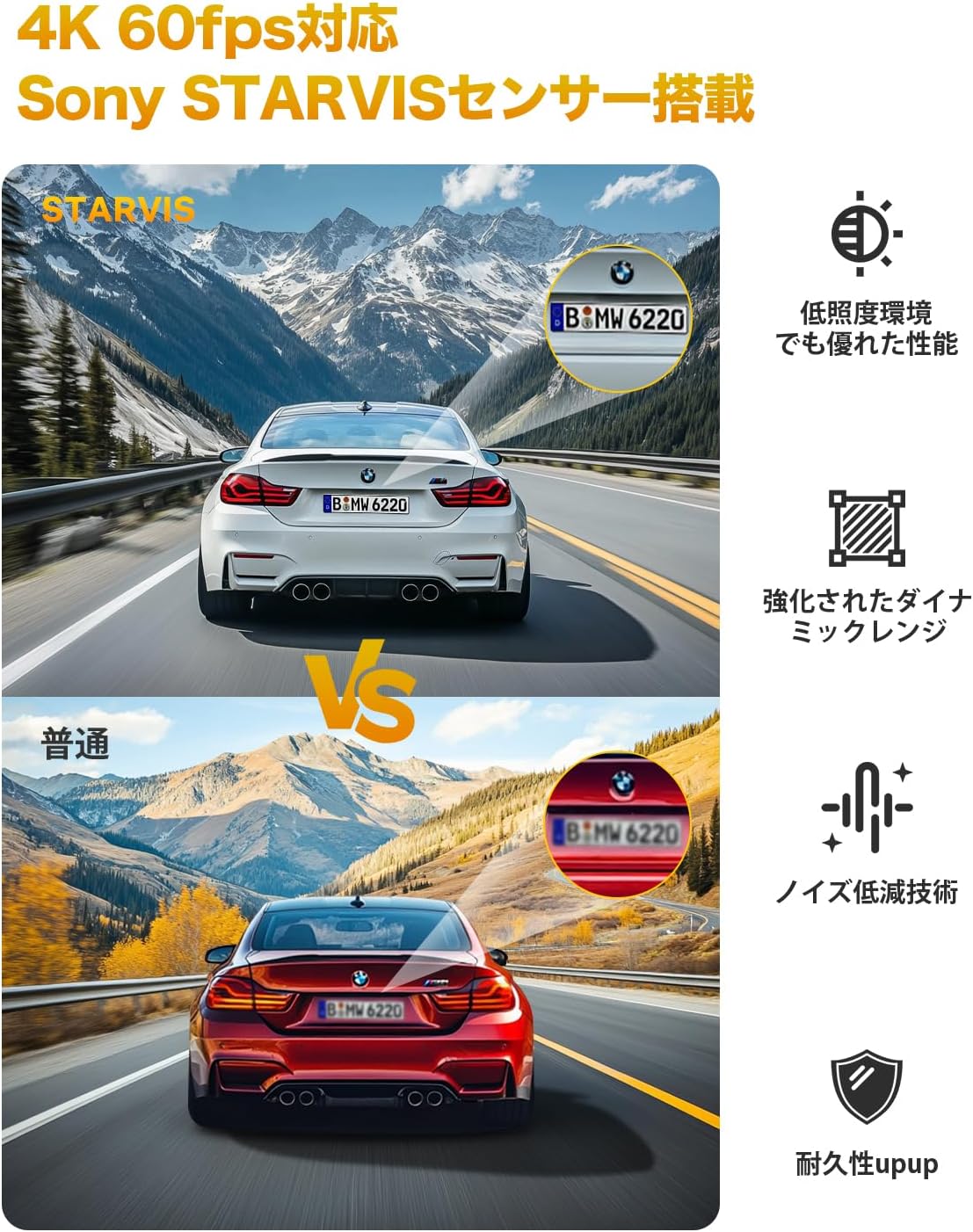
- Sony IMX335 Sensor & STARVIS Technology: Ensures clear and vivid images day and night, suppressing noise in low-light conditions.
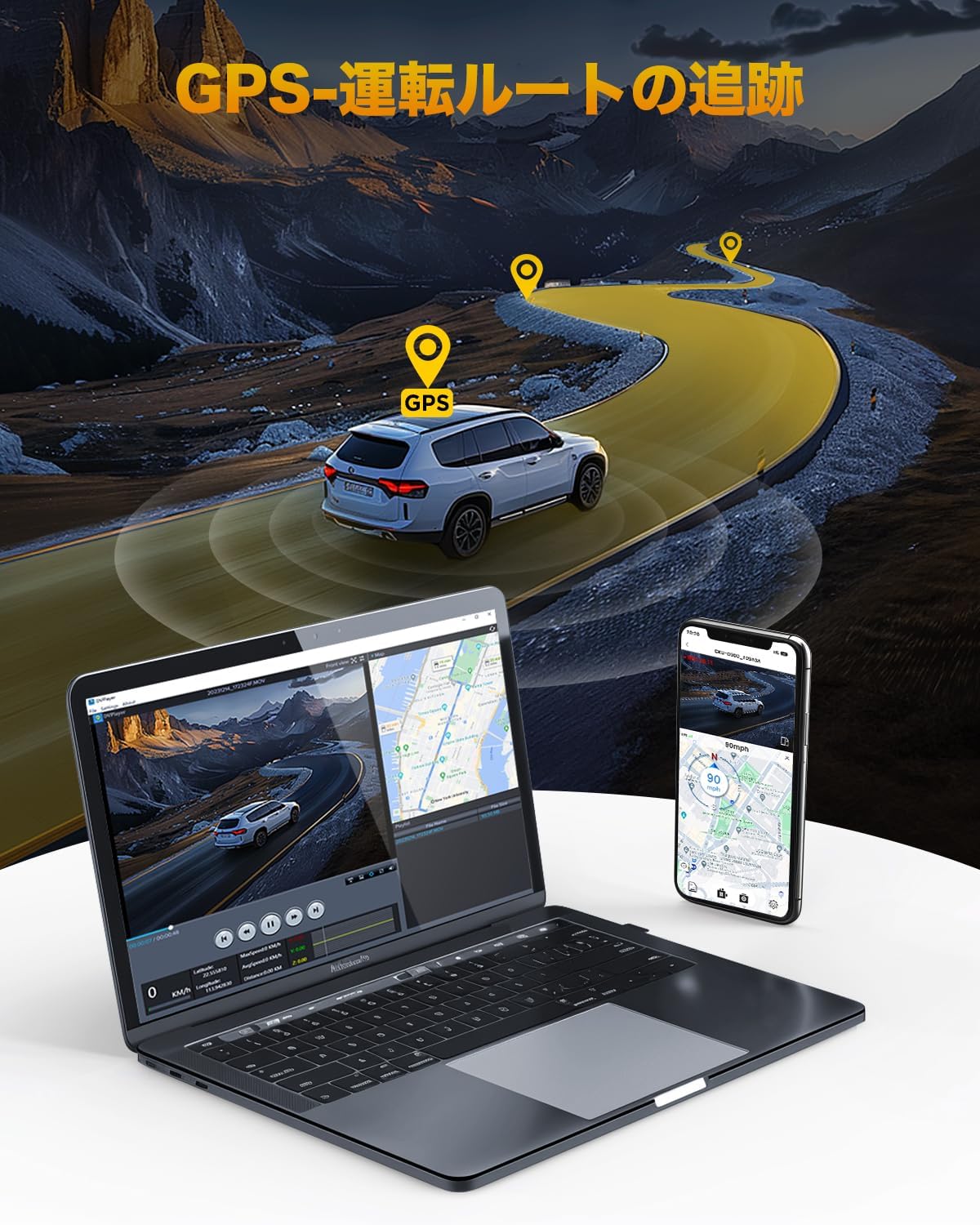
- Integrated GPS: Accurately records driving route, location, and speed data.
- 1.47-inch LCD Screen: Allows real-time viewing of recorded footage.
- 5GHz Wi-Fi & App Control: High-speed data transfer to smartphones for viewing, downloading, and sharing videos via the GKU GO app.
- HDR Function: Optimizes images in strong backlight or high contrast scenes, preventing overexposure and underexposure.
- Rotatable Cameras: Front camera rotates 340°, rear camera rotates 360° for flexible angle adjustment.
- Super Capacitor: Provides stable power supply and enhanced durability in extreme temperatures (-20°C to 70°C).
- Loop Recording: Automatically overwrites older files when the SD card is full.
- G-Sensor Emergency Recording: Automatically locks footage upon detecting impacts or sudden braking to prevent overwriting.
- 24-Hour Parking Monitoring: Utilizes G-sensor and time-lapse recording (requires dedicated ACC step-down cable, sold separately).
3. Setup
3.1. Inserting the SD Card
- Ensure the dash cam is powered off.
- Locate the SD card slot on the main unit.
- Insert the provided 64GB SD card (or a compatible U3 standard SD card up to 512GB) into the slot until it clicks into place.
- Upon first use, it is recommended to format the SD card through the dash cam's settings menu to ensure optimal performance.

4. Installation
4.1. Mounting the Front Camera
- Clean the windshield area where the dash cam will be mounted.
- Apply the electrostatic protection film to the chosen area on the windshield. This allows for easier removal later.
- Attach the 3M double-sided tape to the dash cam's mounting bracket.
- Press the bracket firmly onto the electrostatic film on the windshield.
- Attach the main unit to the bracket. The front camera can be rotated 340° to adjust the viewing angle.
4.2. Mounting the Rear Camera
- Clean the rear windshield area.
- Attach the rear camera using the provided 3M double-sided tape.
- Connect the rear camera cable to the main unit. The rear camera can be rotated 360° for optimal positioning.

4.3. Power Connection and Cable Management
- Connect the charging cable to the main unit and plug the other end into your car's cigarette lighter socket.
- Route the power cable and rear camera cable neatly along the edges of the windshield and interior trim using the provided wiring removal tool and clips.
- For 24-hour parking monitoring, a dedicated ACC step-down cable (sold separately) is required for direct wiring to the car's fuse box.

5. Operating Instructions
5.1. Power On/Off
- The dash cam will automatically power on and begin recording when your vehicle's ignition is turned on.
- It will automatically power off when the ignition is turned off.
5.2. Basic Recording
Once powered on, the dash cam will automatically start recording. The 1.47-inch LCD screen will display the live view from the cameras.
5.3. Menu Navigation
Use the physical buttons on the dash cam to navigate through the menu options. Refer to the on-screen prompts for specific functions like formatting the SD card, adjusting recording settings, or changing display modes.
6. App and Connectivity
6.1. Connecting to the GKU GO App
- Download the "GKU GO" app from the Apple App Store or Google Play Store.
- Turn on the dash cam's Wi-Fi function (refer to the dash cam's menu).
- On your smartphone, go to Wi-Fi settings and connect to the dash cam's Wi-Fi network (SSID and password can be found on the dash cam screen or in the manual).
- Open the GKU GO app. You can now view live footage, browse recorded videos, download files, and adjust settings directly from your phone.
Note: For optimal connection, temporarily disable your phone's cellular data and Bluetooth when connecting to the dash cam's Wi-Fi.

6.2. High-Speed 5GHz Wi-Fi
The GKU D900JP supports 5GHz Wi-Fi, enabling faster data transfer speeds compared to standard 2.4GHz connections. This facilitates quick viewing and downloading of high-resolution video files to your smartphone.
7. Advanced Features
7.1. GPS Tracking
The integrated GPS module accurately records your vehicle's driving route, location, and speed. This data can be viewed alongside your video footage using the dedicated GKU GO app or PC player, providing crucial evidence in case of an incident and enhancing your travel records.

7.2. HDR Night Vision
The High Dynamic Range (HDR) function optimizes video quality in challenging lighting conditions, such as strong backlight or low light. It captures details in both bright and dark areas simultaneously, reducing overexposure and underexposure to produce clear and balanced footage, especially during night driving.

7.3. 24-Hour Parking Monitoring
When connected to a dedicated ACC step-down cable (sold separately), the dash cam can monitor your vehicle for 24 hours. It supports G-sensor emergency recording and time-lapse recording modes to capture events while parked.
7.4. G-Sensor Emergency Recording
The built-in G-sensor detects sudden impacts or rapid acceleration/deceleration. When triggered, it automatically locks the current video segment, protecting it from being overwritten by loop recording. These locked videos are stored in a separate folder on the SD card.

7.5. Loop Recording
The dash cam continuously records video in short segments (e.g., 1, 2, or 3 minutes). When the SD card reaches its storage limit, the oldest unlocked files are automatically overwritten by new recordings. This ensures continuous recording without manual intervention.

8. Maintenance
8.1. SD Card Management
- Regularly format the SD card (e.g., once a month) to prevent data corruption and ensure smooth recording.
- Back up important video files to a computer or cloud storage before formatting.
- Replace the SD card if you notice any recording errors or performance degradation.
8.2. Cleaning the Device
- Use a soft, dry cloth to clean the camera lenses and the device body.
- Avoid using abrasive cleaners or solvents that could damage the device.
9. Troubleshooting
If you encounter any issues with your GKU D900JP Dash Cam, please refer to the following common solutions:
| Problem | Possible Cause | Solution |
|---|---|---|
| Dash cam does not power on. | No power supply; faulty cable; car's power outlet issue. | Check power cable connection; test with another power source; ensure car's ignition is on. |
| Recording stops or freezes. | SD card error; incompatible SD card; full SD card. | Format the SD card; use a U3 standard SD card; replace the SD card. |
| Poor video quality. | Dirty lens; protective film still on lens; incorrect settings. | Clean the lens; remove any protective film; check resolution settings in the menu. |
| Wi-Fi connection issues. | Incorrect password; interference; phone settings. | Verify Wi-Fi password; disable cellular data/Bluetooth on phone; restart dash cam and phone. |
| GPS not working. | Poor satellite signal; GPS module error. | Ensure clear view of the sky; check GPS settings in the menu; contact support if issue persists. |
If the problem persists after attempting these solutions, please contact GKU customer support for assistance.
10. Specifications
The following table outlines the technical specifications of the GKU D900JP Dash Cam:
| Feature | Specification |
|---|---|
| Screen Size | 1.47 inches |
| Compatible Devices | Smartphone, PC |
| Color | D900JP |
| Brand Name | GKU |
| Manufacturer | GKU |
| Product Model Number | D900-JP |
| Other Functions | LED Signal Light Compatible, Sony IMX335 Sensor, STARVIS, Parking Monitor, Night Vision |
| Size | Small |
| Display Type | LCD |
| Assembly Method | Front Glass Mount |
| Product Dimensions | 4.2 x 10.6 x 5.4 cm; 550 g |
| Video Capture Resolution | 4K+2.5K |
| Mounting Type | Front Glass Mount |
| Field of View | 340 degrees |
| Control Method | App |
11. Warranty and Support
11.1. Warranty Information
The GKU D900JP Dash Cam comes with a 12-month warranty from the date of purchase. This warranty covers manufacturing defects and ensures that the product meets its specified performance standards. Please retain your proof of purchase for warranty claims.
11.2. Customer Support
GKU provides dedicated customer support. If you have any questions, require technical assistance, or need to make a warranty claim, please contact our support team. Our Japanese-speaking support center and specialized customer service team are available to assist you.
Contact information can be found on the GKU official website or through the contact details provided with your product packaging.


