
1. Introduction
This manual provides detailed instructions for the setup, operation, and maintenance of your SUMTAB HY300 Pro 1080P Projector with Android 11. Please read this manual thoroughly before using the projector to ensure proper functionality and to maximize your viewing experience.
The SUMTAB HY300 Pro is a portable home theater projector featuring native 1080P resolution, 4K support, Android 11 operating system, WiFi 6, and Bluetooth 5.0 connectivity. Its 180° rotatable stand allows for flexible projection onto various surfaces.
2. Package Contents
Verify that all items are present in the package:
- SUMTAB HY300 Pro 1080P Projector
- Power Cord
- Remote Control
- User Manual (this document)
3. Product Overview
3.1 Projector Components
Familiarize yourself with the main components of your projector.

Image 3.1: Front view of the SUMTAB HY300 Pro Projector, showing the lens, remote control, and HDMI cables. This image illustrates the compact design and included accessories.

Image 3.2: Diagram illustrating the various input and output ports on the SUMTAB HY300 Pro Projector, including HDMI, USB, and audio ports. Examples of connected devices like TV sticks, PS5, laptops, speakers, and USB drives are shown.
3.2 Key Features
- Native 1080P Resolution with 4K Support: Delivers clear and vibrant images.
- Android 11 Operating System: Integrated smart TV functionality with access to streaming apps.
- 180° Flexible Projection: Allows projection onto walls, ceilings, or angled surfaces.
- WiFi 6 Connectivity: Provides faster and more stable wireless network connection.
- Bluetooth 5.0: For wireless audio device pairing.
- 300 ANSI Lumens: Offers adequate brightness for home viewing environments.
- Automatic Keystone Correction: Optimizes image geometry for ideal viewing.
- Portable Design: Compact and lightweight for easy transport.
4. Setup
4.1 Initial Placement
Position the projector on a stable, flat surface. The 180° rotatable stand allows for versatile placement. Ensure adequate ventilation around the projector.
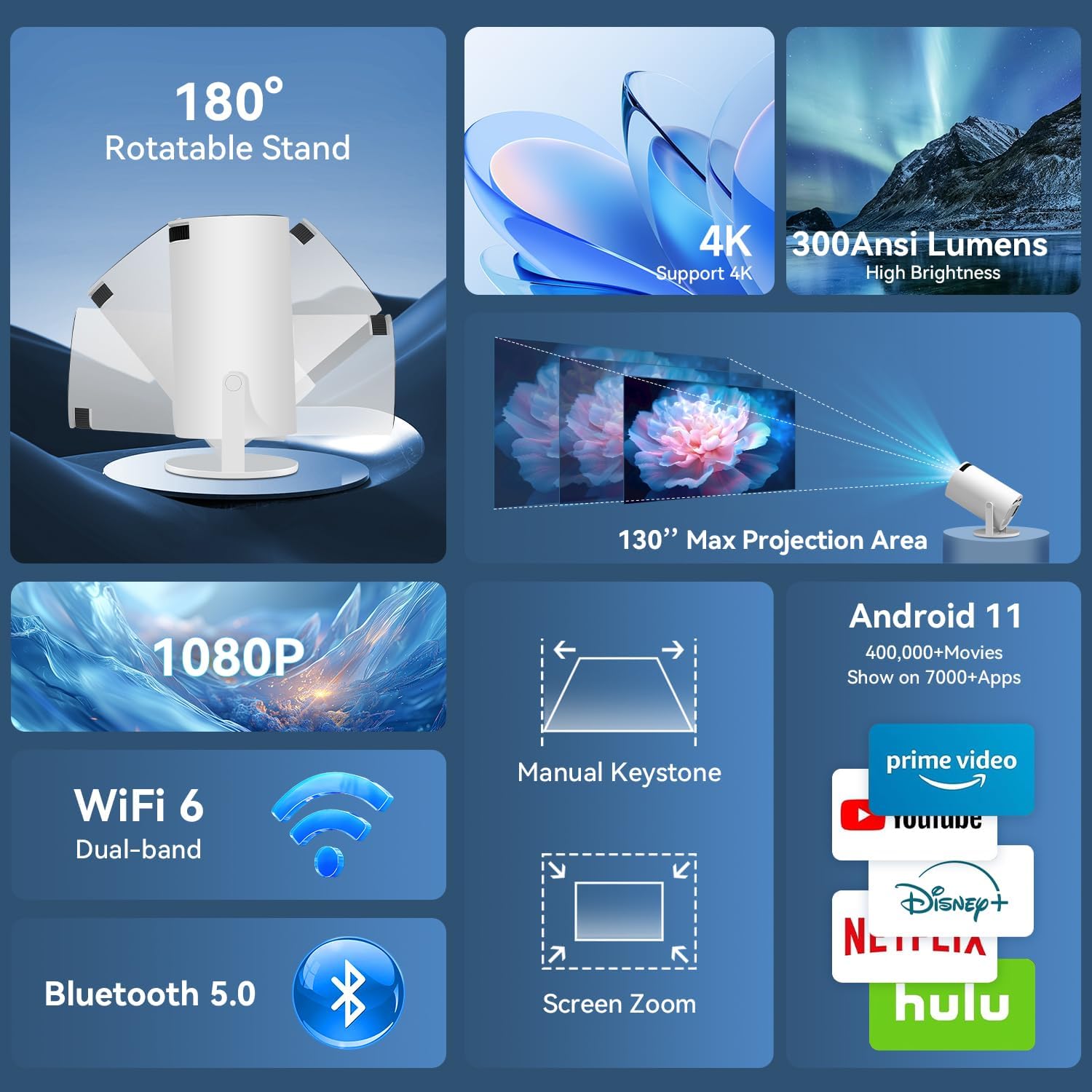
Image 4.1: Illustration of the projector's 180° rotatable stand, demonstrating its flexibility for projecting onto various surfaces like walls or ceilings.
4.2 Power Connection
- Connect the power cord to the projector's power input port.
- Plug the other end of the power cord into a power outlet.
- Press the power button on the projector or remote control to turn it on.
4.3 Network Configuration (WiFi)
- Navigate to the "Settings" menu on the projector's interface.
- Select "Network & Internet".
- Turn on Wi-Fi and select your desired network from the list.
- Enter the Wi-Fi password using the on-screen keyboard and remote control.
- Confirm the connection.

Image 4.2: Visual representation of the projector's dual-band WiFi 6 and Bluetooth 5.0 capabilities, highlighting seamless wireless connectivity for streaming and audio.
4.4 Bluetooth Device Pairing
- Go to "Settings" and select "Connected Devices" or "Bluetooth".
- Ensure Bluetooth is enabled on both the projector and your audio device (e.g., speaker, headphones).
- Select your device from the list of available devices to pair.

Image 4.3: The projector shown acting as a standalone Bluetooth speaker, playing music from a smartphone. This demonstrates its audio playback capability without projection.
5. Operating Instructions
5.1 Basic Navigation
Use the provided remote control to navigate the Android 11 interface. The directional buttons, OK button, back button, and home button are essential for operation.
5.2 Image Adjustment
- Focus Adjustment: Manually adjust the focus ring on the projector lens until the image is clear.
- Keystone Correction: The projector features automatic keystone correction. If manual adjustment is needed, navigate to "Settings" > "Projection Settings" > "Keystone Correction".
- Screen Zoom: Adjust the projection size via the "Screen Zoom" option in the projection settings.

Image 5.1: Demonstrates the manual keystone adjustment and manual focus features of the projector, allowing users to fine-tune the image for optimal clarity and geometry.
5.3 Connecting External Devices
The projector supports various external devices via HDMI and USB ports.
- HDMI: Connect devices like TV sticks, gaming consoles (PS5), or laptops. Select the HDMI input source from the projector's input menu.
- USB: Insert USB drives to play media files. Access files through the built-in file manager.

Image 5.2: An overview of the projector's connectivity options, including USB, Audio (for external speakers/headphones), and HDMI, with examples of compatible devices such as gaming consoles, TV sticks, and laptops.
5.4 Using Android 11 Features
The integrated Android 11 system allows direct access to streaming applications.
- Streaming Apps: Access pre-installed apps like Netflix, YouTube, Prime Video, Hulu, and Disney+. Ensure a stable internet connection.
- App Installation: Download additional applications from the Google Play Store.

Image 5.3: The projector's screen showing the Android TV 11 interface with various streaming applications like Netflix, Prime Video, and YouTube, demonstrating its smart capabilities.
6. Maintenance
6.1 Cleaning the Lens
Gently wipe the projector lens with a soft, lint-free cloth specifically designed for optical lenses. Do not use abrasive cleaners or harsh chemicals.
6.2 General Cleaning
Wipe the exterior of the projector with a soft, dry cloth. Avoid blocking ventilation openings to prevent overheating.
6.3 Storage
When not in use for extended periods, store the projector in a cool, dry place, away from direct sunlight and excessive dust.
7. Troubleshooting
| Problem | Possible Cause | Solution |
|---|---|---|
| No image displayed | Power not connected; Incorrect input source; Lens cap on. | Check power connection; Select correct HDMI/USB input; Remove lens cap. |
| Blurred image | Focus not adjusted; Incorrect keystone correction. | Adjust focus ring; Perform keystone correction (auto or manual). |
| No sound | Volume too low; Muted; Incorrect audio output selected; Bluetooth device not paired. | Increase volume; Unmute; Check audio settings; Re-pair Bluetooth device. |
| Wi-Fi connection issues | Incorrect password; Router too far; Network interference. | Verify password; Move projector closer to router; Restart router. |
| Remote control not working | Dead batteries; Obstruction between remote and projector. | Replace batteries; Ensure clear line of sight. |
8. Specifications
| Feature | Detail |
|---|---|
| Brand | SUMTAB |
| Model | HY300 Pro |
| Display Resolution | Native 1920 x 1080 (1080P), 4K Support |
| Brightness | 300 ANSI Lumens |
| Operating System | Android 11 |
| Connectivity | WiFi 6 (Dual-band 2.4G+5G), Bluetooth 5.0, HDMI, USB |
| Projection Size | 30-130 inches |
| Projection Distance | 0.8m - 3m (2.62ft - 9.84ft) |
| Keystone Correction | Automatic |
| Product Dimensions | 3.97 x 3.97 x 4.07 inches |
| Item Weight | 1.39 pounds |

Image 8.1: Visual summary of key display specifications including 1080HD resolution (1920x1080), 300 ANSI Lumens brightness, and a 10000:1 contrast ratio, emphasizing image quality.

Image 8.2: Diagram illustrating the flexible projection size from 30 to 130 inches and corresponding projection distances from 0.8m to 3m, demonstrating versatility in setup.
9. Warranty and Support
9.1 Warranty Information
Your SUMTAB projector is covered by a standard manufacturer's warranty. Please refer to the warranty card included in your package for specific terms and conditions. Keep your purchase receipt as proof of purchase.
9.2 Customer Support
For technical assistance, troubleshooting, or warranty claims, please contact SUMTAB customer support. Contact details can typically be found on the official SUMTAB website or on the warranty card.
For additional protection, 2-Year and 3-Year Protection Plans are available for purchase separately.