
1. Product Overview
The Acer Nano Pad Rechargeable Bluetooth Keyboard and Mouse Combo provides a wireless input solution for various devices. This combo features an ultra-slim design, rechargeable batteries, and multi-device compatibility.
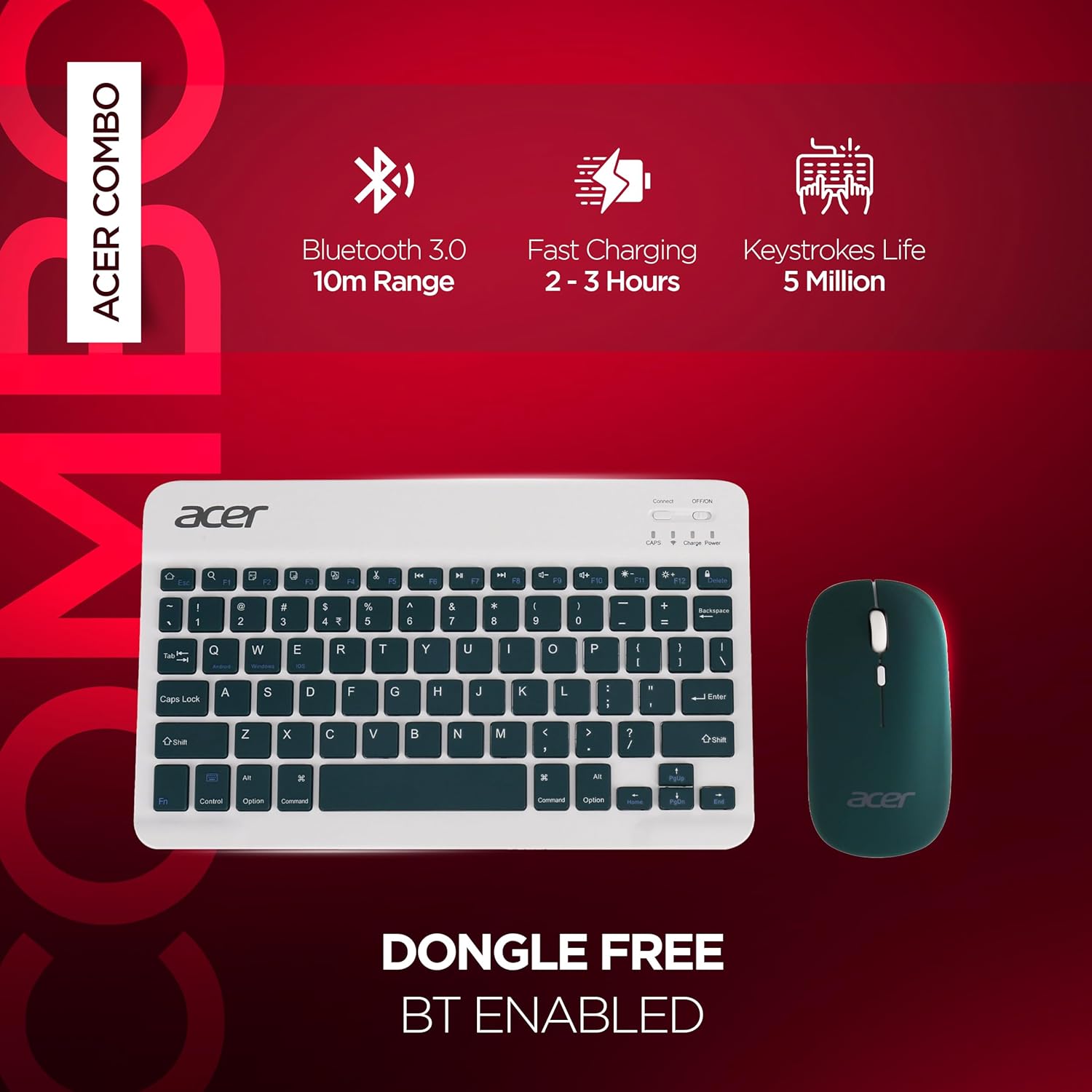
Image: Acer Nano Pad Keyboard and Mouse Combo highlighting key features like Bluetooth 3.0, fast charging (2-3 hours), and a keystroke life of 5 million. The image also states "DONGLE FREE BT ENABLED".
Key Features:
- Multi-Connectivity: Compatible with tablets, phones, notebooks, and desktops.
- Bluetooth Connection: Advanced Bluetooth chip for stable, cordless connection up to 10m range.
- Ultra Slim & Lightweight Design: Keyboard dimensions 33 x 17 x 4 CM, weight 261 gms.
- Rechargeable Battery: Built-in lithium battery for both keyboard and mouse, offering up to 150 hours of continuous use on a full charge.
- Adjustable Mouse DPI: Mouse features 3 adjustable DPI levels (800/1200/1600) for sensitivity control.
- 78-Key Keyboard: Anti-slip back with media hotkeys for volume control, previous, and next.
2. Setup Instructions
2.1 Charging the Devices
Before initial use, ensure both the keyboard and mouse are fully charged. Connect the provided charging cable to the charging port on each device and to a USB power source. The charging indicator will show the charging status.
- A full charge typically takes 2-3 hours.
- Once fully charged, the devices can operate for up to 150 hours continuously.
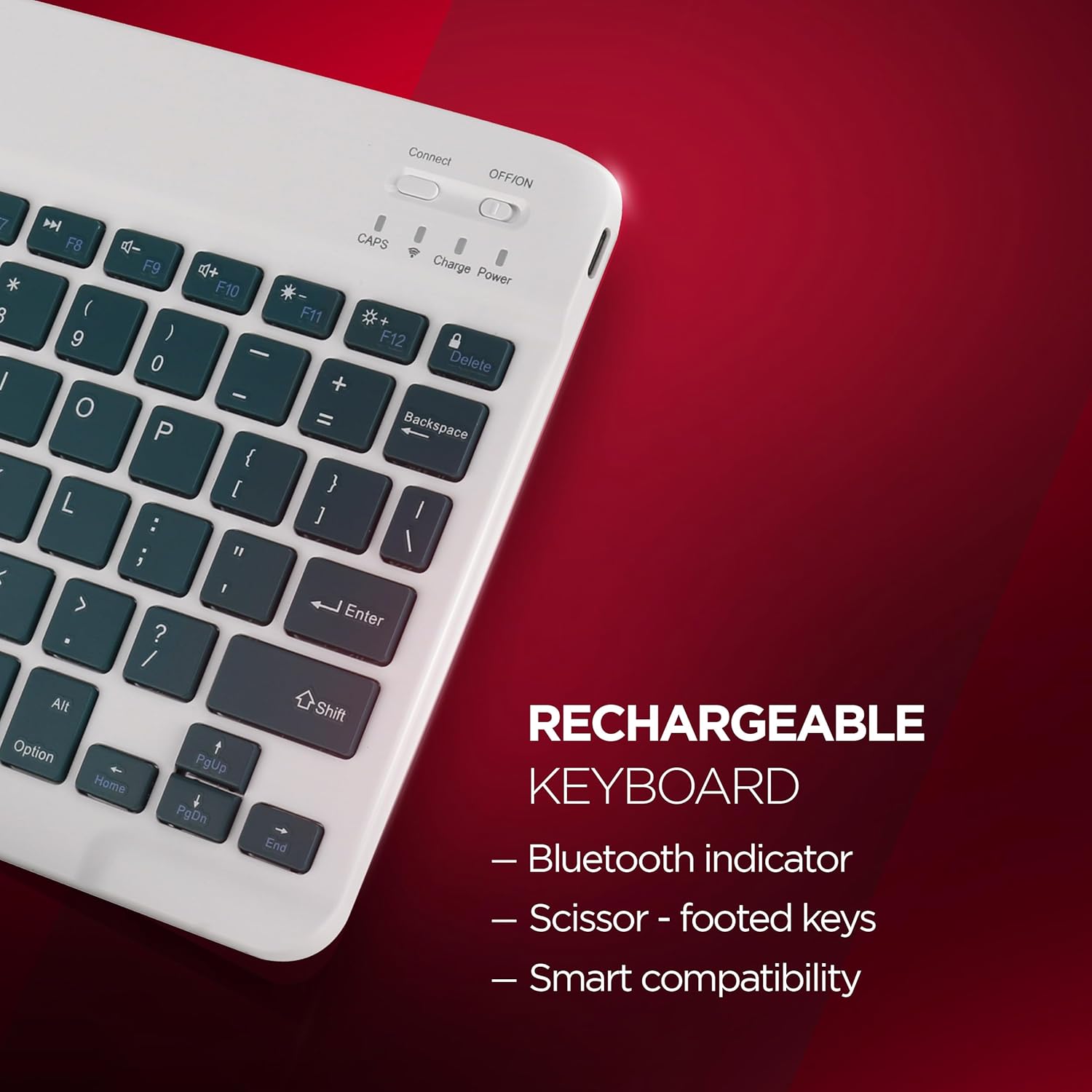
Image: Close-up view of the Acer Nano Pad keyboard, highlighting its rechargeable nature, Bluetooth indicator, scissor-footed keys, and smart compatibility.
2.2 Pairing with Your Device
The keyboard and mouse connect via Bluetooth. Follow these steps to pair them with your device:
- Turn on the keyboard and mouse using their respective ON/OFF switches.
- On the keyboard, press the "Connect" button (usually located near the ON/OFF switch) to enter pairing mode. The Bluetooth indicator light will flash.
- On your host device (tablet, phone, laptop, etc.), navigate to the Bluetooth settings.
- Search for available Bluetooth devices. You should see "Acer Keyboard" and "Acer Mouse" (or similar names).
- Select each device to pair. Follow any on-screen prompts to complete the pairing process.
- Once paired, the Bluetooth indicator light on the keyboard will stop flashing.
The working range for the Bluetooth connection is up to 10 meters.
3. Operating Instructions
3.1 Keyboard Usage
- The keyboard features 78 keys, including standard alphanumeric keys and function keys.
- Media Hotkeys: Use the function keys (F1-F12) in combination with the "Fn" key for media controls such as volume adjustment, play/pause, previous track, and next track. Refer to the key legends for specific functions.
- Anti-Slip Back: The keyboard is designed with an anti-slip back for stable placement during use.
3.2 Mouse Usage
The mouse is designed for comfortable use with an ultra-thin and quiet click mechanism.
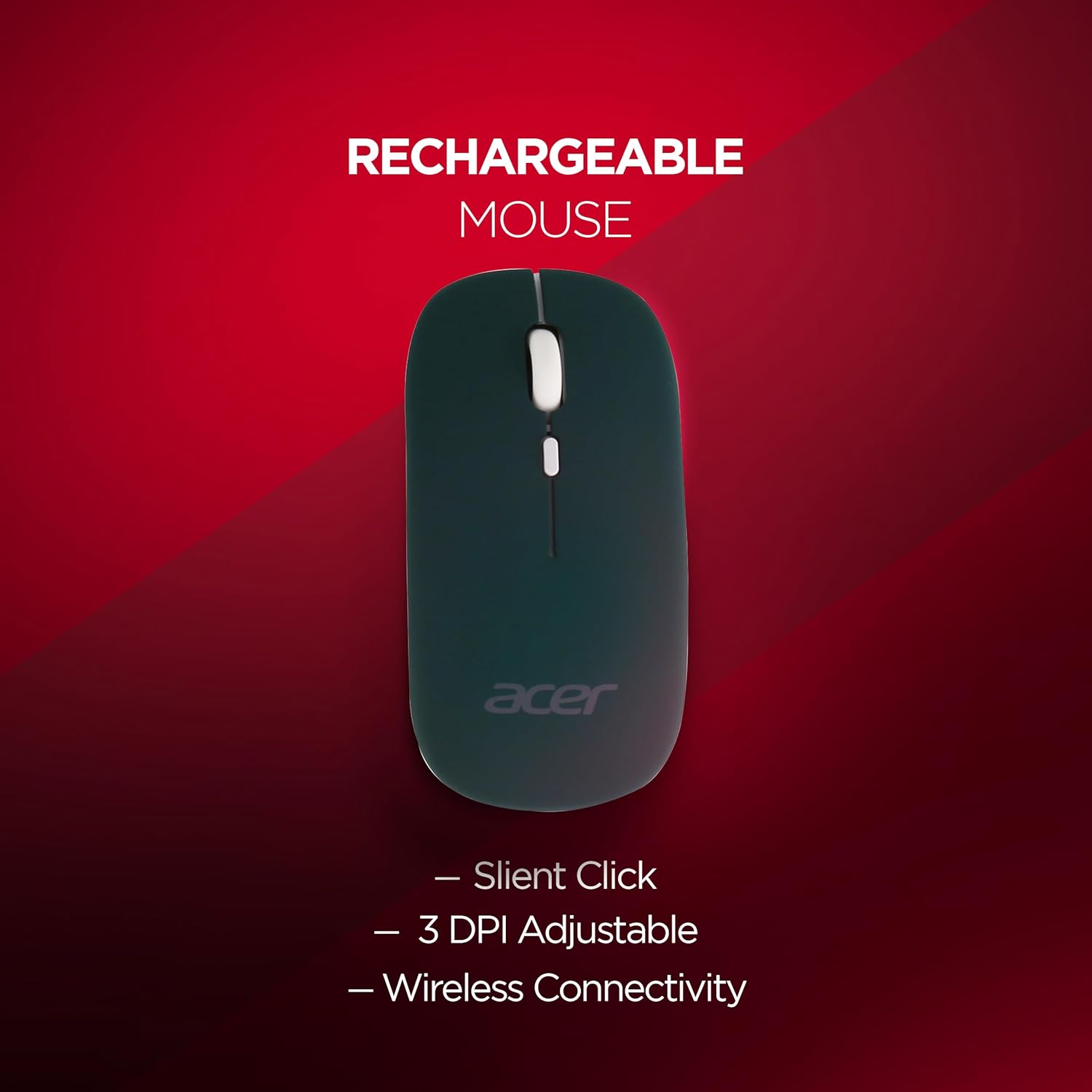
Image: Close-up view of the Acer Nano Pad mouse, highlighting its silent click, 3 adjustable DPI levels, and wireless connectivity.
- DPI Adjustment: The mouse has 3 adjustable DPI levels (800, 1200, 1600). Press the DPI button (usually located near the scroll wheel) to cycle through the sensitivity settings.
- Ergonomic Design: The mouse is ergonomically designed for comfortable handling during extended use.
3.3 Automatic Sleep Mode
To conserve battery life, both the keyboard and mouse will enter an automatic sleep mode after approximately 15 minutes of inactivity. To wake them up, simply press any button on the device.
4. Maintenance
4.1 Recharging
When the battery is low, the indicator light on the keyboard/mouse will signal. Connect the devices to a USB power source using the provided cable for recharging. Avoid using damaged cables or chargers.
4.2 Cleaning
To clean the keyboard and mouse, use a soft, dry, lint-free cloth. For stubborn dirt, slightly dampen the cloth with water or a mild cleaning solution. Avoid using harsh chemicals, abrasives, or spraying liquids directly onto the devices.
4.3 Storage
Store the devices in a cool, dry place away from direct sunlight and extreme temperatures. If storing for an extended period, ensure they are fully charged before storage and periodically recharge them to maintain battery health.
5. Troubleshooting
If you encounter issues with your Acer Nano Pad Keyboard & Mouse Combo, refer to the following common problems and solutions:
| Problem | Possible Cause / Solution |
|---|---|
| Devices not connecting or frequently disconnecting |
|
| Mouse not working, but keyboard works |
|
| Keyboard keys not responding or working intermittently |
|
| High input latency or delay |
|
| Function (Fn) keys or Control/Alt/Command keys not behaving as expected |
|
6. Specifications
| Feature | Detail |
|---|---|
| Brand | Acer |
| Model Number | ZC.A01SI.18L |
| Connectivity Technology | Bluetooth |
| Special Features | Ergonomic, Lightweight, Portable, Rechargeable |
| Compatible Devices | Laptop, Personal Computer, Smartphone, Tablet |
| Movement Detection (Mouse) | Optical |
| DPI Levels (Mouse) | 800/1200/1600 |
| Power Source | Battery Powered (Rechargeable Lithium Polymer) |
| Keyboard Layout | QWERTY |
| Number of Keys (Keyboard) | 78 |
| Item Weight | 261 Grams |
| Operating System Compatibility | Android, Windows (Windows 11 minimum), iOS |
| Working Distance | Up to 10 meters |
7. Warranty Information
This Acer Nano Pad Rechargeable Bluetooth Keyboard & Mouse Combo comes with a 1-year manufacturer warranty from the date of purchase. Please retain your proof of purchase for warranty claims.
For warranty service, please contact Acer customer support using the details provided in the Support section.
8. Support
For any service-related queries, technical assistance, or warranty claims, please contact Acer customer support:

Image: Acer customer support details, including a QR code, phone numbers (1800-11-4100, 6366800400), and email (acersupport@in.startek.com). Live agent support is available Monday to Saturday, 9 AM to 6 PM, excluding public holidays.
- Toll-Free Number: 1800-11-4100
- Mobile Number: 6366800400
- Email: acersupport@in.startek.com
- Live Agent Support Hours: Monday to Saturday, 9 AM to 6 PM (Public Holidays excluded).
- Online Support: For additional resources, visit https://acer1.in/swdlo
