
Introduction
Thank you for choosing the AQVIN Wireless Keyboard and Mouse Combo. This combo is designed to enhance your productivity with its reliable 2.4G wireless transmission, ergonomic design, and adjustable DPI mouse. This manual provides detailed instructions for setup, operation, maintenance, and troubleshooting to ensure optimal performance and longevity of your device.
Specifications
| Feature | Description |
|---|---|
| Brand | AQVIN |
| Connectivity Technology | 2.4G Wireless |
| Transmission Distance | Up to 10 meters |
| Mouse DPI | 1600 DPI (Adjustable) |
| Interface | USB 2.0 |
| Power Source | 1 x AA(5) Battery for Keyboard, 1 x AA(5) Battery for Mouse |
| Keyboard Dimensions | 436 x 125.5 x 27.5 mm |
| Mouse Dimensions | 103 x 62 x 37 mm |
| Keyboard Weight | 380g |
| Mouse Weight | 60g |
| Color | Black |
| Compatible Devices | Personal Computer |
| Operating System | Windows |
Setup
1. Battery Installation
The keyboard and mouse each require one AA(5) battery. The USB receiver is conveniently stored inside the mouse's battery compartment.
- Open the battery compartment cover on the underside of both the keyboard and the mouse.
- Insert one AA(5) battery into each device, ensuring correct polarity (+/-).
- Close the battery compartment covers.

Figure 1: Battery installation for the keyboard and mouse. Note the low battery indicator feature.
2. Connecting via 2.4G USB Receiver
This combo uses a single USB receiver for both the keyboard and mouse.
- Locate the USB receiver inside the mouse's battery compartment.
- Remove the USB receiver.
- Plug the USB receiver into an available USB 2.0 port on your computer.
- Turn on both the keyboard and mouse using their respective ON/OFF switches.
- Your computer should automatically detect and install the necessary drivers. The devices are ready for use once recognized.

Figure 2: Plugging in the 2.4G USB receiver for instant connectivity.
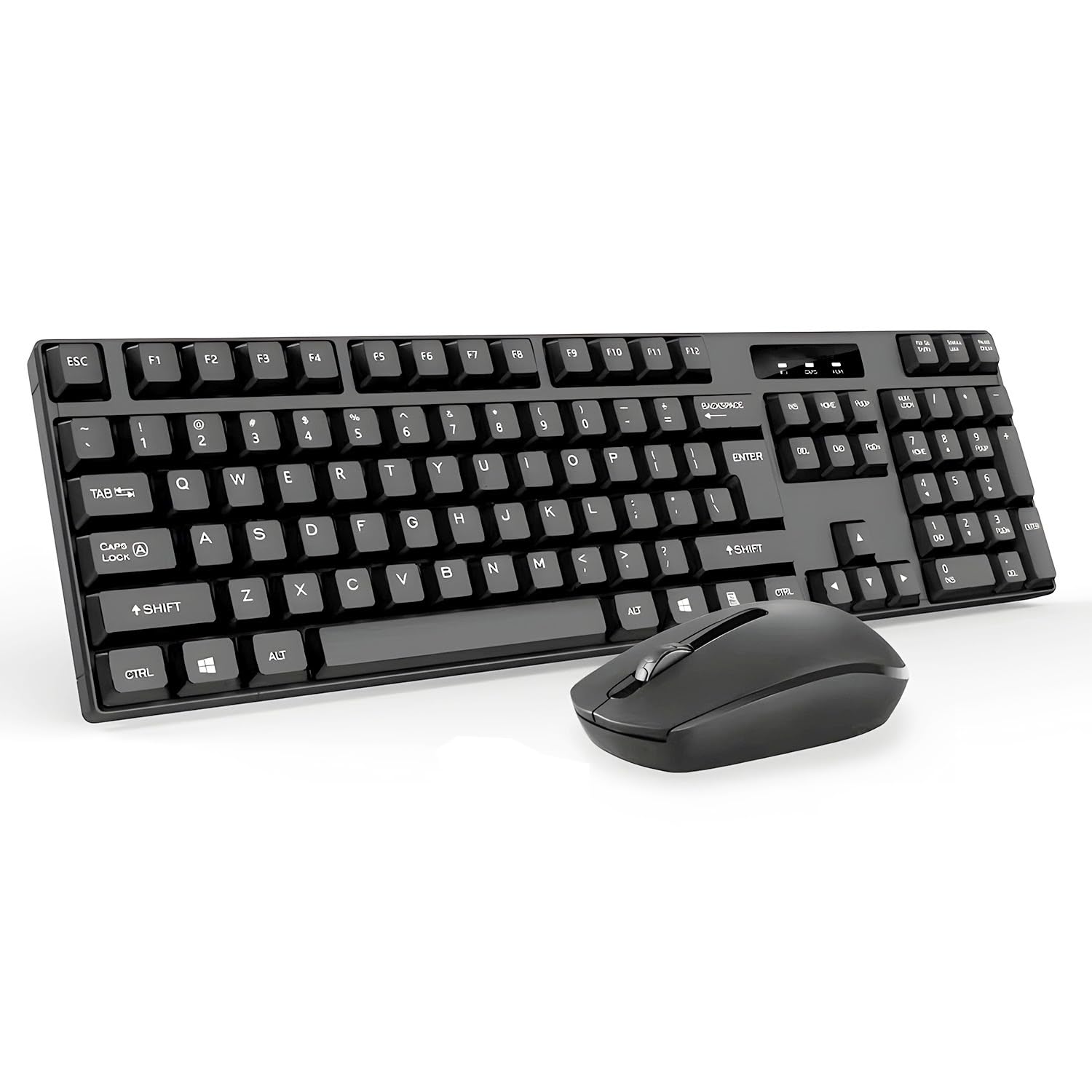
Figure 3: The keyboard and mouse utilize advanced 2.4GHz wireless technology for a 10-meter transmission distance.
Operating Instructions
Keyboard Functions
- Standard Layout: The keyboard features a full-sized QWERTY layout with a numeric keypad for efficient data entry.
- Multimedia Keys: Dedicated function keys (F1-F12) often double as multimedia controls (e.g., volume, play/pause, browser home) when pressed in conjunction with the 'Fn' key. Refer to the keycap icons for specific functions.
- Quiet Operation: The keys are designed for smooth and quiet typing, reducing noise in your workspace.
Mouse Functions
- Ergonomic Design: The mouse is contoured to fit comfortably in your hand, reducing strain during prolonged use.
- Adjustable DPI: The mouse offers an adjustable DPI of 1600 for personalized cursor control and precision tracking. A dedicated DPI button (if present) allows cycling through sensitivity settings.
- Scroll Wheel: Use the scroll wheel for easy navigation through documents and web pages.

Figure 4: The ergonomic mouse features 1600 DPI for precise control.
Maintenance
- Cleaning: Use a soft, dry cloth to clean the surfaces of the keyboard and mouse. For stubborn dirt, a slightly damp cloth can be used, ensuring no liquid enters the device.
- Battery Life: To prolong battery life, turn off the keyboard and mouse when not in use for extended periods. The devices feature intelligent power-saving modes.
- Storage: Store the USB receiver inside the mouse when transporting or storing the devices to prevent loss.
Troubleshooting
- No Response:
- Ensure both the keyboard and mouse are turned ON.
- Check if the batteries are correctly installed and have sufficient charge. Replace if necessary.
- Verify the USB receiver is securely plugged into a working USB port on your computer. Try a different USB port.
- Restart your computer.
- Intermittent Connection:
- Move the keyboard and mouse closer to the USB receiver.
- Avoid placing the receiver near other wireless devices (e.g., Wi-Fi routers, Bluetooth devices) that might cause interference.
- Ensure there are no large metal objects between the devices and the receiver.
- Mouse Cursor Jumps/Lag:
- Clean the optical sensor on the bottom of the mouse.
- Use the mouse on a clean, non-reflective surface or a mouse pad.
- Adjust the DPI setting of the mouse.
Warranty and Support
The AQVIN Wireless Keyboard and Mouse Combo comes with a 1-year warranty from the date of purchase. For any product-related inquiries, technical assistance, or warranty claims, please contact our 24/7 Customer Support. Refer to the product packaging or the official AQVIN website for contact details.
Safety Information
- Do not expose the devices to water or excessive moisture.
- Avoid dropping or subjecting the devices to strong impacts.
- Keep out of reach of children.
- Dispose of batteries according to local regulations.