
ZTE NUBIA FLIP 5G
ZTE NUBIA FLIP 5G Smartphone User Manual
Model: NUBIA FLIP 5G
1. Introduction
This manual provides detailed instructions for the safe and efficient use of your ZTE NUBIA FLIP 5G smartphone. The NUBIA FLIP 5G features an innovative foldable design with a 6.9-inch AMOLED 120Hz display, a 50MP camera system, and a 4310mAh battery with 33W fast charging. It is powered by the Snapdragon 7 Gen 1 processor, offering smooth performance for various tasks. Please read this manual thoroughly before operating your device.
2. Package Contents
Verify that all items are present in your product package:
- ZTE NUBIA FLIP 5G Smartphone
- USB Cable
- Charger
- Earphones
- Protective Case
- SIM Ejector Tool
- Quick Start Guide
- Safety Information
3. Device Overview
The ZTE NUBIA FLIP 5G features a unique foldable design with two main screens and essential physical components.
3.1. Physical Components
- Main Foldable Display: 6.9-inch AMOLED FHD+ screen with 120Hz refresh rate.
- External Display: Customizable display for notifications, widgets, and camera previews.
- Rear Cameras: Dual camera system with a 50MP main sensor and a 2MP depth sensor.
- Front Camera: 16MP camera for selfies and video calls.
- Power Button/Fingerprint Sensor: Located on the side for power control and biometric authentication.
- Volume Buttons: Located on the side for adjusting audio levels.
- USB Type-C Port: For charging and data transfer.
- SIM Card Slot: Supports Dual SIM Nano SIM cards.
- Speakers: Integrated for audio output, supporting DTS:X Ultra and Snapdragon Sound.
- Microphones: For calls and voice commands.
3.2. Device Layout
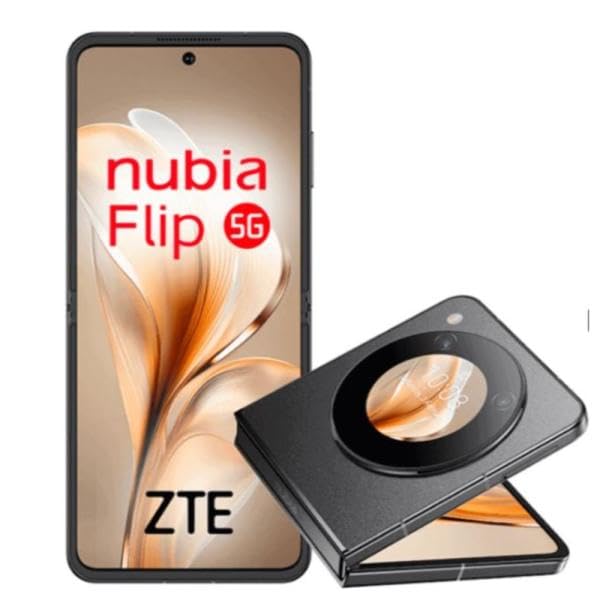
Figure 1: ZTE NUBIA FLIP 5G in folded state, displaying the external screen and rear cameras. This view highlights the compact form factor and the accessible external display.
4. Setup
4.1. Inserting the SIM Card
- Locate the SIM card slot on the side of your device.
- Insert the SIM ejector tool into the small hole next to the SIM tray to open it.
- Place your Nano SIM card(s) into the tray with the gold contacts facing down, ensuring proper orientation. The device supports Dual SIM.
- Gently push the SIM tray back into the slot until it is flush with the device.
4.2. Charging the Battery
- Connect the USB cable to the USB Type-C port at the bottom of the phone.
- Connect the other end of the USB cable to the provided charger.
- Plug the charger into a power outlet.
- The device supports 33W fast charging, allowing for a 50% charge in approximately 18 minutes.
4.3. Powering On/Off
- To Power On: Press and hold the Power button until the ZTE logo appears.
- To Power Off: Press and hold the Power button, then select "Power off" from the options on the screen.
- To Restart: Press and hold the Power button, then select "Restart" from the options.
4.4. Initial Setup
Upon first power-on, follow the on-screen prompts to complete the initial setup, which includes selecting your language, connecting to Wi-Fi, setting up your Google account, and configuring security features like fingerprint or face recognition.
5. Operating Your Device
5.1. Using the Foldable Display
- Unfolding: Gently unfold the device until the main screen is fully open. Avoid excessive force.
- Folding: Gently fold the device until it clicks into its closed position. This activates the external display.
- The main AMOLED display offers a 120Hz refresh rate for smooth visuals, ideal for multimedia and gaming.
5.2. External Display Functions
The external display provides quick access to essential information and functions without unfolding the phone:
- Notifications: View incoming calls, messages, and app alerts.
- Widgets: Customize with various widgets for quick information like weather, calendar, or music controls.
- Camera Preview: Use the external screen as a viewfinder for the rear cameras to take high-quality selfies or group photos.
- Answering Calls: Respond to calls directly from the external display.
5.3. Camera Operation
- Rear Camera: The 50MP main camera and 2MP depth sensor capture detailed photos and videos. Open the camera app and select your desired mode.
- Front Camera: The 16MP front camera is suitable for selfies and video conferencing.
- Quick Access: Cameras can be activated quickly even from the external screen.
5.4. Security Features
- Fingerprint Recognition: Use the side-mounted fingerprint sensor for quick and secure unlocking.
- Face Recognition: Unlock your device using your face.
- Configure these options in the device settings under "Security & Privacy".
5.5. NFC for Payments
The device supports NFC (Near Field Communication) for fast and secure mobile payments. Ensure NFC is enabled in settings and configure your preferred payment app.
5.6. Audio Experience
Experience high-quality audio with DTS:X Ultra and Snapdragon Sound. Connect your earphones via the 3.5mm jack or Bluetooth for an immersive sound experience.
6. Maintenance
6.1. Caring for the Foldable Screen
- Avoid pressing the screen with sharp objects or excessive force.
- Keep the screen free from dust and debris, especially in the hinge area.
- Do not apply screen protectors not specifically designed for foldable displays.
- Avoid exposing the device to extreme temperatures or direct sunlight for prolonged periods.
6.2. Battery Care
- Use only the original ZTE charger and USB cable for optimal charging performance and safety.
- Avoid fully discharging the battery frequently.
- Do not expose the battery to high temperatures.
6.3. Cleaning Your Device
- Use a soft, lint-free cloth to wipe the screen and body of the phone.
- Do not use harsh chemicals or abrasive materials.
- Avoid getting moisture into ports or openings. The device is not water-resistant.
7. Troubleshooting
This section addresses common issues you might encounter with your ZTE NUBIA FLIP 5G.
7.1. Device Not Powering On
- Ensure the battery is charged. Connect the charger and wait a few minutes before attempting to power on.
- Press and hold the Power button for at least 10-15 seconds to force a restart.
7.2. Screen Unresponsive or Frozen
- Force restart the device by pressing and holding the Power button.
- If the issue persists, try clearing the cache partition (refer to online resources for specific steps for your Android version) or performing a factory reset (Note: This will erase all data).
7.3. Foldable Screen Issues
- If the screen does not unfold or fold smoothly, do not force it.
- Check for any foreign objects in the hinge mechanism.
- If the screen exhibits display anomalies (e.g., lines, dead pixels) after folding/unfolding, contact customer support.
7.4. Poor Battery Life
- Close unused apps running in the background.
- Reduce screen brightness and set a shorter screen timeout.
- Disable unnecessary features like GPS, Bluetooth, or Wi-Fi when not in use.
- Check battery usage in settings to identify power-hungry apps.
7.5. Network Connectivity Issues
- Ensure your SIM card is correctly inserted and activated.
- Toggle Airplane Mode on and off.
- Restart the device.
- Check network settings (APN, preferred network type) or contact your service provider.
8. Specifications
| Feature | Detail |
|---|---|
| Brand | ZTE |
| Model Name | NUBIA FLIP 5G |
| Operating System | Android |
| RAM | 8 GB |
| Internal Storage | 256 GB |
| CPU Model | Snapdragon 7 Gen 1 |
| CPU Speed | 2.4 GHz |
| Main Display Size | 6.9 Inches |
| Main Display Resolution | 1920 x 1080 (FHD+) |
| Main Display Refresh Rate | 120 Hz |
| Display Type | AMOLED |
| Rear Camera Resolution | 50 Megapixels (Main) + 2 Megapixels (Depth) |
| Front Camera Resolution | 16 Megapixels |
| Battery Capacity | 4310 mAh |
| Charging Speed | 33W Fast Charging |
| SIM Card Type | Nano SIM (Dual SIM) |
| Biometric Security | Fingerprint Recognition, Face Recognition |
| Connectivity | 5G, LTE, Wi-Fi, Bluetooth, NFC |
| USB Port | USB Type-C |
| Headphone Jack | 3.5 mm |
| Water Resistance | Not Water Resistant |
9. Warranty and Support
Your ZTE NUBIA FLIP 5G smartphone is covered by a limited warranty. Please refer to the warranty card included in your package or visit the official ZTE website for detailed warranty terms and conditions specific to your region.
For technical support, service, or further assistance, please visit the official ZTE support website or contact their customer service. Keep your proof of purchase for warranty claims.
Official ZTE Website: https://www.zte.com.cn/global/
Related documentsNUBIA FLIP 5G


Ask a question about this manual
Ask about setup, troubleshooting, compatibility, parts, safety, or missing instructions. Manuals+ will review the question and use this page’s manual context to help answer it.