Introduction
This manual provides essential instructions for the setup, operation, maintenance, and troubleshooting of your ECOVACS T50 Omni Robot Vacuum and Mop. Please read this manual thoroughly before using the product to ensure safe and efficient operation.

Image: The ECOVACS T50 Omni Robot Vacuum docked in its OMNI Station.
1. Setup
1.1 Unboxing and Component Check
Carefully remove all components from the packaging. Verify that all items listed in the product's packing list are present and undamaged.
1.2 OMNI Station Placement
Place the OMNI Station on a hard, level surface against a wall. Ensure there is at least 0.5 meters (1.6 feet) of clear space on both sides and 1.5 meters (4.9 feet) in front of the station for optimal robot navigation and docking.
1.3 Initial Charging
Place the robot onto the OMNI Station. The robot will automatically begin charging. Allow the robot to fully charge before its first use. The indicator light on the robot will show charging status.
1.4 App Installation and Mapping
- Download the ECOVACS HOME app from your mobile device's app store.
- Follow the in-app instructions to connect your T50 Omni to your Wi-Fi network.
- Initiate the mapping process through the app. The robot will navigate your home to create a detailed map, which is crucial for efficient cleaning and advanced features.

Image: The robot vacuum using TrueMapping 2.0 for intelligent navigation and real-time path planning.
2. Operating Instructions
2.1 Cleaning Modes
The ECOVACS T50 Omni offers various cleaning modes accessible via the ECOVACS HOME app:
- Auto Clean: The robot intelligently cleans your entire mapped area.
- Area Clean: Select specific rooms or zones to clean.
- Custom Clean: Draw a custom area on the map for the robot to clean.
- Vacuum Only: The robot will only vacuum, lifting its mop pads when on carpets.
- Mop Only: The robot will only mop, avoiding carpets.
- Vacuum & Mop: The robot performs both vacuuming and mopping simultaneously.
2.2 Adjusting Cleaning Settings
Within the ECOVACS HOME app, you can customize:
- Suction Power: Choose from multiple levels (e.g., Quiet, Standard, Max, Max+). The T50 Omni features up to 15,000 Pa suction.
- Water Flow Rate: Adjust the amount of water used for mopping.
- Cleaning Passes: Select the number of times the robot cleans an area.

Image: The robot vacuum showcasing its powerful 15,000 Pa suction and ZeroTangle 2.0 brush system.
2.3 Smart Features
- AIVI 3D 2.0 Obstacle Avoidance: The robot uses advanced sensors to detect and avoid objects, preventing collisions and entanglement.
- TruEdge 2.0 Adaptive Edge Mopping: The extendable side brush and mop plate ensure thorough cleaning along edges and in corners.
- Carpet Detection: The robot automatically detects carpets and lifts its mop pads to prevent wetting while vacuuming.
- YIKO Voice Assistant: Control the robot with voice commands. The T50 Omni is also compatible with Google Home and Amazon Alexa.
- Scheduled Cleaning: Set specific times for the robot to clean automatically.

Image: The robot vacuum utilizing AIVI 3D obstacle avoidance to navigate around furniture.
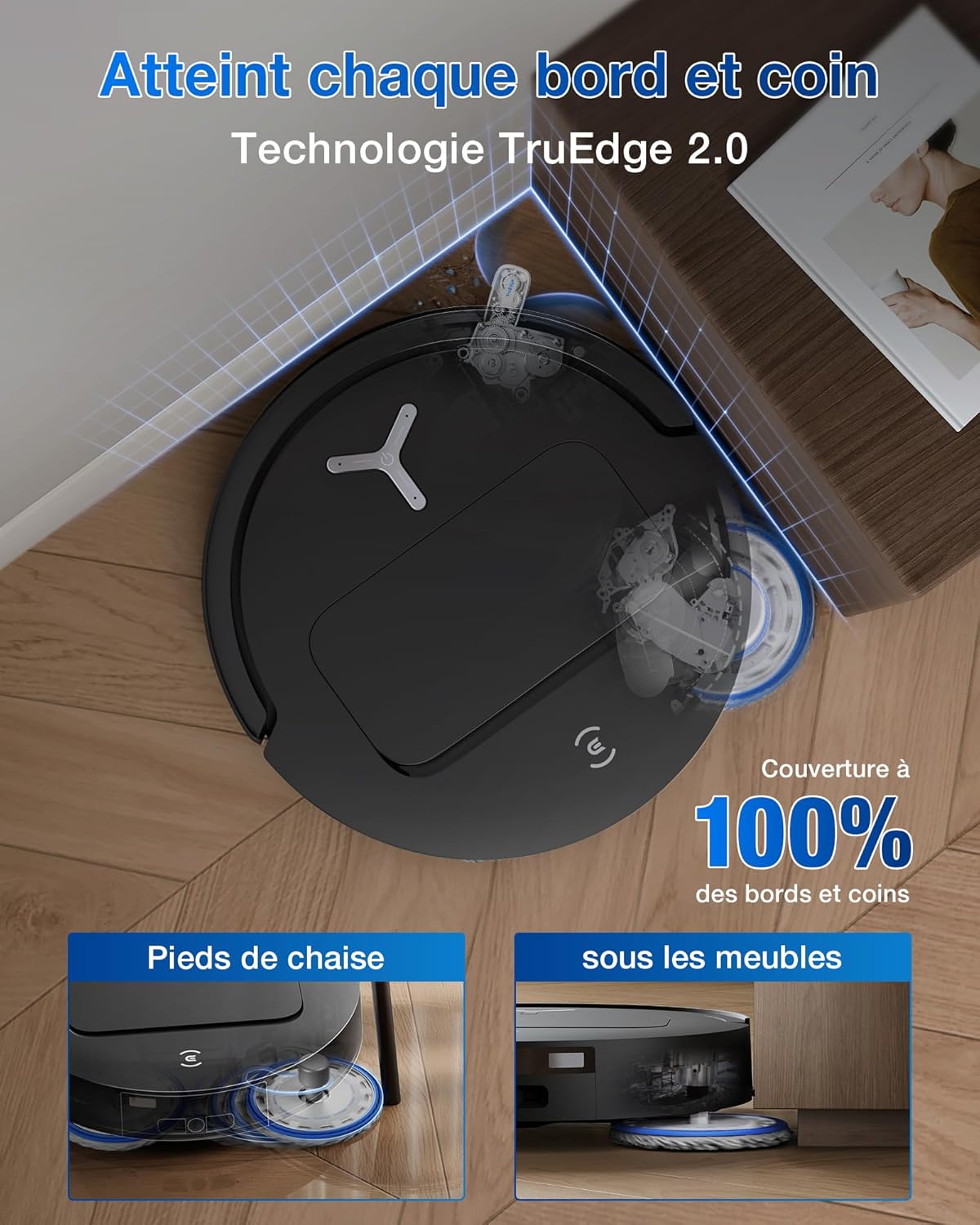
Image: The robot vacuum's TruEdge 2.0 technology extending to clean tight corners and edges.

Image: Various control options for the ECOVACS T50 Omni, including smartphone app, voice assistants, and smartwatches.
3. Maintenance
Regular maintenance ensures optimal performance and extends the lifespan of your ECOVACS T50 Omni.
3.1 OMNI Station Maintenance
- Auto-Emptying: The station automatically empties the robot's dustbin into a sealed dust bag. Replace the dust bag when full.
- Hot Water Mop Washing (75°C): The station washes the mop pads with 75°C hot water.
- Hot Air Drying (45°C): After cleaning, the station dries the mop pads with 45°C hot air to prevent odors.
- Auto Base Cleaning: The station's base is automatically cleaned to maintain hygiene.
- Clean Water Tank: Refill the clean water tank with fresh water as needed.
- Dirty Water Tank: Empty the dirty water tank regularly.
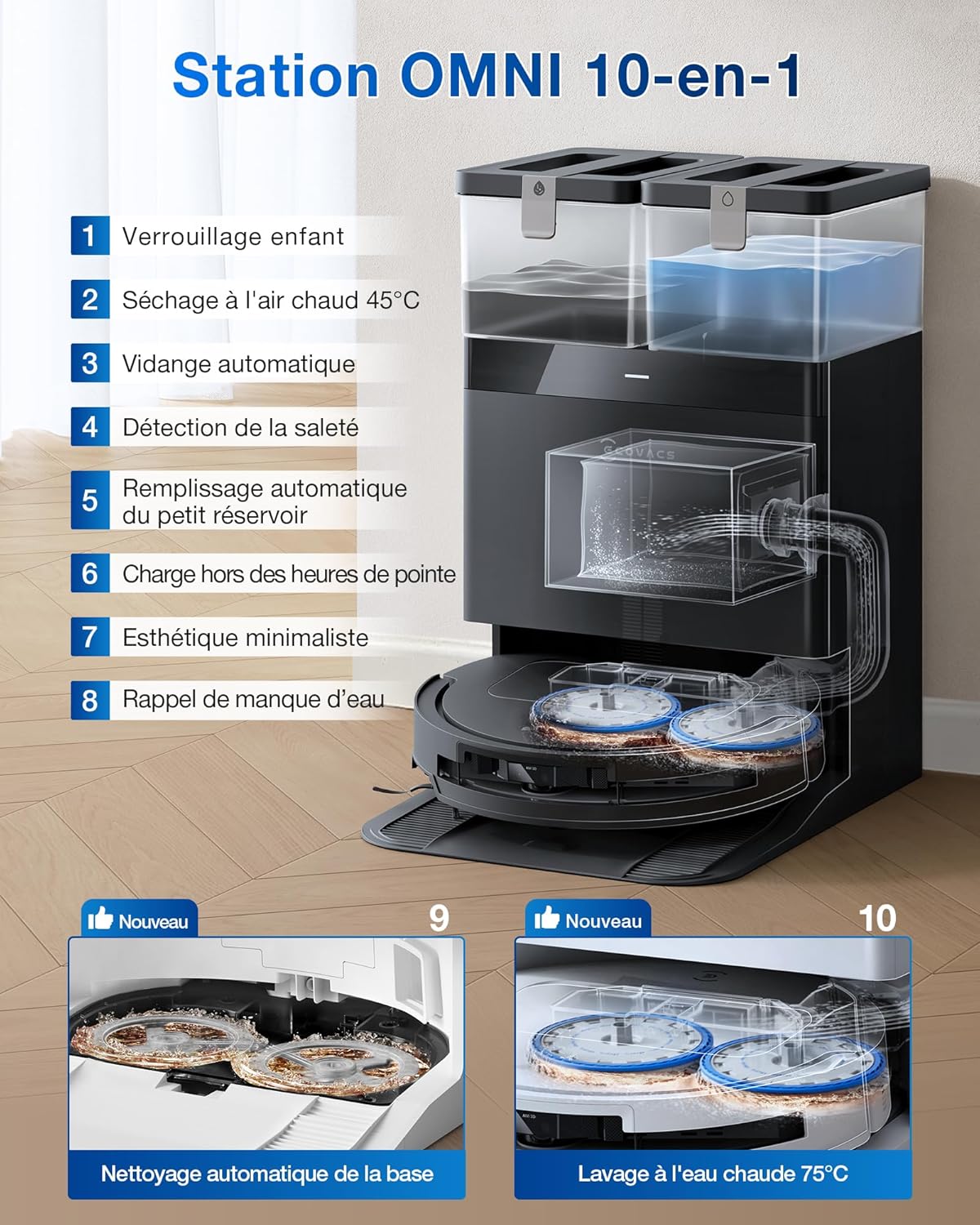
Image: Diagram illustrating the 10-in-1 features of the OMNI Station, including auto-emptying, hot water mop washing, and hot air drying.
3.2 Robot Maintenance
- Mop Pads: Remove and clean the mop pads after each use, or replace them when worn.
- Main Brush: Periodically remove hair and debris from the main brush. The ZeroTangle 2.0 technology minimizes entanglement, but occasional cleaning is still recommended.
- Side Brushes: Check for wear and tear, and replace if necessary.
- Filter: Clean the HEPA filter regularly. Replace it according to the manufacturer's recommendations or when cleaning efficiency decreases.
- Sensors: Wipe all sensors (cliff sensors, anti-collision sensors) with a clean, dry cloth to ensure proper navigation.

Image: The robot vacuum performing deep cleaning with OZMO TURBO 2.0 mopping system, demonstrating automatic mop lifting for carpets.
4. Troubleshooting
If you encounter issues with your ECOVACS T50 Omni, refer to the following common problems and solutions:
| Problem | Possible Cause | Solution |
|---|---|---|
| Robot does not start or respond. | Low battery, power switch off, robot stuck. | Ensure robot is charged, power switch is on, and clear any obstructions. |
| Robot gets stuck frequently. | Obstacles, cluttered area, dirty sensors. | Clear the cleaning area, clean all sensors, update map in app. |
| Poor cleaning performance. | Full dustbin, dirty brushes/filter, low suction setting. | Empty dustbin, clean/replace brushes and filter, increase suction power in app. |
| Mop pads not cleaning effectively. | Dirty mop pads, low water flow, empty clean water tank. | Clean/replace mop pads, increase water flow in app, refill clean water tank. |
| Water leakage from station. | Improper tank placement, damaged seal. | Ensure water tanks are correctly seated. If issue persists, contact customer support. |
| Mapping inaccuracies. | Robot moved manually during mapping, sensor obstruction. | Ensure robot completes mapping without interruption. Clean LiDAR sensor. |
For further assistance, consult the ECOVACS HOME app or the official ECOVACS support website.
5. Specifications
| Feature | Detail |
|---|---|
| Brand | ECOVACS |
| Model Number | T50 OMNI |
| Color | Black |
| Product Dimensions (Robot) | 35 x 47.7 x 53.3 cm (L x W x H) |
| Robot Height | 81 mm (Ultra-thin design) |
| Item Weight | 11.3 Kilograms |
| Suction Power | Up to 15,000 Pa |
| Battery Life | 180 minutes |
| Filter Type | HEPA |
| Special Features | Automatic Dust Collection, Edge Cleaning, Automatic Mop Washing, Intelligent Mop Lifting, Advanced Customized Cleaning, AIVI 3D 2.0 Obstacle Avoidance, ZeroTangle 2.0 Brush, 75°C Hot Water Mop Washing, 45°C Hot Air Drying |
| Compatibility | Smartphone (ECOVACS HOME App), Google Home, Amazon Alexa |
| Components Included | Charging Adapter, Battery, Side Brush, Floor Brush, Filter, Instruction Guide, Water Tank, Vacuum Bag, Mop, Cleaning Solution, Docking Station, Cleaning Pad |
6. Warranty and Support
6.1 Warranty Information
For detailed warranty information, please refer to the warranty card included with your product or visit the official ECOVACS website. Keep your purchase receipt as proof of purchase for warranty claims.
6.2 Customer Support
If you require technical assistance, have questions about your product, or need to report an issue, please contact ECOVACS customer support through their official website or the ECOVACS HOME app. Provide your product model number and purchase details for faster service.


