
UNITOPSCI A4034A3
UNITOPSCI 10.4 Inch Single Din Adjustable Vertical Car Stereo
User Manual
Model: A4034A3 | Brand: UNITOPSCI
1. Introduction
This manual provides detailed instructions for the installation, operation, and maintenance of your UNITOPSCI 10.4 Inch Single Din Adjustable Vertical Car Stereo. Please read this manual thoroughly before using the product to ensure proper function and safety.
Key Features:
- 10.4 Inch IPS 1280*480 Vertical Touchscreen with Detachable & Adjustable Design
- Wireless CarPlay & Android Auto Support
- Bluetooth 5.2 for Hands-Free Calling and Audio Streaming
- FM/AM/RDS Radio with EQ Adjustments
- USB & TF Card Playback and Charging
- Mirror Link Functionality
- Support for Rear View Camera and Steering Wheel Control (SWC)
- Seven Color Backlight Options

Figure 1.1: Overview of the UNITOPSCI 10.4 Inch Car Stereo with included backup camera and smartphone integration icons.
2. What's in the Box
Please check the contents of your package against the list below:
- 1 x Car MP5 Player
- 1 x Power Cable
- 1 x Horn Cable
- 1 x MIC
- 1 x Mounting Bracket
- 1 x User Manual
- 1 x D-BUS Cable
- 1 x 12 LEDs Backup Camera
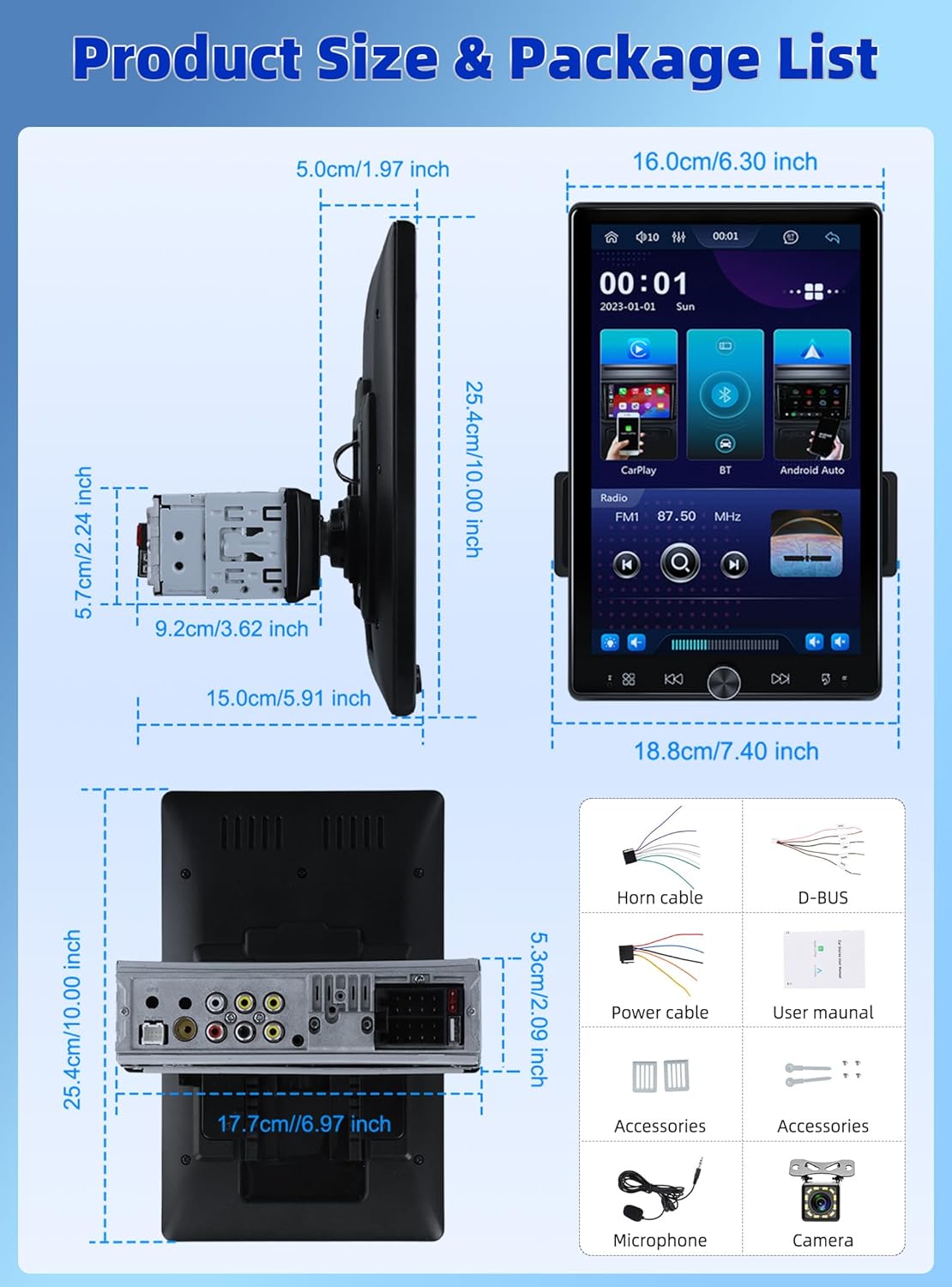
Figure 2.1: Diagram showing the dimensions of the car stereo and a visual representation of the included package contents.
3. Setup and Installation
Proper installation is crucial for optimal performance. It is recommended to have this unit installed by a professional.
3.1 Screen Adjustment
The 10.4-inch floating touchscreen is designed for adjustability to provide the best viewing angle. It can be adjusted in three directions:
- Approximately 30° front/rear tilt
- Approximately 30° left/right tilt
- Approximately 5cm vertical movement

Figure 3.1: Illustration of the adjustable and floating design of the 10.4-inch touchscreen, highlighting tilt and vertical movement capabilities.
3.2 Rear View Camera Wiring
To enable the automatic display of the reversing video, connect the included rear view camera according to the diagram below. Ensure the trigger wire (labeled "back" or "reverse" on the power cable) is connected to the reversing light positive.
- The rear camera features 12 LED lights for clear images in various conditions.
- A 170° horizontal wide angle provides a comprehensive view.

Figure 3.2: Detailed wiring diagram for connecting the rear view camera to the car stereo system.
4. Operating Instructions
4.1 Wireless CarPlay & Android Auto
Connect your smartphone wirelessly or via USB to access CarPlay or Android Auto. This allows seamless integration of your phone's contacts, GPS navigation, music, and other applications directly on the car stereo screen.

Figure 4.1: Display showing the Wireless CarPlay and Android Auto interfaces, including voice assistant prompts.
4.2 Bluetooth 5.2 Connectivity
The unit features advanced Bluetooth 5.2 technology for faster and more stable connections. Use Bluetooth for hands-free calling and streaming music with lossless sound quality.

Figure 4.2: Screenshots illustrating the Bluetooth 5.2 interface for hands-free calls and music playback.
4.3 FM/RDS Radio and EQ
Enjoy digital stereo FM radio with 18 preset stations. The RDS function provides real-time road conditions, news, and weather. Customize your audio experience using the multi-band EQ mode.

Figure 4.3: Visuals of the FM/RDS radio interface and the adjustable equalizer settings.
4.4 USB & TF Card Functionality
The unit supports USB for media playback and phone charging. The TF card slot allows for playing various audio formats.
4.5 Knob Control and Backlight
A physical knob provides easy adjustment for volume, mute, and power on/off. The unit also features seven customizable backlight colors to match your car's interior.

Figure 4.4: Depiction of the various interfaces, USB charging capability, the adjustable knob, and the seven-color backlight feature.
4.6 Steering Wheel Control (SWC)
If your vehicle supports it, connect the SWC wires to control various functions (e.g., switch songs, adjust volume) directly from your steering wheel for convenience and safety.
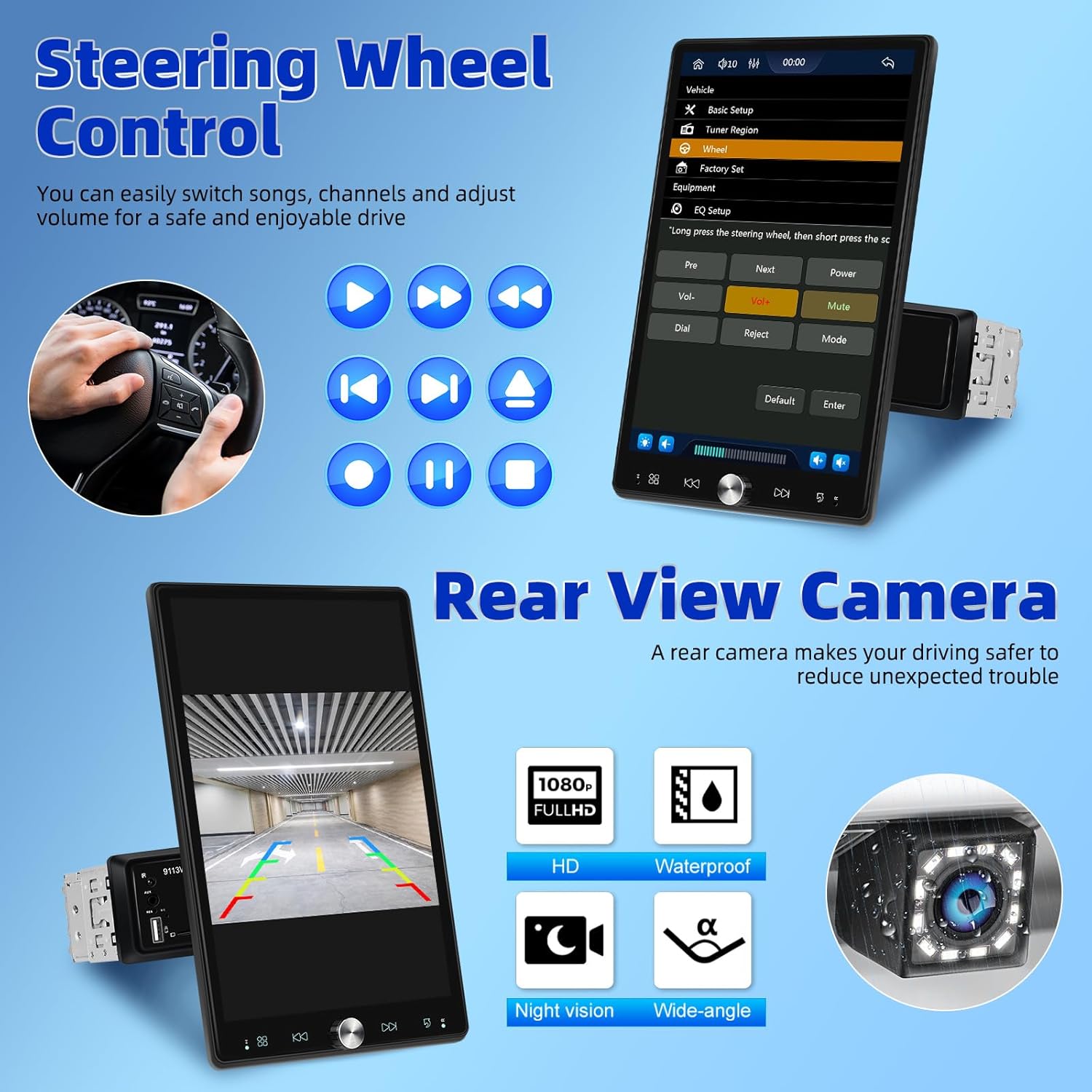
Figure 4.5: Illustration of steering wheel control functionality and the display of the rear view camera feed.
4.7 Mirror Link
The mirror link function allows you to display your smartphone's screen directly onto the car stereo's display.
5. Maintenance
To ensure the longevity and optimal performance of your car stereo, follow these maintenance guidelines:
- Cleaning: Use a soft, dry cloth to clean the screen and exterior. For stubborn smudges, slightly dampen the cloth with water. Avoid abrasive cleaners or solvents.
- Temperature: Do not expose the unit to extreme temperatures, direct sunlight for prolonged periods, or high humidity.
- Ventilation: Ensure that the ventilation openings are not blocked to prevent overheating.
- Power: Disconnect power before performing any cleaning or maintenance.
6. Troubleshooting
If you encounter issues with your car stereo, refer to the following common problems and solutions:
| Problem | Possible Cause | Solution |
|---|---|---|
| No power | Loose power connection; Blown fuse | Check power cables and connections; Inspect and replace fuse if necessary. |
| No sound | Volume too low; Mute activated; Speaker wiring issue | Increase volume; Deactivate mute; Check speaker connections. |
| Bluetooth not connecting | Bluetooth off on device/stereo; Pairing mode not active | Ensure Bluetooth is enabled on both devices; Put stereo into pairing mode; Delete previous pairings and re-pair. |
| CarPlay/Android Auto not working | Incorrect USB cable; Software glitch; Phone compatibility | Use original or certified USB cable; Restart phone and stereo; Check phone's compatibility with CarPlay/Android Auto. |
| Rear camera not displaying | Incorrect wiring; Camera malfunction | Verify all camera wiring, especially the trigger wire; Test camera with another display if possible. |
If the problem persists after trying these solutions, please contact UNITOPSCI customer support.
7. Specifications
| Feature | Specification |
|---|---|
| Product Dimensions | 5.91 x 7.4 x 10 inches (15.0 x 18.8 x 25.4 cm) |
| Item Weight | 2.2 pounds (1 Kilogram) |
| Model Number | A4034A3 |
| Connectivity Technology | Auxiliary, Bluetooth, USB |
| Controller Type | Hand Control |
| Compatible Devices | Smartphone, Speaker |
| Connector Type | USB Type A |
| Audio Output Mode | Mono |
| Output Power | 180 Watts |
| Screen Size | 10.4 Inch |
| Screen Resolution | 1280*480P |
8. Warranty and Support
UNITOPSCI is committed to providing high-quality products and satisfactory services. Your product comes with the following support:
- Replacement Available: Within 24 Months of purchase.
- Quick Response: Customer support aims to respond within 16 hours.
- Lifetime After-Sales: Consult and Technical Support.
- Return Policy: 60-days No Worry to Return.
For online support, please contact us at: UNITOPSCI@126.com


Figure 8.1: Information regarding UNITOPSCI's customer support, warranty, and contact details.
Ask a question about this manual
Ask about setup, troubleshooting, compatibility, parts, safety, or missing instructions. Manuals+ will review the question and use this page’s manual context to help answer it.